Press Windows + W to open the Widgets board, select + to add a widget, and use the three-dot More options button on any widget to remove it or set it to Small, Medium or Large; drag a widget by its header to move it.
This guide covers each of the four changes step by step, plus the weather location, extra widgets from the Microsoft Store, the taskbar button and fixes for a Widgets board that will not work.
How to customize Windows widgets on the Widgets board
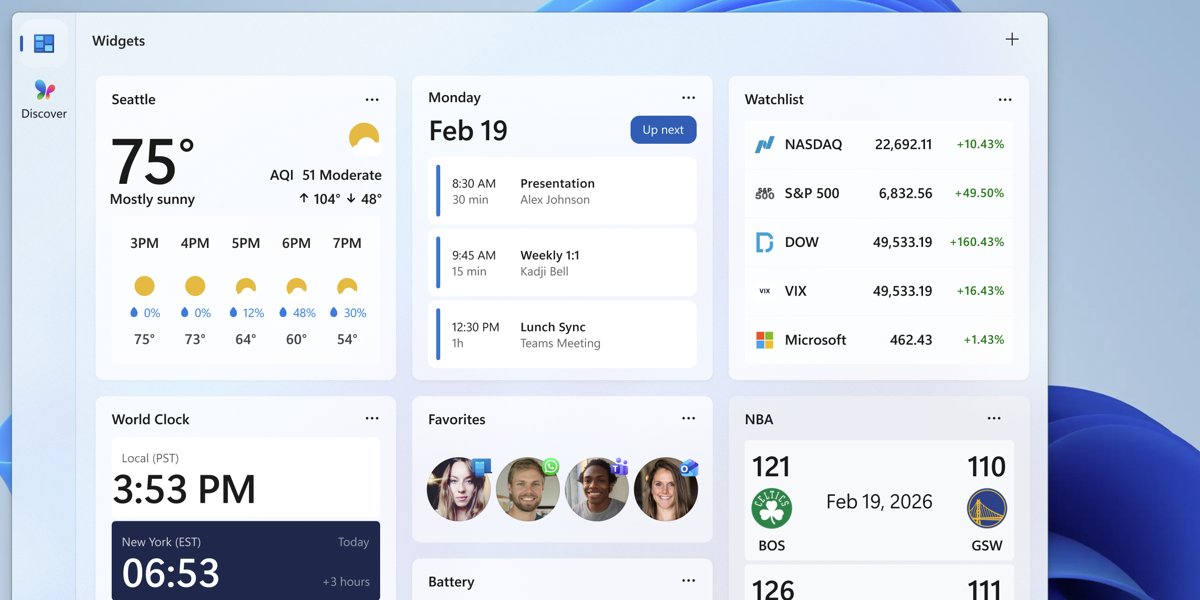
Every change happens on the Widgets board, the panel that slides over the desktop. Open it with Windows + W, then match the change you want to a row.
| What you want to do | What to select | Good to know |
|---|---|---|
| Add a widget | + on the Widgets board, then the widget in the picker | The picker lists widgets already installed on the PC |
| Remove a widget | More options (three dots) on the widget > Remove widget | The app behind the widget stays installed |
| Resize a widget | More options > Small, Medium or Large | Some widgets offer only one or two sizes |
| Move a widget | Drag the widget by its header | Widgets move only within the pinned section |
| Change what a widget shows | More options > Customize widget | For example the weather city or a stocks watchlist |
How to open the Widgets board in Windows 11
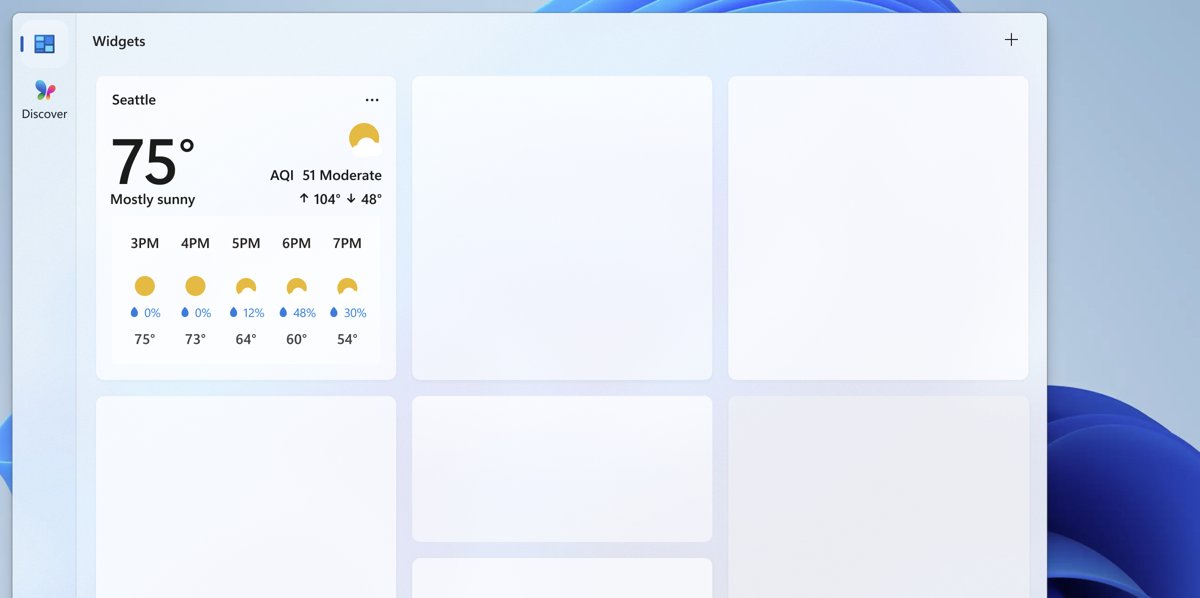
Windows 11 shows installed widgets in a grid on the Widgets board. There are three ways to open it, and all of them reach the same board.
- Press Windows + W on the keyboard.
- Or select the Widgets area on the taskbar, which usually shows the current weather.
- Or, on a touch screen, swipe in from the left edge of the screen.
- Look for the pinned widgets at the top of the board. These are the widgets you add, remove, resize and move.
Windows + W still opens the board after you hide the Widgets button from the taskbar.
How to add widgets in Windows 11
The widget picker shows every widget that an installed app provides. If the widget you want is not listed, install its app first.
- Press Windows + W to open the Widgets board.
- Select the + button on the board to open the widget picker.
- Scroll the list and select the widget you want to add.
- Choose a size if the picker offers one, then add the widget to the board.
- Close the picker. The new widget appears in the pinned section of the board.
To add a widget that the picker does not show, open the Widgets page in the Microsoft Store, install the app that provides it, then return to the picker.
How to remove a widget in Windows 11
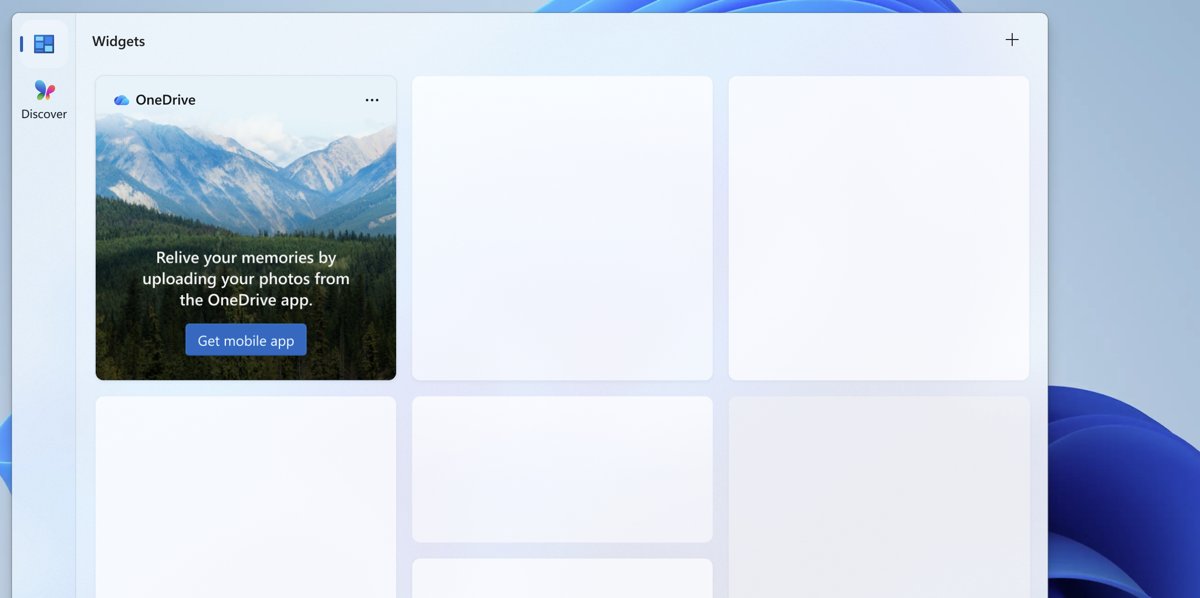
Removing a widget takes it off the board only. The app that provides it stays installed, so you can add the widget back from the picker later.
- Press Windows + W to open the Widgets board.
- Point at the widget you want to remove.
- Select the More options button, the three dots in the upper corner of the widget.
- Select Remove widget.
- Repeat for any other widget you no longer want on the board.
To get rid of a widget for good, uninstall the app that provides it from Settings.
How to resize widgets in Windows 11
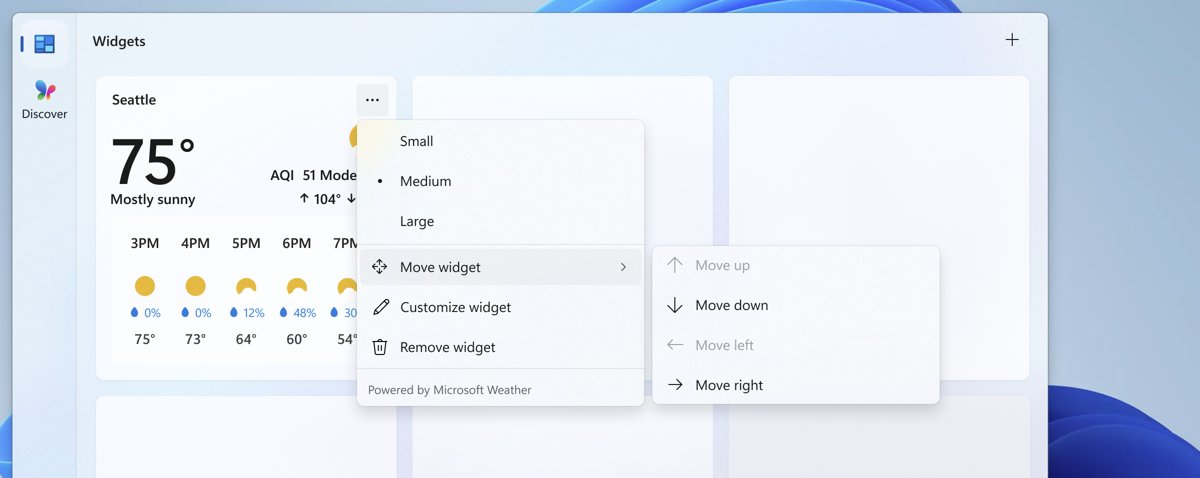
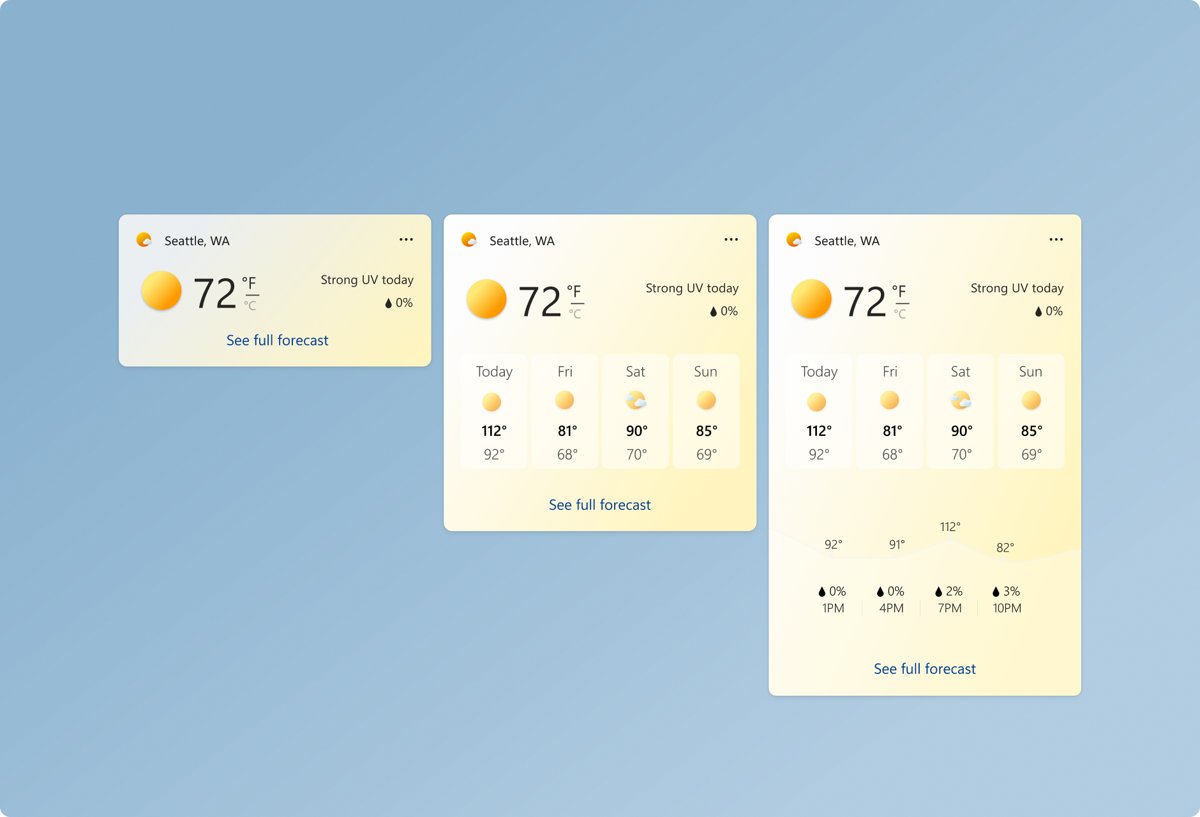
Windows widgets support up to three sizes: small, medium and large. A larger size shows more of the same content, such as a longer forecast or more headlines.
- Press Windows + W to open the Widgets board.
- Select the More options button in the upper corner of the widget.
- Select Small, Medium or Large.
- Check the board. The widget redraws at the new size and the widgets around it move to make room.
The menu lists only the sizes the widget's app supports. If Large is missing, that widget has no large layout, and dragging its edges does not resize it.
How to move widgets in Windows 11
The Widgets board manages the layout of its grid, so you move a widget by dragging it rather than by picking a position from a menu.
- Press Windows + W to open the Widgets board.
- Point at the header of the widget you want to move, the strip with its name and icon.
- Press and hold the left mouse button, or touch and hold on a touch screen.
- Drag the widget to a new spot within the pinned section.
- Release it. The other widgets shift to fill the gap.
Widgets move only within the pinned section. You cannot drag a widget into the news feed, onto the desktop or onto the taskbar.
How to change the weather widget location in Windows 11
Customize widget changes what a widget shows rather than where it sits. The Weather widget uses it to set a city, and the Stocks widget uses it to edit the watchlist.
- Press Windows + W to open the Widgets board.
- Select the More options button on the Weather widget.
- Select Customize widget.
- Enter the city you want in the location setting and select it from the matches.
- Save the change and close the dialog. The widget shows the forecast for the new location.
If Customize widget is missing from the menu, that widget's app does not offer settings on the board. Open the app itself to change them.
How to add custom widgets to Windows 11
Each widget comes from a widget provider: an app installed on the PC. To get more widgets, install an app that provides them, and they appear in the picker.
| Where the widget comes from | How you get it | Notes |
|---|---|---|
| Built-in Microsoft widgets (Weather, Stocks, Photos and others) | Already in the picker | Updated through the Windows Web Experience Pack |
| Microsoft Store apps | Install the app from the Widgets page in the Microsoft Store | The widget appears in the picker after the install |
| Packaged desktop apps | Install the app from its publisher | Only apps that include a widget provider add widgets |
| Progressive web apps (PWAs) | Install the web app from Microsoft Edge | Only web apps whose manifest defines widgets add them |
| Web widgets that show a site's HTML | Install the providing app | Available only in the European Economic Area |
Select More on a widget to see its Powered by message, which names the app or service behind it.
Can you add widgets to the Windows 11 desktop?
Use the Widgets board for built-in widgets, and a third-party desktop gadget app only if you need widgets on the desktop itself. Windows 11 shows widgets on the Widgets board, a flyout that overlays the desktop, and the board manages where each widget sits. Dragging a widget off the board does not place it on the desktop.
Older apps that recreate desktop widgets and a sidebar on Windows 11 fill that gap, but they are separate programs and do not use the Widgets board.
Widgets on taskbar settings in Windows 11
Widgets settings live in two places: Taskbar settings for the taskbar button, and the settings button on the Widgets board navigation bar for everything else.
| Setting | Where to find it | What it does |
|---|---|---|
| Widgets | Right-click the taskbar > Taskbar settings > Taskbar items | Shows or hides the Widgets button on the taskbar |
| Open Widgets board on hover | Widgets board > settings button on the navigation bar | Opens the board when you point at the taskbar button |
| Discover | Widgets board settings > Dashboards | Turn it off to remove the Discover news dashboard from the navigation bar |
| Show badges on the taskbar | Widgets board settings > More settings > Notifications | Turns the alert badges on the taskbar button on or off |
| Show badges on the navigation bar | Widgets board settings > More settings > Notifications | Turns badges next to each dashboard on or off |
| Dashboard notifications | Widgets board settings > More settings > Notifications | Turns notifications on or off per dashboard |
Badges and announcements stay hidden on the taskbar during a focus session. To stop the board popping open by accident, turn off open on hover.
How to remove widgets from the taskbar in Windows 11
Hiding the taskbar button keeps your widgets and their layout. You can still open the board with Windows + W.
- Right-click an empty part of the taskbar.
- Select Taskbar settings.
- Under Taskbar items, turn Widgets to Off.
- To put widgets back on the taskbar, return to the same page and turn Widgets to On.
On Pro, Enterprise and Education PCs, an administrator can turn widgets off with Group Policy or the Registry. That removes the whole widgets experience, not just the taskbar button.
Windows 11 widgets not working or not showing on the taskbar
Widgets not showing on the taskbar
The Widgets toggle under Taskbar items is off.
- Right-click the taskbar and select Taskbar settings.
- Turn Widgets to On under Taskbar items.
- Press Windows + W to check that the board itself opens.
Widgets not in taskbar settings, or taskbar widgets in Windows 11 are disabled
The Allow widgets policy is set to disabled, which turns off the whole widgets experience, including the taskbar.
- On a work or school PC, ask the IT administrator, because the policy is managed centrally.
- On your own Pro, Enterprise or Education PC, press Windows + R, type
gpedit.mscand press Enter. - Go to Computer Configuration > Administrative Templates > Windows Components > Widgets.
- Open Allow widgets, select Not Configured or Enabled, then select OK and restart the PC.
Windows 11 taskbar widgets not working, or the board opens blank
The Windows Web Experience Pack, which delivers widgets, is out of date.
- Open the Microsoft Store app and select Library in the bottom-left corner.
- Find Windows Web Experience Pack in the list.
- Select Update if it is offered. No Update button means you already have the latest version.
- Install any updates under Settings > Windows Update, then restart the PC.
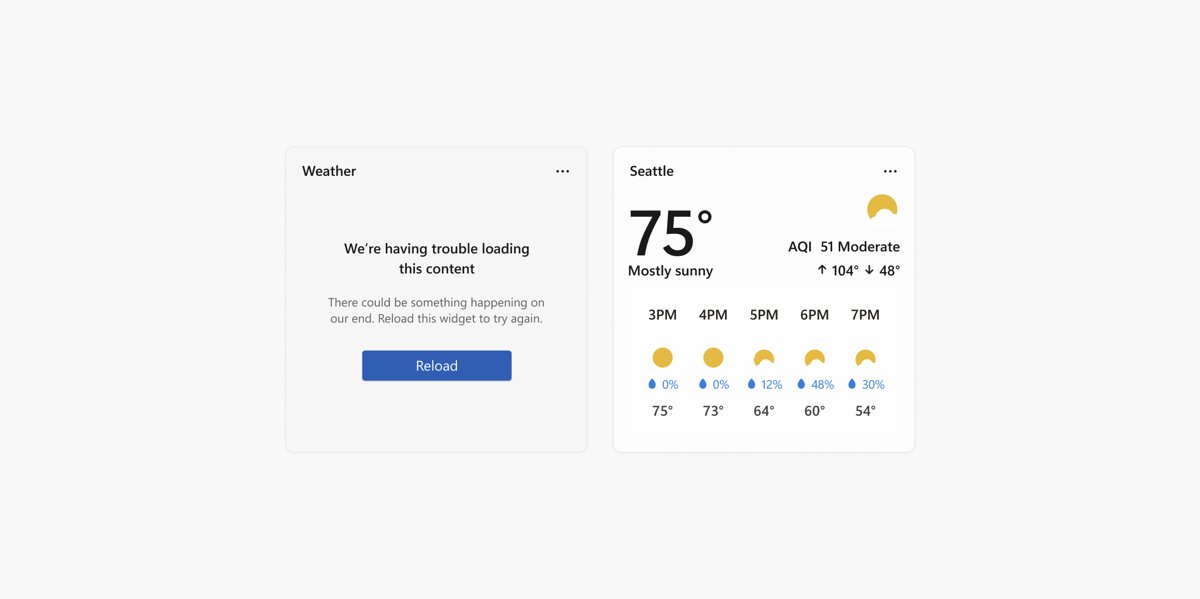
A widget shows an error message and a reload button
The Widgets board could not get the widget's layout or data, often because the PC is offline.
- Check that the PC is connected to the internet.
- Select the reload button in the widget.
- Remove the widget and add it again from + if the error stays.
Weather widget has the wrong location
The widget is set to a different city, or it follows a location you did not choose.
- Select More options on the Weather widget and select Customize widget.
- Search for your city and save it.
- Restart the PC if the taskbar weather still shows the old city.
A widget will not resize or move
The widget supports fewer sizes, or you are dragging it outside the pinned section.
- Open More options and check which sizes the menu lists.
- Drag the widget by its header, not by its content.
- Drop it inside the pinned section of the board.
Windows 11 widgets FAQ
How do I add widgets on Windows?
Press Windows + W to open the Widgets board, select the + button and pick a widget from the picker. It lands in the pinned section. If a widget is missing from the picker, install the app that provides it from the Widgets page in the Microsoft Store.
How do I customize Windows widgets?
Select the three-dot More options button on a widget. From that menu you can pick Small, Medium or Large, remove the widget, or select Customize widget to change its content, such as the weather city. Drag the widget by its header to change its position.
How do I remove widgets from the taskbar?
Right-click the taskbar, select Taskbar settings and turn Widgets off under Taskbar items. Your widgets and layout are kept, and Windows + W still opens the Widgets board. Turn the same toggle on to bring the button back.
How do I change the location on the weather widget?
Open the Widgets board with Windows + W, select More options on the Weather widget and choose Customize widget. Enter your city, select it from the matches and save the change. The widget then shows the forecast for that location.
How do I add a weather widget to my desktop?
Windows 11 shows the Weather widget on the Widgets board and on the taskbar, not on the desktop itself. Add it to the board from the + button. Only a third-party desktop gadget app can place a weather widget directly on the desktop.
Can I add custom widgets to Windows 11?
Yes, through apps. Any installed app that includes a widget provider adds its widgets to the picker, and the Microsoft Store has a Widgets page listing them. Progressive web apps installed from Microsoft Edge can also provide widgets.
How do I only show the weather widget in Windows 11?
Remove every other widget with More options > Remove widget, and keep the Weather widget pinned. Then open the Widgets board settings and turn Discover off under Dashboards to hide the news dashboard from the navigation bar.
Why are widgets not showing on my taskbar?
The Widgets toggle under Taskbar settings > Taskbar items is usually off. If the toggle is missing, the Allow widgets policy may be disabled on the PC. On a work or school PC, an administrator controls that policy.