To add Avery labels to an existing Word document, save the label sheet as its own file and insert it with Insert > Object > Text from File. Pages can't switch a started document to another template, so copy the label layout onto a new page or turn it into a page template.
The steps cover Word on Windows, Word for the web, and Pages on Mac and iPad. They also show where to find the right Avery layout and how to fix labels that lose their outlines on page two.
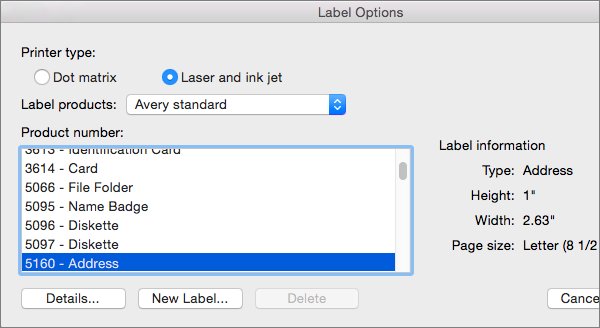
How to insert Avery labels in Word
Word builds labels in a separate document. Create the label sheet first, then pull it into the document you already have.
- Open a blank document, go to Mailings > Labels and select Options.
- In Label vendors, choose Avery US Letter, or Avery A4/A5 for A4 sheets.
- Pick the number printed on your label pack under Product number, then select OK.
- Select New Document. Word opens a table sized to that Avery product.
- Type one label per cell, or type the first label and copy it into the rest, then save the file.
- Open your existing document and click where the labels should begin.
- Go to Layout > Breaks and select Next Page so the labels start on a page of their own.
- Go to Insert, select the arrow next to Object, then select Text from File.
- Double-click the saved label file to drop its table into the document.
Print the new page on plain paper and hold it against an Avery sheet before you load the labels.
Insert a template into an existing document in Word or Pages
The right route depends on the app. In Pages, it also depends on whether the document is word processing or page layout.
| Your document | Do this | Why |
|---|---|---|
| Existing Word document on Windows | Save the Avery labels as a file, then use Insert > Object > Text from File | Word inserts the saved file's content at the cursor |
| Word document where the labels need their own header or footer | Add a Next Page section break first, then insert the label file | A header and footer only carry over when the content lands in a new section |
| Pages page layout document | Turn a finished label page into a page template and add pages with it | Every page in a page layout document is linked to a page template |
| Pages word-processing document | Add a page break and paste the grouped label objects onto the new page | Page templates belong to page layout documents, so the objects carry the layout |
| A saved Pages template you want on one page | Open the template as a new document and copy its objects across | Pages can't switch a started document to a different template |
| Word for the web | Open a label template in its own document from More templates | Word for the web doesn't create labels directly |
| Addresses kept in an Excel sheet | Run a Word mail merge for labels | Microsoft's route for an Excel address list is a mail merge |
How to add Avery labels to an existing Pages document
Pages opens Word-format Avery templates. The label layout can come from a .docx file or from a template you saved after you made labels in Pages.
Grouping the label objects before you copy them keeps their spacing intact.
- Drag the Word-format Avery template onto the Pages icon in the Dock.
- Or choose File > New and open your own label template from My Templates.
- Command-click every text box, shape and image on the label page.
- In the Format sidebar, click the Arrange tab, then click Group.
- Choose Edit > Copy.
- Switch to your existing document, click View in the toolbar and choose Page Thumbnails.
- Select the page the labels should follow, then click Add Page in the toolbar. In a word-processing document, click Insert and choose Insert Page Break instead.
- Choose Edit > Paste, then drag the group until it sits where the label sheet expects it.
- Choose File > Print and print one test page on plain paper.
Double-clicking a .docx file opens Microsoft Word if it is installed. Dragging the file onto the Pages icon opens it in Pages instead.
Turn on alignment guides in Pages > Settings > Rulers to line the group up exactly.
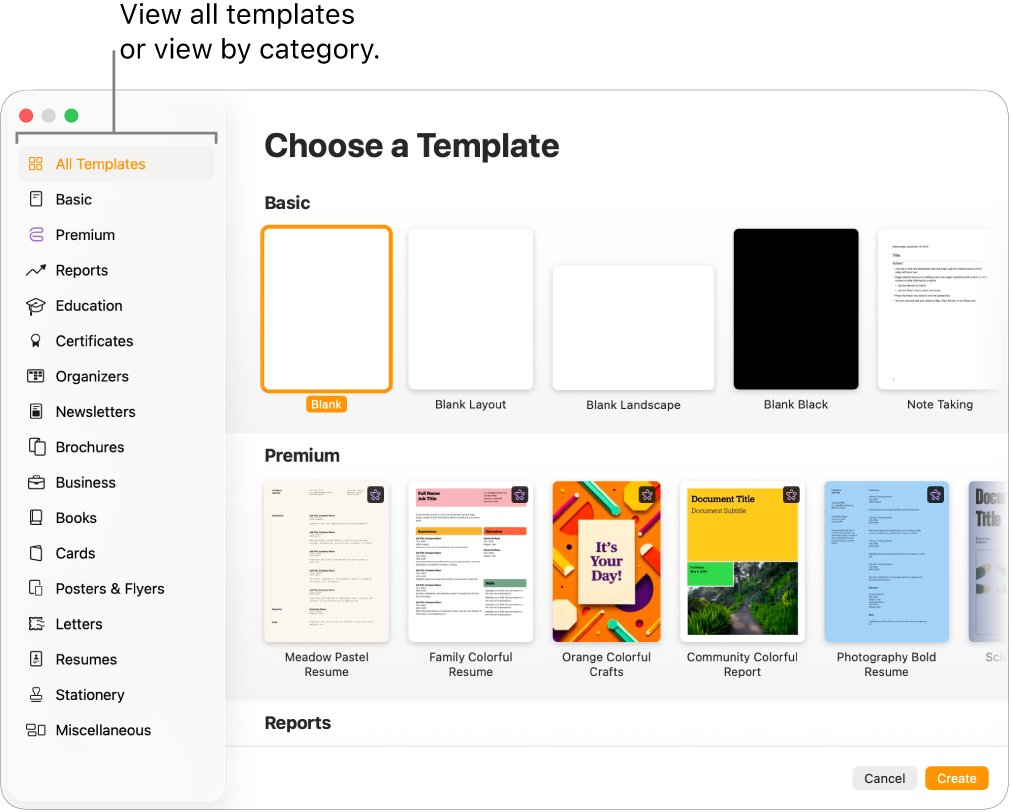
Create an Avery label page template in Pages
A page template reuses one label layout on as many pages as you need. It works in page layout documents.
Pages adds the template's design to each new page, and edits on one page never change the template.
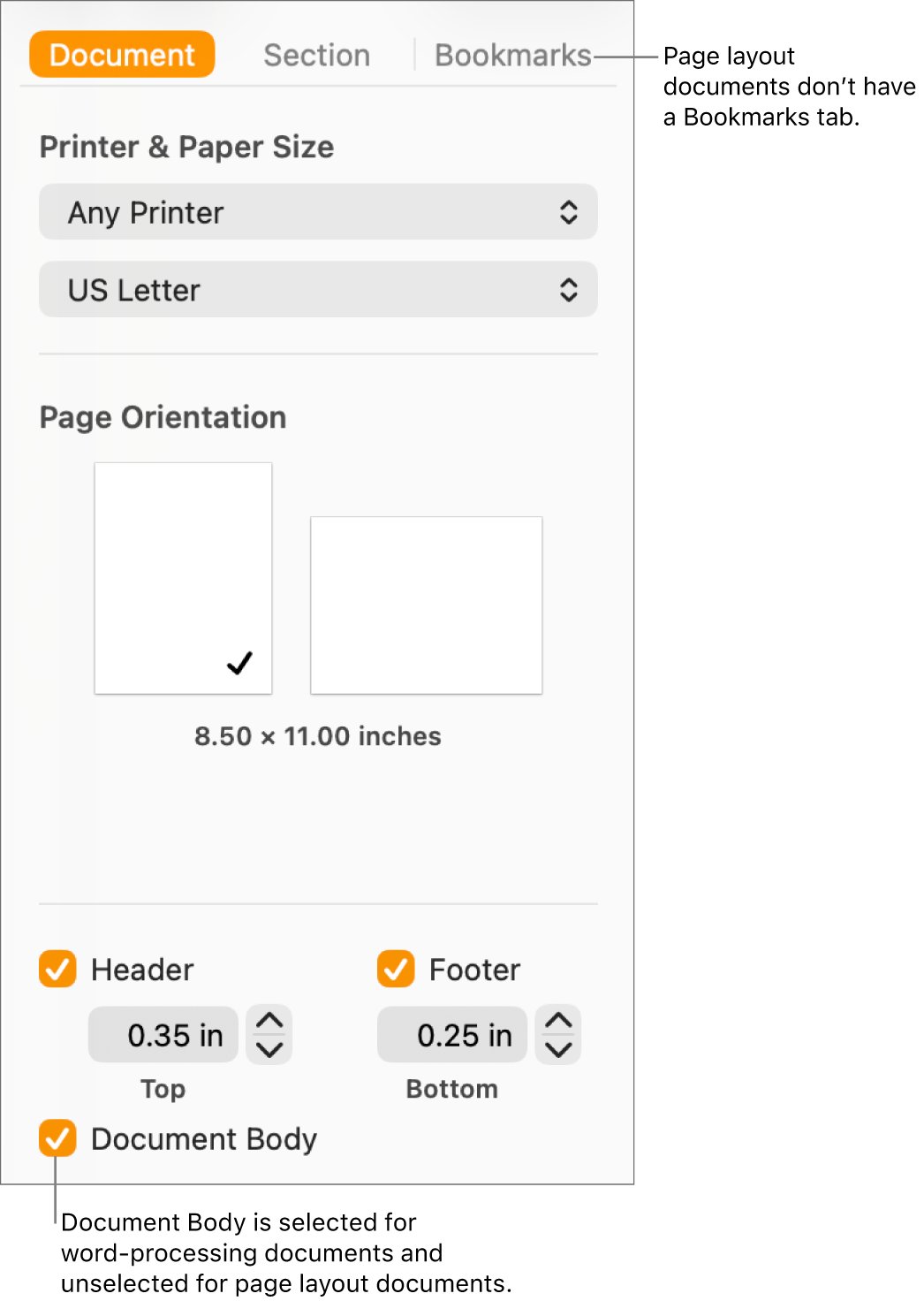
- Click Document in the toolbar and look at Document Body. If it is selected, the document is word processing and needs converting first (see the conversion steps below).
- Click View in the toolbar, choose Page Thumbnails and select the finished label page.
- Choose Format > Advanced > Create Page Template from Current Page.
- Control-click the new thumbnail at the bottom of the sidebar and choose Rename.
- Type a name such as the Avery product number, then click OK.
- Click Done at the bottom of the window.
- To reuse it on an existing page, click a blank spot on that page, then click Page Template in the Format sidebar and choose your label template.
- When you add a new page, choose the label page template for it.
If someone edits a label page and the layout drifts, select its thumbnail and choose Format > Reapply Page Template. The content stays and the original layout comes back.
Avery label templates in Pages on iPad
Pages on iPad opens and edits Word documents, so the same Word-format Avery template works there. A template saved to iCloud from a Mac also appears in the iPad document manager.
- Open Pages and tap the Avery template's thumbnail in the document manager.
- Tap Edit if the document opens in reading view.
- Tap the View Options button in the toolbar, turn on Page Thumbnails, then tap the document to close the options.
- Fill in the labels on the first page.
- To repeat the sheet, tap its thumbnail, tap it again, then tap Duplicate.
- In a page layout document, tap the page the new one should follow and tap the add page button. Choose the label page template if Pages lists more than one.
- To switch an existing page to the label layout, tap a blank spot on it. Tap the Format button, tap Page Template and pick the template.
Avery label templates in Word for the web
Word for the web doesn't support creating labels directly. It can't build an Avery sheet inside an existing document, but it can open a label template as a separate document.
- Create a new document in Word for the web and select More templates.
- Search for labels and open the template that matches the layout of your Avery sheet.
- Fill in the first label.
- For a sheet of identical labels, copy the first label and paste it into the rest.
- Print one page on plain paper and check it against a label sheet before printing on the real sheet.
The same label templates are listed at templates.office.com when you search for label. For an exact Avery product number, the Label vendors list in desktop Word is the more precise route.
How to show Avery label gridlines in Word and Pages
With gridlines off, a Word label table shows no cell outlines. Turn them on before you judge whether the inserted labels still line up.
- In Word, click inside the label table and go to Layout > Align > View Gridlines.
- In Pages, choose View > Guides > Show Page Template Guides. Guides saved with a page template then show on every page that uses it.
- Scroll to the last inserted page and check that each cell or guide lines up with the one above it.
- Print the page on plain paper, lay it over a blank Avery sheet and hold both up to a light.
- Each address should sit inside its label outline with no text touching an edge.
How to find a template for Avery labels
Most Avery layouts are already inside Word, so you rarely need to download a template file.
| Where to look | How to get there | What you get |
|---|---|---|
| Word Label options (Windows) | Mailings > Labels > Options > Label vendors > Avery US Letter or Avery A4/A5 | Every listed Avery product number, sized automatically |
| Word Label options (Mac) | Mailings > Labels > Options > Label products > an Avery option | The same product numbers, plus Printer type |
| Word template search | File > New, then type Avery in the search box | Designed Avery-compatible templates: return address labels, CD labels, gift tags and name badges |
| Word for the web | More templates when creating a document, or templates.office.com | Label templates to fill in and copy across |
| Pages on Mac or iPad | Open a Word-format Avery template in Pages | An editable label sheet; Pages has no Avery list of its own |
| Your own saved layout in Pages | File > New > My Templates | A label document you saved with File > Save as Template |
If your product number is missing, choose the closest number and build a custom size with New Label. The customization steps further down show how.
On a Mac, you can create Avery 5160 labels in Word for Mac from the same Label products list.
Avery label template in Excel
Excel holds the address list, while Word lays the addresses out on the Avery sheet through a mail merge. Microsoft lists a few checks for the spreadsheet before you connect it.
| Check in Excel | Why it matters |
|---|---|
| Column names match the fields you want on the label | Word offers the column names as merge fields |
| All addresses sit on the first sheet | Microsoft's prep list asks for all merge data on the first sheet |
| Postal codes are formatted correctly | Word can then read the values properly |
| The workbook is saved on your computer | Microsoft's steps expect the spreadsheet stored locally |
| All edits are finished before you connect | Microsoft asks for changes and additions to be complete before the list is connected |
In Word on Windows, go to Mailings > Start Mail Merge > Step-by-Step Mail Merge Wizard and select Labels. Then pick the Avery entry in Label vendors and your Product number.
These are the same steps used to mail merge Avery 5160 labels in Word. On a Mac, you can also print Avery mailing labels from Numbers through Contacts or a Pages mail merge.
Customize an Avery label template in Word
Format the text in the Labels dialog before you select New Document. A full sheet of the same label then comes out styled the same way.
- Go to Mailings > Labels and select Options.
- Choose your Avery Product number. If it is not listed, choose the closest one and select New Label.
- For a custom label, change the measurements to match the label pack and check the Preview box.
- Name the custom label and select OK, then select OK again to return to the Labels dialog.
- Type the label text in the Address box (Delivery Address on a Mac).
- Select the text, right-click it and choose Font or Paragraph to change the font, size or spacing.
- Select Full page of the same label, then select New Document.
- Save the file so you can insert it into other documents later.
A custom label saved with New Label joins the Product number list. It is there the next time you open Options.
Convert a Pages document to page layout without losing text
Page templates only exist in page layout documents. Converting a word-processing document to page layout deletes all body text.
Objects set to move with the text are deleted too, so copy that text out first.
- Select the body text you want to keep and choose Edit > Copy.
- Choose File > Convert to Page, or deselect Document Body in the Document tab of the Document sidebar.
- Add a text box to the page and choose Edit > Paste.
- If the result is wrong, press Command-Z to undo the conversion straight away.
- To go back later, choose File > Convert to Word Processing.
Objects set to stay on the page are kept in the conversion. Label shapes placed that way remain where they were.
Avery label template not working in an existing document
Labels shift or spill across two labels after you insert them in Word
The label table was built for its own page. Content around it in the existing document pushes it out of place.
- Undo the insert and click where the labels go.
- Add a Next Page section break from Layout > Breaks.
- Insert the label file again with Insert > Object > Text from File.
- Print a plain-paper test page. If it still lands off the label outlines, print the labels from their own saved file instead.
The header or footer from the label file is missing
Text from File brings in a header and footer only when the content goes into a new section.
- Add a Next Page section break where the labels should start.
- Insert the label file after the break.
- Check the new pages' header and footer before printing.
Label guides appear on the first page only in Pages
The guides or outlines belong to that one page instead of a page template or section layout.
- In a page layout document, select the first label page and choose Format > Advanced > Create Page Template from Current Page.
- Apply that page template to the other label pages from Page Template in the Format sidebar.
- Choose View > Guides > Show Page Template Guides.
- In a word-processing document, select the outline shapes and choose Arrange > Section Layouts > Move Object to Section Layout. They then repeat on every page in the section.
Pages won't apply your saved template to the open document
A Pages document can't switch to a different template after you start it.
- Choose File > New and open the saved template from My Templates.
- Group and copy the objects you need, then paste them onto a new page in the existing document.
- In a page layout document, save that page as a page template so later pages can use it.
Your Avery product number is not in the list
The wrong label vendor is selected, or the product is not in Word's list.
- In Options, set Label vendors to Avery US Letter for US sheets or Avery A4/A5 for A4 sheets.
- If the number is still missing, choose the closest one and select New Label.
- Enter the measurements from the label pack and select OK.
Avery labels in an existing document FAQ
How do I insert Avery labels in Word?
Create the labels with Mailings > Labels > Options, pick your Avery product number and select New Document. Save the file. In your existing document, go to Insert > Object > Text from File. Double-click the label file to add it at the cursor.
How do I find the template for Avery labels?
In Word, go to Mailings > Labels > Options. Choose Avery US Letter or Avery A4/A5 under Label vendors to see every Avery product number. For designed templates, choose File > New and type Avery in the search box.
How do I open a template for Avery labels?
In Word, open the Avery layout from Mailings > Labels > Options, or search for Avery under File > New. In Pages on a Mac, drag a Word-format Avery template onto the Pages icon. Double-clicking it opens Microsoft Word if it is installed.
How do I use Avery label templates?
Type the first label, then copy it into the other labels for a sheet of identical labels. For different labels, type a separate entry in each cell. Show gridlines with Layout > Align > View Gridlines, print a test page on plain paper, then load the Avery sheet.
How do I add an Avery label template to Word?
Word already includes Avery layouts under Mailings > Labels > Options, so most labels need no separate file. For a product that is not listed, choose the closest number, select New Label and enter the measurements from the label pack.
Is there an Avery label template in Excel?
Excel is used as the address list rather than the label layout. Keep the addresses on the first sheet with clear column names and save the workbook on your computer. Then start a label mail merge in Word and pick the Avery product there.
Are Avery label templates in Word free?
Yes. The Avery layouts in Word's label options and the label templates under File > New come with Word. Word for the web lists label templates under More templates. None of them need separate Avery software.
Can I customize an Avery label template?
Yes. Select the label text, right-click it and use Font or Paragraph to change the font, size and spacing. To change the label size, use New Label in the label options and match the measurements on your Avery pack.
Can you apply a template to an existing Pages document?
No. Pages can't switch a document to a different template once you start it. Open the template as a new document and copy its objects into the existing one. In a page layout document, you can also apply a page template to single pages from the Format sidebar.