No Caller ID calls skip the ringer on iPhone when Screen Unknown Callers is set to Silence; open Settings > Apps > Phone, set it to Never, and those calls ring like any other.
If they still go to voicemail, the fix is in Do Not Disturb, Silent mode, a call-blocking app or your carrier's spam filter, and each one is covered below.
How to make No Caller ID calls ring on iPhone
A No Caller ID call carries no number, so iPhone can never match it to a contact. It is always treated as an unknown caller, which is why adding numbers to Contacts does not help here.
- Open the Settings app.
- Tap Apps, then tap Phone.
- Scroll to Screen Unknown Callers.
- Select Never so calls from unsaved numbers ring like any other call.
- For FaceTime audio calls, go back to Apps, tap FaceTime, and turn off Silence Unknown Callers.
Choose Ask Reason for Calling instead of Never if you want hidden callers to state why they are calling before the phone rings.
Why does it say No Caller ID on iPhone?
The label means the caller chose to hide their number, not that something is wrong with your iPhone. Anyone can do it on a per-call basis or for every call.
| How the caller hid the number | How it works | Stays on until |
|---|---|---|
| Show My Caller ID turned off on an iPhone | Settings > Apps > Phone > Show My Caller ID off hides the number on outgoing calls | The caller turns the setting back on |
*67 before the number |
Dialing *67 and then the 10-digit number blocks caller ID name and number for that one call |
The call ends |
| Carrier-level blocking | The carrier adds caller ID blocking to the line; AT&T does this free when a phone lacks the setting | The account holder asks the carrier to change it |
iPhone settings that send No Caller ID calls to voicemail
Several layers can stop a hidden-number call from ringing. Match what you see to a row and change only that setting.
| What you notice | Setting responsible | Change it to |
|---|---|---|
| Only unknown and hidden numbers go to voicemail | Settings > Apps > Phone > Screen Unknown Callers set to Silence | Never or Ask Reason for Calling |
| Callers say a voice asked them why they were calling | Screen Unknown Callers set to Ask Reason for Calling | Never to skip screening |
| FaceTime audio calls from hidden numbers are silent | Settings > Apps > FaceTime > Silence Unknown Callers | Off |
| Every call is silent, including contacts | Silent mode, or Do Not Disturb or another Focus | Silent mode off, Focus off |
| Calls are silent only at night or at work | A Focus schedule | Remove or edit the schedule |
| Calls marked as spam never ring | The Spam filter under Call Filtering, or a carrier spam filter | Spam filter off, or adjust the carrier app |
| Hidden calls vanish after you installed a carrier or caller ID app | Call Blocking & Identification apps | Turn the app off in that list |
Screen Unknown Callers options: Never, Ask Reason for Calling and Silence
Screen Unknown Callers decides what happens to every call from a number not saved in Contacts, and No Caller ID calls always fall into that group.
| Option | What a No Caller ID call does | Good for |
|---|---|---|
| Never | Rings like any other call | Never missing a hidden-number call |
| Ask Reason for Calling | iPhone answers first and asks the caller their name and reason; your phone rings and shows the reply | Hearing who it is before you pick up |
| Silence | Silenced, sent to voicemail and listed in Recents | Stopping hidden-number calls entirely |
Screening has limits. Calls are not screened while you are roaming, screening turns off for 24 hours after you call emergency services, and standard calling and data rates may apply. On versions earlier than iOS 17, Live Voicemail must also be on for call screening to work.
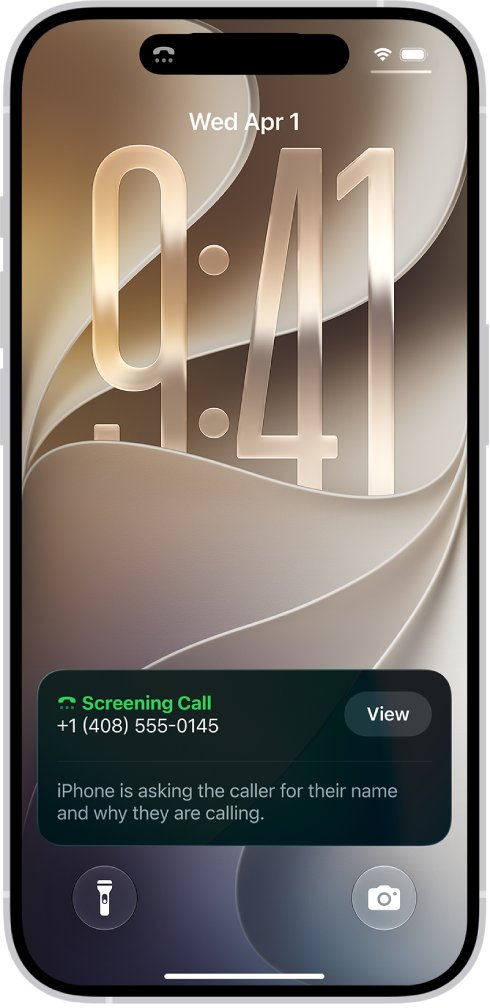
Turn off Call Filtering for unknown callers on iPhone
Unknown Callers filtering does not stop the ring. It moves missed calls and voicemails from unknown numbers into a separate list, which makes hidden-number calls look as if they never arrived.
- Open Settings, tap Apps, then tap Phone.
- Scroll down to Call Filtering.
- Turn off Unknown Callers to keep those calls in your main call list.
- Leave the spam call filter on unless calls you want are landing in Spam.
- Repeat in Settings > Apps > FaceTime for FaceTime calls.
Stop Do Not Disturb from silencing No Caller ID calls
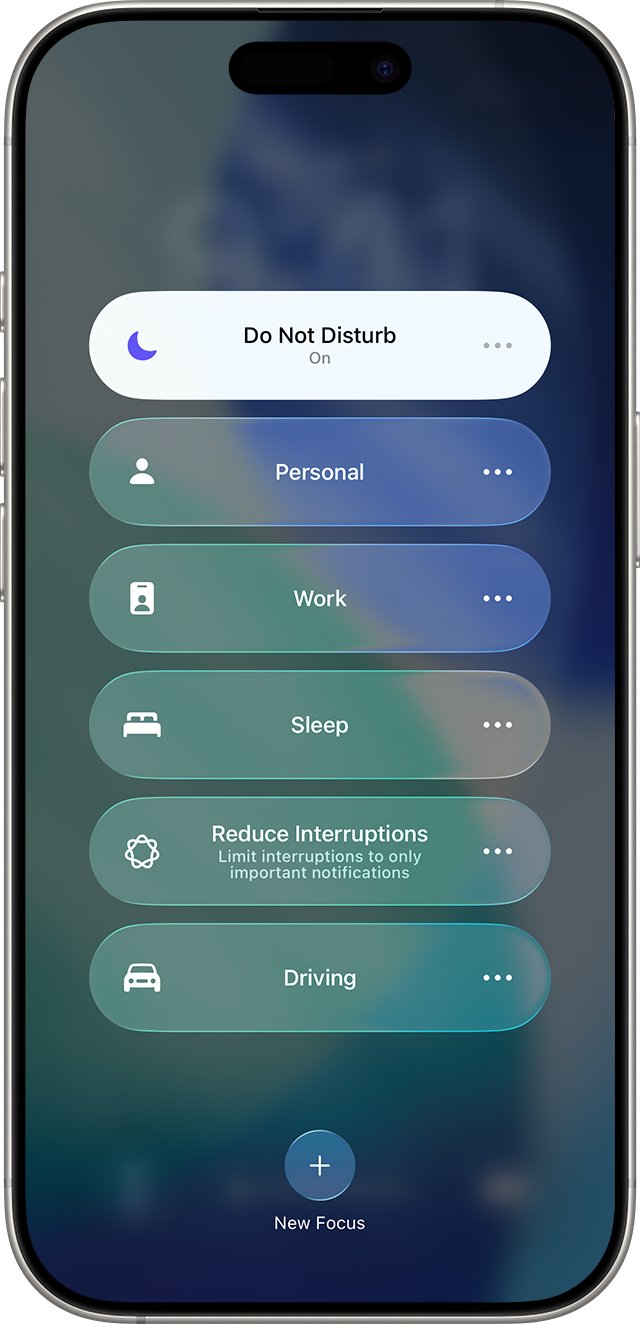
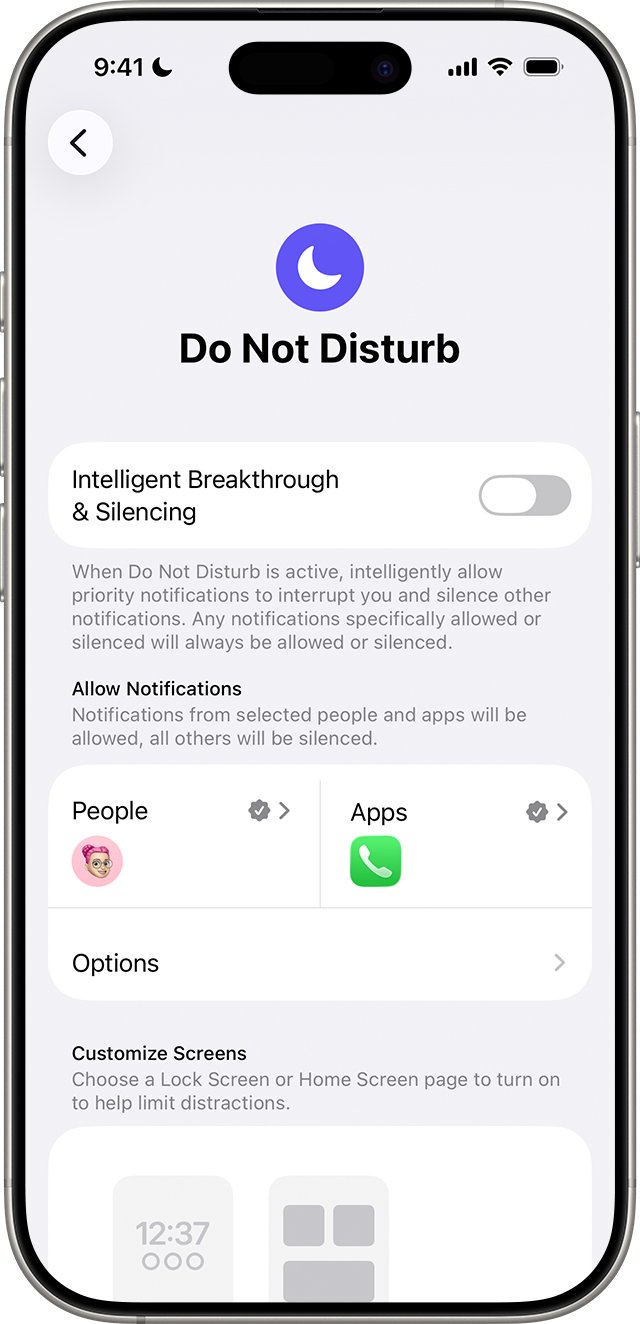
Do Not Disturb silences calls, alerts and notifications, and other Focus modes such as Sleep, Work or Driving can block calls too. Allowing specific people does not help with hidden numbers, because they are not in your contacts.
- Open Control Center: swipe down from the top-right corner on iPhone X and later.
- If the Focus button shows Do Not Disturb or another Focus, tap its icon to turn it off.
- To stop it coming back, open Settings > Focus > Do Not Disturb.
- Scroll to Set a Schedule and turn off or delete any active schedule.
- Check People in each Focus you use and review the options that allow calls from groups of people.
iPhone not ringing for incoming calls: Silent mode and ringer volume
If no call rings at all, hidden or not, Silent mode or a low ringer is the cause. With Silent mode on, iPhone does not ring but may still vibrate.
- On models with a Ring/Silent switch, flip it toward the front of the iPhone to turn Silent mode off.
- On models with an Action button, press and hold the button until Silent mode turns off.
- Or open Settings > Sounds & Haptics and turn Silent mode off.
- In the same screen, drag the ringer volume slider under Ringtone up.
- Turn on Change with Buttons if you want the side buttons to control ringer volume.
Call Blocking & Identification apps that silence unknown callers
Carrier and caller ID apps appear under Call Blocking & Identification, and some of them silence calls on their own. Verizon's Call Filter, for example, turns on Silence Junk Callers automatically on iPhone and sends high-risk spam to voicemail by default.
- Open Settings, tap Apps, then tap Phone.
- Tap Call Blocking & Identification.
- Turn off each app listed under Call Identification apps one at a time.
- Ask someone to call you with their number hidden after each change.
- Turn the other apps back on once you find the one that silences hidden calls, then change its own settings.
Carrier filters such as Verizon Call Filter are managed in the carrier's own app or account page, not in iPhone Settings.
Where do silenced No Caller ID calls go on iPhone?
Silenced calls are not lost. They land in voicemail and in one of the Phone app's call lists, depending on which setting caught them.
- Open the Phone app and check Recents (Classic view) or Calls (Unified view) for calls silenced by Screen Unknown Callers.
- Tap the Filter button, then tap Unknown Callers to see calls moved by Call Filtering.
- Tap the Filter button, then tap Spam to see calls caught by the spam filter.
- Open Voicemail, because silenced and blocked callers can still leave a message.
- After changing the settings, ask someone to call you with
*67to confirm the phone now rings.
Older entries are easier to find once you know how to read your recent calls list in each view.
Should you answer No Caller ID calls?
Let iPhone answer them for you with Ask Reason for Calling. The caller has to give a name and a reason before your phone rings, and iPhone shows you the reply, so you decide with information instead of picking up blind. Save important numbers, such as family, your child's school and your doctor's office, in Contacts so those calls always come through when they show a number.
How to call with No Caller ID from your iPhone
Hiding your own number works the same way hidden callers hid theirs, through a phone setting or the *67 prefix for a single call.
- For every call, open Settings, tap Apps, then tap Phone.
- Tap Show My Caller ID and turn it off.
- For one call only, dial
*67, then the 10-digit number. - Expect calls to toll-free numbers and 911 to show your number anyway.
If Show My Caller ID is dimmed or missing, the carrier controls it; contact the carrier to change it.
No Caller ID calls still not ringing on iPhone
No Caller ID calls still go straight to voicemail
A second layer, such as a Focus schedule, a call-blocking app or a carrier filter, is silencing them after Screen Unknown Callers is fixed.
- Confirm Screen Unknown Callers reads Never in Settings > Apps > Phone.
- Check Control Center for an active Focus and review Set a Schedule in Settings > Focus.
- Turn off apps in Call Blocking & Identification one at a time and test after each.
- Open your carrier's app or account page and turn off any spam or anonymous-call filter.
- Restart the iPhone and test with a
*67call.
iPhone incoming calls showing No Caller ID
The caller's phone or carrier withheld the number, so iPhone has nothing to display.
- Ask the caller to turn Show My Caller ID back on or to stop dialing
*67. - Set Screen Unknown Callers to Ask Reason for Calling to hear who is calling first.
- Check Voicemail and listen for a name in any message the caller left.
Why is my caller ID not working on iPhone?
When Show My Caller ID is dimmed or missing, the carrier controls caller ID on your line.
- Open Settings > Apps > Phone > Show My Caller ID.
- Turn it on if it is off.
- Contact your carrier if the switch is dimmed or not there.
Getting calls from No Caller ID you want to stop
Hidden numbers cannot be added to the block list, so screening is the only control.
- Set Screen Unknown Callers to Silence to send them all to voicemail.
- Or pick Ask Reason for Calling to keep genuine callers reachable.
- Schedule a night-time Focus as another way to block No Caller ID calls while you sleep.
No Caller ID calls on iPhone FAQ
Why does it say No Caller ID?
The caller hid their number, either by turning off Show My Caller ID on their phone, by dialing *67 before your number, or through a setting on their carrier account. Your iPhone shows the label because the network did not pass a number to display.
Why is No Caller ID calling me?
Anyone can hide their number for a single call with *67 or for every call in their phone settings, so the label says nothing about who is calling. Set Screen Unknown Callers to Ask Reason for Calling to hear the caller's name and reason before your iPhone rings.
Should I answer No Caller ID calls?
Answer them through call screening rather than directly. With Ask Reason for Calling, iPhone asks the caller for their name and reason first, then rings and shows you the response, so you can pick up genuine calls and ignore the rest.
How to call with No Caller ID on iPhone?
Open Settings, tap Apps, tap Phone, then turn off Show My Caller ID to hide your number on every call. For a single call, dial *67 and then the 10-digit number. Calls to toll-free numbers and 911 still show your number.
How to go on No Caller ID?
Turn off Show My Caller ID in Settings > Apps > Phone, and every outgoing call hides your number until you turn it back on. If the switch is dimmed or missing, your carrier controls caller ID and has to change it for you.
Why no caller ID on cell phones?
Cell phones let callers withhold their number for privacy, either per call with *67 or permanently in the phone settings. The receiving phone then has no number to show. Carriers such as AT&T include caller ID blocking free on their wireless voice plans.
Why is my caller ID not working?
Check Settings > Apps > Phone > Show My Caller ID. If it is off, people you call see No Caller ID. If the switch is dimmed or missing, the carrier controls caller ID on your line, so contact the carrier to turn it on.
Does Silence Unknown Callers block No Caller ID calls?
It silences them rather than blocking them. With Screen Unknown Callers set to Silence, hidden-number calls do not ring, go to voicemail and still appear in Recents. Set the option to Never if you want those calls to ring again.