Numbers has no label printing of its own, but you can print Avery mailing labels from a Numbers address list by importing it into Contacts or using it as a mail merge source in Pages.
This guide covers both routes on a Mac, how to prepare the spreadsheet, and fixes for labels that print out of line.
How to print Avery mailing labels from a Numbers spreadsheet
Contacts has built-in Avery Standard label layouts, so getting your Numbers rows into Contacts is the shortest path to a printed sheet.
- Open the address spreadsheet in Numbers.
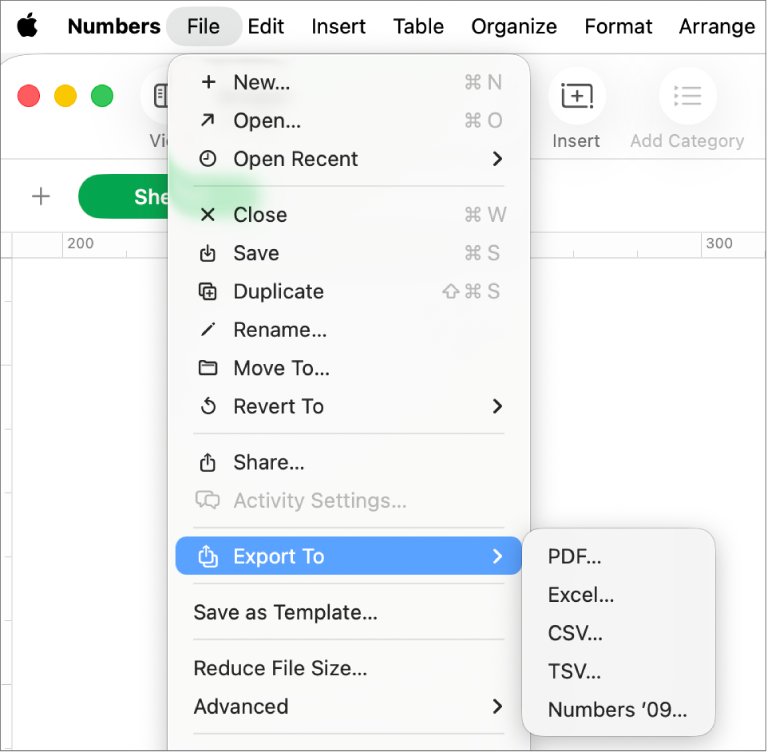
- Choose File > Export To > CSV, click Save and name the file.
- Open Contacts and choose File > Import, then select the CSV file and click Open.
- Match each column to a Contacts field, choose Ignore first card for the header row, and finish the import.
- Select the imported contacts, then choose File > Print.
- Click the Style pop-up menu and choose Mailing Labels.
- Click Layout, choose an Avery page type such as Avery Standard that matches your sheet, then click Print.
Put the imported people in their own list in Contacts so you can select them all at once and delete them later if you only needed a single mailing.
Numbers to Avery labels: Contacts or Pages mail merge
| Situation | Route | Trade-off |
|---|---|---|
| Plain name and address labels | Export CSV, import into Contacts, print Mailing Labels | Adds the addresses to your Contacts |
| You do not want the list in Contacts | Pages mail merge with the Numbers file as the source | You lay out the label sheet yourself |
| Labels need logos, colours or custom fonts | Pages mail merge | Full design control |
| The list changes every week | Pages mail merge | Re-select the source to pick up edits |
Format a Numbers address list for mailing labels
Contacts imports a CSV file only when every row has the same structure.
- Put one header row at the top, such as First Name, Last Name, Street, City, State and ZIP.
- Keep each address on one row with no line breaks inside a cell.
- Give every row the same number of columns, leaving a cell empty where data is missing.
- Keep the list in a single table, or note which table holds it if the file has several.
- After exporting, open the CSV in TextEdit to confirm the values are separated by commas with no extra spaces.
Print Avery labels from Numbers with Pages mail merge
Pages can add a Numbers spreadsheet as a mail merge source, turning its column headers into merge fields, and it can also open Avery templates in Word format for the label layout.
- Open a Pages document set up for your Avery label sheet.
- Click inside the first label, click Document in the toolbar, click the Document tab, then click Mail Merge.
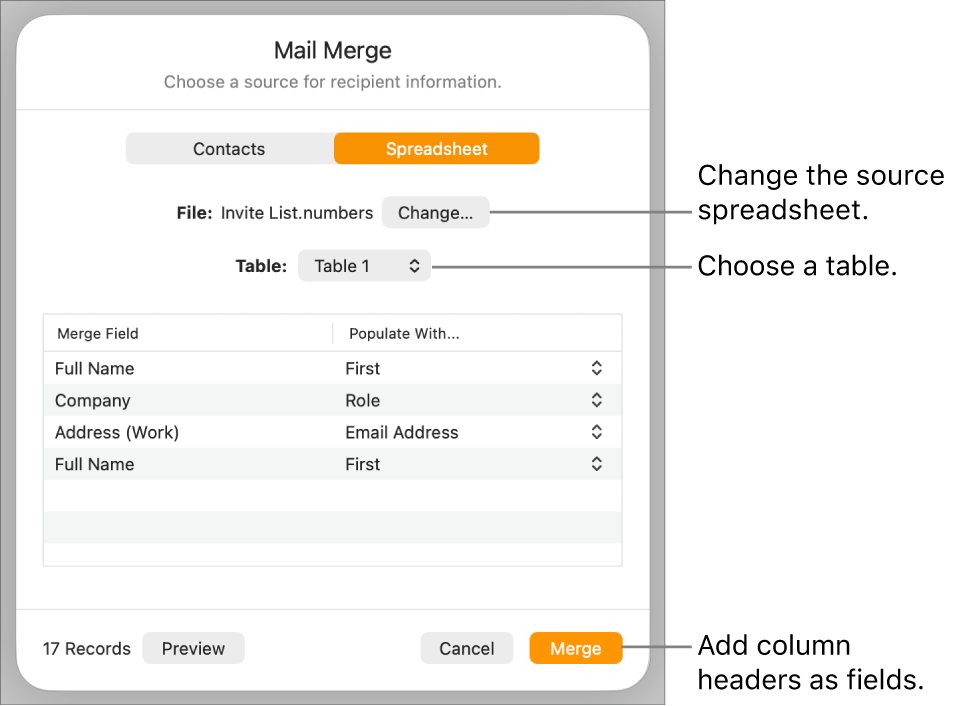
- Click Add Merge Field, then Add from Spreadsheet, select the Numbers file and click Open.
- Choose the address table from the Table pop-up menu and click Add as Fields.
- Add the name, street, city, state and ZIP fields from the Add Merge Field list.
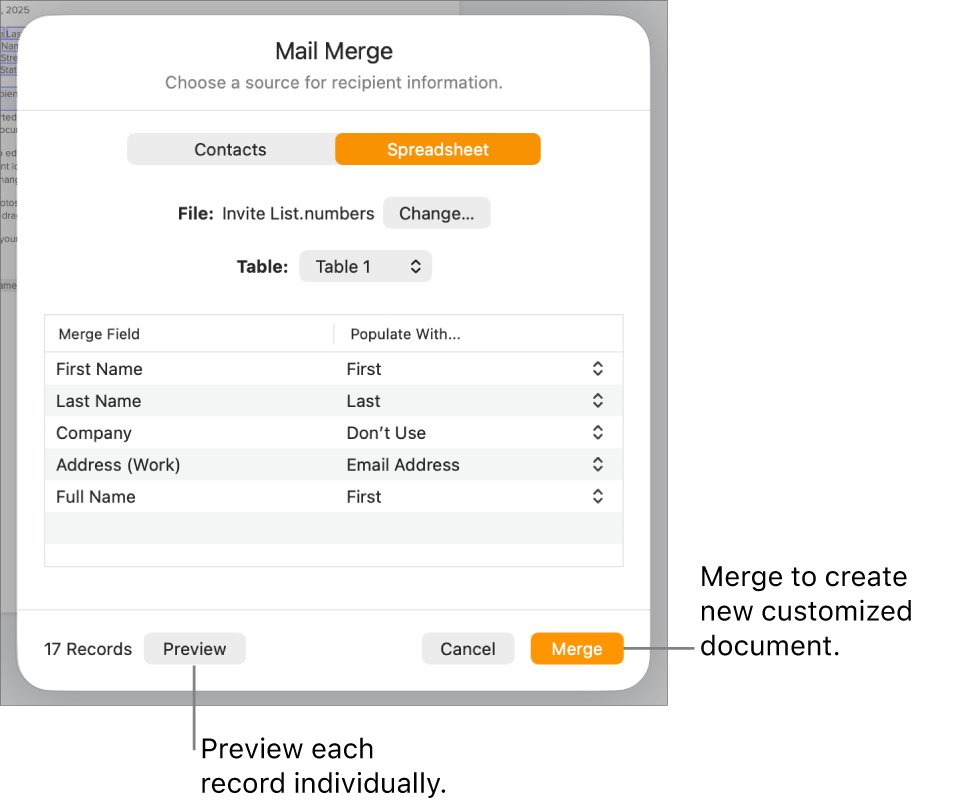
- Click Merge, confirm the source under Populate With, and click Preview to step through records.
- Click Merge to create the filled document, then choose File > Print.
If you edit the Numbers file afterwards, select the source again in Mail Merge so Pages picks up the changes.
Change the Avery mailing label layout in Contacts
- In the Contacts print dialog, click Label.
- Choose to sort labels alphabetically or by postal code.
- Turn on the company name or country or region if the list needs them.
- Change the font and font colour if required.
- Click Layout and choose Define Custom if your sheet is not listed.
To change the order of first and last names on labels, change Show First Name in Contacts General settings.
Test print Avery mailing labels on plain paper
- Print the first page on plain paper.
- Place it over a blank Avery sheet and hold both up to a light.
- Confirm every address sits inside its label outline.
- Load the label sheet and print the full run only after the test page lines up.
Why Avery labels are not printing correctly from Numbers
Why won't my Avery labels print?
Contacts prints only cards that contain an address, so rows that imported into the wrong fields print nothing.
- Open an imported contact and check that the street and city landed in the address field.
- If they did not, delete the import, then import the CSV again and relabel each column.
- Print again from File > Print.
Why aren't my Avery labels printing correctly?
The chosen layout or paper size does not match the label sheet.
- In Layout, confirm the Avery page type matches the sheet in the tray.
- Set scaling to 100% in the print dialog.
- Run another plain-paper test page.
Pages merge shows old addresses
Pages does not refresh a changed source spreadsheet automatically.
- Open Mail Merge and go to the spreadsheet name > Change.
- Select the source file or table again.
- Preview the records, then merge.
Avery mailing labels from Numbers FAQ
Can Numbers print mailing labels by itself?
No. Numbers has no mailing label feature. Export the list to CSV and print labels from Contacts, or add the Numbers file as a mail merge source in Pages.
How do you print Avery mailing labels from Excel on a Mac?
Save the Excel list as a CSV file, import it into Contacts with File > Import, then print with the Mailing Labels style and an Avery layout. Microsoft Word's own mail merge for labels is the other route if you use Office.
How do you print Avery mailing labels?
On a Mac, select the contacts in Contacts, choose File > Print, pick Mailing Labels as the style, choose an Avery layout and click Print. Test on plain paper first.
How do you make Avery mailing labels?
Build the address list in Numbers, then either import it into Contacts and print Mailing Labels, or merge it into a Pages document laid out for your Avery sheet.
How do you print labels with Avery labels in Pages?
Open a Pages document sized for your label sheet, add merge fields from the Numbers file in Mail Merge, click Merge, then print the merged document.
Why won't my Avery labels print?
Contacts skips cards with no address, so check that the imported columns landed in the address fields. Also confirm the printer is selected and the label sheet is loaded the right way up.
Why aren't my Avery labels printing correctly?
The layout or paper size usually does not match the sheet. Choose the matching Avery page type in Layout, keep scaling at 100%, and print a plain-paper test page to check alignment.


![How to turn on/off ad blocker in Microsoft Edge? [step-by-step]](https://techdows.com/wp-content/uploads/2026/10/How-to-turn-onoff-ad-blocker-in-Microsoft-Edge-step-by-step-1-600x338.jpg)