To forward a text on iPhone, open the conversation in Messages, touch and hold the message bubble, tap More, tap the Forward arrow, enter a recipient, and tap Send.
This guide covers forwarding one or several messages, photos and videos, sending a text to email, copy and screenshot alternatives, automatic forwarding to your Mac or iPad, and fixes when a forward will not send.
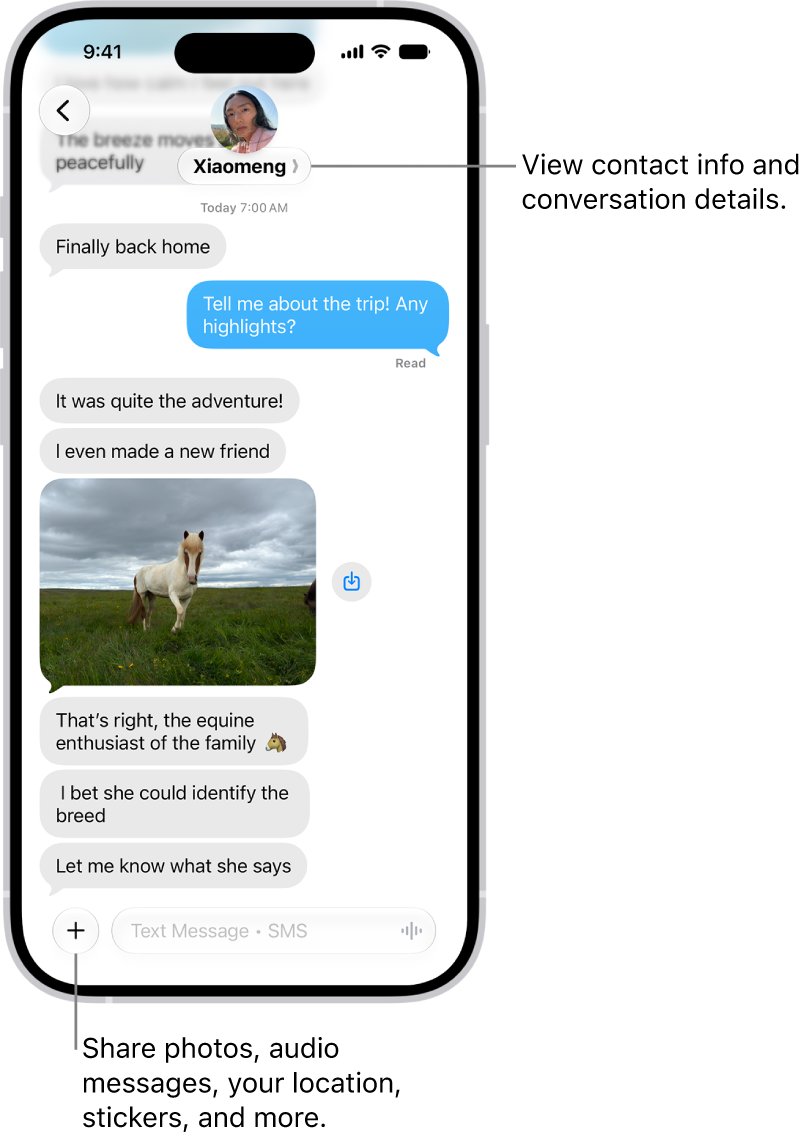
How to forward a text on iPhone (step-by-step)
Forwarding works the same way on iOS 16 through iOS 27, so the steps match on iPhone 8, iPhone 13, iPhone 14, iPhone 15, iPhone 16 and later models.
- Open the Messages app on your iPhone.
- Open the conversation that holds the text you want to forward.
- Touch and hold the message bubble until a menu appears, then tap More.
- Tap the circle next to any other messages you want to include. The one you held is already selected.
- Tap the Forward arrow. A new message opens with the selected text already in it.
- In the To field, enter the phone number, contact name or Apple Account of each recipient.
- Tap the Send arrow.
The forward arrives as a new message from you, in your conversation with the recipient. A blue Send arrow means it goes as iMessage; a green one means it goes as SMS, MMS or RCS.
Which forwarding method should you use?
| What you want to send | Use this | Why |
|---|---|---|
| One text or a few texts, to anyone with a phone number | Forward from Messages | Keeps the exact wording and sends in one go |
| A photo, video or file someone texted you | Forward the bubble, or tap the attachment and use Share | Sends the original attachment, not a picture of it |
| Proof of who said what, with names and timestamps | Screenshot and share | A forward drops the bubbles and times; a screenshot keeps them |
| Part of a long message | Copy and paste | Select lets you copy only the lines you need |
| A text sent to an email inbox | Copy into the Mail app | Messages addresses phone numbers and Apple Accounts, not ordinary inboxes |
| Every SMS, MMS and RCS text on your Mac or iPad | Text Message Forwarding | Mirrors texts to your own Apple devices automatically |
How to forward multiple text messages to multiple people on iPhone
You can bundle several messages from one conversation into a single forward, and send it to more than one person. Entering two or more recipients starts a group conversation with all of them.
- In Messages, open the conversation and touch and hold the first message you want.
- Tap More.
- Scroll through the conversation and tap the circle next to each extra message.
- Tap the Forward arrow.
- Enter the first recipient in the To field, then keep typing names or numbers to add more. Tap the Add button in the To field to pick people from Contacts.
- Tap the Send arrow.
If one of the recipients does not use iMessage, the whole group conversation uses green bubbles. To send the same text to each person separately, forward it once per recipient.
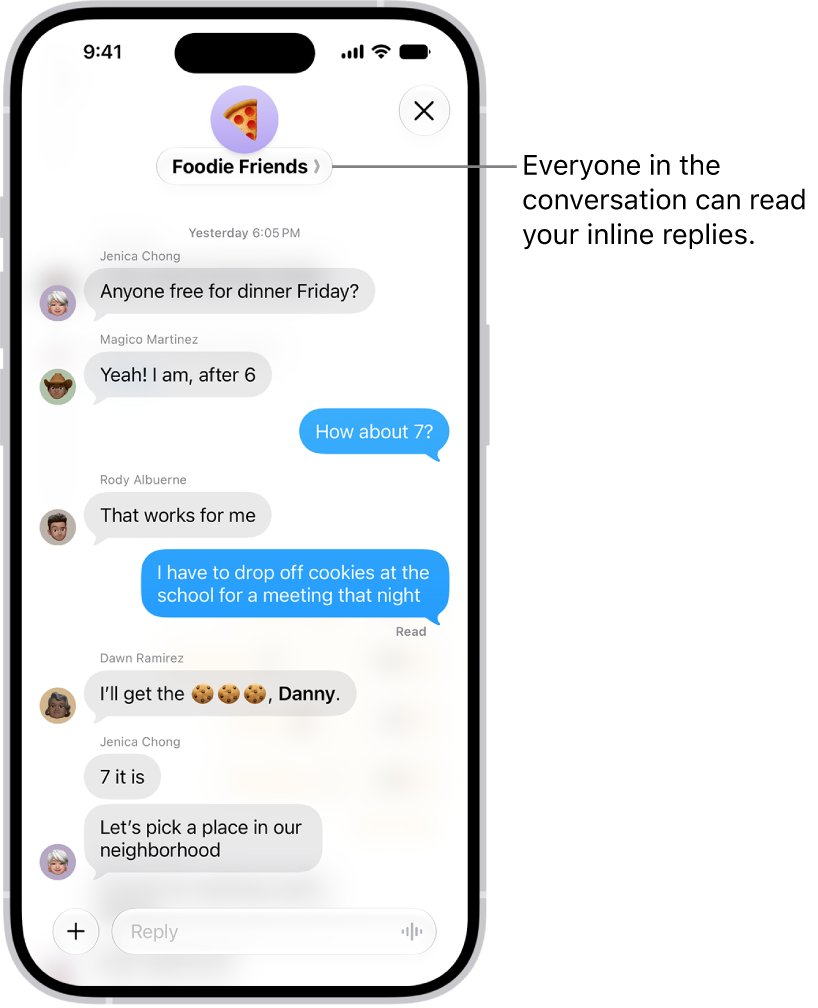
How to forward a picture or video from a text on iPhone
Photos, videos and files in a conversation are message bubbles too, so the forward steps above work for them. The Share button gives you a second route, plus options to save or copy the item.
- In Messages, open the conversation with the photo, video or file.
- Tap the attachment to open it.
- Tap the Share button.
- Tap a contact in the row of suggestions, or tap Messages to choose someone else.
- Add a message if you want, then tap the Send arrow.
The Share button also lets you copy, save or print the attachment. When you receive several photos at once, Messages groups them into a collage or a stack; tap the stack to open it and share each photo on its own.
Alternative ways to share a text on iPhone
Forwarding is not the only option. These three routes cover cases that a plain forward handles badly.
| Route | How to do it | Best for |
|---|---|---|
| Copy and paste | Touch and hold the message, tap Select, choose the text, tap Copy, then paste it into any app | Sending part of a message, or pasting it into Notes, Mail or a chat app |
| Screenshot and share | Press the side button and volume up button together, then send the image from Photos or Messages | Showing the sender's name, bubbles and timestamps as they look in the chat |
| Share via other apps | Tap an attachment, tap Share, then pick Mail, AirDrop or another app | Moving a photo, video or file out of Messages |
How to copy and paste a text message on iPhone
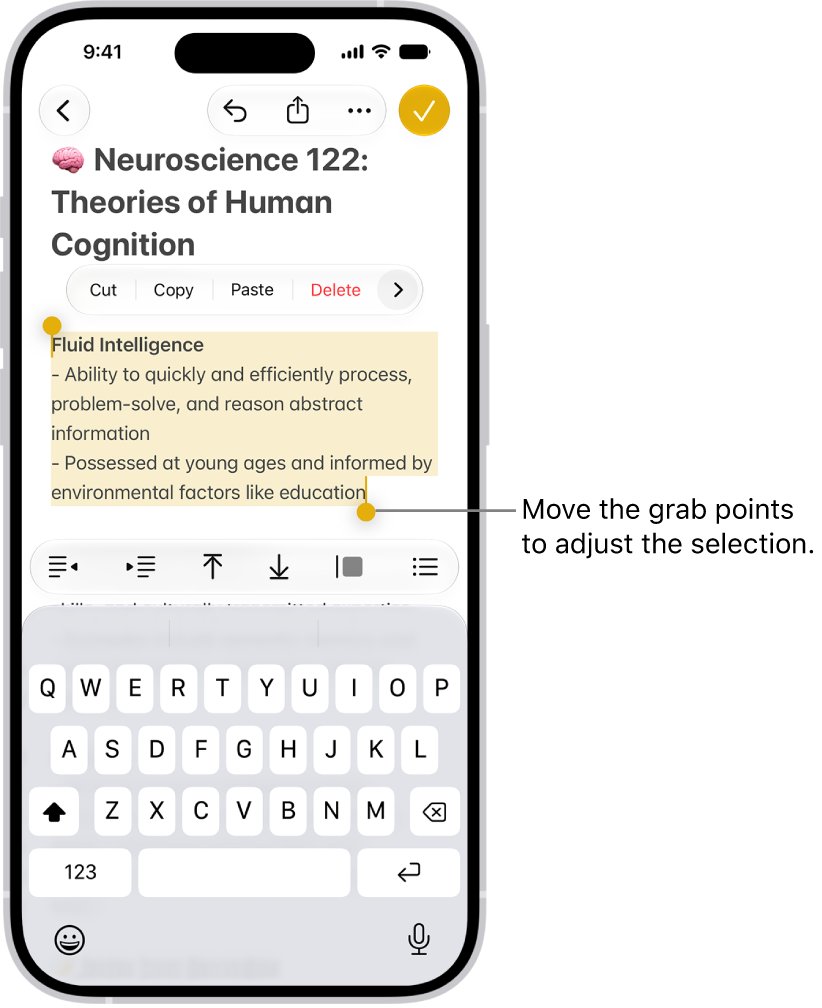
- In Messages, touch and hold the message bubble.
- Tap Select.
- Drag the grab points to cover the text you want to copy.
- Tap Copy.
- Open the app or conversation where the text should go and tap the text field.
- Tap the text field again, then tap Paste. A three-finger pinch open also pastes.
Pasted text arrives as your own words, with no sign that it came from someone else. Say who wrote it if that matters to the recipient.
How to screenshot a text conversation on iPhone and send it
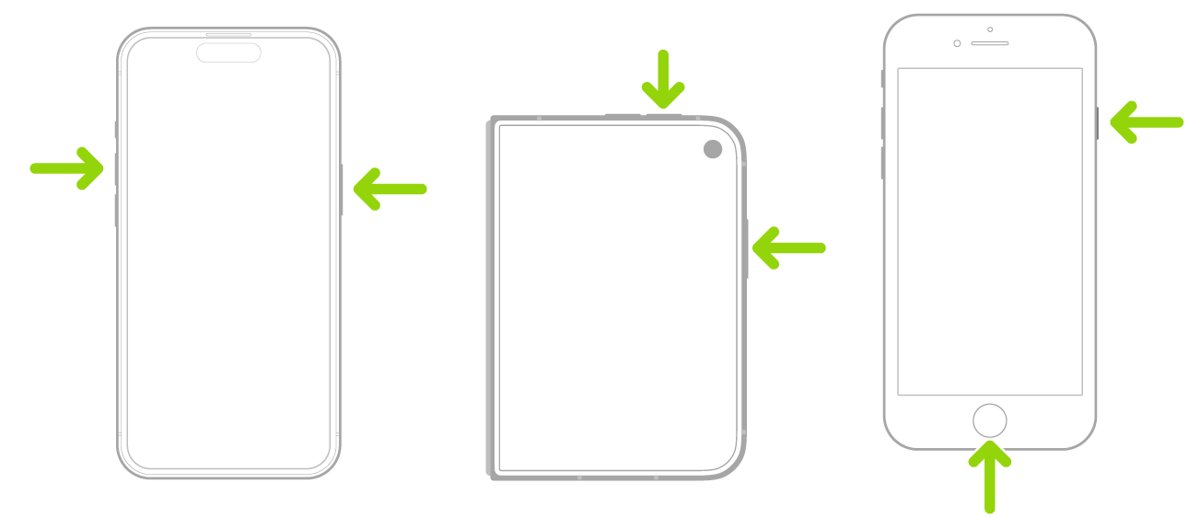
A screenshot shows the bubbles and timestamps exactly as they appear, which a forward does not. Long conversations need one screenshot per screen.
- Scroll the conversation until the messages you want are on screen.
- Quickly press and release the side button and the volume up button at the same time. On iPhone SE, press the Home button and the side button.
- Scroll and repeat for each extra screen of the conversation.
- Open the conversation with the person you are sending to, or start a new one with the Compose button.
- Tap the Add button to the left of the text field, then tap Photos.
- Tap each screenshot to add it, then tap the Send arrow.
Tap the screenshot thumbnail in the lower-left corner before it disappears to crop out other messages, or to mark up a name or number you want to hide. Screenshots also save to Photos > Collections > Screenshots.
How to forward a text message to email on iPhone
Messages sends to phone numbers and Apple Accounts. To get a text into an ordinary email inbox, move it through the Mail app instead.
- In Messages, touch and hold the message, tap Select, choose the text, then tap Copy.
- Open the Mail app and tap the Compose button.
- Tap the To field and type the email address.
- Tap in the body of the email, tap again, then tap Paste.
- For photos or a screenshot of the chat, tap the attachment in Messages, tap Share, then tap Mail instead.
- Tap the Send button in Mail.
How to auto forward text messages on iPhone
iPhone can copy every SMS, MMS and RCS text to your own Mac, iPad and Apple Vision Pro, but not to another person's phone number. Each device must be signed in with the same Apple Account.
- Make sure your iPhone is on, connected to Wi-Fi or cellular, and able to send and receive texts.
- Open Settings and tap Apps, then tap Messages.
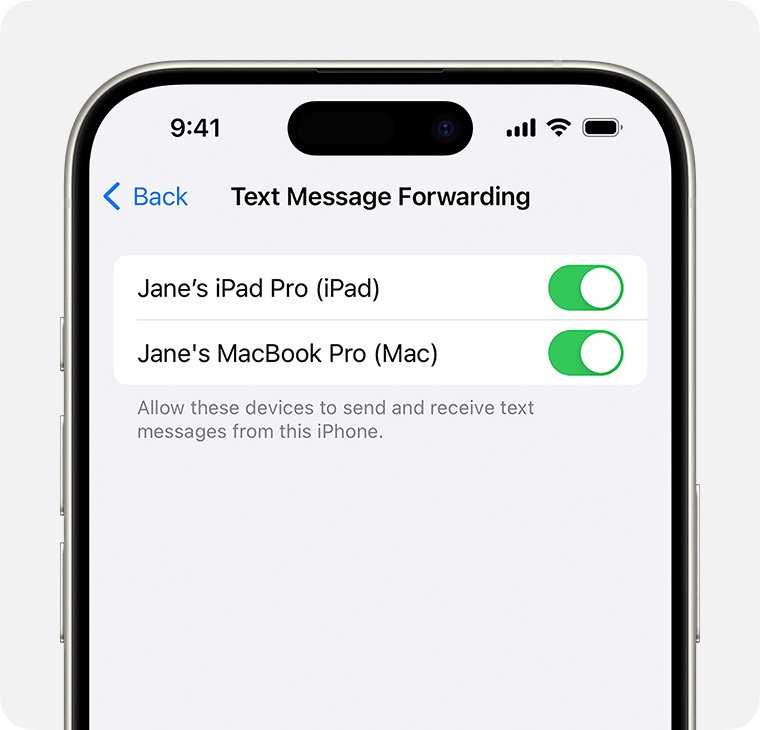
- Tap Text Message Forwarding.
- Turn on each device that should send and receive texts from this iPhone. With Dual SIM, turn on each line.
- If a device does not use two-factor authentication, enter the code it shows on your iPhone.
If Text Message Forwarding is missing, turn iMessage off and back on, tap Send & Receive, and sign in again. Messages in iCloud already includes this feature, so devices using it are always on. The setup is the same as when you turn on Text Message Forwarding for a new Mac.
Why is forwarding a text on iPhone difficult?
Messages has no Forward button on screen until you ask for it. Most of the confusion comes from where Apple puts the option and from how iMessage and SMS differ.
| Why it trips people up | What is going on | What to do |
|---|---|---|
| No Forward button in the conversation | The option sits behind a touch and hold on the bubble, under More | Hold the bubble until the menu appears, then tap More |
| The Forward arrow has no label | It appears only after More, once a message is selected | Look for the arrow after you tick at least one message |
| Bubbles and timestamps disappear | A forward sends only the content as a new message | Send a screenshot when the look of the chat matters |
| Some forwards go green | The recipient is not on iMessage, so it goes as SMS, MMS or RCS | Keep cellular service on, since SMS needs it |
| Email addresses fail | Messages delivers to phone numbers and Apple Accounts | Copy the text into Mail for other inboxes |
| No automatic forward to another number | Text Message Forwarding covers only your own Apple devices | Forward texts by hand to anyone else |
Tips for forwarding texts like a pro
| Tip | How | Why it helps |
|---|---|---|
| Forward several messages at once | After More, tick every message you need before you tap the arrow | The recipient gets one message, not a string of separate ones |
| Check the Send arrow color | Blue means iMessage, green means SMS, MMS or RCS | iMessage forwards do not count against your text allowance |
| Crop screenshots before you send | Tap the thumbnail, then drag the crop handles | Keeps other people's messages and numbers private |
| Reply privately in a group | Tap the group icon, touch and hold a person's icon, then tap Message | Stops a whole group seeing what you forward |
| Report scams instead of passing them on | Check whether a suspicious text is a scam before you share it | Forwarding a scam link to friends spreads it |
| Turn on low quality images for slow MMS | Open Settings > Apps > Messages and turn on Low Quality Image Mode | Smaller photos get past carrier attachment limits |
Forwarding a text on iPhone still not working? Try these fixes
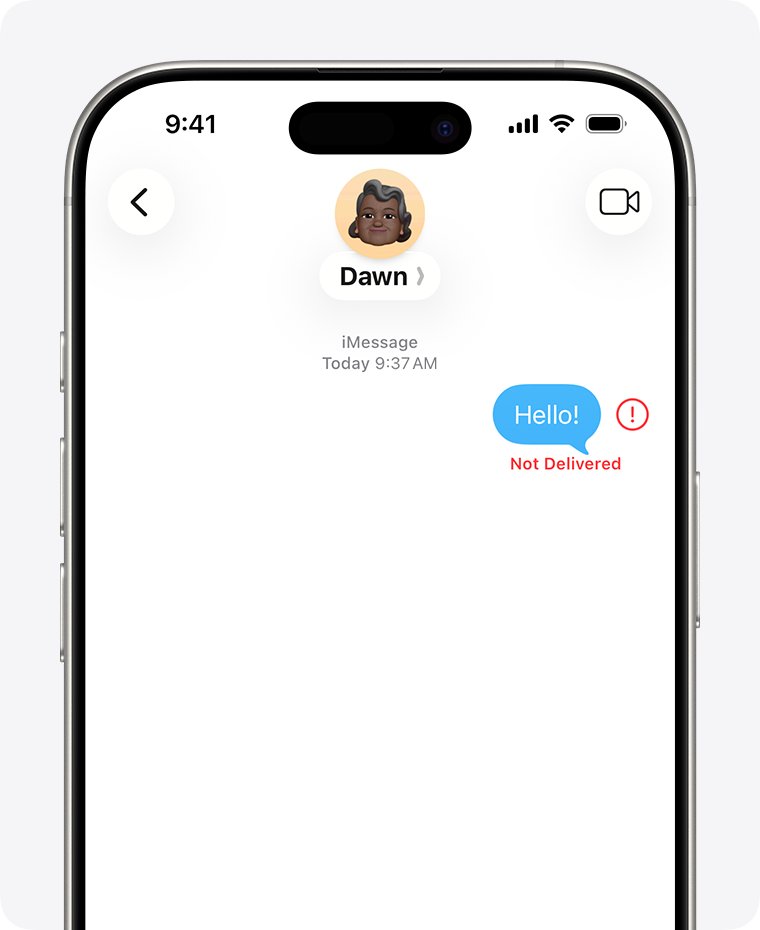
Forwarded text shows Not Delivered with a red exclamation point
The iPhone lost its connection, or iMessage could not reach the recipient.
- Check your Wi-Fi or cellular connection.
- Tap the red exclamation point, then tap Try Again.
- If it still fails, tap the red exclamation point and tap Send as Text Message. Messaging rates may apply.
- Open Settings > Apps > Messages and turn on Send as Text Message so future forwards fall back to SMS automatically.
Why can't I forward a text to my email?
Messages expects a phone number or an Apple Account in the To field, so an inbox that is not set up for iMessage does not receive it.
- Check that the email address is typed correctly.
- Copy the message text and paste it into a new email in the Mail app.
- For photos or a screenshot, tap the attachment, tap Share, then tap Mail.
Forwarded photo or video will not send
The iPhone is low on storage, or the carrier limits MMS attachment size.
- Free up storage on your iPhone.
- Open Settings > Apps > Messages and turn on Send Photo Previews or Low Quality Image Mode.
- Connect to cellular data or Wi-Fi, which MMS and iMessage both need.
- Ask your carrier whether it supports MMS or RCS on your plan.
Green-bubble forward fails on Wi-Fi only
SMS needs a cellular network connection unless Wi-Fi Calling is on.
- Move to an area with cellular service, or turn off Airplane Mode.
- Turn on Wi-Fi Calling if your carrier offers it, so SMS can go over Wi-Fi.
- Open Settings > Cellular and check that your phone line is turned on.
Text Message Forwarding does not list my Mac or iPad
The other device uses a different Apple Account for Messages, or iMessage is not enabled on it.
- On iPad, open Settings > Apps > Messages, turn on iMessage, tap Send & Receive, and check the Apple Account at the bottom.
- On Mac, open Messages, choose Messages > Settings, click iMessage, and check the Apple Account.
- Sign out and sign back in with the same Apple Account as your iPhone.
- On the iPhone, turn iMessage off and on, then open Text Message Forwarding again.
Forward a text on iPhone FAQ
Does the original sender know I forwarded their text?
No. Messages sends the forward as a new message from you to the people you choose. Nothing is added to the original conversation, so the person who wrote the text sees no sign of the forward.
Can I forward a text to multiple people at once?
Yes. After you tap the Forward arrow, enter several names or numbers in the To field before you tap Send. Two or more recipients start a group conversation, so forward once per person if you want separate threads.
Can I forward photos and videos too?
Yes. Touch and hold the photo or video bubble, tap More, then tap the Forward arrow. You can also tap the attachment, tap the Share button, and choose a contact, Mail or another app.
Can I forward text messages to another number automatically?
No. iPhone has no setting that sends every text to a different phone number. Text Message Forwarding copies SMS, MMS and RCS texts only to your own Mac, iPad and Apple Vision Pro signed in with the same Apple Account.
Does forwarding a text cost anything?
A forward sent as iMessage, in a blue bubble, does not count against your SMS, MMS or RCS allowance, though cellular data rates may apply. A green-bubble forward uses your carrier's text messaging plan like any other text.
Can a text be forwarded from iPhone to an Android phone?
Yes. Forward it the same way and enter the Android user's phone number. Because the recipient is not on iMessage, Messages sends it as SMS, MMS or RCS in a green bubble, and some formatting may not appear as expected.
How do I forward a text on iPhone 16, iPhone 15 or iPhone 13?
Every iPhone uses the same steps. Touch and hold the message bubble, tap More, select any extra messages, tap the Forward arrow, enter a recipient, and tap Send. The flow has not changed between iOS 16 and iOS 27.
How do I forward a text on iPhone 8?
The steps are the same as on newer models. Open the conversation in Messages, touch and hold the message, tap More, tap the Forward arrow, add a recipient, and tap Send. To take a screenshot instead, press the side button and volume up button together.
Can I forward a whole text conversation on iPhone?
Yes, by selecting each message. After tapping More, tap the circle next to every message you want, then tap the Forward arrow. For a long thread, screenshots are faster and keep the names and timestamps that a forward leaves out.