To factory reset an Android phone, open Settings, tap System > Reset options > Erase all data (factory reset), then tap Erase all data and enter your PIN.
This guide covers every route Google and Samsung document: Settings, recovery mode with the buttons, a remote erase through Find Hub, a PC with a USB cable, and what to do when the phone is locked or the reset will not finish.
How to factory reset an Android phone from Settings
Settings is the standard route and the one Google recommends for trade-ins. The labels below are from Pixel phones and stock Android; Samsung's path follows in its own section.
- Open your phone's Settings app.
- Tap System, then Reset options.
- Tap Erase all data (factory reset).
- Tap Erase all data to erase everything on the phone's internal storage.
- If the phone asks for your PIN, enter it and tap Erase all data again.
- When the reset finishes, choose the option to restart.
- Set up the phone and restore your backed-up data.
A factory reset can take up to an hour. Keep the phone charged and connected to Wi-Fi or mobile data so it can sign in to your Google Account when it restarts.
Which reset method should you use?
| Your situation | Use this method | Why |
|---|---|---|
| Phone works and you know the PIN | Settings | Fastest route; also the right one before a trade-in |
| Settings will not open or the screen is frozen | Recovery mode with the power and volume buttons | Works without reaching the Android interface |
| Phone is lost or stolen | Find Hub on the web or another Android device | Erases the phone remotely while it is powered on and online |
| You forgot the PIN, pattern or password | Find Hub or recovery mode | Google's only routes for a phone you cannot unlock |
| Pixel 4a or later with software problems | Update & Software Repair tool on a computer | Can reinstall the latest Android version instead of keeping the current one |
| Samsung Galaxy phone | Samsung's Settings path or its button combination | Galaxy menus and keys differ from Pixel |
Why would you factory reset an Android phone?
A factory reset, also called formatting or a hard reset, returns the phone to the state it left the factory in. It removes apps, settings, accounts and personal files from internal storage.
| Reason | Is a factory reset the right move? | What to do first |
|---|---|---|
| Selling, gifting or trading in the phone | Yes | Back up, then remove your Google Account so the next owner is not locked out |
| Phone restarts, freezes, crashes or runs slow | Only after other fixes fail | Restart in safe mode and remove recently added apps |
| You cannot unlock the screen | Yes; there is no other way to clear a forgotten lock | Make sure you know the Google Account password on the phone |
| Phone was lost or stolen | Yes, to protect your data | Erase it remotely with Find Hub |
| Storage is full | Rarely | Use Settings > Storage > Free up space |
Selling an iPhone as well? Apple's steps differ, so factory reset the iPhone separately before you hand it over.
Before you reset: back up everything first
A factory reset uninstalls your apps and deletes their data. Account data backed up to your Google Account can be restored during setup.
- Open Settings, tap Google > All services, and under Backup and restore tap Backup > Back up now.
- Wait for the backup to finish; a full Google One backup can take up to 24 hours.
- Find the Google Account username on the phone under Settings > Passwords & accounts, and confirm you know its password by signing in on another device.
- Make sure you know the phone's PIN, pattern or password.
- Charge the phone to at least 70%.
- Connect to Wi-Fi or mobile data, because the phone must sign in to your Google Account after the reset.
If you changed your Google Account password recently, wait 24 hours before you reset. A backup cannot be restored onto a phone running an older Android version than the one that made it.
How to factory reset a Samsung Android phone
Galaxy phones put the reset under General management instead of System. You need your PIN, password or pattern and a Wi-Fi connection.
- Swipe up to open your apps and tap Settings.
- Tap General management.
- Tap Reset.
- Tap Factory data reset.
- Tap Reset, enter your PIN, password or pattern, and confirm.
- Wait for the phone to erase and restart, then follow the setup screens.
Older Galaxy phones use Settings > Backup and reset > Factory data reset > Reset device instead. If the phone is locked, Samsung has extra recovery options for resetting a Samsung phone without the password.
How to factory reset Android using recovery mode
Recovery mode is the manual route: it uses the power and volume buttons and works when Settings will not open. These are Google's steps for Pixel phones; other brands use a different key combination, listed in the next section.
- Turn the phone off completely.
- On Pixel 6 and later, press and hold Volume down and Power together for up to 30 seconds until the Fastboot mode screen shows. On earlier Pixels, hold Volume up and Power.
- Press the volume buttons until Recovery Mode is displayed, then press Power to select it.
- When the screen shows No command, press and hold Power, press Volume up once, and let go of both buttons quickly.
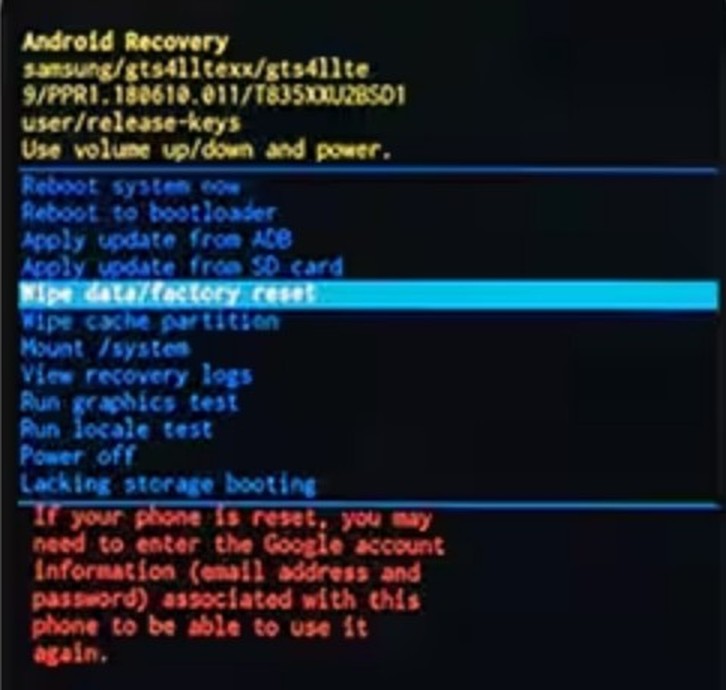
- Under Android Recovery, press Volume down to reach Wipe data/factory reset and press Power to select it.
- Select Factory data reset. The screen shows Data wipe complete when it finishes.
- Select Reboot system now, then tap Start to set up the phone.
If you hold the buttons too long, the phone restarts instead of entering Fastboot mode. Turn it off and start again from step 1.
Android recovery mode button combinations
The keys that open recovery mode depend on the maker and model. Turn the phone off before you press any of them.
| Phone | Keys to hold | What you see next |
|---|---|---|
| Google Pixel 6 and later, including Fold | Volume down + Power, up to 30 seconds | Fastboot mode, then select Recovery Mode |
| Google Pixel 5a and earlier | Volume up + Power | Fastboot mode, then select Recovery Mode |
| Samsung Galaxy without a Home button (S20 and newer, Fold, Flip) | Volume up + Side key, with the phone connected to a computer by USB cable | Samsung logo, then the recovery menu |
| Samsung Galaxy S8, S9, S10 (Bixby key) | Volume up + Bixby + Power | Samsung logo, then the recovery menu |
| Samsung Galaxy with a Home button (S6, S7) | Volume up + Home + Power; release Power when it vibrates | Recovery menu |
| Other brands | Listed on the manufacturer's support site | Varies by model |
On Samsung's recovery menu, choose Wipe data/factory reset, confirm with Factory data reset, and select Reboot system now after Data wipe complete appears.
How to factory reset an Android phone remotely with Find My Device (now Find Hub)
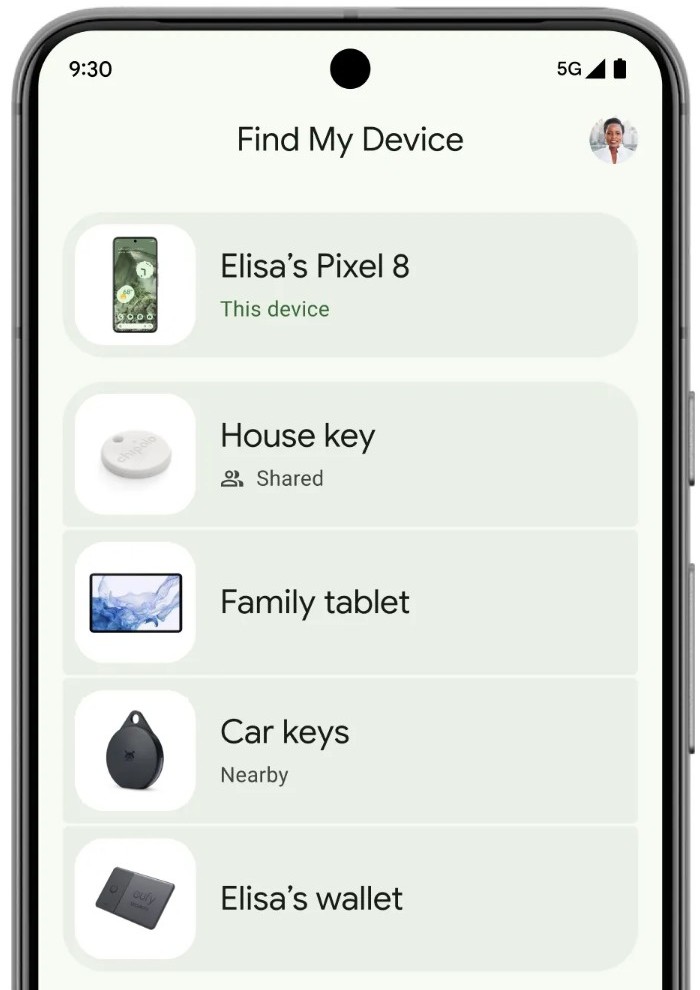
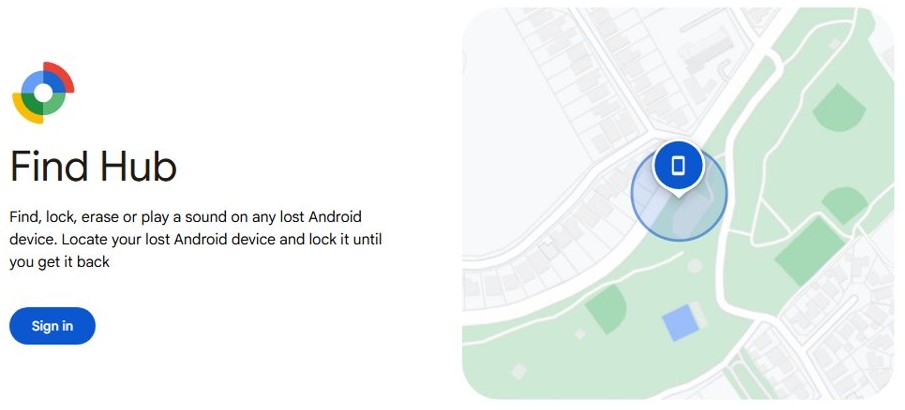
Google renamed Find My Device, once called Android Device Manager, to Find Hub. It erases a lost phone from a browser or another Android device, as long as the lost phone has power, is online, is signed in to a Google Account, has Find Hub turned on and is visible on Google Play.
- On a computer, go to google.com/android/find, or open the Find Hub app on another Android phone or tablet.
- Sign in with the Google Account that is on the lost phone.
- Select the phone from the device list.
- Select Settings, then tap Factory reset.
- Confirm with your Google Account password if asked and follow the on-screen prompts.
After the reset, the phone no longer appears in Find Hub, so you cannot locate it again. The erase may not delete an SD card, and anyone setting the phone up later needs your Google Account password.
How to factory reset an Android phone using a PC
No third-party software is needed. A computer can reset a phone in two official ways: Find Hub in a web browser, or Google's Update & Software Repair tool for Pixel 4a and later.
- Back up the phone if it still turns on, because both routes erase it.
- Connect the Pixel to the computer with a USB cord.
- In a browser on the computer, go to pixelrepair.withgoogle.com.
- Follow the on-screen instructions to update the software or reset the phone to the latest Android version.
- For any other Android brand, open google.com/android/find on the computer and use Factory reset from Find Hub instead.
Google suggests trying the repair tool's manual update first, because a manual update may fix software problems without deleting your data.
How to factory reset an Android phone if you forgot the PIN
A forgotten PIN, pattern or password can only be cleared by erasing the phone. Google lists two ways to do that on a locked phone.
- Make sure you know the password for the Google Account on the phone; you will need it after the reset.
- If the phone is online and Find Hub is on, erase it from google.com/android/find on another device.
- If it is offline, turn it off and reset it with the power and volume buttons in recovery mode.
- After the restart, sign in with the Google Account that was on the phone when the setup screen asks.
- Set a new screen lock and restore your backup.
If you knew the PIN when the backup was made, your Google Account backup restores normally after the reset.
Alternative solutions worth trying first
Google recommends trying other fixes before a reset that is meant to solve a problem. Each of these keeps your data, as do the usual tweaks to speed up an old Android phone.
| Problem | Try this first | Where to find it |
|---|---|---|
| An app may be causing restarts, freezes or crashes | Restart in safe mode and remove recent apps one at a time | Pixel 6 and later: hold Power + Volume up, touch and hold Power off or Restart, tap OK |
| Wi-Fi or Bluetooth will not connect | Reset Bluetooth and Wi-Fi settings only | Settings > System > Reset options > Reset Bluetooth & Wi-Fi |
| Calls or mobile data fail | Reset mobile network settings only | Settings > System > Reset options > Reset mobile network settings |
| Storage is full or the phone is slow | Free up space | Settings > Storage > Free up space |
| Pixel software problems | Manual update with the Update & Software Repair tool | pixelrepair.withgoogle.com on a computer |
Safe mode shows the words Safe mode at the bottom of the screen and turns on airplane mode. Restart the phone normally to leave it. Reset Bluetooth & Wi-Fi deletes your saved Wi-Fi connections.
Factory reset protection: what you need to know
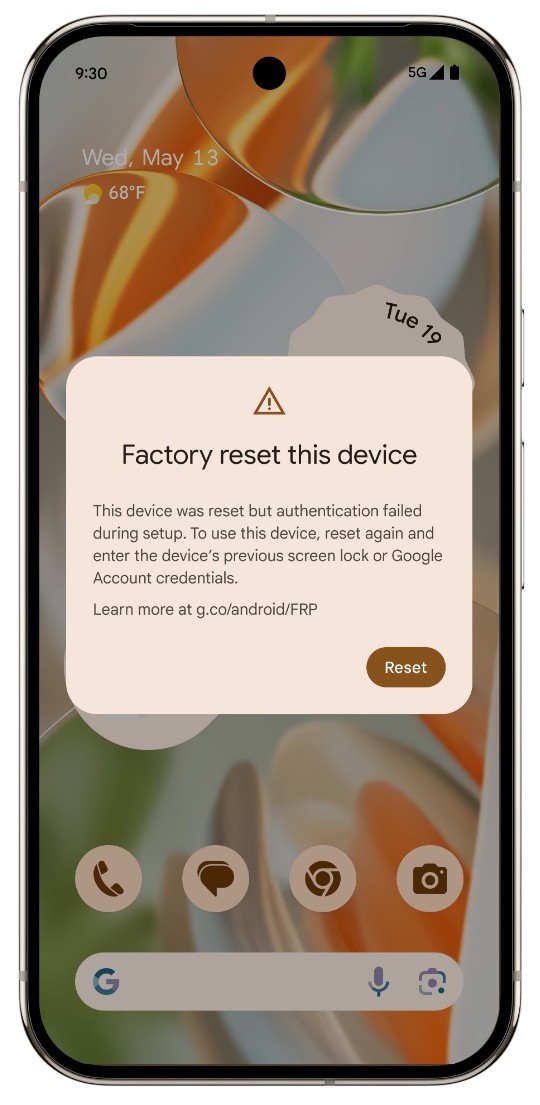
Factory reset protection, which Google calls device protection, turns on when a Google Account and a screen lock are set on the phone. It stops a thief from using a phone they have erased.
| How the phone was reset | What the phone asks for | When it asks |
|---|---|---|
| Settings app | Your screen lock | Before the reset starts |
| Recovery mode (buttons) | The PIN, password or pattern, or the Google Account that was on the phone | During setup after the reset |
| Find Hub remote erase | A Google username and password linked to the phone | During setup after the reset |
| Any route, account removed first | Nothing from the previous owner | Setup runs as on a new phone |
You can use any Google Account that was added and synced to the phone, but not a guest account. If you cannot give these details, you will not be able to use the phone at all after the reset.
How to remove a Google account before a factory reset
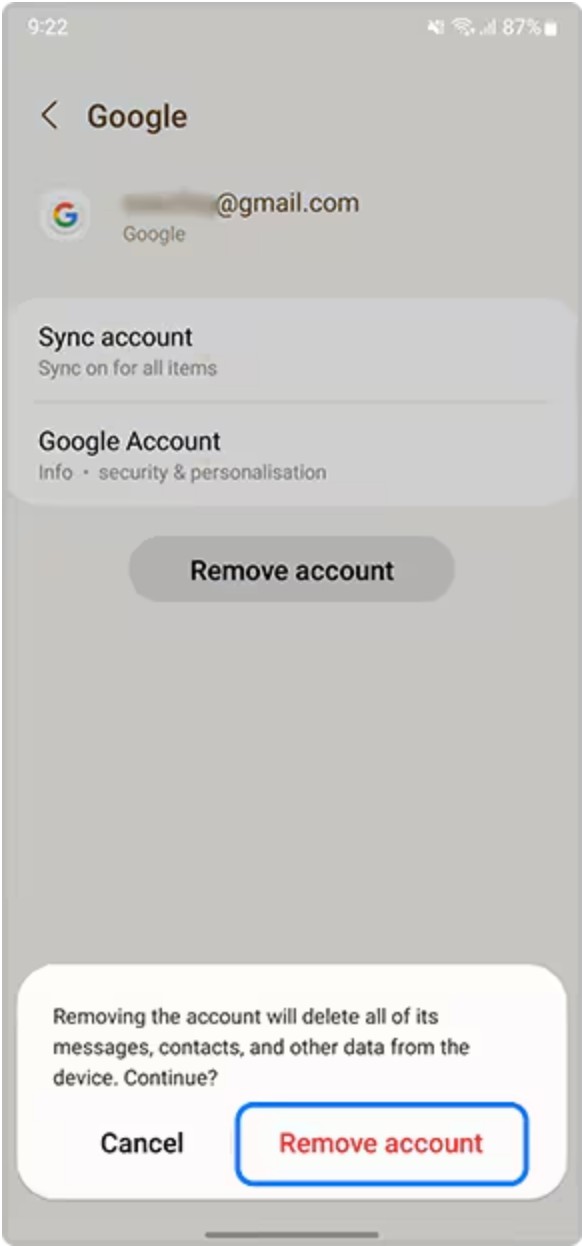
Removing your Google Account turns off factory reset protection, so the next owner can set the phone up. Do this before you sell or give the phone away.
- Open Settings and tap Passwords & accounts. On some phones it is Users & accounts, Passwords, passkeys & autofill or Manage accounts; on Samsung, tap Accounts and backup > Manage accounts.
- Under Accounts, tap your Google Account.
- Tap Remove account.
- Confirm with Remove account or Delete, and enter the phone's PIN, pattern or password if asked.
- Repeat for any other Google Account on the phone, then run the factory reset.
If the reset already happened, sign out remotely: go to myaccount.google.com, open Security > Your devices, select the phone and choose Sign out.
How to set up an Android phone after a factory reset
A finished reset lands on the first setup screen, the same one a new phone shows. From there you sign in and restore.
- Tap Start on the welcome screen.
- Connect to Wi-Fi or mobile data.
- Sign in with the Google Account that was on the phone before the reset.
- Choose your backup when the phone offers to restore one.
- Set a new PIN, pattern or password.
- Leave the phone on Wi-Fi and charging while apps and data download; a full restore can take up to 24 hours.
Photos and videos saved to Google Photos appear in the Google Photos app without a restore.
Android factory reset still not working? Try these next
Android phone factory reset not working from Settings
Settings will not open, or the phone asks for a PIN you no longer know.
- Turn the phone off.
- Enter recovery mode with your phone's key combination.
- Select Wipe data/factory reset, then Factory data reset.
The buttons restart the phone instead of opening recovery mode
The keys were held too long, or a Galaxy phone without a Home button is not connected by USB.
- Turn the phone off again.
- On a Pixel, release the keys as soon as the Fastboot mode screen shows.
- On a Galaxy without a Home button, connect it to a computer with a USB cable before you hold the keys.
Recovery mode shows "No command"
The phone is waiting for the second key press that opens the recovery menu.
- Press and hold Power.
- While holding it, press Volume up once.
- Let go of both buttons quickly and wait for Android Recovery.
Find Hub cannot reach the phone
The phone is off, offline, signed out of Google or has Find Hub turned off.
- Check that you signed in to Find Hub with the Google Account on that phone.
- Charge the phone and connect it to Wi-Fi or mobile data if you can.
- Use recovery mode instead if the phone stays offline.
Phone asks for the previous Google Account after the reset
Factory reset protection is on because the account was not removed first.
- Sign in with any Google Account that was synced to the phone.
- If you forgot the password, recover the Google Account on another device first.
- If you bought the phone used, ask the previous owner to sign it out of their account at myaccount.google.com under Security > Your devices.
The screen does not work, so no reset method can be used
A hardware fault stops every on-screen and recovery step.
- Check the phone's warranty for repair or replacement.
- For a Samsung phone you cannot unlock, take it and its proof of purchase to an authorised Samsung service centre.
Android factory reset FAQ
How do I factory reset my Android phone?
Open Settings, tap System > Reset options > Erase all data (factory reset), then tap Erase all data and enter your PIN. On a Samsung Galaxy, the path is Settings > General management > Reset > Factory data reset > Reset. Back up first, because the reset deletes everything on internal storage.
How do I factory reset an Android phone if I forgot the PIN?
Erase it remotely with Find Hub at google.com/android/find, or turn it off and reset it from recovery mode with the power and volume buttons. Either way you need the Google Account password that was on the phone to finish setup afterwards.
How do I factory reset an Android phone using a PC?
Open google.com/android/find in a browser on the PC, sign in, select the phone and choose Factory reset. Pixel 4a and later can also be reset or reinstalled with Google's Update & Software Repair tool at pixelrepair.withgoogle.com over a USB cable.
Do I need software on a PC to factory reset an Android phone?
No. Android resets itself from Settings or recovery mode, and the official computer routes run in a web browser. Avoid third-party reset or unlock programs; Google and Samsung do not use any in their own reset instructions.
How do I factory reset an Android phone manually?
Manual reset means recovery mode. Turn the phone off, hold the key combination for your model, choose Wipe data/factory reset with the volume keys, confirm Factory data reset with Power, then select Reboot system now when Data wipe complete appears.
Does a factory reset unlock an Android phone?
It removes the screen lock, but factory reset protection then asks for the Google Account or PIN that was on the phone. Without those details, the phone cannot be set up, so a reset does not unlock a phone for someone who is not its owner.
How long does a factory reset take on an Android phone?
Google says a factory reset can take up to an hour. Samsung's recovery reset usually takes a few minutes. Restoring your apps and data from a Google backup afterwards can take up to 24 hours to complete fully.
Does a factory reset delete everything on an Android phone?
It erases all data on the phone's internal storage, including apps, accounts, photos and settings. A remote erase through Find Hub may not delete an SD card, so take the card out before you sell or give away the phone.
Should I factory reset my phone before selling it?
Yes. Back up, remove your Google Account so factory reset protection is off, then reset from Settings. Google recommends the Settings route for trade-ins rather than recovery mode.