DirectX is part of Windows 11 and Windows 10 and cannot be uninstalled, so you reinstall it by repairing it: run DISM and SFC for the built-in DirectX 12 files, and run the DirectX End-User Runtime when a game reports a missing d3dx9 or xinput DLL.
This guide covers every repair route in order, from the legacy runtime and Windows Update to graphics drivers, DirectPlay, the shader cache and an in-place Windows reinstall that keeps your apps.
How to reinstall DirectX on Windows 11
These five steps repair the DirectX files that ship with Windows and put back the older DirectX libraries that many games still call. They work the same way on Windows 10.
- Type
cmdin the Search box, right-click Command Prompt and select Run as administrator. - Run
DISM.exe /Online /Cleanup-image /Restorehealthand wait for it to finish. It can take several minutes. - Run
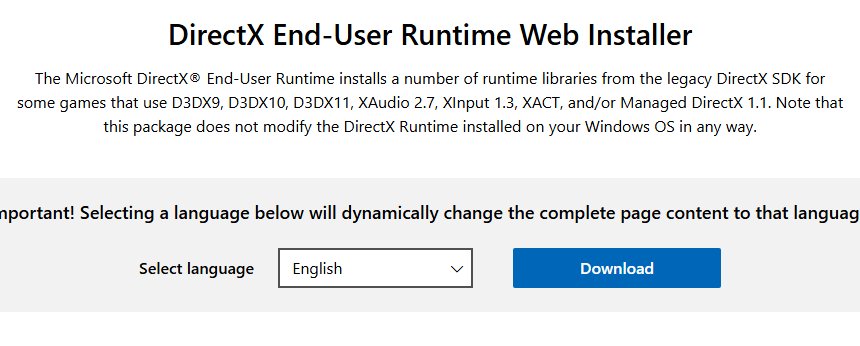
sfc /scannowin the same window and do not close it until verification reaches 100%. - Open the Microsoft Download Center page for the DirectX End-User Runtime Web Installer, select Download and run
dxwebsetup.exe. - Restart the PC and launch the game or app that showed the DirectX error.
Quick recommended fix order for DirectX errors
Work down this table and stop at the first fix that clears the error. Each fix has its own section below with the full steps.
| Order | Fix | Run it when |
|---|---|---|
| 1 | DirectX End-User Runtime | A game names a missing D3DX9, XInput 1.3, XAudio 2.7 or XACT file |
| 2 | Windows Update | Updates are waiting, or DirectX broke after a failed update |
| 3 | Graphics driver reinstall or rollback | Errors mention Direct3D, DXGI or the display device |
| 4 | DISM, then SFC | Several apps fail or Windows itself reports system errors |
| 5 | Game redistributables and file verification | Only one game fails |
| 6 | DirectPlay | A very old game asks for DirectPlay |
| 7 | Shader cache reset | A game shows graphical glitches that a driver change did not fix |
| 8 | Correct GPU | A laptop runs the game on its integrated graphics |
| 9 | Clean boot | The error stops when background apps are not loaded |
| 10 | In-place repair install | Everything above failed |
When do you need to reinstall DirectX on your computer?
Most DirectX errors are not caused by DirectX itself. Match your situation to a row before you start repairing Windows files.
| What you see | What is actually wrong | What fixes it |
|---|---|---|
| "d3dx9_35.dll is missing" or a similar D3DX, XInput or XAudio file | A legacy library from the old DirectX SDK is not installed. Windows never ships these files. | DirectX End-User Runtime |
| DirectX errors across several games after a crash or failed update | Windows system files may be damaged | DISM and SFC, then Windows Update |
| "Failed to initialize Direct3D" or DXGI errors | The graphics driver is missing, generic or unstable | Reinstall, update or roll back the graphics driver |
| A game says your GPU does not support DirectX 12 | The graphics card lacks the required feature level | No reinstall helps; the hardware or driver decides this |
| A game from the early 2000s will not start | The DirectPlay optional component is off | Turn on DirectPlay in Windows features |
| Only one game fails and others run | The game's own files or bundled redistributables are damaged | Verify the game files or rerun its DirectX setup |
What you need to know before reinstalling DirectX
| Fact | What it means for you |
|---|---|
| DirectX 11.3 and DirectX 12 are included with Windows 10, and Windows 11 also ships with DirectX built in | There is no stand-alone DirectX 12 installer to download |
| The DirectX runtime (Direct3D, DirectInput, DirectSound) is part of Windows and cannot be installed or uninstalled | Reinstalling means repairing Windows files, not removing and adding a program |
| Updates for the built-in DirectX come only through Windows Update | A website offering a newer DirectX 12 download is not Microsoft's package |
| The DirectX End-User Runtime adds D3DX9, D3DX10, D3DX11, XAudio 2.7, XInput 1.3, XACT and Managed DirectX 1.1 | It fixes missing-file errors in older games and does not change your DirectX version |
| A feature level describes what the graphics card can do, not how fast it is | Repairing DirectX cannot make an older card meet a game's DirectX 12 requirement |
| DISM, SFC and the runtime installer need administrator rights | Sign in with an administrator account before you start |
Check your current DirectX version
The DirectX Diagnostic Tool shows which DirectX version Windows reports and which display driver is loaded. You can also open DxDiag from Run or PowerShell if Search is not working.
- Type
dxdiagin the Search box on the taskbar, then select dxdiag from the results. - Select Yes if the tool asks whether to check that your drivers are digitally signed.
- Stay on the System tab and read DirectX Version under System Information.
- Select Save All Information if a game developer or support agent asks for your DirectX report.
Windows 11 and Windows 10 already have the latest DirectX for their version. A lower number than a game expects points at the graphics card or driver, not a missing install.
Method #1: Download the DirectX installer
Microsoft's DirectX installer for end users is the DirectX End-User Runtime Web Installer, dxwebsetup.exe. The Download Center lists version 9.29.1974.1, published 15 July 2024, at 288.4 KB.
- Open the DirectX End-User Runtime Web Installer page on the Microsoft Download Center.
- Leave the language on English or pick yours, then select Download.
- Open
dxwebsetup.exefrom your Downloads folder and select Yes at the User Account Control prompt. - Follow the setup prompts until the installer reports that it has finished.
- Start the game that showed the missing-file error.
The download page lists Windows 7 and older as supported systems. The package still only adds side-by-side legacy files, so it leaves the DirectX that Windows 11 and 10 include untouched.
Install the DirectX End-User Runtime for missing DLL errors
The runtime only helps when the missing file belongs to the legacy DirectX SDK; Visual C++ and .NET runtime errors need a different fix. Use this table to check the file name in your error message.
| File in the error | Installed by the End-User Runtime? | What to do |
|---|---|---|
d3dx9_35.dll, d3dx9_43.dll or another D3DX9, D3DX10 or D3DX11 file |
Yes | Run the web installer, or the offline package below |
xinput1_3.dll |
Yes (XInput 1.3) | Run the runtime installer |
xaudio2_7.dll |
Yes (XAudio 2.7) | Run the runtime installer |
| XACT or Managed DirectX 1.1 files | Yes | Run the runtime installer |
| Direct3D, DirectInput or DirectSound runtime files | No, they are part of Windows | Run DISM and SFC, then Windows Update |
| A file the runtime does not list | No | Verify or reinstall the game |
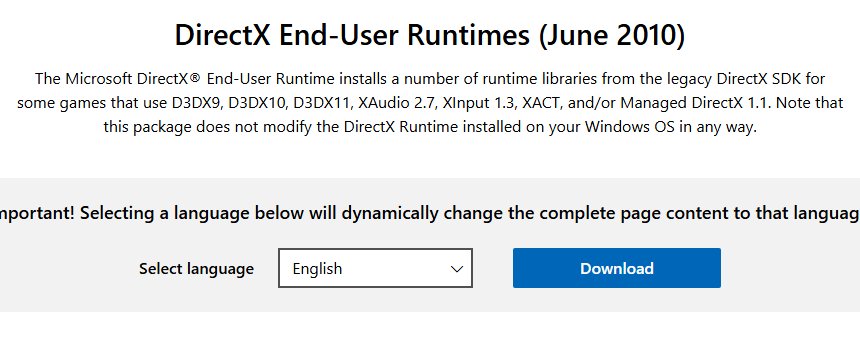
For a PC without internet access, the Download Center also offers the DirectX End-User Runtimes (June 2010) package, directx_Jun2010_redist.exe, at 95.6 MB. It contains every component the web installer adds, in one file.
Never copy a single DLL from a download site into a game folder or System32. The runtime installs the matching, signed Microsoft files.
Method #2: Check for Windows updates
Windows Update is the only source of updates for the DirectX built into Windows 11 and Windows 10. It also delivers many graphics drivers. You can update DirectX through Windows Update on both versions with the same button.
- On Windows 11, select Start > Settings > Windows Update.
- On Windows 10, select Start > Settings > Update & Security > Windows Update.
- Select Check for updates.
- Select Download & install for any update that is offered.
- Restart the PC when Windows asks, then check for updates again until none are offered.
On Windows 11, driver updates can also sit under Settings > Windows Update > Advanced options > Optional updates.
Update Windows to repair built-in DirectX components
Each Windows version carries its own DirectX release, and Microsoft provides no stand-alone package for them. To move to a higher DirectX version, you upgrade Windows itself.
| Windows version | DirectX included | How it is repaired or updated |
|---|---|---|
| Windows 11 | The latest DirectX for Windows 11, including DirectX 12 | Windows Update, DISM and SFC |
| Windows 10 | DirectX 11.3 and DirectX 12 | Windows Update only; no stand-alone package |
| Windows 8.1 | DirectX 11.2 | Windows Update only |
| Windows 8 | DirectX 11.1 | Windows Update only |
| Windows 7 | DirectX 11.0, or 11.1 with the Platform Update (KB2670838) | Service pack and platform update |
Method #3: Disable third-party apps and services
A clean boot starts Windows with only essential drivers and startup programs. If the DirectX error disappears in a clean boot, a background app or service is the cause, not DirectX.
- Sign in with an administrator account.
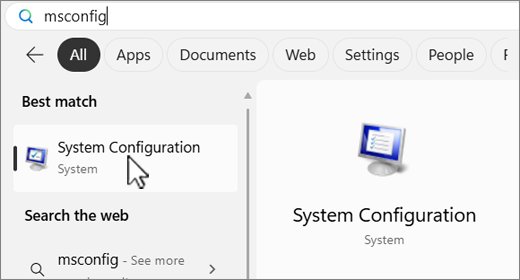
- Select Search, type
msconfigand select System Configuration. - On the Services tab, select Hide all Microsoft services, then Disable all, then Apply.
- On the Startup tab, select Open Task Manager.
- On the Startup apps tab, select each Enabled item and select Disable. Note which items you turned off.
- Close Task Manager, select OK in System Configuration and restart the PC.
- Launch the game. If it works now, turn the services back on half at a time to find the one that conflicts.
To return to a normal startup, open System Configuration, select Normal Startup on the General tab, clear Hide all Microsoft services, select Enable all, then re-enable your startup apps in Task Manager and restart.
Method #4: Run System File Checker in Command Prompt
System File Checker scans every protected Windows file, including the DirectX runtime files, and replaces damaged ones with a cached copy. Open Command Prompt with Run as administrator before you start.
sfc /scannowScans all protected system files and replaces corrupted files with a cached copy. Keep the window open until verification is 100% complete.
You should see: Windows Resource Protection did not find any integrity violations, or Windows Resource Protection found corrupt files and successfully repaired them.
Windows Resource Protection could not perform the requested operation means you should run the scan again in Safe Mode.
Windows Resource Protection found corrupt files but was unable to fix some of them means the cached copies are damaged too. Run the DISM repair below, then run sfc /scannow again.
Repair DirectX system files with DISM and SFC
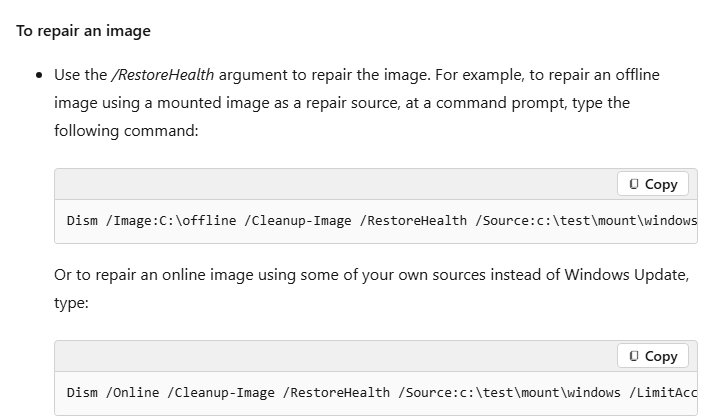
DISM repairs the Windows image that SFC copies its files from, so Microsoft recommends running DISM before System File Checker. By default DISM downloads the repair files from Windows Update.
- Type
cmdin the Search box, right-click Command Prompt and select Run as administrator. - Optional: run
Dism /Online /Cleanup-Image /CheckHealthto see whether the image is healthy, repairable or non-repairable. - Run
DISM.exe /Online /Cleanup-image /Restorehealthand wait several minutes for it to complete. - If Windows Update is broken, run
DISM.exe /Online /Cleanup-Image /RestoreHealth /Source:C:\RepairSource\Windows /LimitAccessinstead, replacing the path with a working Windows folder or Windows installation media. - Run
sfc /scannowand wait for the result message. - Restart the PC and test the game again.
Reinstall or update your graphics driver
Direct3D talks to the graphics card through its driver, so a damaged or generic driver produces DirectX errors. If Device Manager shows Microsoft Basic Display Adapter, Windows is using a generic display driver and the manufacturer's driver is missing.
- Save your work and close open apps.
- Right-click Start and select Device Manager.
- Expand Display adapters.
- Right-click your graphics card and select Uninstall device, then confirm with Uninstall.
- Restart the PC from the Start menu. Windows should reinstall a driver for the card after the restart.
- Install the latest driver from the card maker: the NVIDIA driver page, the AMD driver page or Intel Driver & Support Assistant.
If the errors started right after a driver update, roll it back instead: in Device Manager, right-click the card, select Properties, open the Driver tab, select Roll Back Driver, pick a reason and select Yes.
Avoid driver downloads from any site other than the manufacturer's own.
Install game-specific DirectX redistributables
Games that use legacy DirectX components are meant to run Microsoft's DirectX setup, dxsetup.exe, during every installation. When one game fails and others run, repair that game's files first.
- Open the folder where the game is installed.
- Look for the DirectX setup files the game ships with. If you find
dxsetup.exe, run it and select Yes at the User Account Control prompt. - In Steam, right-click the game in your Library and select Properties….
- Select the Installed Files tab and select Verify integrity of game files.
- Wait for the check to finish. A note that one or more files failed to verify is normal for local configuration files.
- If the game came from another launcher, use that launcher's repair or verify option, or reinstall the game so its setup reruns.
Enable DirectPlay for very old games
DirectPlay is a legacy component that some very old games still call. Windows 11 and Windows 10 keep it as an optional feature under Legacy Components, turned off by default.
- Select Start, type
Windows featuresand select Turn Windows features on or off. - Expand Legacy Components in the Windows Features window.
- Select the DirectPlay check box.
- Select OK and approve the administrator prompt if one appears.
- Restart the game once Windows finishes adding the feature.
Windows can also offer to install DirectPlay on its own the first time an old game calls it. Accept that prompt to get the same result.
Reset DirectX shader cache
Windows lists the DirectX shader cache with its other temporary files in Storage settings. Deleting it is a quick test when a game shows graphical glitches that a driver reinstall did not fix.
- Select Start > Settings > System > Storage.
- Select Temporary files under the disk usage list.
- Clear every check box except the shader cache entry.
- Select Remove files and confirm.
- Restart the game and let it load fully before judging the result.
Make a game use the correct GPU
Laptops with integrated and dedicated graphics can start a game on the weaker chip. That chip may not support the DirectX feature level the game needs, which looks like a broken DirectX install.
- Select Start > Settings > System > Display > Graphics.
- Under Custom options for apps, select the game.
- Select Options.
- Under Graphics preference, choose High performance.
- Select Save, then restart the game.
Use in-place repair install if DirectX is still broken
An in-place repair reinstalls Windows, and with it every DirectX file, while keeping your apps, files and settings. Keep the PC plugged in and online for the whole process.
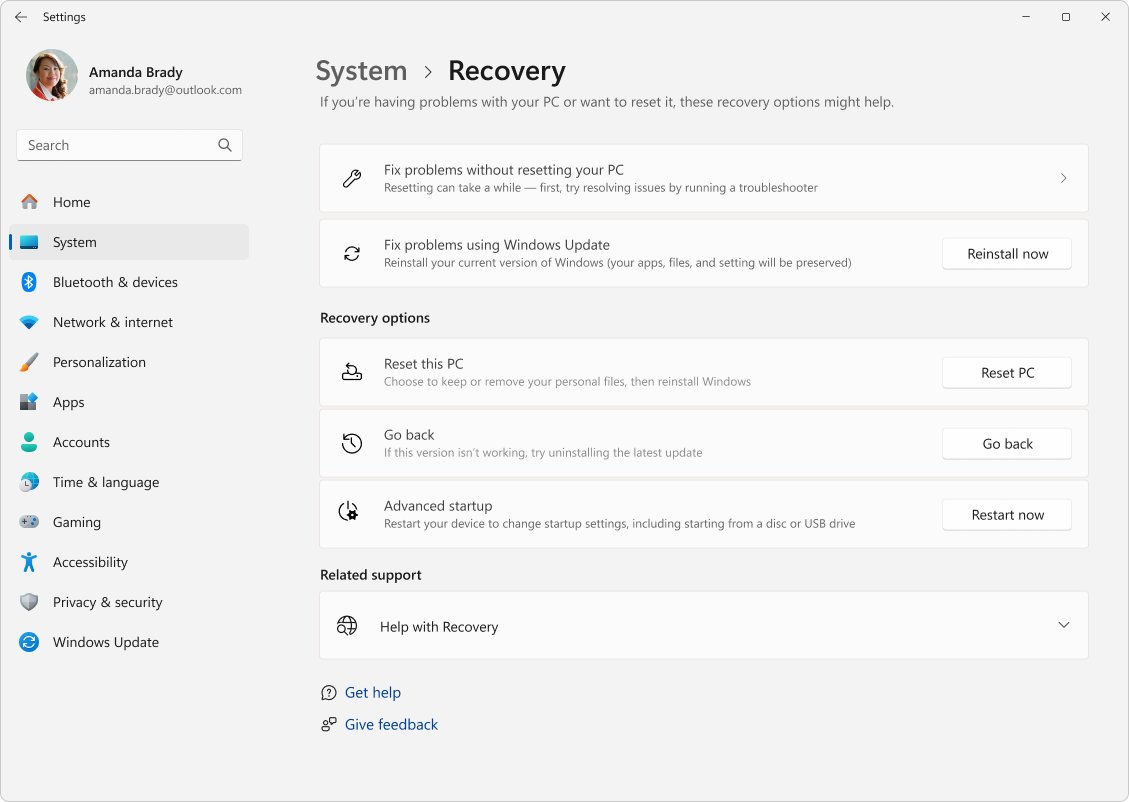
- On Windows 11, select Start > Settings > System > Recovery.
- Under Fix problems using Windows Update, select Reinstall now.
- Choose whether the PC may restart automatically 15 minutes after the installation, then select OK.
- On Windows 10, or if that option is missing, create installation media for the version you already run from Microsoft's Windows 11 download page or Windows 10 download page, connect it and open the drive in File Explorer.
- Open
setup.exefrom the root of the drive and approve the prompt. - Select Change what to keep, choose Keep personal files and apps, select Next, then select Install.
Fix problems using Windows Update needs Windows 11 with the 2022 update and the February 2024 optional update or later, and work or school PCs may hide it. A full reinstall of Windows 11 that removes apps is only worth it when the in-place repair fails.
How to test DirectX on Windows 11 after a repair
- Right-click Start, select Run, type
dxdiag.exeand select OK. - On the System tab, confirm that DirectX Version shows a version number and the tool loads without errors.
- Select the Display tab and read Name in the Device section.
- If the name is Microsoft Basic Display Adapter, install the manufacturer's graphics driver again.
- Launch the game that failed. A clean start without the earlier DLL or Direct3D message means the repair held.
Windows 11 and 10: what not to do when fixing DirectX
| Do not | Why | Do this instead |
|---|---|---|
| Download individual DLL files from random websites | A loose DLL can be the wrong version and skips Microsoft's signed installer | Run the DirectX End-User Runtime or repair the game |
| Try to uninstall DirectX 12 | The runtime is part of Windows and has no uninstaller | Run DISM and SFC, or Reinstall now |
| Assume DirectX 12 means your GPU supports every game | Games also need a hardware feature level, which only the graphics card provides | Check the game's requirements against your card |
| Install a 'DirectX 12 download' from a third-party site | Microsoft offers no stand-alone DirectX 12 package | Use Windows Update |
| Install the old DirectX SDK to fix a game | The SDK is a developer kit, not a repair tool | Use the End-User Runtime instead |
Troubleshooting common DirectX errors
"d3dx9_43.dll is missing"
The game uses the D3DX9 library from the legacy DirectX SDK, which Windows does not include.
- Run the DirectX End-User Runtime Web Installer from the Microsoft Download Center.
- Use the June 2010 offline package if the PC has no internet connection.
- Verify or reinstall the game if the error stays.
"xinput1_3.dll is missing"
XInput 1.3 is a legacy controller library that games must install through DirectX setup.
- Run the DirectX End-User Runtime installer.
- Run
dxsetup.exefrom the game's installation folder if the game ships one. - Restart the game with the controller connected.
"Failed to initialize Direct3D"
The game could not create a Direct3D device, usually because the graphics driver is missing or the card lacks the feature level the game requests.
- Open
dxdiag, select the Display tab and check the Name field. - Install the graphics manufacturer's driver if it shows Microsoft Basic Display Adapter.
- Set the game to High performance in Settings > System > Display > Graphics on laptops with two GPUs.
- Compare the game's DirectX requirement with your card's specifications.
"DXGI_ERROR_DEVICE_REMOVED" or "DXGI_ERROR_DEVICE_HUNG"
DEVICE_REMOVED means the video card was removed or its driver changed while the game ran; DEVICE_HUNG means the game sent commands the GPU could not run.
- Reinstall the graphics driver, or roll it back if the error began after a driver update.
- Install the latest game patch, because DEVICE_HUNG points at the game's own commands.
- Restart the PC after any driver change before you launch the game again.
"Your GPU does not support DirectX 11/12"
The card's hardware feature level is lower than the game needs. Reinstalling DirectX does not change it.
- Confirm the game runs on the dedicated GPU, not integrated graphics.
- Install the manufacturer's newest driver for the card.
- Check the DirectX 12 support on Windows 11 requirements against your card. If it falls short, only a newer graphics card fixes this.
DirectX not installing or failing to install on Windows 11
There is no DirectX 12 installer for Windows 11, and the legacy runtime fails when it cannot download or when system files are damaged.
- Use Windows Update for the built-in DirectX instead of any installer.
- Use the June 2010 offline package if the web installer cannot download.
- Run DISM and SFC, then run the runtime installer again.
- Try the installer in a clean boot if it still fails.
DirectX reinstall FAQ
How do I reinstall DirectX on Windows 11?
Run DISM.exe /Online /Cleanup-image /Restorehealth and then sfc /scannow from an administrator Command Prompt to repair the built-in DirectX files. Then run the DirectX End-User Runtime Web Installer from Microsoft if a game reports a missing D3DX, XInput or XAudio file.
How do I uninstall DirectX on Windows 11?
You cannot. Microsoft states that the DirectX runtime (Direct3D, DirectInput, DirectSound) is part of Windows and cannot be installed or uninstalled. To fix a damaged copy, repair Windows files with DISM and SFC or use Reinstall now under Settings > System > Recovery.
How do I install DirectX on Windows 11?
DirectX is already installed on Windows 11, and Windows Update keeps it current. There is no stand-alone DirectX 12 package. Install the DirectX End-User Runtime only when an older game needs the legacy D3DX9, XInput 1.3 or XAudio 2.7 files.
How do I uninstall and reinstall DirectX?
DirectX cannot be removed, so an uninstall-and-reinstall is not possible. The closest equivalent is an in-place repair: Reinstall now on Windows 11, or setup.exe with Keep personal files and apps on Windows 10. Both reinstall every DirectX file and keep your apps.
How do I reinstall DirectX 12 on Windows 11?
DirectX 12 has no separate installer, so repair it as part of Windows. Run DISM and SFC first, install every update in Windows Update, and use Reinstall now in Recovery settings if errors continue. Reinstalling the graphics driver also fixes many DirectX 12 errors.
How do I repair DirectX on Windows 11?
Start with the fix that matches the error. Missing D3DX or XInput files need the DirectX End-User Runtime; Direct3D and DXGI errors usually need a graphics driver reinstall; system-wide failures need DISM and SFC. An in-place repair install is the last step.
Is DirectX already installed on Windows 11?
Yes. Every Windows 11 PC includes DirectX, and Microsoft says Windows 10 and 11 already have the latest version for that release. Type dxdiag in Search and read DirectX Version on the System tab to see what Windows reports.
How do I uninstall DirectX 11?
DirectX 11 is part of Windows alongside DirectX 12 and cannot be uninstalled separately. If a game misbehaves in DirectX 11 mode, update or reinstall the graphics driver, verify the game files, and run DISM and SFC to repair the Windows copy.
Can I reinstall DirectX on Windows 10?
Yes, with the same repair steps as Windows 11. Run DISM and SFC, install updates from Settings > Update & Security > Windows Update, and run the DirectX End-User Runtime for missing legacy files. For an in-place repair, run setup.exe from installation media and keep personal files and apps.
Can I install DirectX 11 on Windows 11?
Windows 11 already includes DirectX 11 along with DirectX 12, so there is nothing separate to install. A game asking for DirectX 11 runs on the built-in runtime. If it reports missing D3DX11 files, install the DirectX End-User Runtime.