To update your iPhone, open Settings > General > Software Update and tap Download and Install; an update keeps your data and settings, while an upgrade moves you to a new major iOS version or to a new iPhone.
This guide covers which iPhones can run iOS 27, updating with a Mac or Windows PC, updating over 5G, fixing an update that won't install, and moving your data to a new iPhone.
How to update iPhone to the latest iOS
- Back up your iPhone with iCloud or your computer.
- Plug the iPhone into power and connect it to Wi-Fi.
- Open Settings and tap General.
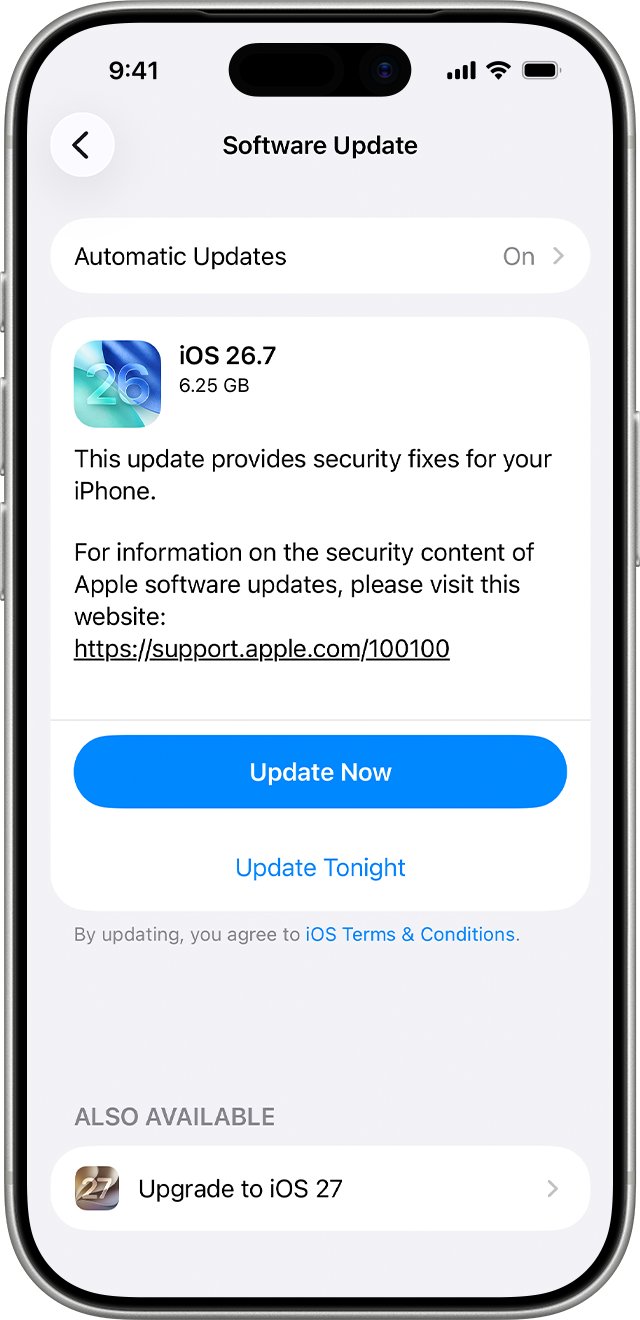
- Tap Software Update. The installed iOS version appears, along with any update that is available.
- Tap Download and Install, then follow the onscreen instructions.
- Enter your passcode when asked.
If iOS asks to temporarily remove apps to make space, tap Continue. Those apps reinstall automatically after the update. Tap Cancel instead if you would rather delete content yourself.
Difference between iPhone updates and upgrades
Point releases and new major versions install from the same Software Update screen. A new iPhone is a separate job that moves your data across.
| Term | What changes | Example | Your data |
|---|---|---|---|
| iOS update | A point release within the same major version, with security updates and bug fixes | iOS 27.0.1 to iOS 27.2 | Data and settings stay unchanged |
| iOS upgrade | A move to the next major version, with new features | iOS 26 to iOS 27 | Data and settings stay unchanged |
| System file update | Feature files that install without changing the iOS version number | Set under Automatic Updates > System Files | Unchanged |
| iPhone upgrade | A new iPhone replaces the old one | An iPhone 13 swapped for a current model | Moves over with Quick Start, iCloud or a computer backup |
Which iPhones are eligible for iOS 27?
iOS 27 runs on iPhone 11 and later. Apple released it on September 14, 2026, and the newest version for most of those phones is iOS 27.2.
| Release | Released | Available for |
|---|---|---|
| iOS 27 | September 14, 2026 | iPhone 11 and later |
| iOS 27.0.1 | September 28, 2026 | iPhone 11 and later |
| iOS 27.1 | October 23, 2026 | iPhone Duo only |
| iOS 27.2 (latest) | October 26, 2026 | iPhone 11 and later |
| iOS 26.7.2 | October 26, 2026 | iPhone 11 and later, for phones that stay on iOS 26 |
Apple keeps patching the previous major version, so an iPhone 11 or later can hold off on iOS 27 and still get iOS 26 security updates. A year earlier, iPhone 11 Pro owners could install iOS 18.7.2 without moving to iOS 26.
Which iPhones can't upgrade to iOS 27?
Older iPhones stay on the last major version Apple built for them. Apple still ships security releases for several of those branches.
| iPhone models | Newest iOS branch | Latest release | Released |
|---|---|---|---|
| iPhone XS, iPhone XS Max, iPhone XR | iOS 18 | iOS 18.7.11 | October 26, 2026 |
| iPhone 8, iPhone 8 Plus, iPhone X | iOS 16 | iOS 16.7.16 | May 11, 2026 |
| iPhone 6s, iPhone 7, iPhone SE (1st generation) | iOS 15 | iOS 15.8.8 | May 11, 2026 |
| iPhone 5s, iPhone 6, iPhone 6 Plus | iOS 12 | iOS 12.5.8 | January 26, 2026 |
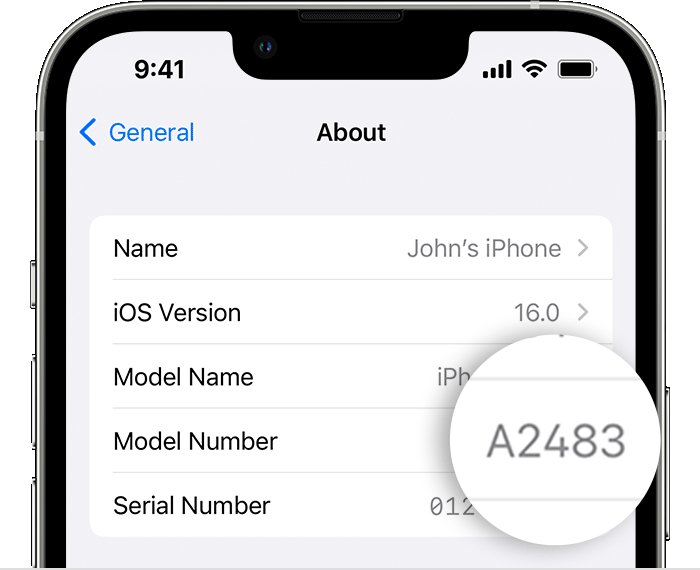
To find your model, open Settings > General > About, then tap the part number next to Model Number to show the model number. Match it on Apple's Identify your iPhone model page.
If you need to update an iPhone 8, iOS 16.7.16 is the newest version it can install.
How to turn on automatic updates on iPhone
- Open Settings and tap General.
- Tap Software Update, then tap Automatic Updates.
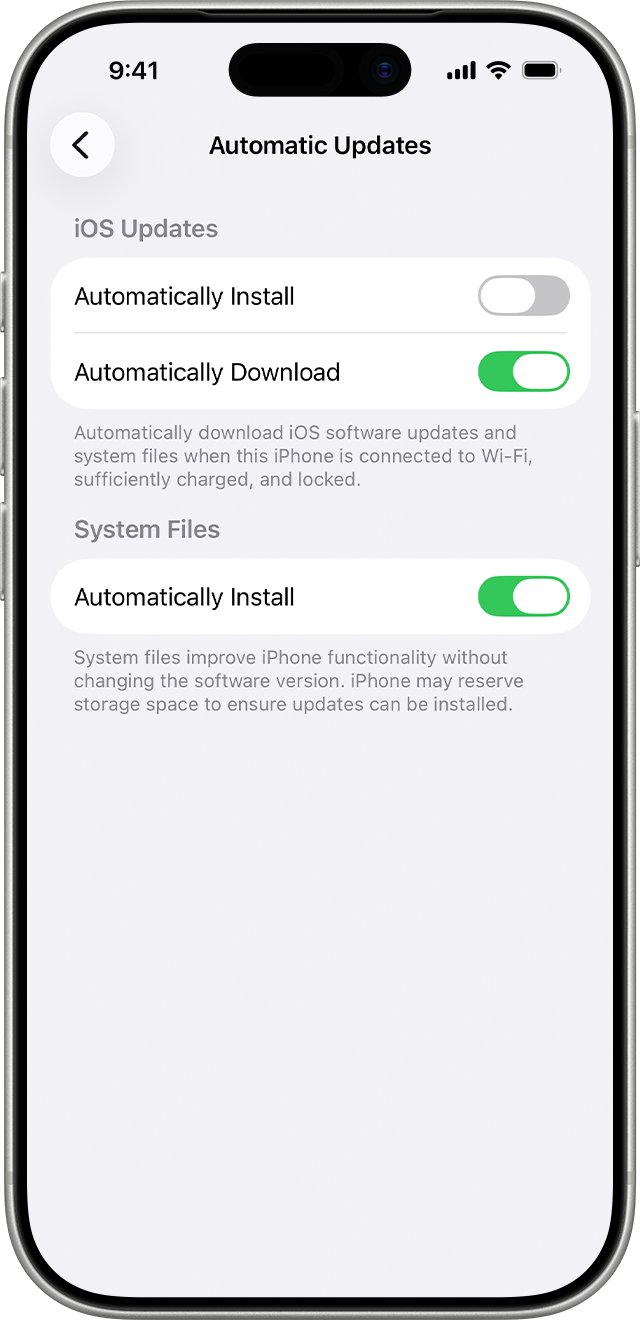
- Turn on Automatically Install to have iPhone download and install updates overnight while it charges on Wi-Fi. You are notified before an update installs.
- To download updates without installing them, turn off Automatically Install and turn on Automatically Download.
To get only feature files, turn off Automatically Install under iOS Updates and turn on Automatically Install under System Files. These improve features without changing the iOS version.
Update your iPhone using a Mac with macOS Catalina or later
Use a computer when the update doesn't appear on the iPhone or won't install wirelessly. Back up the iPhone first.
- If the Mac is online through this iPhone's Personal Hotspot, connect the Mac to a different Wi-Fi or Ethernet network.
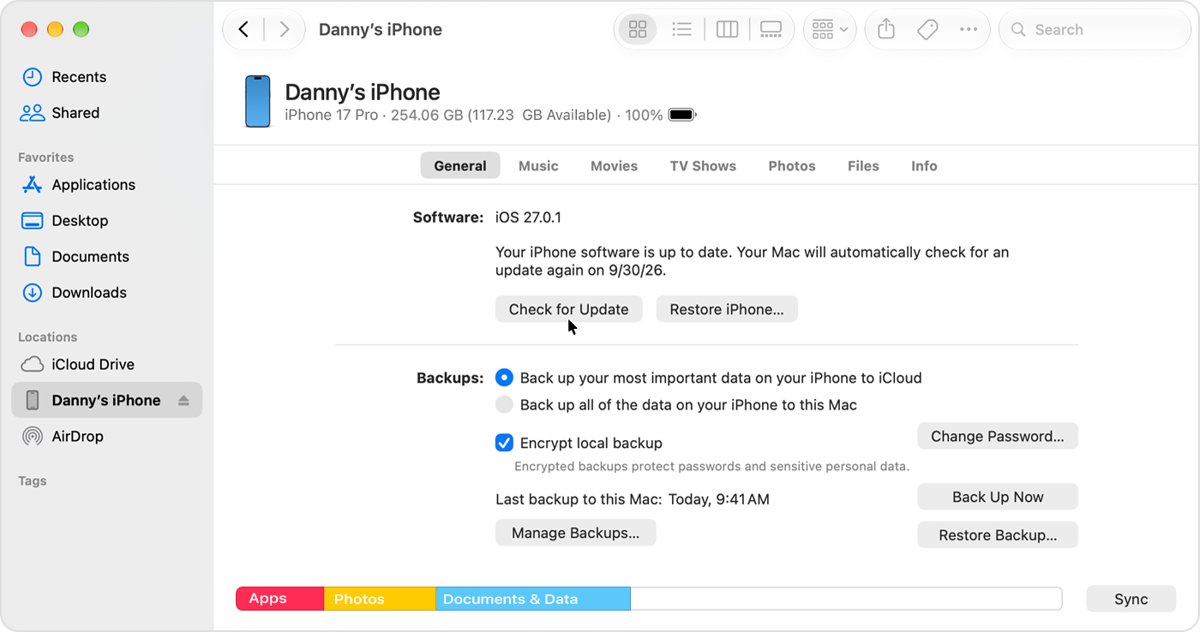
- Open a Finder window on the Mac.
- Connect the iPhone to the Mac with a cable.
- Select the iPhone in the Finder sidebar.
- Click General, then click Check for Update.
- Click Download and Update and follow the onscreen instructions.
- Enter your passcode on the iPhone when prompted.
Update your iPhone on a Windows PC or a Mac with macOS Mojave
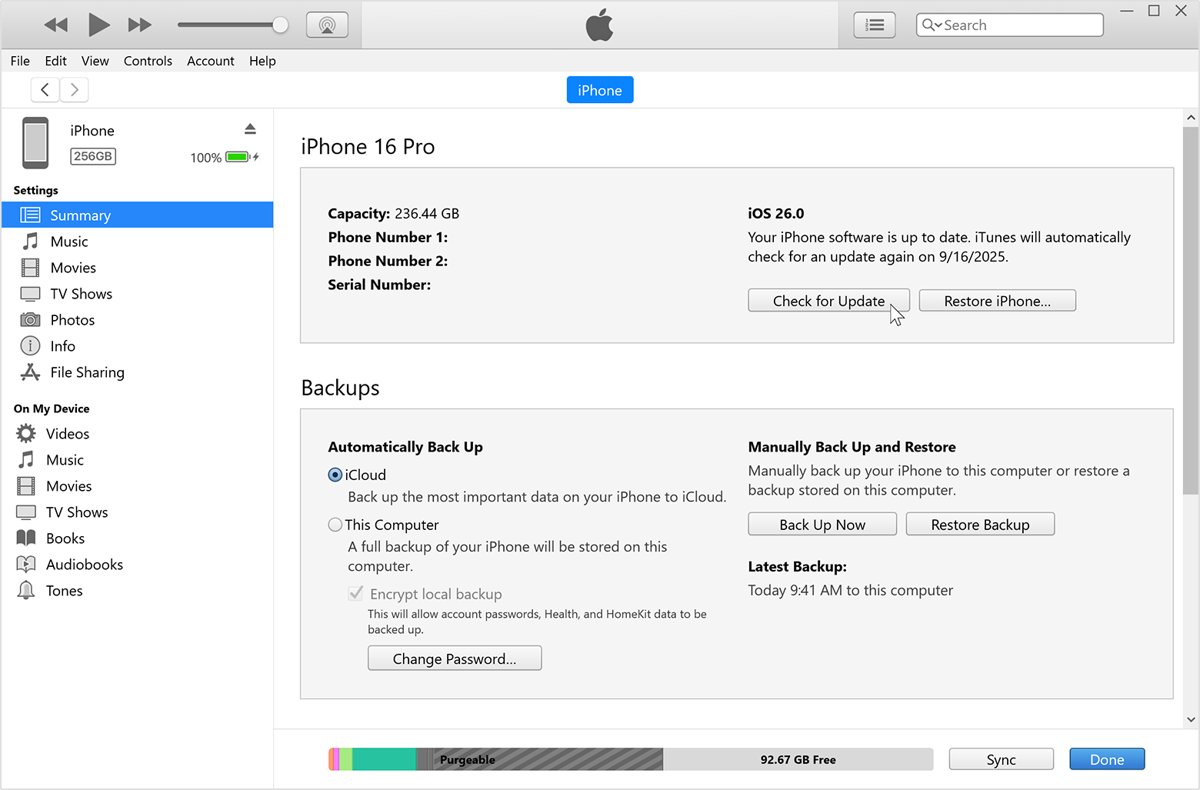
On Windows, the Apple Devices app updates the iPhone. iTunes still handles updates on Windows and on Macs running macOS Mojave or earlier.
- Connect the iPhone to the PC with a USB or USB-C cable, or over Wi-Fi if you set up Wi-Fi syncing.
- Open the Apple Devices app and select the iPhone in the sidebar.
- Select General in the sidebar.
- Select Check for Update if the Update button isn't showing yet.
- Select Update and follow the onscreen instructions.
- Enter your passcode on the iPhone if asked.
With iTunes, click the device button in the toolbar, click Summary, then click Check for Update and Download and Update. Update iTunes on Windows first if your copy is old.
How to update iPhone without Wi-Fi using 5G
On iPhone 12 and later with a 5G plan, the Allow More Data on 5G mode lets iOS updates download over cellular. It needs a carrier and plan that support 5G.
- Open Settings.
- Tap Cellular, then Cellular Data Options. If you see Mobile Data instead, tap it, then Mobile Data Options.
- Under Data Mode, choose Allow More Data on 5G.
- Go to Settings > General > Software Update and tap Download and Install.
- Set Data Mode back to Standard after the update if you want to save data.
This mode uses more cellular data. Low Data Mode does the opposite: it pauses automatic updates and background tasks.
How to upgrade iPhone to a new iPhone with Quick Start
Quick Start copies your data from the current iPhone to the new one. The old phone needs iOS 11 or later, and Apple advises updating both phones to the latest iOS first.
- Back up the current iPhone. If iCloud is full, open Settings > General > Transfer or Reset iPhone > Get Started for free temporary iCloud storage, available for up to three weeks after you buy the new iPhone.
- Move the SIM card to the new iPhone, or contact your carrier if the new phone needs a different SIM or an eSIM.
- Connect the current iPhone to Wi-Fi, turn on Bluetooth, unlock it and go to the Home Screen.
- Turn on the new iPhone, place it next to the current one and follow the onscreen prompt.
- Connect the new iPhone to Wi-Fi or cellular, activate cellular service if asked, and set up Face ID or Touch ID.
- Choose how to transfer. From iCloud, apps and data download in the background; directly from the old iPhone, you wait until both phones finish.
- Keep both phones close together and plugged in until the migration completes.
If the setup prompt disappears from the current iPhone, restart both phones. Apple's other routes are restoring an iCloud backup, or a backup made with the Apple Devices app, iTunes or the Finder.
How do iPhone upgrades work with Apple?
Apple is ending the iPhone Upgrade Program, and current members keep making their remaining monthly payments. These are the ways Apple now lists to get the next iPhone.
| Option | How it works | Conditions |
|---|---|---|
| Apple Upgrade | Lease a new iPhone with monthly payments, then upgrade at the end of the lease and return the current device | U.S. only, leases provided by Klarna, credit approval, an eligible carrier and no prepaid plan |
| Carrier deals | Buy through a current offer from your carrier | Terms set by the carrier |
| Finance with Apple | Spread the cost through Apple's financing | Terms set by Apple |
| One-time payment | Buy the iPhone outright | No lease or financing terms |
| Apple Trade In | Trade the old iPhone for credit toward the new one, online or in an Apple Store | Apple quotes $35 to $885 for an iPhone; devices that don't qualify are recycled free |
Trade-in value can go toward a purchase or onto an Apple Gift Card. Leased devices must be returned in good condition, or damage fees may apply.
What to do before you trade in or sell your old iPhone
- Back up the old iPhone and transfer your data to the new one.
- Check the iPhone's Parts and Service History. Any part marked Finish Repair must be finished before a trade-in.
- Unpair your Apple Watch, and cancel or transfer any AppleCare plan.
- On iOS 26 or later, open Settings, tap your name, tap Sign Out, and choose Erase this iPhone or Sign Out But Don't Erase.
- If you are moving to a non-Apple phone, deregister iMessage.
- Open Settings > General > Transfer or Reset iPhone, tap Erase All Content and Settings, enter your passcode and tap Erase iPhone.
- Remove the old iPhone from your Apple Account's list of trusted devices.
On iOS 18 or earlier, the sign-out step asks for your Apple Account password, then Turn Off. If your phone number changes with the new iPhone, add another trusted phone number to your account so you keep access.
How to check which iOS version your iPhone has
- Open Settings > General > Software Update.
- Read the installed iOS version at the top of the screen.
- Compare it with the latest release for your model in the tables above.
- If Download and Install still shows the same update, the install didn't finish, so run it again on power and Wi-Fi.
Why isn't my iPhone updating?
An iPhone update needs a compatible model, an internet connection and enough free storage, and it helps to keep the phone on power.
The update doesn't appear in Software Update
The model doesn't support the latest iOS, the update isn't offered wirelessly, or a VPN or proxy blocks the update servers.
- Check your model against the iOS 27 tables above.
- Disconnect from any VPN or proxy and check Software Update again.
- Update with a Mac, the Apple Devices app or iTunes instead.
Not enough space to update
The download needs more free storage than the iPhone has.
- Open Settings > General > iPhone Storage.
- Tap Enable next to Offload Unused Apps. This removes app data temporarily without deleting your personal information.
- Delete apps you no longer use, then try Software Update again.
"Unable to Check for Update" or "Unable to Download"
The iPhone can't reach the update server, or the update requires Wi-Fi.
- Try the update again on the same network.
- If the alert returns, switch to another Wi-Fi network.
- If it still fails, update with a Mac or iTunes, or delete the update and download it again.
The update fails or won't finish installing
The downloaded update file is damaged or incomplete.
- Open Settings > General > iPhone Storage.
- Find the update in the list of apps, tap it, then tap Delete Update.
- Go to Settings > General > Software Update and download the update again.
- If the update isn't in the list or fails again, update with a Mac or iTunes.
Why is my iPhone still updating?
The Apple logo and progress bar can move slowly or appear static, and the bar may complete and start again.
- Leave the iPhone connected to power and let it finish.
- Press a button. If an updating message appears, the update is still running.
- If it never completes or the phone stops responding, force restart it: press volume up, press volume down, then hold the side button until the Apple logo appears.
- If the Apple logo shows for several minutes with no progress bar, connect to a computer and use recovery mode to update iOS.
- If the logo and progress bar stay on screen after all this, arrange service from Apple.
iPhone update FAQ
Should I update my iPhone?
Yes. Apple calls keeping your software up to date one of the most important things you can do for your device's security, and updates bring new features, security updates and bug fixes. Back up the iPhone first, then install from Software Update.
Do you have to update your iPhone?
No. You can turn off Automatically Install and Automatically Download under Settings > General > Software Update > Automatic Updates and install updates yourself. Skipping security updates leaves known flaws unpatched, so install them when they appear.
Can I use my iPhone while updating?
Yes, during the download: Apple says you can keep using the iPhone, and it notifies you when the update is ready to install. During installation the phone shows the Apple logo with a progress bar and can't be used until it finishes.
Why are there so many iPhone updates?
Most are security and bug-fix releases. Between September 14 and October 26, 2026, Apple shipped iOS 27, 27.0.1 and 27.2, plus iOS 26.7.x and 18.7.x patches for phones on older versions. Apple doesn't disclose security issues until patches are available.
What changed with the new iPhone update?
iOS 27.2, released October 26, 2026, is the latest update for iPhone 11 and later. Apple lists each release, the devices it covers and its security fixes on the Apple security releases page, with a separate security-content page for iOS 27.2.
Is there a new iPhone update?
Yes. iOS 27.2 arrived on October 26, 2026, for iPhone 11 and later, alongside iOS 26.7.2 and iOS 18.7.11 for iPhone XS, XS Max and XR. Open Settings > General > Software Update to see what your phone is offered.
Should I upgrade my iPhone to iOS 27?
On an iPhone 11 or later, iOS 27 is available now, and staying on iOS 26 still gets security updates such as iOS 26.7.2. An iPhone XR, XS or older can't run iOS 27, so it stays on an older branch for good.
Where do you update iOS on iPhone?
Open Settings, tap General, then tap Software Update. The screen shows the installed iOS version and any available update; tap Download and Install to start. On a computer, use the Finder on a Mac, or the Apple Devices app or iTunes on Windows.