When WiFi drops every time your iPhone locks, update iOS first, then turn off Low Power Mode and Low Data Mode, forget and rejoin the network, and set its Private Wi-Fi Address to Fixed.
This guide matches each cause to its fix, covers the router settings Apple recommends, keeps Wi-Fi Calling working on a locked iPhone, and fixes a Personal Hotspot that drops when the screen locks.
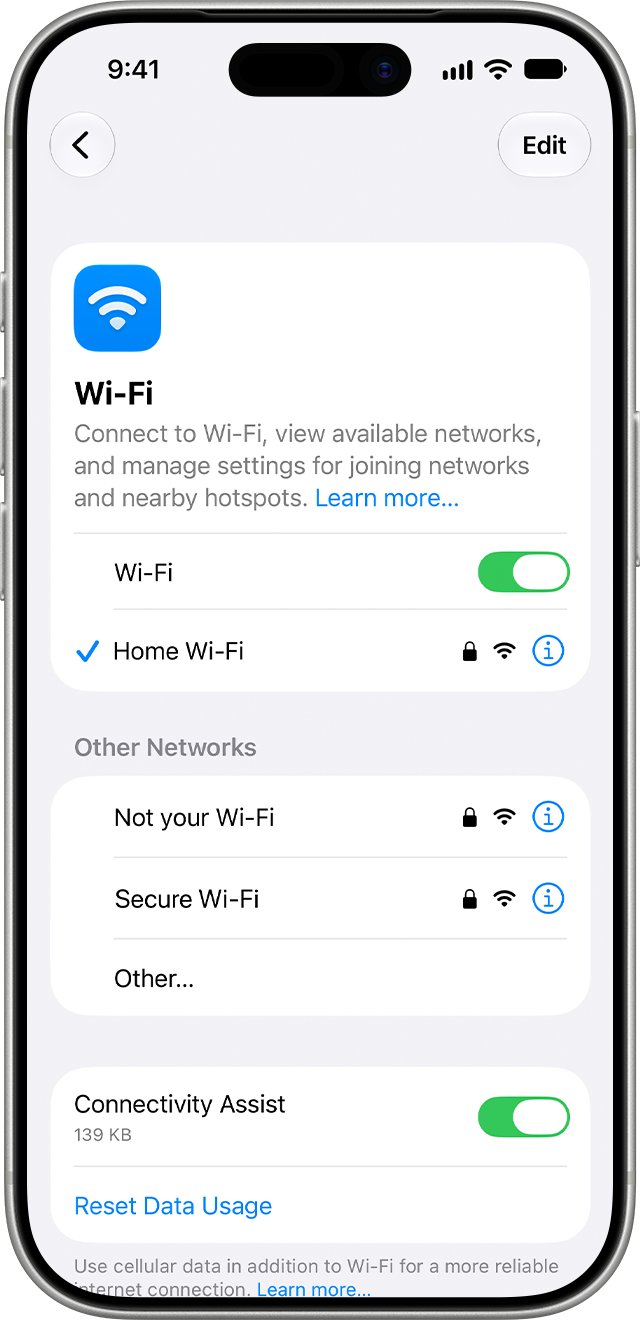
Why does my iPhone disconnect from WiFi when locked?
Match the pattern you see to a row. The software and power rows are the quickest to rule out, because they need no access to the router.
| What you notice | Likely cause | Fix |
|---|---|---|
| It started right after an iOS update | A software bug, such as the Wi-Fi and Bluetooth drops on iPhone 17, iPhone Air and iPhone 17 Pro that iOS 26.0.1 fixed | Install the latest iOS update |
| Mail, messages and app alerts stop arriving while the phone is locked | Low Power Mode or Low Data Mode stops background network use, so the iPhone looks offline | Turn off Low Power Mode and Low Data Mode for that network |
| It happens on one network only, often a home or office router | Router settings such as different names per band, weak security or two DHCP servers | Apply Apple's recommended router settings, then forget and rejoin the network |
| The router lists your iPhone as a new device or blocks it | Private Wi-Fi Address is set to Rotating and the address changes | Set Private Wi-Fi Address to Fixed for that network |
| A hotel, cafe or airport network asks you to log in again | Captive network login or Auto-Login is off | Turn on Auto-Join and log in again |
| You miss calls when the screen locks and rely on Wi-Fi Calling | Wi-Fi Calling needs a Wi-Fi network that supports it | Re-enable Wi-Fi Calling and test another network |
| Every network drops, on every router | Damaged network settings on the iPhone | Reset Network Settings |
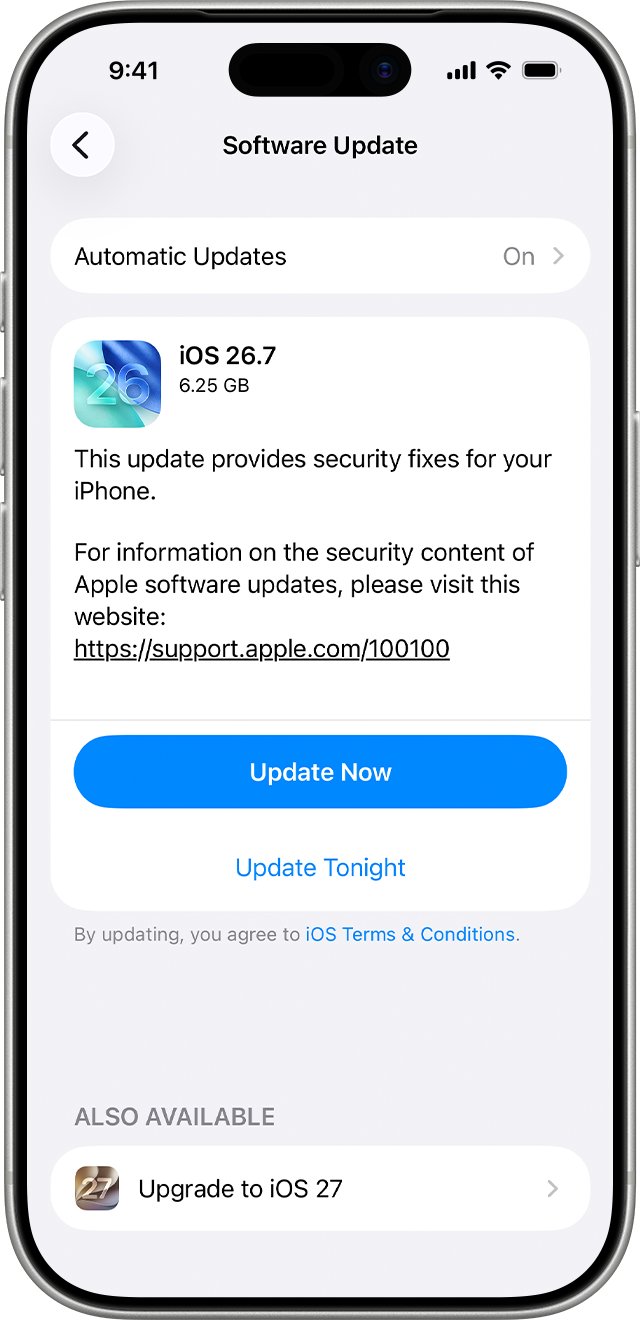
Update iOS to fix iPhone WiFi keeps disconnecting
Apple ships Wi-Fi fixes in point releases. iOS 26.0.1, for example, fixed Wi-Fi and Bluetooth that occasionally disconnected on iPhone 17, iPhone Air and iPhone 17 Pro models.
- Back up your iPhone with iCloud or your computer.
- Plug the iPhone into power and connect it to Wi-Fi.
- Open Settings and tap General.
- Tap Software Update to see your current iOS version and any update.
- Tap Download and Install and follow the onscreen instructions.
- Turn on Automatic Updates > Automatically Install so future fixes install overnight while charging.
If the download stalls because Wi-Fi keeps dropping, a VPN or proxy can also block Apple's update servers. Pause the VPN, or update from a computer instead.
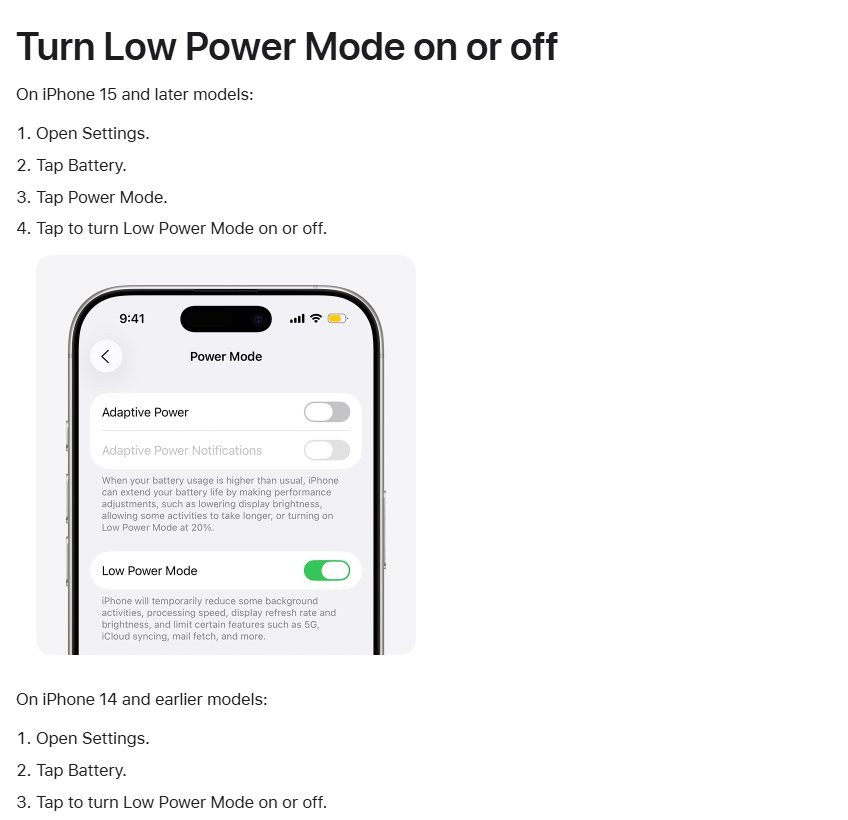
Turn off Low Power Mode and Low Data Mode on iPhone
Neither mode switches Wi-Fi off. Low Power Mode turns off email fetch, Background App Refresh and automatic downloads, and Low Data Mode stops apps using the network when you are not using them. On a locked iPhone, both make the connection look dead.
- On iPhone 15 and later, open Settings > Battery > Power Mode and turn off Low Power Mode.
- On iPhone 14 and earlier, open Settings > Battery and turn off Low Power Mode.
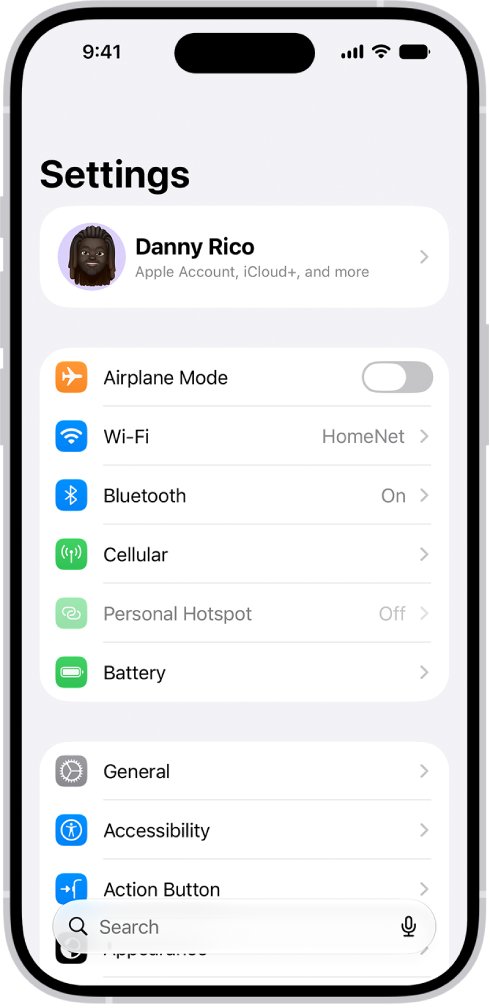
- Open Settings > Wi-Fi.
- Tap the Info button next to the network you are connected to.
- Turn off Low Data Mode.
- Lock the iPhone for a few minutes, then check whether mail and messages arrived.
A yellow battery icon means Low Power Mode is still on. It also turns itself off when the battery charges to 80% or higher, and Adaptive Power turns it on below 20% on iPhones that support it.
Forget and rejoin the WiFi network on iPhone
Rejoining clears the saved settings for one network. Have the WiFi password ready first; if you do not know it, share the WiFi password from another iPhone after you rejoin.
- Open Settings and tap Wi-Fi.
- Tap the Info button next to the network that keeps dropping.
- Tap Forget This Network, then confirm.
- Restart the iPhone.
- Return to Settings > Wi-Fi, tap the network name and enter its password.
- Tap the Info button again and make sure Auto-Join is on.
- Look for the blue checkmark next to the network name.
Change Private Wi-Fi Address to Fixed on iPhone
Your iPhone uses a different private address on each network. On Rotating, the address changes every two weeks, which a router that limits or filters devices treats as a new device. Fixed keeps one private address for that network.
- Open Settings and tap Wi-Fi.
- If you are not connected to the network, tap Edit in the upper-right corner.
- Tap the More Info button next to the network name.
- Tap Private Wi-Fi Address.
- Select Fixed.
- Rejoin the network if iOS asks you to.
On iOS 17 and earlier, the setting is a single Private Wi-Fi Address switch. Install the latest iOS before you turn it off, and choose Off only if the network still refuses the iPhone with Fixed.
Fix WiFi calling dropping when iPhone is locked
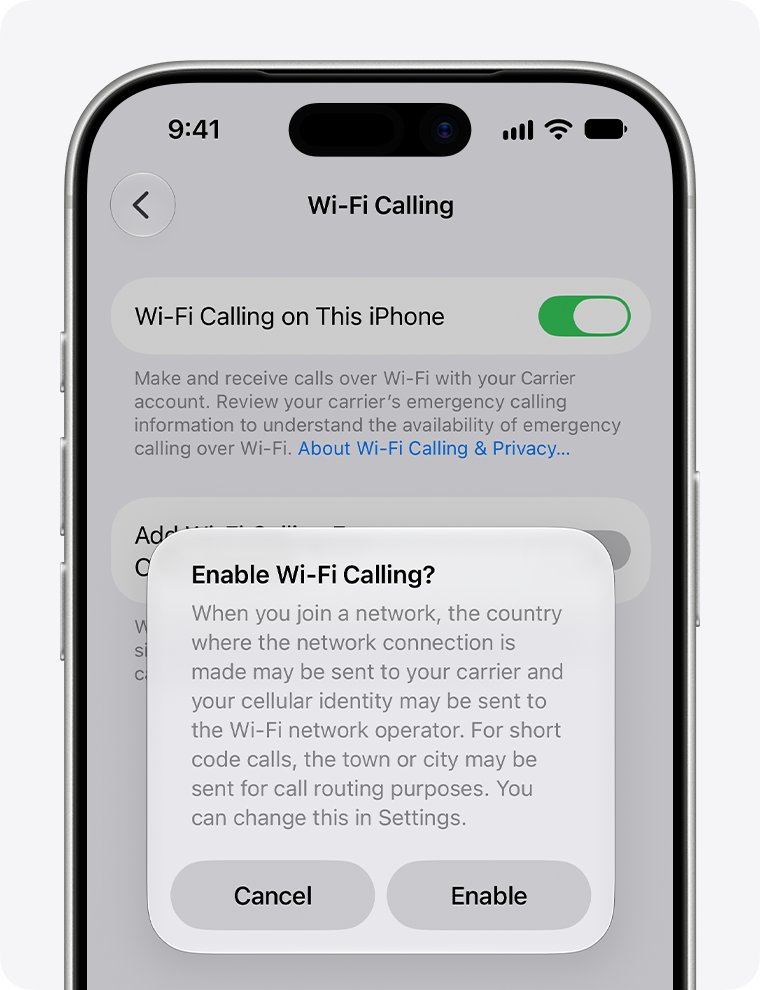
Wi-Fi Calling lets you make and receive calls where cellular coverage is weak or absent, so a locked iPhone that drops WiFi also misses calls. Apple's steps below come after you have confirmed your carrier supports Wi-Fi Calling and your iOS is up to date.
- Open Settings and tap Cellular. On a dual-SIM iPhone, tap the line you use for Wi-Fi Calling.
- Tap Wi-Fi Calling and make sure Wi-Fi Calling on This iPhone is on. Tap Enable if asked and confirm your emergency address.
- Wait two minutes, then restart your iPhone.
- Wait two minutes, then connect to a different Wi-Fi network. Not every Wi-Fi network works with Wi-Fi Calling.
- Wait two minutes, then turn Wi-Fi Calling off and on again.
- Open Control Center and look for Wi-Fi in the status bar, which shows that calls now use Wi-Fi Calling.
If Wi-Fi Calling still fails on an up-to-date iPhone with a carrier that supports it, contact the carrier. The fixes in the other sections keep the WiFi link alive, which Wi-Fi Calling depends on.
Recommended router settings for iPhone WiFi
When only one network drops, the router is the usual cause. Back up the router's settings and update its firmware before you change anything, then forget and rejoin the network on each Apple device.
| Router setting | Set it to | Why it matters |
|---|---|---|
| Security | WPA3 Personal, or WPA2/WPA3 Transitional for older devices | WPA/WPA2 mixed, WPA, WEP and TKIP reduce reliability and trigger a weak-security warning |
| Network name (SSID) | One name for every band (2.4 GHz, 5 GHz and 6 GHz) | Different names per band stop devices connecting reliably to every band and router |
| Hidden network | Off | A hidden network exposes identifying information and shows a privacy warning |
| Automatic firmware updates | On | Updates deliver stability and security fixes |
| Radio mode and bands | All modes, every band enabled | More bands give more capacity and better performance |
| Channel width | 20 MHz on 2.4 GHz, Auto on 5 GHz and 6 GHz | Narrow 2.4 GHz channels avoid interference from Bluetooth and nearby networks |
| DHCP | On, on one device only | Two DHCP servers cause address conflicts that cut devices off |
| DHCP lease time | 8 hours at home or work, 1 hour for a hotspot or guest network | A shorter lease frees unused addresses for devices that rejoin |
| NAT | On, on the router only | Double NAT on a modem and router cuts access to some resources |
| WMM | On | WMM prioritizes voice and video traffic, and turning it off hurts reliability |
On the iPhone, also open Settings > Privacy & Security > Location Services > System Services and turn on Networking & Wireless. Apple uses it to apply the Wi-Fi channels and signal strength allowed in your country.
Should Connectivity Assist be on or off on iPhone?
Connectivity Assist replaced Wi-Fi Assist and now sits in Settings > Wi-Fi. When it is on, the iPhone adds cellular data whenever Wi-Fi is weak, busy or has no internet, which hides a failing Wi-Fi link instead of fixing it.
Turn Connectivity Assist off while you troubleshoot a WiFi drop, then turn it back on if you want cellular backup. Apple's own Wi-Fi troubleshooting asks you to switch it off so the iPhone stays on Wi-Fi only. With it on, you also use more cellular data, and it does nothing while roaming internationally or in cellular Low Data Mode.
Reset Network Settings on iPhone
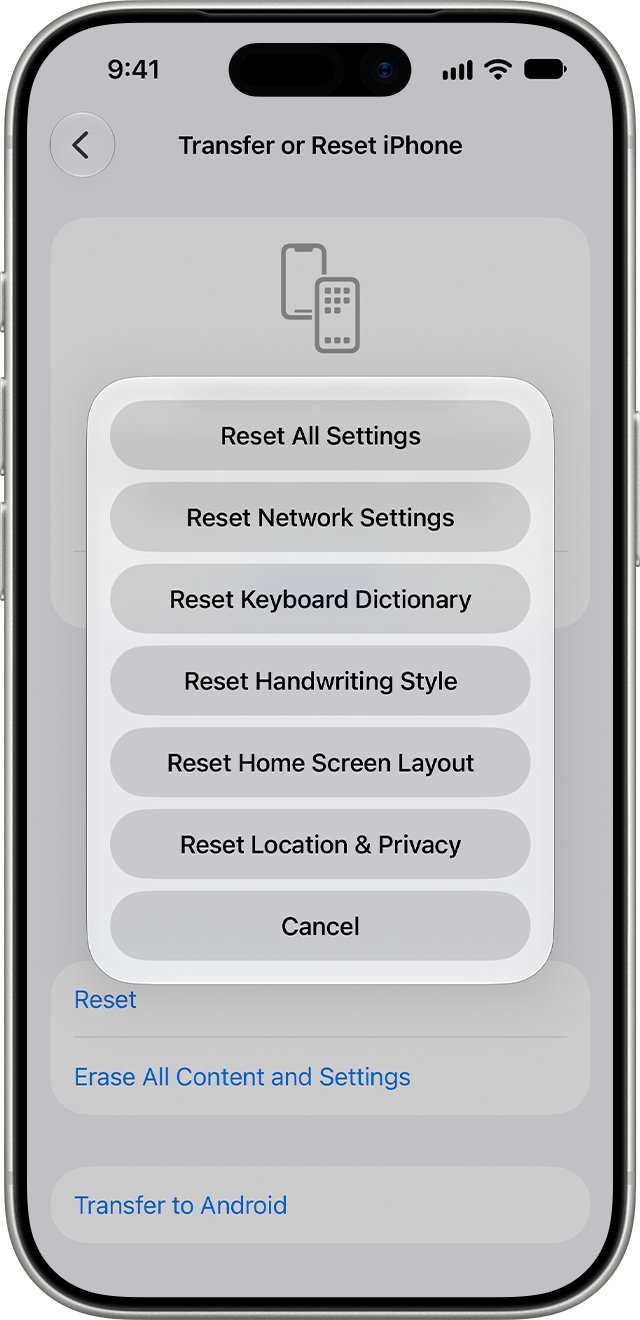
Use this last, after the steps above. It erases every saved Wi-Fi network and password, plus cellular, VPN and APN settings, and the iPhone gets new private Wi-Fi addresses. Ask your IT team first if a school or business manages the phone.
- Open Settings and tap General.
- Tap Transfer or Reset iPhone.
- Tap Reset, then tap Reset Network Settings.
- Enter your passcode and confirm.
- After the restart, rejoin your WiFi network and enter its password.
- Turn Wi-Fi Calling back on in Settings > Cellular if you use it.
How to tell if iPhone stays connected to WiFi when locked
- Turn off Connectivity Assist in Settings > Wi-Fi so cellular cannot cover for a drop.
- Confirm the blue checkmark next to your network name and the Wi-Fi icon at the top of the screen.
- Lock the iPhone and leave it for 10 to 15 minutes.
- Send yourself a message or email from another device while it is locked.
- Unlock the iPhone. A message that arrived on time, and a Wi-Fi icon that never left, mean the connection held.
- Turn Connectivity Assist back on if you use it.
If you use Wi-Fi Calling, test it the same way: lock the iPhone, call it from another phone, and confirm it rings.
iPhone keeps disconnecting from WiFi
iPhone connects to WiFi then disconnects
A captive network wants you to log in, or the saved network settings are damaged.
- On a public network, tap the More Info button, tap Join Network and complete the login screen.
- Make sure Auto-Join is on for that network.
- On a home network, forget and rejoin the network (steps above).
iPhone hotspot disconnects when locked
Other devices find the hotspot most reliably while the Personal Hotspot screen is open, and some need a more compatible Wi-Fi mode.
- Open Settings > Personal Hotspot and make sure Allow Others to Join is on.
- On iPhone 12 or later, turn on Maximize Compatibility. It can reduce speed and Wi-Fi security for connected devices.
- Stay on the Personal Hotspot screen until the other device connects.
- Turn Wi-Fi off and on again on the device that is joining.
- Restart both devices and install the latest software on each.
The Wi-Fi switch is dimmed or grayed out
The Wi-Fi hardware or software is stuck.
- Restart the iPhone.
- If it will not turn off normally, press and release volume up, press and release volume down, then hold the side button until the Apple logo appears.
"No Internet Connection" appears under the network name
The iPhone is on Wi-Fi, but the router or modem has no internet.
- Check whether other devices can get online on the same network.
- Unplug the router and cable modem, then plug them back in.
- If no device gets online, contact your internet provider about an outage.
WiFi drops after installing a VPN or security app
VPN and security software can interrupt the Wi-Fi connection.
- Uninstall the VPN or security app.
- Restart the iPhone and test Wi-Fi again.
- If you need that software, ask its provider for a version that works with your iOS release.
iPhone 17 or iPhone Air keeps disconnecting from WiFi
Early iOS 26 builds had a bug that dropped Wi-Fi and Bluetooth on iPhone 17, iPhone Air and iPhone 17 Pro.
- Open Settings > General > Software Update and install the latest iOS.
- If drops continue, try the router's 5 GHz band if it has one.
- Contact Apple if the iPhone cannot hold any Wi-Fi network after updating.
iPhone WiFi disconnecting FAQ
Why does my iPhone always disconnect from WiFi?
The usual causes are an iOS bug fixed in a later update, Low Power Mode or Low Data Mode stopping background network use, a rotating private address, or router settings such as different network names per band. Update iOS first, then work through the router and network settings.
Why does my phone disconnect from WiFi when the screen is locked?
Check the power and data saving modes first, because both stop apps using the network while the screen is off, so mail and messages stop arriving. Turn off Low Power Mode in Settings > Battery and Low Data Mode in the network's Info screen, then test with the phone locked.
Does Low Power Mode turn off WiFi on iPhone?
No. Low Power Mode does not switch Wi-Fi off, but it turns off email fetch, Background App Refresh and automatic downloads and pauses iCloud Photos. A locked iPhone in Low Power Mode therefore receives less in the background and can look disconnected.
How do I connect a locked iPhone to WiFi?
A locked iPhone joins any known network on its own when it is in range. To join a new network, unlock the iPhone and pick the network in Settings > Wi-Fi. If you cannot unlock it, you need to reset the forgotten iPhone passcode first.
How do I disconnect from WiFi on iPhone?
Open Settings > Wi-Fi and turn Wi-Fi off, or tap the Info button next to the network and tap Forget This Network. To stay off one network without forgetting its password, turn off Auto-Join on the same Info screen.
Why does iPhone keep losing WiFi connection after an update?
A new iOS release can bring a Wi-Fi bug, and Apple fixes these in later point updates, as iOS 26.0.1 did for iPhone 17 models. Install the newest update, then forget and rejoin the network so it uses fresh settings.
Does Reset Network Settings delete anything else?
Reset Network Settings removes all saved Wi-Fi networks and passwords, cellular settings, and VPN and APN settings. Apple lists nothing else. You need to rejoin Wi-Fi, re-enter passwords and turn Wi-Fi Calling on again afterwards.
Should I turn off Private Wi-Fi Address to stop WiFi drops?
Try Fixed before Off. Fixed keeps one private address for the network so the router always sees the same device, while Off sends the iPhone's hardware address and gives up the privacy benefit. Apple also advises installing the latest iOS before turning it off.