Windows 11 cannot play an animated wallpaper by itself, so install a live wallpaper app such as the free Lively Wallpaper from the Microsoft Store and pick a moving background from its gallery.
This guide covers video, GIF and YouTube wallpapers, Wallpaper Engine on Steam, live wallpaper on multiple monitors, how to stop it, and the problems people run into most.
How to set a live wallpaper in Windows 11
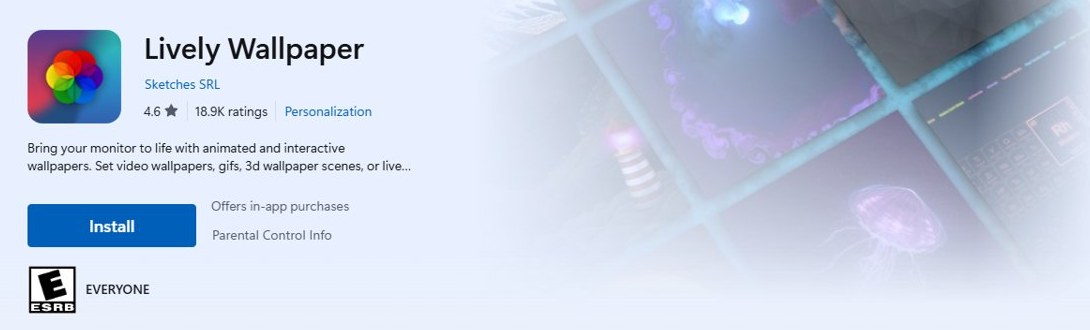
Lively Wallpaper is free in the Microsoft Store app and plays videos, GIFs, websites and animated scenes as your desktop background. It runs on x64 and Arm64 PCs and needs Windows 10 version 17763 or later, so every Windows 11 PC meets the requirement.
- Select Start, then select Microsoft Store.
- Type
Lively Wallpaperin the Store search box and open the app's page. - Install the app from its Store page and wait for the download to finish (the listing puts it at roughly 550 MB).
- Open Lively Wallpaper from the Start menu.
- Pick a wallpaper in the built-in gallery. Lively applies it to the desktop in one click.
- Minimize the app and look at your desktop. The animated wallpaper now plays behind your windows.
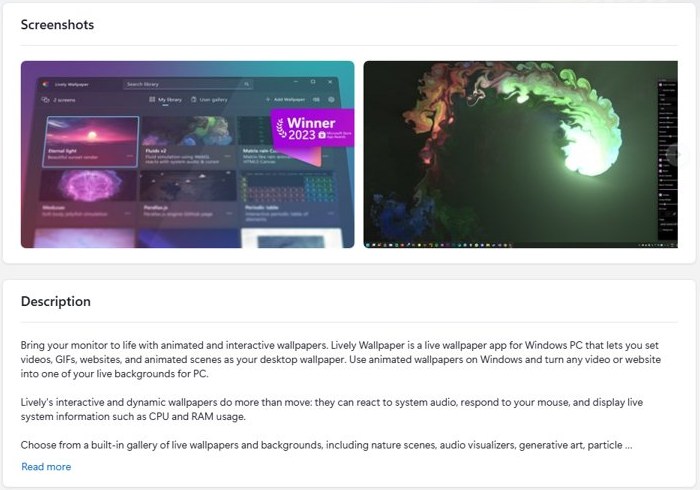
The app is free to install, and its Store listing also shows optional in-app purchases. The gallery includes nature scenes, audio visualizers, particle effects, retro CRT effects and digital rain.
Does Windows 11 have live wallpaper?
No. Open Settings > Personalization > Background and the Personalize your background list offers four options, and none of them plays video or animation.
| Background option | What it shows | Moves? |
|---|---|---|
| Picture | One image, a default or one you browse to | No |
| Solid color | A single color | No |
| Slideshow | Images from a folder, changed on a timer you set, with optional shuffle | Changes image on a timer, no animation |
| Windows spotlight | A new photo from around the world each day | Changes daily, no animation |
Slideshow is the closest built-in option to a moving background. You can also set Windows Spotlight as your desktop wallpaper for a fresh image every day. For real motion, a third-party app is the only route.
How to set a video as wallpaper in Windows 11
Lively turns any video into a hardware-accelerated video wallpaper using the mpv player, and the same route works for an animated GIF. Keep the file in a folder you will not delete, such as Videos.
- Save the video or GIF you want to use to a permanent folder on your PC.
- Open Lively Wallpaper from the Start menu.
- Choose the option to add your own wallpaper from a local file.
- Browse to the video or GIF and select it.
- Wait for Lively to add the file to its library.
- Select the new entry in the library to set it as the wallpaper.
- Open the wallpaper's customization options in Lively if you want to change how it looks.
Wallpaper Engine also plays your own clips. It accepts local mp4, WebM, avi, m4v, mov and wmv files, while wallpapers shared on its Steam Workshop must be mp4.
Set a YouTube video as wallpaper in Windows 11
Lively can set any website as the wallpaper through Chromium Embedded Framework and WebView2. A YouTube video page is a website, so its link works as a web wallpaper.
- Open the YouTube video in your browser.
- Copy the video's address from the browser's address bar.
- Open Lively Wallpaper.
- Choose the option to add a wallpaper from a web address instead of a file.
- Paste the YouTube link and confirm.
- Select the new web wallpaper in the library to apply it.
Do not download the video to use it as a local file. YouTube's Terms of Service forbid downloading content unless the service itself offers a download option or the rights holder gives permission.
A web wallpaper also needs more processing power than a video file. Wallpaper Engine says the same about its own website and application wallpapers.
How to use Wallpaper Engine on Windows 11
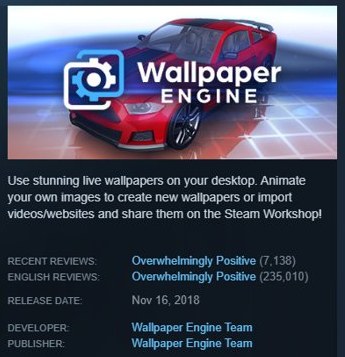
Wallpaper Engine is a paid app on Steam, listed at $4.99 in the US store. It plays 2D and 3D animations, videos, websites and some applications as wallpaper, and its Steam Workshop holds more than a million free wallpapers.
- Sign in to Steam and open the Wallpaper Engine page in the Steam store.
- Select Add to Cart and complete the purchase.
- Install Wallpaper Engine from your Steam library.
- Launch Wallpaper Engine.
- Browse the Steam Workshop wallpapers and choose one to download and apply.
- To use your own clip instead, import an mp4, WebM, avi, m4v, mov or wmv file.
- Use the Wallpaper Engine Editor if you want to animate one of your own images.
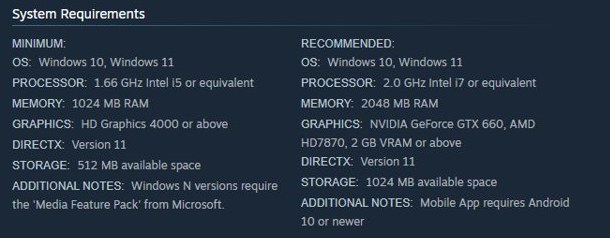
The minimum requirements are Windows 10 or Windows 11, a 1.66 GHz Intel i5 or equivalent, 1024 MB of RAM, HD Graphics 4000 and DirectX 11. Windows N editions also need Microsoft's Media Feature Pack.
Lively Wallpaper vs Wallpaper Engine
| Your situation | Use this | Why |
|---|---|---|
| You want animated wallpaper at no cost | Lively Wallpaper | Free in the Microsoft Store with a built-in gallery |
| You have an Arm64 Windows 11 PC | Lively Wallpaper | The Store listing supports x64 and Arm64 |
| You want the largest choice of ready-made wallpapers | Wallpaper Engine | More than a million free Steam Workshop wallpapers |
| You want to animate your own photo | Wallpaper Engine | The Wallpaper Engine Editor animates basic images with presets and effects |
| You want a wallpaper that reacts to music or shows CPU and RAM use | Lively Wallpaper | Its Audio API and System API wallpapers react to sound and show live system information |
| You want the same wallpaper on an Android phone | Wallpaper Engine | Its free Android companion app (Android 10 or newer) takes scene and video wallpapers with you |
| You use Razer Chroma or Corsair iCUE lighting | Wallpaper Engine | It supports both lighting systems |
Live wallpaper apps for Windows 11 in the Microsoft Store
Several other live wallpaper apps are free in the Microsoft Store. Each listing below names its own publisher, and the details come from those listings.
| App | Publisher | Price | What it offers |
|---|---|---|---|
| Lively Wallpaper | Sketches SRL | Free, optional in-app purchases | Video, GIF, website and animated scene wallpapers, auto-pause, multiple displays |
| Razer Axon Wallpaper Engine | Razer USA Ltd | Free | Static and dynamic wallpapers up to 4K and 5K, a different wallpaper per display, pause in full screen, Chroma RGB sync |
| Live Wallpaper by Giantapp | Giantapp Studio | Free, optional Pro community tier | Open-source client for setting videos as wallpapers |
| Sucrose Wallpaper Engine | Taiizor | Free | Interactive and website wallpapers, multiple screens, audio-reactive themes |
| Wallpaper Engine (Steam, not the Microsoft Store) | Wallpaper Engine Team | $4.99 in the US Steam store | Workshop library, editor, video, web and application wallpapers |
Sucrose needs the Microsoft Visual C++ Redistributable in its CefSharp mode and the Microsoft Edge WebView2 Runtime in its WebView2 mode.
How to set live wallpaper on multiple monitors in Windows 11
Windows 11's own Background settings can put a different still picture on each display of a multiple monitor setup, but not a moving one. Multi-monitor animation comes from the wallpaper app, and each app handles it differently.
| App or setting | Multiple monitor support | Notes |
|---|---|---|
| Lively Wallpaper | Multiple displays of any aspect ratio and resolution | Free in the Microsoft Store, on x64 and Arm64 PCs |
| Wallpaper Engine | Multi-monitor setups supported | Native resolutions and aspect ratios including 16:9, 21:9, 16:10 and 4:3 |
| Razer Axon Wallpaper Engine | A different wallpaper on each display, or one duplicated across all of them | Playback queues per monitor and a timer for cycling wallpapers |
| Windows 11 Picture background | A different still image per display | With Picture selected, right-click a recent image and choose the monitor |
| Windows 11 Span fit | One still image spread across all displays | With Picture or Slideshow selected, set the fit to Span |
Windows does not allow a different background per monitor while you use multiple virtual desktops, and Slideshow backgrounds cannot be set per desktop either.
How to stop or close live wallpaper in Windows 11
Closing the app stops the animation. To keep it from coming back, turn off its startup entry, then set a normal picture as the desktop background so the desktop is not left on whatever the app last showed.
- Close the wallpaper app. If it stays in the notification area at the right end of the taskbar, right-click its icon and choose its exit option.
- Open Settings > Apps > Startup.
- Turn off the toggle next to the wallpaper app so it no longer starts with Windows.
- Go to Settings > Personalization > Background.
- Under Personalize your background, select Picture and choose an image.
- To remove the app completely, open Settings > Apps > Installed apps, select More (…) next to it, then select Uninstall.
You can also turn the startup entry off in Task Manager on its Startup apps page. Wallpaper Engine is a Steam app, so you can uninstall it from your Steam library as well.
Does live wallpaper slow down Windows 11?
A paused wallpaper costs almost nothing, and both main apps pause by default when you game or work. The type of wallpaper matters more than the app.
| Wallpaper type or situation | Effect on performance |
|---|---|
| Lively while you game or work | Playback pauses automatically, with 0% resource use |
| Wallpaper Engine while you play a game | Pauses to save performance; it can also pause or stop fully when another app runs full screen, including borderless windowed |
| Video, 2D and 3D scene wallpapers | Lightest to run, according to Wallpaper Engine |
| Website and application wallpapers | Need more system resources |
| PC without a dedicated graphics card | Works, but Wallpaper Engine recommends a dedicated GPU |
Live wallpaper not working in Windows 11
The live wallpaper freezes when a game or app is full screen
This is the auto-pause feature. Lively and Wallpaper Engine both stop playback to save resources while a full-screen program runs.
- Leave the full-screen app or switch it to a normal window.
- Check that the wallpaper resumes on the desktop.
- If you want it to keep playing, change the pause behavior in the wallpaper app's own settings.
Wallpaper Engine video wallpapers do not play on Windows 11 N
N editions ship without media features that Wallpaper Engine needs.
- Confirm your edition in Settings > System > About under Windows specifications.
- If the edition name ends in N, install Microsoft's Media Feature Pack.
- Restart the PC and launch Wallpaper Engine again.
Sucrose website wallpaper does not load
Its CefSharp mode needs the Microsoft Visual C++ Redistributable and its WebView2 mode needs the Microsoft Edge WebView2 Runtime.
- Check which web mode Sucrose is set to use.
- Install the matching Microsoft component for that mode.
- Apply the website wallpaper again.
The animated wallpaper stops after you close the app
The animation is drawn by the app, not by Windows, so it ends when the app exits.
- Open the wallpaper app again from the Start menu.
- Open Settings > Apps > Startup and turn the app's toggle on so it starts with Windows.
Animated wallpaper in Windows 11 FAQ
Does Windows 11 support live wallpapers natively?
No. The Background page in Settings offers Picture, Solid color, Slideshow and Windows spotlight, and none of them animates. A live wallpaper needs an app such as Lively Wallpaper from the Microsoft Store or Wallpaper Engine from Steam.
Is Lively Wallpaper free?
Yes. Lively Wallpaper is free to install from the Microsoft Store and includes a gallery of animated wallpapers. Its listing also shows optional in-app purchases, but setting videos, GIFs and websites as wallpaper works in the free app.
How much does Wallpaper Engine cost?
Wallpaper Engine is listed at $4.99 in the US Steam store, and prices differ by region. After you buy it, the wallpapers on its Steam Workshop are free to download, and there are more than a million of them.
Can I set a GIF as my wallpaper in Windows 11?
Yes, with a live wallpaper app. Lively Wallpaper lists GIFs among the file types it can set as an animated desktop wallpaper. Add the GIF from a local file in the app, then select it in the library to apply it.
Can I use a YouTube video as my wallpaper?
Yes. Lively can set any website as wallpaper, so paste the YouTube video's link as a web wallpaper. Do not download the video file, because YouTube's Terms of Service forbid downloads the service does not offer.
Does Wallpaper Engine work on Windows 11?
Yes. Steam lists Windows 10 and Windows 11 as supported, with DirectX 11, at least 1024 MB of RAM and HD Graphics 4000 or better. Windows N editions also need Microsoft's Media Feature Pack installed.
Can a live wallpaper be used as a screensaver?
Yes. Lively can use any wallpaper as your screensaver after a set period of inactivity, and Wallpaper Engine offers animated screensavers while you are away from the computer. Both are set inside the app, not in Windows.
Can I put an animated wallpaper on the Windows 11 lock screen?
Not a video. The lock screen offers Windows spotlight, Picture or Slideshow, plus a toggle called Make the lock screen image react when I move my PC that pans a still image slightly as the device moves.
Does Lively Wallpaper work on Arm PCs?
Yes. The Microsoft Store listing for Lively Wallpaper supports both x64 and Arm64 PCs and needs Windows 10 version 17763 or later, with 4 GB of memory as the minimum and 8 GB recommended.