Repair the WMI repository by running winmgmt /verifyrepository in an elevated Command Prompt, then winmgmt /salvagerepository if it reports an inconsistency.
This guide covers checking the repository, backing it up, recompiling MOF files, a full rebuild as the last resort, and fixes for WMI connection and access errors on Windows 11, Windows 10 and Windows Server.
Repair the WMI repository with winmgmt /salvagerepository
The salvage switch checks the repository and rebuilds it only if it finds damage. Anything it can still read from the old repository is merged into the rebuilt one, so it is the safest repair.
- Select Start, type
cmd, right-click Command Prompt and choose Run as administrator. - Run
winmgmt /verifyrepositoryto check the live repository. - If the result says the repository is inconsistent, or returns error 1358 (ERROR_INTERNAL_DB_CORRUPTION), run
winmgmt /salvagerepository. - Run
winmgmt /verifyrepositoryagain and confirm it now reports a consistent repository. - Restart the PC, or the app that reported the WMI error, and test it again.
WMI errors do not always mean the repository is damaged. Failures elsewhere in Windows surface through WMI, so check the error code against the troubleshooting section before going further than a salvage.
WMI repository repair options: verify, salvage, reset or restore
| Your situation | Use this | What it changes |
|---|---|---|
| WMI errors, cause unknown | winmgmt /verifyrepository | Nothing; consistency check only |
| Verify reports an inconsistent repository | winmgmt /salvagerepository | Rebuilds and merges readable data back in |
| Classes missing or providers fail to load after salvage | Re-register provider DLLs and recompile MOF files | Re-adds built-in classes and providers |
| You have a backup from before the problem | winmgmt /restore <file> 0 | Replaces the repository with the backup |
| Every other repair failed | winmgmt /resetrepository | Returns the repository to its install-time state |
Check the WMI repository with winmgmt /verifyrepository
Run this first, in an elevated Command Prompt. It reads the live repository that WMI is using and changes nothing.
winmgmt /verifyrepositoryPerforms a consistency check on the WMI repository currently in use. Add a full folder path after the switch to check a saved copy of the whole Repository folder instead.
You should see: A consistent result means the repository is not your problem. Error 1358, ERROR_INTERNAL_DB_CORRUPTION, means it is inconsistent and needs a salvage.
Back up the WMI repository with winmgmt /backup
Take a backup before any salvage, recompile or reset. The repository is a folder of files that work as a database, and the backup packs it into one compressed file.
winmgmt /backup C:\WMIBackup\repository.bakWrites the whole repository to the file you name. Give the full path; without one, the file lands in %Windir%\System32. Writes to the repository pause until the backup finishes.
You should see: The .bak file exists at the path you gave. Restore it later with winmgmt /restore C:\WMIBackup\repository.bak 0, or use 1 instead of 0 to disconnect connected clients and restore anyway.
Repair the WMI repository and recompile the MOF files
When salvage leaves classes missing or providers failing, re-register the WMI provider DLLs and recompile the MOF files in the wbem folder. This covers the built-in providers and any placed in the default path.
Run every command in an elevated Command Prompt, typed directly at the prompt. Inside a .bat file, the %s variables need to be written as %%s.
- Set the WMI service to disabled:
sc config winmgmt start= disabled. - Stop it and its dependent services:
net stop winmgmt /y. - Switch to the system drive with
%systemdrive%, then runcd %windir%\system32\wbem. - Re-register the provider DLLs:
for /f %s in ('dir /b *.dll') do regsvr32 /s %s. - Set the service back to automatic:
sc config winmgmt start= Auto. - Start it again:
net start winmgmt. - Recompile the MOF and MFL files, skipping uninstall files:
dir /b *.mof *.mfl | findstr /v /i uninstall > moflist.txt & for /F %s in (moflist.txt) do mofcomp %s.
Stopping winmgmt also stops services that depend on it, such as Windows Firewall, and they do not all restart on their own. Restart the PC after the recompile so every dependent service comes back.
Rebuilding the WMI repository in Windows
A reset returns the repository to the state it had when Windows was installed. WMI loses everything it gathered since then about the system, apps and services, and Microsoft recommends a rebuild only under Microsoft support guidance.
Only MOF files that contain the #pragma autorecover statement are restored automatically. Classes from other software return only when that software recompiles its MOF files or is reinstalled.
- Back up the current repository with
winmgmt /backupand a full file path. - Open Command Prompt as administrator.
- Run
winmgmt /resetrepository. - Restart the PC.
- Run
winmgmt /verifyrepositoryto confirm the new repository is consistent. - Reinstall or repair any management agent or app that now reports missing WMI classes.
If the reset makes things worse, restore the backup with winmgmt /restore <full path to file> 1. WMI keeps the existing repository and writes it back if the restore fails.
Winmgmt command switches for the WMI repository
Winmgmt.exe lives in %Windir%\System32\wbem and runs as the Windows Management Instrumentation service (service name winmgmt) under LocalSystem. Type winmgmt /? to list the switches.
| Switch | What it does | Risk |
|---|---|---|
| /verifyrepository [path] | Consistency check of the live repository or a saved copy | None |
| /salvagerepository | Checks, rebuilds if inconsistent, and merges readable content back | Low |
| /backup <filename> | Saves the repository to one compressed file | None; writes pause briefly |
| /restore <filename> <0 or 1> | Restores a backup; 1 forces connected clients off | Medium; replaces current data |
| /resetrepository | Returns the repository to its install-time state | High; collected data is lost |
| /resyncperf <PID> | Re-registers performance libraries with WMI | Low; only for unreliable performance classes |
Test WMI after the repair with WMI Control and WBEMTEST
- Run
winmgmt /verifyrepositoryin an elevated Command Prompt and confirm it reports a consistent repository. - Press Win + R, type
wmimgmt.mscand press Enter. - Right-click WMI Control and select Properties; no failed-to-connect message should appear.
- Select Start, type
wbemtest, right-click it and choose Run as administrator. - Select Connect, keep the default
root\cimv2namespace and select Connect again; the main window should show it is connected. - Run the app or script that first reported the WMI error.
Troubleshooting WMI connectivity and common issues on Windows
Match the error code to a group. Connection and permission errors are not repository damage, and a repository rebuild will not fix them.
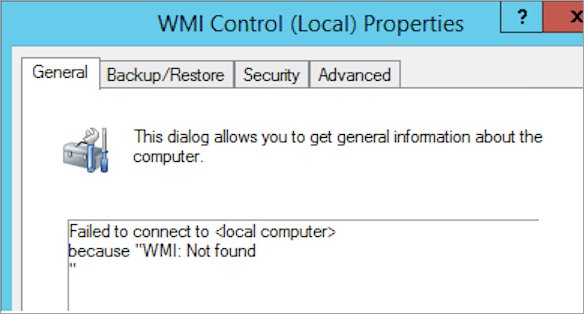
WMI Control says "WMI: Not Found", "WMI: Generic failure" or "The system cannot find the path specified"
A glitch or corruption in the local WMI repository.
- Run
winmgmt /verifyrepositoryas administrator. - If it reports an inconsistency, run
winmgmt /salvagerepository. - If the error remains, re-register the providers and recompile the MOF files as shown above.
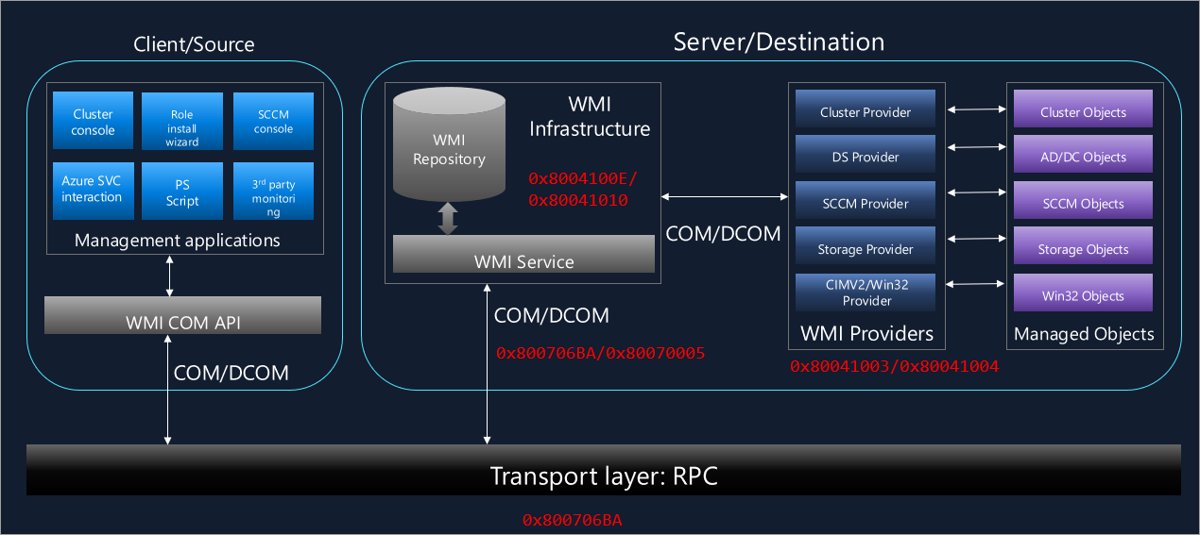
0x80041002 WBEM_E_NOT_FOUND or 0x80041010 WBEM_E_INVALID_CLASS
The query names a class that is missing, which repository corruption can cause.
- Confirm the class name and namespace are spelled correctly.
- Verify and salvage the repository.
- Recompile the MOF file of the product that owns the class, or repair that product.
0x800706BA "The RPC server is unavailable"
The remote computer is unreachable or Windows Firewall blocks WMI.
- Confirm the target computer is on and reachable by name.
- On the target, run
netsh advfirewall firewall set rule group="windows management instrumentation (wmi)" new enable=yesas administrator. - Check whether the Restrict Unauthenticated RPC clients policy is set under Computer Configuration > Administrative Templates > System > Remote Procedure Call.
0x80070005 E_ACCESS_DENIED
DCOM security denies the user remote access.
- On the target, press Win + R, type
dcomcnfgand press Enter. - Expand Component Services > Computers, right-click My Computer and select Properties.
- On the COM Security tab, select Edit Limits under Launch and Activation Permissions.
- Add the user and allow Remote Launch and Remote Activation, then select OK.
- Or add the user to the local Distributed COM Users group.
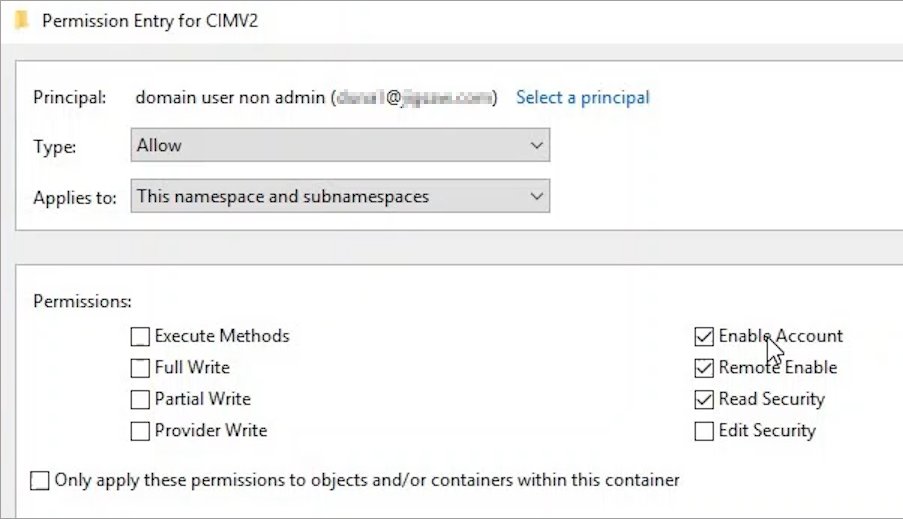
0x80041003 WBEM_E_ACCESS_DENIED
The user lacks permission on the WMI namespace.
- Open
wmimgmt.msc, right-click WMI Control and select Properties. - On the Security tab, select the namespace, such as Root\cimv2, and select Security.
- Add the account and allow Remote Enable and Read Security.
- Select Advanced and set Applies to to This namespace and subnamespaces if child namespaces need the same access.
WMI queries fail and you need the exact error
The client hides the underlying code.
- Open Event Viewer.
- Go to Applications and Services Logs > Microsoft > Windows > WMI-Activity > Operational.
- Find the failed query and note its error code, then match it to a group above.
Should you delete the WMI repository folder?
No. Never delete or rename the Repository folder as a first step; use /verifyrepository and /salvagerepository instead. Microsoft warns that deleting the repository can damage Windows and installed applications, and many WMI errors come from other parts of the system rather than the repository itself.
Windows can also restore the repository from its own backup when it detects corruption. That AutoRestore behaviour is controlled by the AutoRestoreEnabled value under HKEY_LOCAL_MACHINE\SOFTWARE\Microsoft\WBEM\CIMOM, where 1, the default, means enabled.
WMI repository repair FAQ
How do I know if the WMI repository is corrupted?
Run winmgmt /verifyrepository in an elevated Command Prompt. If it reports the repository is inconsistent or returns error 1358, ERROR_INTERNAL_DB_CORRUPTION, it is damaged. Errors such as WMI: Not Found or Generic failure in WMI Control also point to repository trouble.
What is the difference between salvagerepository and resetrepository?
Salvage checks the repository and rebuilds it only if it is inconsistent, merging back any content it can still read. Reset discards everything and returns the repository to its install-time state, restoring only MOF files marked with #pragma autorecover.
Is it safe to rebuild the WMI repository?
A salvage is low risk. A full reset is not: WMI loses the data it gathered about the system, apps and services, and Microsoft recommends a rebuild only with Microsoft support. Back up the repository with winmgmt /backup before either one.
Where is the WMI repository stored?
The repository, also called the CIM repository, is a collection of files in a folder named Repository that work together as a database. Winmgmt.exe itself sits in %Windir%\System32\wbem. Change the repository only through winmgmt switches, never by editing or deleting its files.
How do I restart the WMI service?
Open Command Prompt as administrator and run net stop winmgmt, then net start winmgmt. Stopping it also stops dependent services such as Windows Firewall, which do not all restart automatically, so restarting the PC is the cleaner option.
Can I still use WMIDiag to diagnose WMI problems?
No. Microsoft ended support for the WMI Diagnosis Utility starting with Windows 8 and Windows Server 2012. Use winmgmt /verifyrepository, the WMI-Activity Operational event log and WBEMTEST instead.