When WhatsApp Business will not link to the desktop app, update the Business app on your phone and the desktop app, then scan the QR code from Linked devices inside the WhatsApp Business app, not from the phone's camera app.
This guide covers the linking steps for Android and iPhone, the requirements the desktop app checks, and fixes for each linking failure readers report.
How to link WhatsApp Business to the desktop app
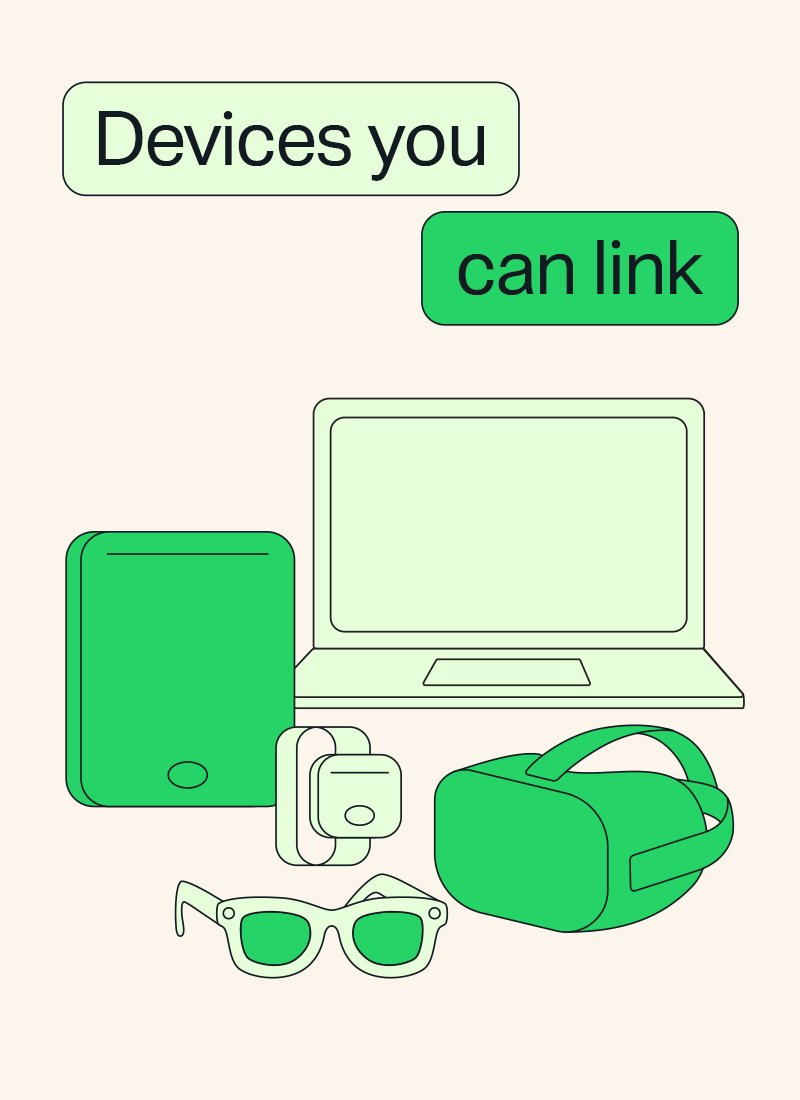
WhatsApp Business uses the same linked-device system as standard WhatsApp, so your phone stays the primary device and the computer becomes one of up to four linked devices.
- Open the WhatsApp desktop app on your Windows PC or Mac, or open WhatsApp Web in a browser, and leave the QR code on screen.
- Open the WhatsApp Business app on your phone.
- On Android, tap the three-dot menu, then Linked devices > Link a device.
- On iPhone, tap Settings or your profile picture, then Linked devices > Link device.
- Confirm with your fingerprint, Face ID, Touch ID or phone PIN if asked.
- Point the phone at the computer screen and scan the QR code.
- Tap Link device if WhatsApp asks you to confirm an unrecognized device.
Your chats start loading on the computer once the scan succeeds. Older history can take a while to appear.
WhatsApp Business desktop app requirements
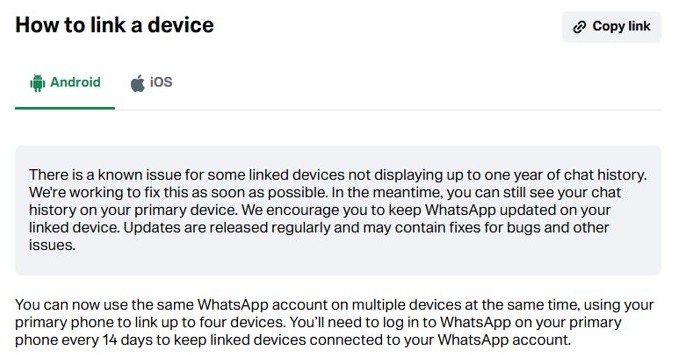
| Requirement | What WhatsApp needs | What happens if it is missing |
|---|---|---|
| Windows version | Windows 10 or newer for the Windows app | The app will not install or run on older Windows |
| Mac version | macOS 12.1 or newer for the Mac app | The Mac app will not install |
| Browser for WhatsApp Web | Latest Chrome, Firefox, Microsoft Edge, Opera or Safari | Internet Explorer and other browsers are not supported |
| Phone app | The latest WhatsApp Business version on Android or iPhone | Linking and new features can fail on an old build |
| Linked-device slots | Up to four linked devices per account | A fifth device cannot link until you log one out |
| Primary phone activity | Open WhatsApp Business on the phone at least every 14 days | Linked devices log out after 14 days of phone inactivity |
Link WhatsApp Business with a phone number instead of a QR code
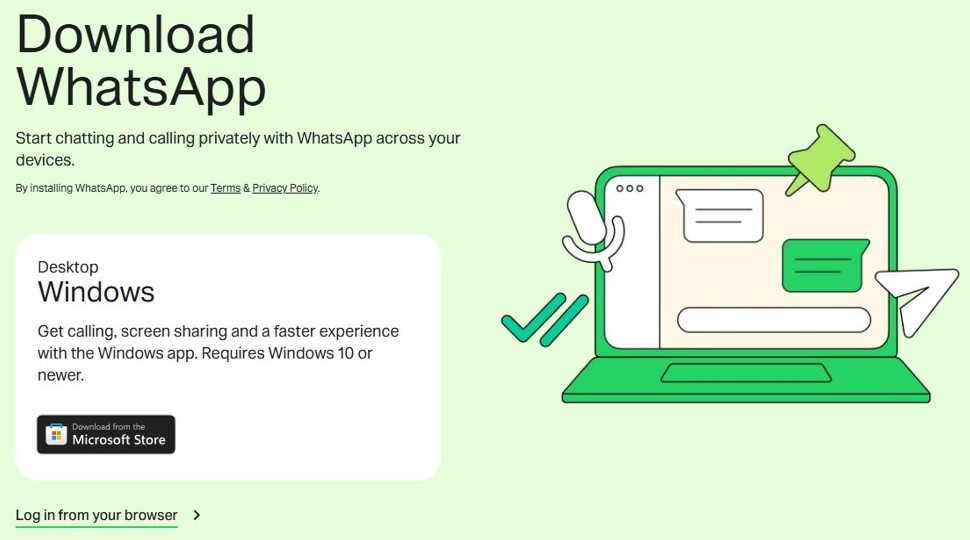
If the phone camera cannot read the QR code, WhatsApp also lets you link a new device with your phone number. The option sits under the QR code on the desktop link screen.
- On the desktop link screen, choose the option to link with your phone number instead of scanning.
- Enter the phone number registered to your WhatsApp Business account.
- Note the code the desktop app shows.
- Follow the prompt in the WhatsApp Business app on your phone to enter that code and confirm the link.
Only link on official WhatsApp apps: WhatsApp Web, WhatsApp for Windows and Mac, Android tablets, companion phones and supported glasses. WhatsApp warns that linking an unofficial app can get the account banned.
Check that WhatsApp Business is linked to your PC
- Open the WhatsApp Business app on your phone.
- Go to Linked devices.
- Look for your computer in the device list with a recent active time.
- Send a test message from the desktop app and confirm it appears on the phone.
Once the link works, you can turn on dark mode in the WhatsApp desktop app and use it with the phone switched off.
WhatsApp Business cannot link device: fixes
WhatsApp Business app not linking to WhatsApp desktop
One of the two apps is out of date, so the link handshake fails.
- Update WhatsApp Business from the Google Play Store or the App Store.
- Update the WhatsApp desktop app to its latest version.
- Quit and reopen the desktop app so it shows a fresh QR code.
- Scan again from Linked devices in the Business app.
Cannot link WhatsApp desktop because four devices are already linked
Each account allows up to four linked devices at a time.
- Open Linked devices in the WhatsApp Business app.
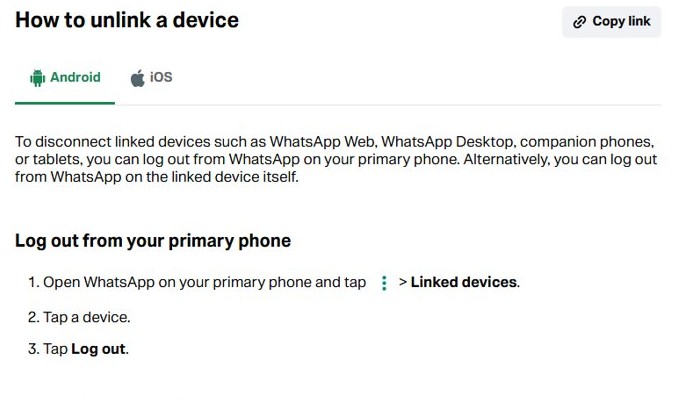
- Tap a device you no longer use.
- Tap Log out.
- Link the desktop app again.
WhatsApp not linking to PC on an office or campus network
Managed Wi-Fi can block or limit connections to WhatsApp Web and Desktop.
- Switch the computer to a different network, such as a phone hotspot, and try the link again.
- Ask the network administrator to allow traffic to web.whatsapp.com, .web.whatsapp.com and .whatsapp.net.
WhatsApp desktop not connecting after linking
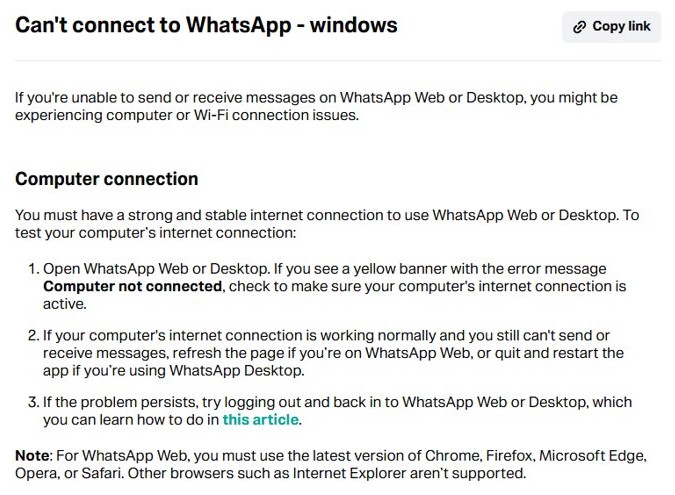
The computer has lost its internet connection, shown by a yellow Computer not connected banner.
- Confirm that other sites load on the computer.
- Quit and restart the desktop app, or refresh the page on WhatsApp Web.
- Log out of the desktop app and link it again if messages still do not send.
WhatsApp Business desktop logged out by itself
Linked devices disconnect after 14 days without phone activity or after 30 days of inactivity on the linked device.
- Open WhatsApp Business on the phone.
- Go to Linked devices and check whether the computer is still listed.
- Link the desktop app again if it is missing.
Unable to link WhatsApp desktop because the QR code will not scan
The phone camera cannot focus on the screen, or the scan was started from the camera app instead of WhatsApp Business.
- Start the scan from Linked devices in the Business app, not the phone camera.
- Raise screen brightness and hold the phone steady at arm's length.
- Switch to the phone-number option on the desktop link screen if the code still will not read.
What works in WhatsApp Business on desktop
| Feature | On a linked desktop | Note |
|---|---|---|
| Chats and media | Yes | Messages are end-to-end encrypted on each linked device |
| Voice and video calls | Yes, in the Windows and Mac apps | Group calls with up to 32 people |
| Works with the phone off | Yes | The phone must still be used at least every 14 days |
| Primary device | No | Windows, Mac and Web can only be linked devices |
| Live location | No | Not supported on linked devices |
| Broadcast lists | No | Cannot be created or viewed on linked devices |
| WhatsApp Flows with businesses | No | Not supported on linked devices |
If you only need quick access on a shared computer, WhatsApp Web in a browser links the same way and needs no install.
WhatsApp Business desktop linking FAQ
How do I link WhatsApp Business to my laptop?
Open the WhatsApp desktop app or WhatsApp Web on the laptop. In the WhatsApp Business app on your phone, go to Linked devices, tap Link a device and scan the QR code shown on the laptop screen.
How do I link WhatsApp to the desktop?
Install the WhatsApp app for Windows 10 or newer, or macOS 12.1 or newer, and open it. Then open Linked devices on your phone, tap Link a device and scan the QR code. The same steps work for WhatsApp Business.
Why can't I link my WhatsApp?
The usual causes are an outdated app on the phone or computer, four devices already linked, or a network that blocks WhatsApp Web. Update both apps, log out an unused device under Linked devices and try another network.
Why is WhatsApp not working on desktop?
A yellow Computer not connected banner means the computer has no working internet connection. Check the connection, then restart the desktop app or refresh WhatsApp Web, and log out and back in if messages still fail.
Why does WhatsApp Business say it cannot link a device today?
Check that both apps are updated and that you have fewer than four linked devices. Start the scan from Linked devices inside WhatsApp Business, and use the phone-number option if the QR code will not scan.
Is there a WhatsApp Business app for Windows desktop?
WhatsApp Business accounts run in the standard WhatsApp app for Windows and Mac, or in WhatsApp Web. The account is linked from the WhatsApp Business app on your phone, which stays the primary device.
Can I use WhatsApp Business on desktop without my phone?
Yes, a linked desktop keeps working when your phone is off or offline. You still need the phone to register the account and link the computer, and you must open WhatsApp Business on the phone at least every 14 days.
How many devices can WhatsApp Business link?
WhatsApp Business supports up to four linked devices at the same time, such as a Windows PC, a Mac, a browser and a tablet. Log out one device under Linked devices to make room for another.