If the Files app returns no results when you search OneDrive folders, search from the OneDrive app or OneDrive.com instead, because both search the OneDrive cloud storage where every device syncs your files.
This guide covers searching each way on iPhone and iPad, how to point the Files search at OneDrive, why searches come back empty, and the reset that fixes a OneDrive app that cannot find files.
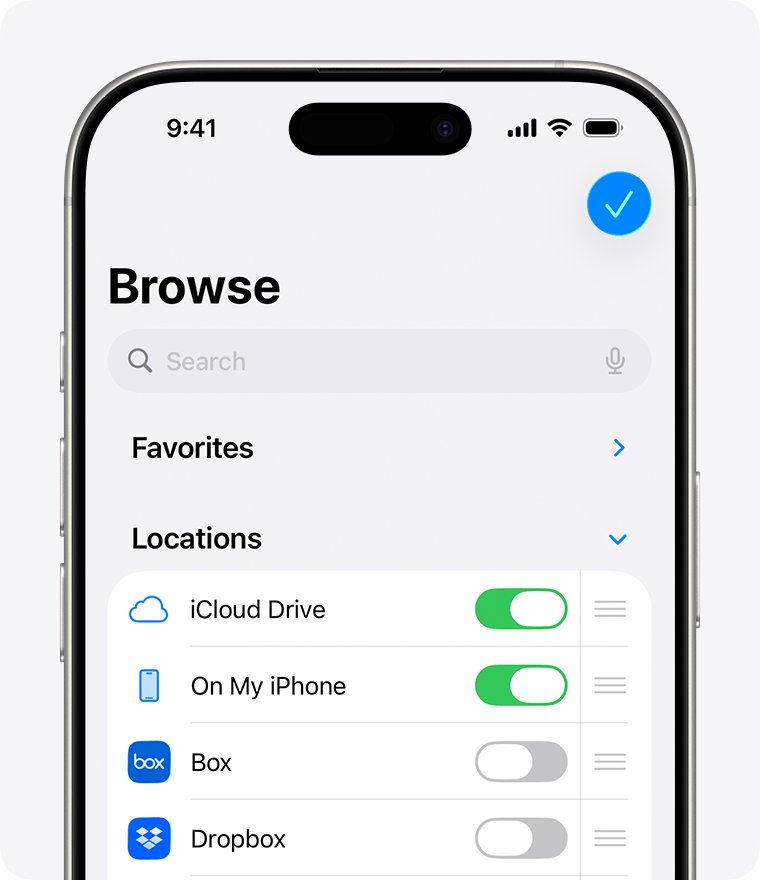
Search OneDrive folders in the OneDrive app on iPhone and iPad
The OneDrive app has its own search bar, and it works whether or not OneDrive is switched on in Files. Use it first when Files shows nothing.
- Open the OneDrive app and sign in if it asks.
- Open your Files view, at the top of the app next to your account picture.
- Tap the search bar and type the folder or file name.
- If the name does not match, try a description, a date or a place, such as "April" or "Paris".
- Tap the result to open the folder or file.
Search OneDrive from the Files app search bar
Files searches every location you have switched on. Narrowing the scope to OneDrive stops iCloud Drive and local results from crowding out the folder you want.
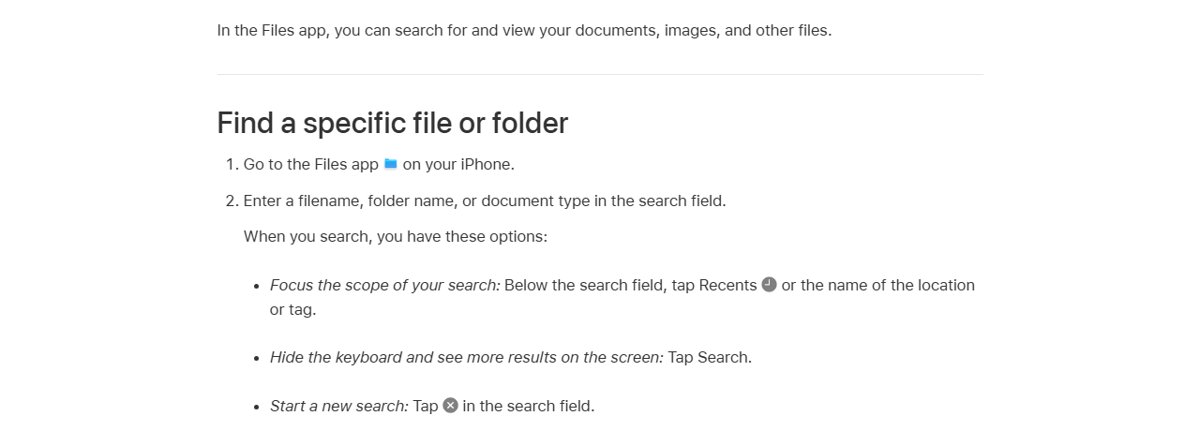
- Open the Files app on your iPhone or iPad.
- Enter a folder name, filename or document type in the search field.
- Below the search field, tap OneDrive to limit the search to that location instead of Recents or another location.
- Tap Search on the keyboard to hide it and see more results.
- Tap a result to open it.
If the OneDrive scope does not appear below the search field, OneDrive is not switched on in Files. Turn it on with the steps in the next section.
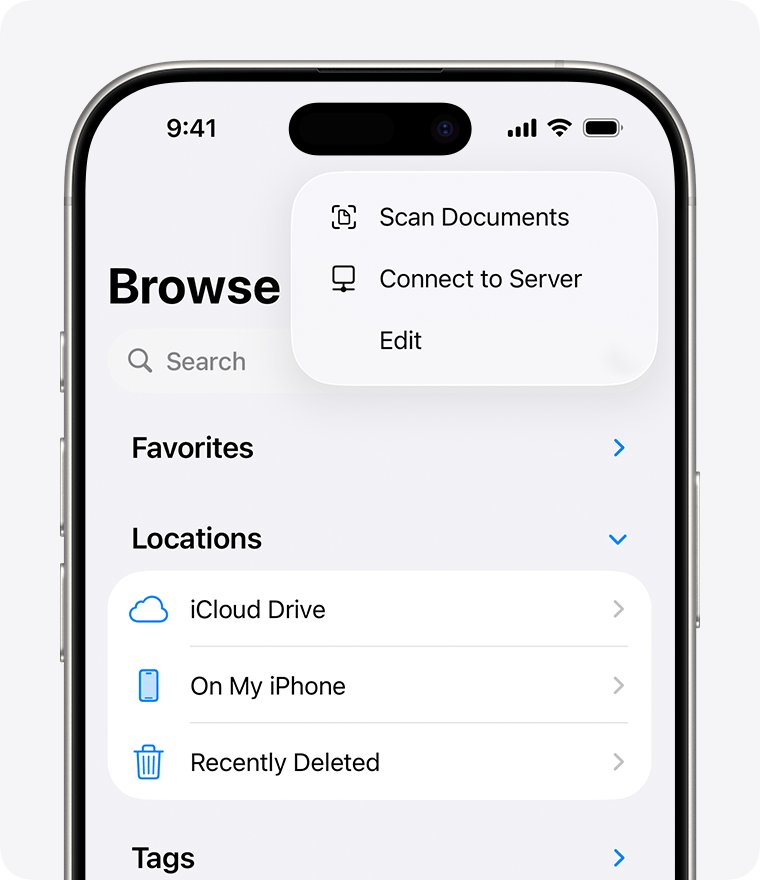
Turn on OneDrive in the Files app on iPhone
Files only reaches OneDrive after the OneDrive app is installed, signed in and switched on as a location.
- Install Microsoft OneDrive from the App Store, open it and sign in.
- Open the Files app and tap Browse.
- Tap the More button, then tap Edit.
- Turn on OneDrive.
- Tap Done, then confirm OneDrive is listed on the Browse screen.
If OneDrive is not in the list at all, Apple's advice is to check with the cloud provider, which means updating or reinstalling the OneDrive app.
Why Files app search finds nothing in OneDrive
| What you see | Likely cause | Fix |
|---|---|---|
| No OneDrive scope below the search field | OneDrive is not switched on as a Files location | Browse > More > Edit, turn on OneDrive |
| Results only from iCloud Drive or the device | The search scope is set to Recents or another location | Tap OneDrive below the search field |
| Gray OneDrive icon with a line through it | The OneDrive app is signed out | Tap the icon and sign in on Set up OneDrive |
| "OneDrive for iOS can't find this file" | The app's account data is out of step | Reset the account in OneDrive settings |
| Folder missing everywhere, including OneDrive.com | Wrong Microsoft account, Personal Vault, or deleted | Check the Recycle bin, unlock Personal Vault, switch account |
| A shared folder is missing | The owner deleted the shared folder, so it is no longer available | Ask the owner whether it still exists and to share it again |
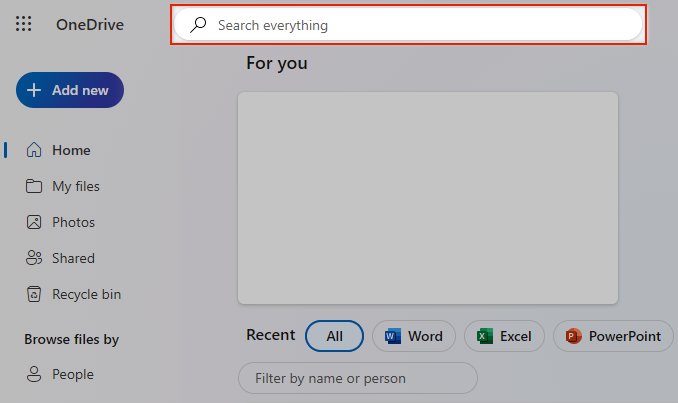
Search everything on OneDrive.com from Safari
Microsoft recommends starting any search at the OneDrive website, because it is where all your devices sync and store files. Use a private window on a phone so the OneDrive app does not take over the link.
- Open Safari and start a Private window.
- Go to www.onedrive.com and sign in.
- Use Search everything at the top of the page.
- Search with the folder name, or with descriptions, tags, dates and places.
- Open the result, or note its location to find it later in Files.
Files in your Personal Vault never appear in OneDrive search results. Unlock the vault first if the folder might be stored there.
Reset the OneDrive app on iPhone and iPad
Microsoft's fix for a OneDrive app that is not finding files is an account reset. It refreshes the app without deleting anything stored in OneDrive.
- Open the OneDrive app and tap your profile picture.
- Tap Settings, then Account. If you have more than one account, choose the one to reset.
- Tap Reset.
- If searches still fail, delete the OneDrive app, restart the device and reinstall Microsoft OneDrive from the App Store.
- Sign in again and turn OneDrive back on in Files > Browse > More > Edit.
- Turn on Background App Refresh for OneDrive under Settings > General > Background App Refresh.

Confirm Files app search reaches OneDrive folders
- Pick a folder name you can see at onedrive.com.
- Open Files, type that name in the search field and tap OneDrive below it.
- Confirm the folder appears in the results.
- Open the folder from the result to confirm its contents load.
- Search the same name in the OneDrive app and compare the results.
OneDrive search not working on iPhone or iPad
Why can't I search in OneDrive from the Files app?
The search is scoped to another location, or OneDrive is not switched on in Files.
- Tap OneDrive below the search field after you type.
- If OneDrive is not offered, go to Browse > More > Edit and turn it on.
- Search the same name in the OneDrive app to confirm the folder exists.
Can't find my OneDrive in the Files app
The OneDrive app is missing, signed out or switched off as a location.
- Open the OneDrive app. If the icon is gray with a line through it, tap it and sign in.
- Return to Files, tap Browse, then More > Edit.
- Turn on OneDrive and tap Done.
Can't find files on OneDrive on any device
The file is in the Recycle bin, in Personal Vault, or in another Microsoft account.
- On onedrive.com, select Recycle bin, select the item and choose Restore.
- Unlock your Personal Vault, because vault items are left out of search.
- Sign out and sign in with your other personal or work or school account.
- Microsoft 365 subscribers can restore the whole OneDrive to a point in the last 30 days, and anyone with a separate OneDrive backup can copy the folder back from it.
OneDrive for iOS can't find this file
The app's local data no longer matches what is stored in OneDrive.
- Go to Profile > Settings > Account and tap Reset.
- If it still fails, delete the app, restart the device and reinstall it from the App Store.
Signed in, but OneDrive search never loads
A network firewall can block OneDrive.
- Switch to another network, such as a mobile hotspot, and search again.
- If it works there, ask your internet provider whether it allows access to Microsoft 365 services.
OneDrive folder search in Files FAQ
How do I search for folders in OneDrive?
Type the folder name in the search bar of the OneDrive app, or use Search everything at onedrive.com. In the Files app, type the name and tap OneDrive below the search field to limit the results to OneDrive.
Why can't I search in OneDrive?
In Files, the search may be scoped to Recents or another location, or OneDrive may be switched off. If the OneDrive app itself returns nothing, reset it from Profile > Settings > Account > Reset, or check that you are signed in.
How do I search for a file on OneDrive?
Sign in at onedrive.com and use Search everything at the top of the page. Search by filename or by descriptions, tags, dates and places. On a phone, use a private browser window so the OneDrive app does not open instead.
Why can't I find my OneDrive files?
The files may be in the Recycle bin, in Personal Vault, or saved to another Microsoft account. Search at onedrive.com, check the Recycle bin, unlock Personal Vault, then sign in with your other account if you have one.
Why can't I find my OneDrive in the Files app?
OneDrive only appears after the OneDrive app is installed, signed in and switched on. Open Files, tap Browse, tap the More button, tap Edit and turn on OneDrive. A gray OneDrive icon with a line through it means you are signed out.
Do Personal Vault files show in OneDrive search?
No. Files in your Personal Vault do not appear in OneDrive search results. Unlock Personal Vault and browse it directly to find them.
Can I find a deleted OneDrive folder?
Yes, if it is still in the Recycle bin. On onedrive.com, select Recycle bin, select the folder and choose Restore. In the OneDrive app, tap the Me icon, select Recycle bin, tap the three dots next to the item and select Restore.