To install DirectAccess on Windows Server, add the Remote Access role with the DirectAccess and VPN (RAS) role service, then open Remote Access Management and run the Getting Started Wizard.
This guide covers the requirements, Active Directory and DNS preparation, firewall ports, the PowerShell route and how to confirm clients connect, for Windows Server 2016 through Windows Server 2025.
How to install and configure Direct Access on Windows Server
Run these steps on a domain-joined server signed in with local administrator rights and permission to create Group Policy objects.
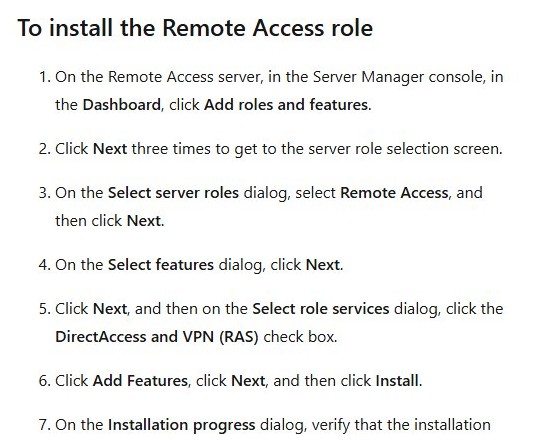
- In Server Manager, on the Dashboard, click Add roles and features.
- Click Next three times to reach the server role list, select Remote Access, then click Next.
- On Select features, click Next, then on Select role services check DirectAccess and VPN (RAS).
- Click Add Features, click Next, click Install, then click Close when the installation succeeds.
- In Server Manager, click Tools > Remote Access Management, then click Run the Getting Started Wizard.
- Click Deploy DirectAccess only, select your network topology, type the public name clients will connect to, and click Next.
- Click Finish, then click Close when the configuration is applied.
- Select Operations Status and wait until every monitor shows Working, clicking Refresh under Monitoring to update it.
Microsoft recommends Always On VPN rather than DirectAccess for new deployments, so use DirectAccess where you already depend on it or need it for existing Enterprise clients.
DirectAccess Getting Started Wizard vs advanced settings
| Your situation | Use this | Why |
|---|---|---|
| Single server, Windows 10 or Windows 8.1 clients, no PKI | Getting Started Wizard | Creates self-signed certificates, enables Kerberos proxy and NAT64/DNS64 for you |
| Some clients run Windows 7 | Advanced Setup (single server with advanced settings) | The Getting Started Wizard does not support Windows 7 clients |
| You need two-factor authentication or force tunnelling | Advanced Setup | The wizard supports domain credentials only and no force tunnel |
| You plan a multisite deployment now or later | Advanced Setup first | Microsoft says to start multisite from the advanced single-server deployment |
| New remote access project | Always On VPN | Microsoft's recommended replacement for new deployments |
What is DirectAccess in Windows Server?
DirectAccess connects remote, domain-joined computers to the internal network whenever they have internet access, with no VPN connection to start or stop. Administrators can also manage those computers while they are off site.
| Component | What it does in DirectAccess |
|---|---|
| Remote Access role | Holds DirectAccess and RRAS VPN, managed together in the Remote Access Management console |
| IIS Web Server | Hosts the network location server and the default web probe on the Remote Access server |
| Windows Internal Database | Stores local accounting data on the Remote Access server |
| Group Policy objects | One for the server and one for clients; every DirectAccess setting lives in them |
| Network location server (NLS) | A URL clients reach only inside the network, so they know when not to use the tunnel |
| IP-HTTPS, 6to4 and Teredo | IPv6 transition technologies that carry client traffic across the IPv4 internet |
DirectAccess requirements on Windows Server
| Requirement | Detail |
|---|---|
| Server OS | Windows Server 2016, 2019, 2022 or 2025; Microsoft's troubleshooting guidance advises at least 2016 or 2019 |
| Domain | The Remote Access server and every client must be domain members, with at least one domain controller |
| Client OS | Windows 11 Enterprise, Windows 10 Enterprise, Windows 10 Enterprise 2015 LTSB or Windows 8.1 Enterprise |
| Network adapters | At least one adapter on the internal network; with two, one internal and one external |
| Windows Firewall | Enabled on all profiles |
| ISATAP | Not supported in the corporate network; remove it and use native IPv6 |
| Hosting | Not supported on an Azure virtual machine |
| Starting size | At least four CPUs and more than 8 GB of RAM; eight CPUs, 12 GB+ RAM and 80 GB+ disk is better |
| Permissions | Local administrator on the server, domain user rights and rights to the DirectAccess GPOs |
How to install and configure Active Directory in Windows Server
DirectAccess cannot run without a domain. Skip this if the server and clients already belong to one; otherwise build the domain controller first on a separate server.
- On the server that will become the domain controller, open PowerShell as administrator.
- Run
Install-WindowsFeature -Name AD-Domain-Services -IncludeManagementToolsto add the AD DS role. - Run
Install-ADDSForest -DomainName "corp.contoso.com", replacing the name with your own domain, and enter a Directory Services Restore Mode password when asked. - Let the server restart; DNS Server is installed with the new forest by default.
- On the future DirectAccess server, open Server Manager > Local Server and click the link next to Computer name.
- On the Computer Name tab click Change, select Domain, type the domain name and click OK.
- Enter an account allowed to join computers to the domain, then click Restart Now when prompted.
In Server Manager, the same role installs through Add roles and features followed by Promote this server to a domain controller. To manage the domain from a desktop, install Active Directory Users and Computers on Windows 11 or Windows 10.
Create a security group for DirectAccess client computers
Client GPO settings apply only to members of the group you name in the wizard. Without one, the client GPO targets all laptops in Domain Computers through a WMI filter.
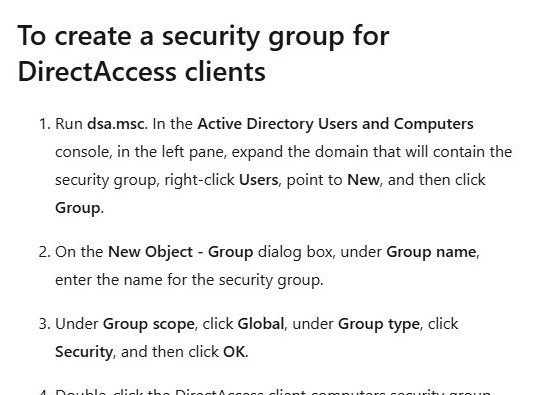
- Run
dsa.mscto open Active Directory Users and Computers. - Expand the domain, right-click Users, point to New and click Group.
- Enter a group name, choose Global scope and Security type, then click OK.
- Double-click the new group, open the Members tab and click Add.
- Select the client computers to enable for DirectAccess and click OK.
The PowerShell equivalent is New-ADGroup -GroupScope global -Name <group_name> followed by Add-ADGroupMember -Identity <group_name> -Members <computer_name>.
DirectAccess server network adapter and IP address settings
| Topology | Addresses required |
|---|---|
| Edge (two adapters) | One internet-facing public static IPv4 or IPv6 address, plus one internal static IPv4 or IPv6 address |
| Edge with Teredo | Two consecutive public IPv4 addresses on the internet-facing adapter |
| Behind a NAT device, two adapters | One internal static address and one perimeter-facing static address |
| Behind a NAT device, one adapter | One static IPv4 or IPv6 address |
On a server with extra adapters but a single-adapter design, put every adapter in the domain profile. Behind an edge firewall or NAT device, that device must allow traffic to and from the Remote Access server.
DirectAccess firewall ports for IP-HTTPS, 6to4 and IPsec
| Where | Traffic | Exception |
|---|---|---|
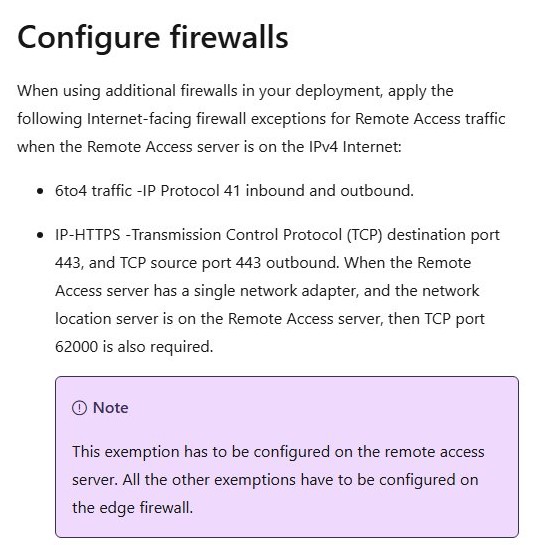
| Edge firewall, server on IPv4 internet | 6to4 | IP Protocol 41 inbound and outbound |
| Edge firewall, server on IPv4 internet | IP-HTTPS | TCP destination port 443, and TCP source port 443 outbound |
| Remote Access server, single adapter with NLS on the server | IP-HTTPS | TCP port 62000 |
| Edge firewall, server on IPv6 internet | IPsec | IP Protocol 50, plus UDP destination port 500 inbound and source port 500 outbound |
| Internal firewall | All IPv4/IPv6 traffic | TCP and UDP allowed to and from the internal network |
Add DNS records for the DirectAccess network location server
The network location server needs a manual internal DNS entry. Clients on the internet must also resolve the public name of the Remote Access server for IP-HTTPS.
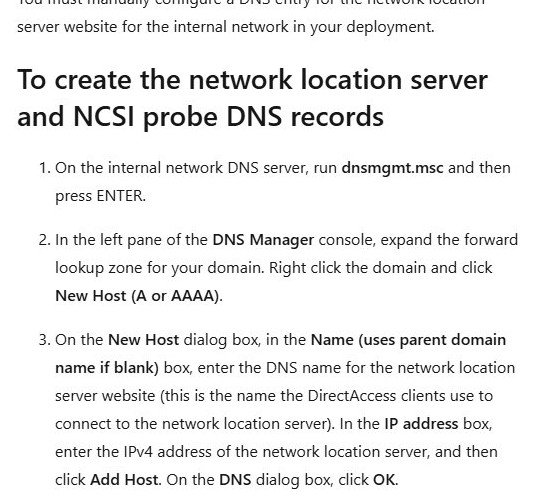
- On the internal DNS server, run
dnsmgmt.mscand press Enter. - Expand the forward lookup zone, right-click your domain and click New Host (A or AAAA).
- Type the network location server name, enter its IPv4 address and click Add Host.
- Add a host named
directaccess-webprobehostwith the web probe's IPv4 address. - Repeat for
directaccess-corpconnectivityhostand any connectivity verifiers you created, then click Done.
The PowerShell route is Add-DnsServerResourceRecordA -Name <nls_name> -ZoneName <zone> -IPv4Address <address>. Clients must also reach the CRL distribution point for certificate revocation checks.
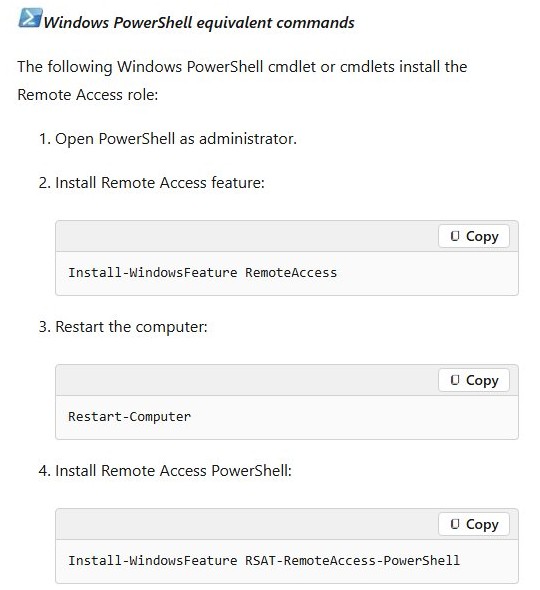
Install the Remote Access role with PowerShell
Use this instead of the Server Manager wizard, then run the Getting Started Wizard from Remote Access Management as above.
Install-WindowsFeature RemoteAccess
Restart-Computer
Install-WindowsFeature RSAT-RemoteAccess-PowerShell
Installs the Remote Access role, restarts the server, then adds the Remote Access module for Windows PowerShell.
You should see: Install-WindowsFeature returns Success as True, and Remote Access Management appears under Tools in Server Manager.
You can also install Server Manager on Windows 11 and run Remote Access Management remotely, since the management tools install separately from the role.
Verify DirectAccess clients with Get-DAConnectionStatus
Clients receive DirectAccess settings only by updating Group Policy while they are on the internal network.
- On a client in the security group, open PowerShell as administrator while it is on the corporate network.
- Type
gpupdateand press Enter, then wait for the computer policy update to finish. - Run
Get-DnsClientNrptPolicyand confirm the DirectAccess NRPT entries, including the NLS exemption, are listed. - Run
Get-NCSIPolicyConfigurationand note the DomainLocationDeterminationURL value. - Run
Get-DAConnectionStatus; inside the network it reports ConnectedLocally. - Take the laptop onto an outside internet connection and confirm internal resources open without starting a VPN.

Windows is unable to find a default server with Active Directory Web Services running
This message comes from Active Directory PowerShell cmdlets such as New-ADGroup when they cannot reach Active Directory Web Services (ADWS) on a domain controller. ADWS listens on TCP port 9389.
Error appears when running New-ADGroup or Add-ADGroupMember
The Active Directory Web Services service is stopped on the domain controller.
- Sign in to the domain controller and run
services.msc. - Find Active Directory Web Services and confirm its status is Running.
- If it is stopped, right-click it and click Start.
- Run the cmdlet again from the DirectAccess server.
Error persists while the ADWS service is running
The server is not a domain member yet, or a firewall blocks TCP 9389 to the domain controller.
- Confirm the DirectAccess server shows the domain name under Local Server in Server Manager.
- Allow TCP port 9389 from the server to the domain controller on any firewall in between.
- Create the group with Active Directory Users and Computers on the domain controller instead, then select it in the wizard.
Operations Status monitors never reach Working
Infrastructure the wizard depends on is missing or still applying.
- Click Refresh under Monitoring a few times, since the monitors update after the GPOs apply.
- Check the NLS, web probe and IP-HTTPS DNS records against the DNS section above.
- Confirm the firewall exceptions for IP-HTTPS and 6to4 are in place.
- Run
Get-NetNatTransitionConfigurationon the server to review NAT64 port settings when clients connect but cannot reach IPv4 resources.
DirectAccess keeps every setting in Group Policy, so back up the DirectAccess GPOs before changing anything, and change settings only through Remote Access Management or its PowerShell cmdlets.
DirectAccess on Windows Server FAQ
Is DirectAccess still supported in Windows Server 2025?
Yes. Microsoft's DirectAccess documentation applies to Windows Server 2016, 2019, 2022 and 2025, but Microsoft highly recommends Always On VPN instead of DirectAccess for new deployments.
Does DirectAccess need a PKI or certificate authority?
Not with the Getting Started Wizard. It provisions self-signed certificates for IP-HTTPS and the network location server and enables Kerberos proxy. A single server with advanced settings does require a public key infrastructure.
Which Windows clients can use DirectAccess?
DirectAccess clients must be domain-joined Enterprise editions: Windows 11 Enterprise, Windows 10 Enterprise, Windows 10 Enterprise 2015 LTSB and Windows 8.1 Enterprise. Pro editions cannot be DirectAccess clients.
Can I deploy DirectAccess on an Azure virtual machine?
No. Microsoft does not support Remote Access on an Azure VM, so VPN, DirectAccess and other Remote Access features cannot be deployed there.
Does DirectAccess send internet traffic through the tunnel?
Not in a Getting Started Wizard deployment. Only traffic for the internal network uses DirectAccess, and force tunnel configuration is not supported in that scenario or with KerbProxy authentication.
How many network adapters does a DirectAccess server need?
One is enough. A single adapter works behind a NAT device; with two, one connects to the internal network and the other to the internet or a perimeter network.
Can Windows 7 computers use the Getting Started Wizard?
No. If any clients run Windows 7, Microsoft says to use the Advanced Setup Wizard, because the Getting Started Wizard does not support Windows 7 clients.
Is DirectAccess deprecated in Windows Server?
Use the Getting Started Wizard to stand up DirectAccess only for existing Enterprise-edition, domain-joined fleets, and plan new remote access on Always On VPN. The wizard deploys a working single-server DirectAccess setup in a few steps, but Microsoft directs new deployments to Always On VPN.