Most recently downloaded files on Windows 10 are in the Downloads folder: press Windows key + E, select Downloads, and sort by Date modified so the newest file sits at the top.
If the file isn't there, this guide shows how to trace it from your browser's download history, search File Explorer by date, check app download locations, and recover a download that went missing on Windows 10 or Windows 11.
Check the Downloads folder first
Microsoft Edge and Google Chrome both save to C:\Users\<your name>\Downloads unless someone changed the location. That makes this folder the place to find a recently downloaded file.
- Press Windows key + E to open File Explorer.
- Select Downloads in the left navigation pane.
- Select the View tab and choose Details so the date columns show.
- Select the Date modified column header until the newest files are at the top.
- Double-click the file to open it, or right-click it to move or rename it.
Easiest way to view recently downloaded files in Windows 11
From Windows 11 version 22H2, Downloads is pinned in Quick access on File Explorer Home and in the navigation pane, so it is one click away.
- Select File Explorer on the taskbar, or press Windows key + E.
- Select Downloads under Home in the navigation pane.
- Select Sort on the command bar and choose Date modified.
- Set the sort to descending so the latest download is first.
If Downloads is no longer pinned, the fix is in the troubleshooting section below.
Use your browser's download history
The browser remembers every file it saved and where it put it, even when the file landed outside the Downloads folder. Use this when you don't know the folder.
- In Microsoft Edge, press Ctrl + J to open Downloads.
- In Google Chrome, press Ctrl + J, or select More (three dots) > Downloads.
- Find the file by name; the newest downloads are listed first.
- Select Show in folder next to the file to open File Explorer with the file selected.
- Select the file name instead to open it in its default app.
Removing an entry from Chrome's Downloads page clears it from the list only; the file stays on your computer.
Search recent files in File Explorer
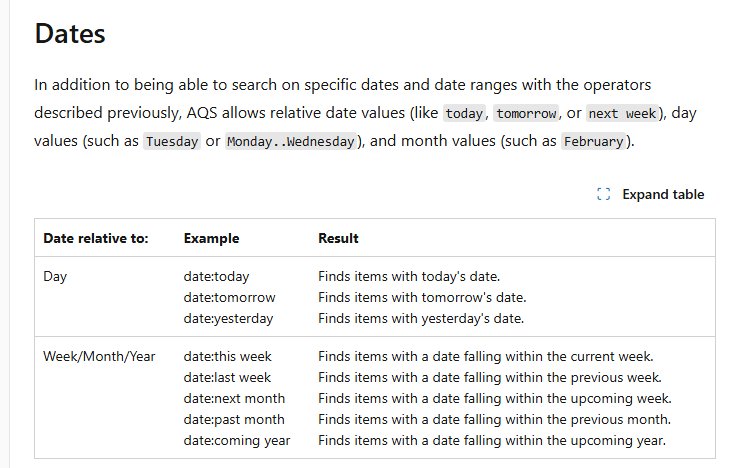
File Explorer's search box understands date words. Search from This PC for a slower but complete search of every drive.
- Open File Explorer and select Downloads, or This PC to search everywhere.
- Click the search box at the top right.
- Type
datemodified:todayand press Enter to list files changed today. - Use
datemodified:yesterdayordatemodified:this weekfor older downloads. - Add a file type to narrow it, for example
datemodified:this week ext:.pdf. - Right-click a result and select Open file location to see its folder.
Windows Search on the taskbar also finds files by name. Type part of the file name and select the Documents tab to filter the results.
Sort files by date modified or date created
Date modified usually matches when a download finished. Date created helps when a file was copied or extracted after the download.
- Open the folder in File Explorer and switch to Details view.
- Right-click any column header and select Date created to add that column.
- Select the Date created or Date modified header to sort by it.
- Select the header again to switch between newest-first and oldest-first.
- On Windows 10, use View > Group by > Date modified to split the list into Today, Yesterday and earlier date groups.
Alternate ways to view recently downloaded files in Windows 11
| Your situation | Use this | Why |
|---|---|---|
| Downloaded it a moment ago in a browser | Ctrl + J in Edge or Chrome | Shows the file and its folder in one step |
| Know roughly when, not the name | datemodified:today in File Explorer search | Lists every file changed in that period |
| Know part of the name | Search on the taskbar | Searches the PC and OneDrive by name |
| Browser asks where to save each file | Browser download history | The file may be in any folder you picked |
| File came from an app, not a browser | The app's own download setting | Many apps use their own folder |
Check app-specific download locations
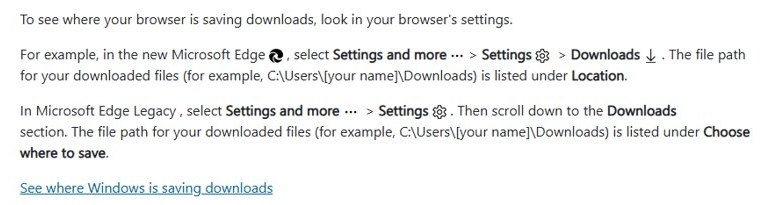
If the newest file isn't in Downloads, the app that saved it may use a different folder. Check its setting, and change it back to Downloads if you want one place for everything.
| App | Where to check the download location | What to look for |
|---|---|---|
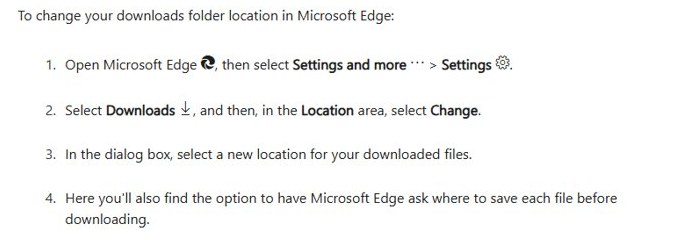
| Microsoft Edge | Settings and more > Settings > Downloads | The path under Location, and whether Edge asks where to save each file |
| Google Chrome | More > Settings > Downloads | The default location, and Ask where to save each file before downloading |
| Microsoft Edge Legacy (older Windows 10) | Settings and more > Settings > Downloads section | The path under Choose where to save |
| Other apps (chat, mail, game launchers) | The app's own settings | A download or save folder option |
To change the folder in Edge, select Change in the Location area and pick a new folder. Chrome has the same Change button on its Downloads settings page.
Confirm it is the right downloaded file
- Compare the file name with the entry in the browser's Downloads list.
- Check that the Date modified time matches when you downloaded it.
- Right-click the file, select Properties, and check the size and location.
- Open the file to confirm the content is what you expected.
What to do if the downloaded file is missing
The file isn't in the Downloads folder
The browser saved it elsewhere, or asked you to choose a folder.
- Press Ctrl + J in the browser you used.
- Select Show in folder next to the file.
- If the browser lists it as removed or deleted, search This PC for its name.
Windows Security removed the download
Microsoft Defender quarantined it as a threat.
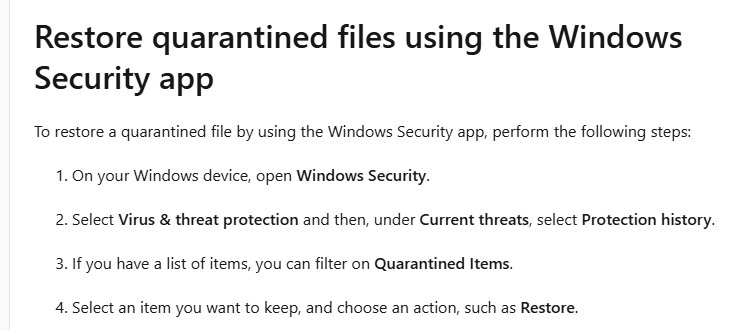
- Open Windows Security and select Protection history.
- Find the quarantined item that matches the file name.
- Select Restore only if you are sure the file is safe; Defender then shows a new alert where you choose Allow on device.
- If you are not sure, leave it quarantined and download the file again from its official site.
Downloads is missing from the File Explorer navigation pane
The folder was unpinned from Quick access.
- Open File Explorer and select Home in the left pane.
- Select the Up arrow to the left of the address bar.
- Right-click Downloads and select Pin to Quick access.
The file was deleted by accident
Deleted files go to the Recycle Bin first.
- Open Recycle Bin on the desktop.
- Right-click the file and select Restore.
- Check its original folder, usually Downloads.
Find recent downloads on Windows 10 FAQ
Where do downloaded files go on Windows 10?
Downloaded files go to the Downloads folder at C:\Users\<your name>\Downloads by default. Microsoft Edge and Google Chrome both use it unless you changed the location in the browser's Downloads settings.
How do I see my recent downloads?
Press Ctrl + J in Microsoft Edge or Google Chrome to open the Downloads list. It shows recent files with a Show in folder option, so you can jump straight to where each file was saved.
How do I sort Downloads by newest first?
Open Downloads in File Explorer, switch to Details view, and select the Date modified column header. Select it again to switch between newest-first and oldest-first order.
How do I find a file I downloaded today?
Open File Explorer, select This PC, and type datemodified:today in the search box. Every file changed today appears, including downloads saved outside the Downloads folder.
How do I view recently downloaded files in Windows 11?
Open File Explorer and select Downloads, which is pinned in Quick access from Windows 11 version 22H2. Select Sort > Date modified to put the newest download first.
Why can't I find a file I just downloaded?
The browser may have saved it to another folder, or Windows Security may have quarantined it. Press Ctrl + J and select Show in folder, then check Protection history in Windows Security if the file is gone.
Does clearing download history delete the files?
No. Removing a download from Chrome's Downloads page clears it from the list only; the file stays on your computer. Delete the file in File Explorer if you want it gone. File Explorer keeps its own list, and you can clear recent files history there separately.