You can recover the iTunes Store purchases on your iPod, iPhone or iPad by authorizing the computer and choosing File > Devices > Transfer Purchases in iTunes for Windows.
Songs you ripped from CDs or added from other sources need a different route, so this guide covers library backups, redownloads, Sync Library, iTunes Match and the fixes for a library that has gone missing.
Transfer purchases from iPhone or iPod to iTunes
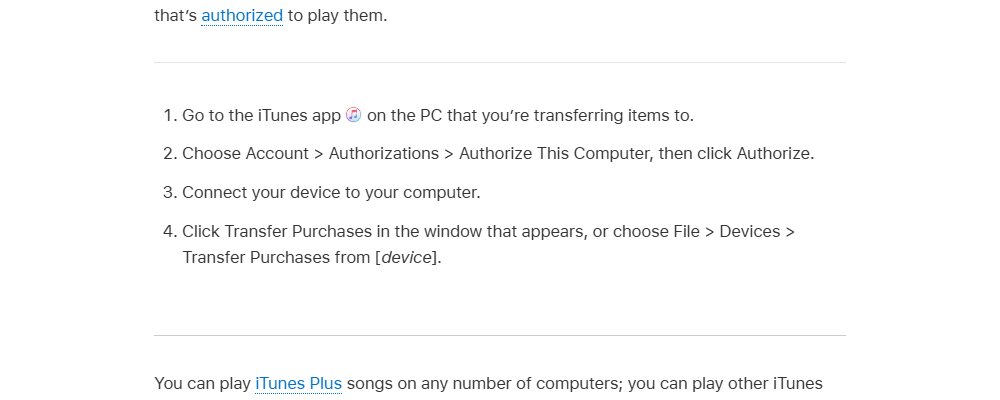
This is Apple's own way to copy content from a device back into an iTunes library on a Windows PC. It moves items bought from the iTunes Store, and the computer must be authorized to play them.
- Open iTunes on the PC that should receive the songs.
- Choose Account > Authorizations > Authorize This Computer, sign in with the Apple Account that bought the items, then click Authorize.
- Connect the iPod, iPhone or iPad to the PC with its cable.
- Click Transfer Purchases if iTunes shows a prompt when the device connects.
- If no prompt appears, choose File > Devices > Transfer Purchases from [device name].
- Wait for the transfer to finish before you disconnect the device.
iTunes Plus songs play on any number of computers. Other iTunes Store purchases play on up to five authorized computers, so deauthorize an old PC if you hit the limit.
What iTunes can recover from an iPod or iPhone
The source of each song decides how you get it back. Apple's tools copy purchases off a device, but they do not copy songs you synced from CDs or files back into a library.
| Content on the device | Apple route to recover it | Requirement |
|---|---|---|
| Songs bought in the iTunes Store | Transfer Purchases, or redownload from Purchased | Computer authorized with the buying Apple Account |
| Movies, TV shows and audiobooks bought from Apple | Redownload from Purchased | Item still offered in your country or region |
| Songs ripped from CDs or added as files | Restore a library backup, or re-import the CDs | A copy of the iTunes folder or the original discs |
| Songs matched or uploaded with iTunes Match | Turn on Sync Library and download them | Same Apple Account and an active iTunes Match subscription |
| Apple Music catalog songs | Turn on Sync Library and download them | Active Apple Music subscription |
| Files you copied to an iPod in disk mode | Drag them off the iPod in File Explorer | Enable disk use turned on for that iPod |
Restore iTunes library from backup on an external drive
A copied iTunes folder holds both the media files and the iTunes Library.itl file that stores playlists, ratings and play counts. Restoring it brings back the whole library, including songs that were never bought from Apple.
- Open iTunes and choose File > Exit to close it.
- Connect the external drive that holds the backed-up iTunes folder.
- In File Explorer, drag the backed-up iTunes folder to your internal drive. Apple recommends
[User folder]\Music\iTunes, the default location. - Hold Shift while you open iTunes from Start > iTunes > iTunes.
- Click Choose Library in the window that appears.
- Open the restored iTunes folder and select the iTunes Library.itl file inside it, then click Open.
Install the latest version of iTunes first if you restore the folder on a new computer.
Redownload iTunes purchases on Windows and Mac
Purchases stay tied to your Apple Account, so you can download them again even when the device itself is lost or broken.
| Your computer | Steps | Notes |
|---|---|---|
| Windows PC with iTunes | Choose Music from the pop-up menu at the top left, click Store, click Purchased under Quick Links, pick Music, Movies, TV Shows or Audiobooks, then click the iCloud Download button next to an item | If Music is missing from the menu, use the Apple Music app instead |
| Mac with the Music app | Click iTunes Store in the sidebar, click Purchased, then click the Download button next to an item | If iTunes Store is hidden, choose Music > Settings > General, select iTunes Store and click OK |
| Either computer, interrupted downloads | Choose Account > Check for Available Downloads, then sign in if asked | Picks up purchases that never finished downloading |
Items that Apple no longer sells, or that are not offered in your country or region, may not appear. Items already in the library do not show a download button.
Recover iTunes music library with Sync Library or iTunes Match
If your library was ever synced to iCloud through Apple Music or iTunes Match, the cloud copy can rebuild the library on a new computer. Every device must use the same Apple Account.
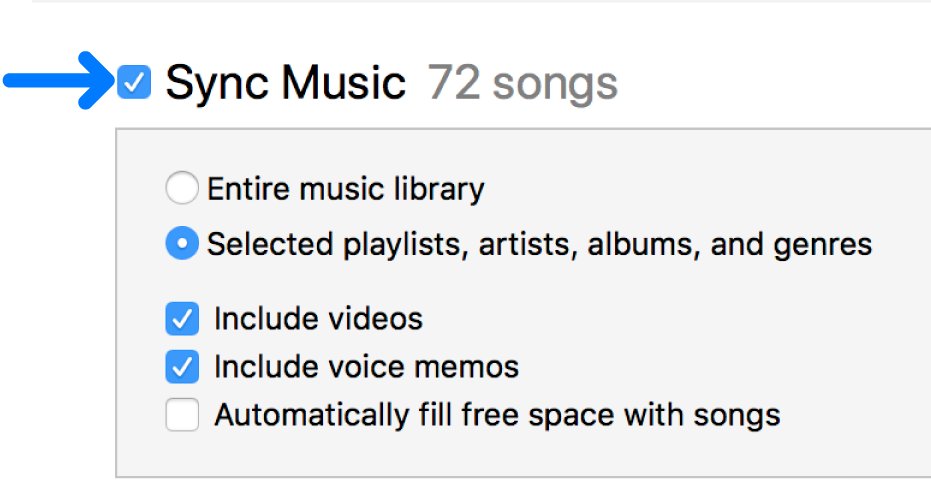
- Open the Apple Music app on your Windows PC and sign in with the Apple Account that owns the library.
- Click the Sidebar Actions button at the top of the sidebar, then choose Settings.
- Select General and turn on Sync library.
- On a Mac, choose Music > Settings, click General and select Sync Library instead.
- On an iPhone or iPad, open Settings > Apps > Music and turn on Sync Library.
- Wait for the library to appear, then download the songs you want stored locally.
Apple states that iTunes Match is not a backup service, so keep your own copy of the iTunes folder as well.
Open an old iTunes library with Choose Library
A library that looks empty after an update or a move is often still on the disk. iTunes has simply opened a different library file.
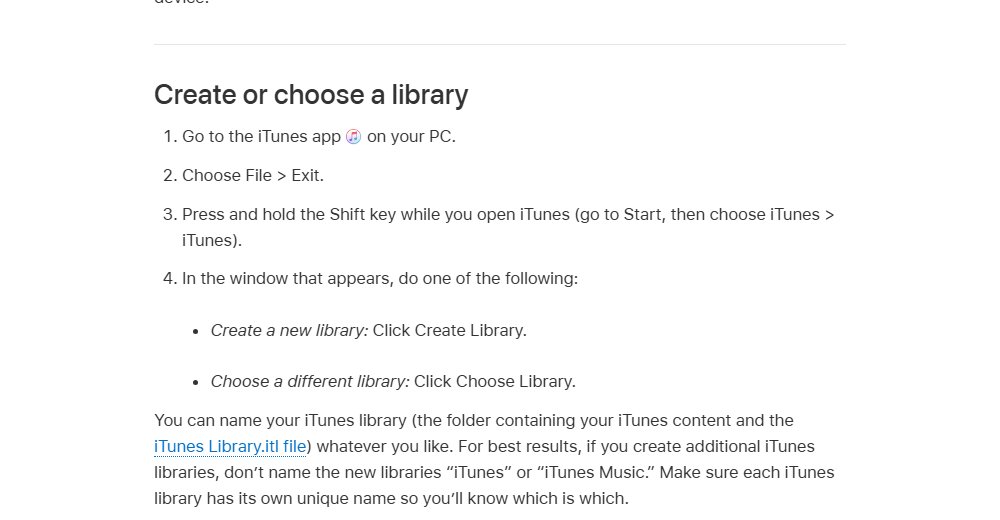
- Close iTunes with File > Exit.
- Hold Shift and open iTunes from the Start menu. On a Mac, hold Option while you open the Music app.
- Click Choose Library.
- Browse to the folder that holds the old library, such as
[User folder]\Music\iTuneson Windows. - Select the library file and click Open.
Copy files off an iPod in disk mode
An iPod with disk use turned on works like a USB drive. Apple notes that music, videos and games synced through iTunes do not show up this way, so this only recovers files you copied to the iPod as a disk.
- Connect the iPod and open iTunes on your PC.
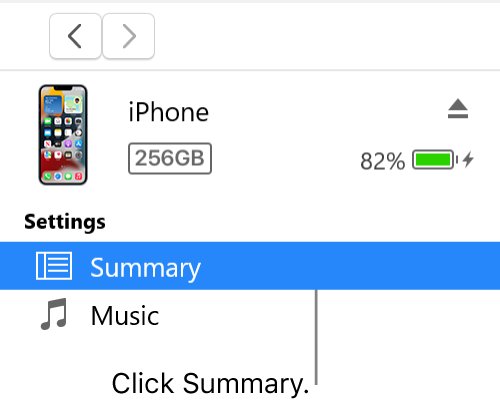
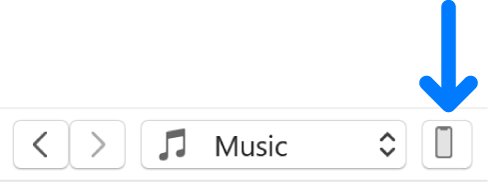
- Click the Device button near the top left of the iTunes window.
- Click Summary or Settings.
- Select Enable disk use and click Apply. A dimmed checkbox means disk use is already on.
- Double-click the iPod icon in File Explorer.
- Drag the files you need from the iPod window to a folder on the PC.
Back up your iTunes library to an external drive
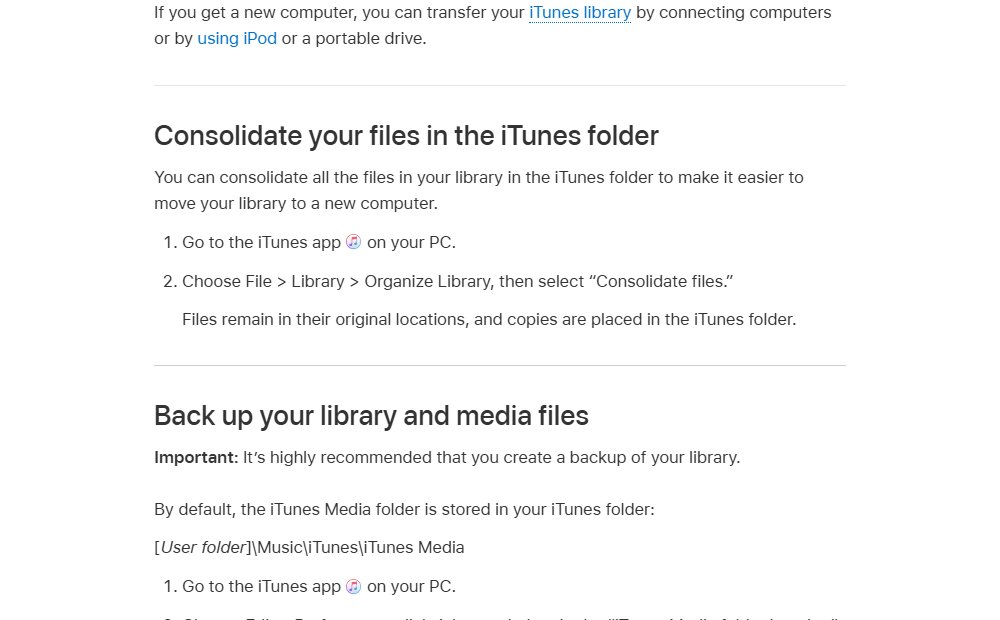
Once the library is back, a full copy stops the same loss from happening again. Consolidating first puts every song inside the iTunes folder.
- In iTunes, choose File > Library > Organize Library, select Consolidate files and click OK.
- Choose Edit > Preferences, click Advanced and note the iTunes Media folder location.
- Quit iTunes.
- In File Explorer, open your Music folder and find the iTunes folder.
- Drag the whole iTunes folder to an external drive.
Consolidating copies files into the iTunes folder and leaves the originals where they were.
Find recovered songs in your iTunes library
- Open iTunes and choose Music from the pop-up menu at the top left.
- Click Library, then Songs in the sidebar, and sort by Date Added if that column is shown.
- Play two or three recovered tracks to confirm the files open.
- Check Playlists in the sidebar if you restored a library backup, because playlists live in the library file.
- Choose Account > Check for Available Downloads once more to catch anything still waiting.
iTunes library missing or not recovering fixes
What happened to my iTunes library after an update?
iTunes opened a new, empty library file, or music moved to the Apple Music app on Windows.
- Hold Shift while opening iTunes and click Choose Library.
- Select the older library file in your iTunes folder.
- If you installed the Apple Music app on Windows, open it, because it now handles songs while iTunes keeps audiobooks and podcasts.
Transfer Purchases is greyed out or copies nothing
The computer is not authorized for the Apple Account that bought the items, or the songs were not iTunes Store purchases.
- Choose Account > Authorizations > Authorize This Computer and sign in with the buying Apple Account.
- Reconnect the device and choose File > Devices > Transfer Purchases again.
- Use a library backup or the original CDs for songs that were never bought from Apple.
Deleted iTunes library songs keep disappearing from the iPhone
Items deleted from an automatically synced library are removed from the device at the next sync.
- Recover the purchases from the device before you sync it again.
- Restore the library backup or redownload the purchases.
- Sync the device only after the library is complete again.
Purchased songs have no download button
Sync Library or iCloud Music Library is off, or the item is already in the library.
- In iTunes for Windows, choose Edit > Preferences, click General and select iCloud Music Library.
- On a Mac, choose Music > Settings > General and select Sync Library.
- Search the library for the item before trying to download it again.
Recover iTunes library FAQ
How do I recover my iTunes library?
Restore a copy of the iTunes folder if you have one, then hold Shift while opening iTunes and choose its library file. Without a backup, transfer purchases from your device, redownload them from Purchased, or turn on Sync Library if you use Apple Music or iTunes Match.
How do I restore my iTunes library from backup?
Quit iTunes, copy the backed-up iTunes folder back to your Music folder, then hold Shift while opening iTunes. Click Choose Library, open the restored folder and select the iTunes Library.itl file. Playlists and ratings return with it.
Can I restore my iTunes library from my iPhone?
Partly. Apple's Transfer Purchases option copies iTunes Store purchases from an iPhone, iPad or iPod into iTunes on an authorized computer. Songs synced from CDs or files are not copied back by Apple's tools, so they need a library backup.
What happened to my iTunes music library?
On Windows, the Apple Music app now handles songs once it is installed, and iTunes keeps audiobooks and podcasts. If iTunes opens empty, it may have loaded a new library file, so hold Shift at launch and choose the old library.
How do I recover a deleted iTunes library?
Restore the iTunes folder from an external drive or other backup. Redownload purchases from the Purchased page, transfer purchases from any device that still has them, and turn on Sync Library if your library was in iCloud through Apple Music or iTunes Match.
How do I retrieve my iTunes library on a new computer?
Install the latest iTunes, copy your backed-up iTunes folder into the Music folder, then hold Shift while opening iTunes and choose the library file. Authorize the new computer with Account > Authorizations > Authorize This Computer so purchases play.
How do I recover my old iTunes library?
Old library files usually stay in the iTunes folder after an update or reinstall. Hold Shift while opening iTunes, click Choose Library and select the older library file. On a Mac, hold Option while opening the Music app to do the same.
Does iTunes Match back up my library?
No. Apple states that iTunes Match is not a backup service, although it makes matched and uploaded songs available on devices with Sync Library turned on. Keep your own copy of the iTunes folder on an external drive.