Wave Browser is a free third-party web browser that often turns up on a PC without the owner remembering installing it, and if you did not choose it, you should remove it.
This guide explains what Wave Browser is, how to decide whether to keep it, how to uninstall it on Windows and Mac, and how to stop it coming back.
Uninstall Wave Browser from Windows Settings
Close every Wave Browser window first, then remove it the same way as any other Windows app.
- Open Start and select Settings.
- Go to Apps > Installed apps.
- Type Wave in the search box above the list.
- Select More (the three dots) next to Wave Browser and choose Uninstall.
- Confirm with Uninstall and follow the uninstaller's prompts.
- Restart the PC so no Wave process is left running.
The same steps work on Windows 11 and Windows 10. If Wave Browser is not in the list, check the Control Panel route further down.
What is Wave Browser?
Wave Browser is a standalone desktop browser for Windows and Mac. It installs its own app, its own shortcuts and, in many cases, asks to become your default browser.
Most people searching for it did not go looking for it. It tends to appear after installing free software or clicking a download prompt on an ad-heavy site.
| Question | Answer |
|---|---|
| What kind of program is it? | A third-party web browser, separate from Chrome, Edge, Firefox and Safari |
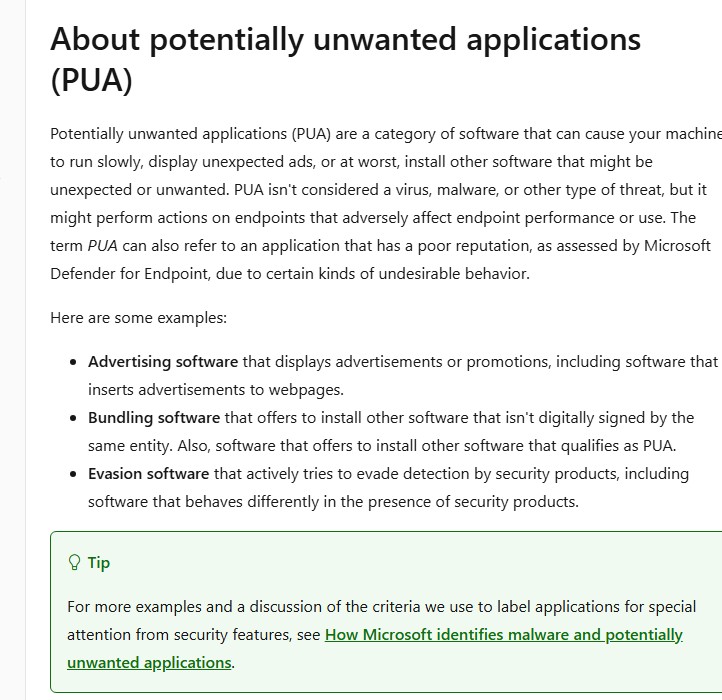
| Is it a virus? | It is not classed as a virus. Unwanted browsers of this type fall under what Microsoft calls potentially unwanted applications (PUA) |
| What does Microsoft say PUA does? | Software that can make a machine run slowly, show unexpected ads, or install other unwanted software |
| Where does it show up? | Start menu, desktop shortcut, taskbar, Installed apps list, and sometimes as a startup app |
| Can you uninstall it? | Yes, through Windows Settings, Control Panel, or the Applications folder on a Mac |
Should I remove Wave Browser?
Match your situation to a row. If any of the warning signs in the first three rows apply, remove it.
| Your situation | What to do | Why |
|---|---|---|
| You never chose to install Wave Browser | Remove it | Software you did not pick has no reason to keep running on your PC |
| Your homepage or search engine changed without permission | Remove it, then reset your main browser | Google lists this as a sign of unwanted software |
| Pop-ups, new tabs or redirects appeared after it arrived | Remove it and check other recent installs | Unexpected ads are a typical PUA behaviour |
| Windows Security or another scanner flags it | Remove it | A PUA detection means the publisher's behaviour fails the vendor's criteria |
| You installed it on purpose and nothing changed without asking | Keep it if you trust it | A browser you chose and control is a personal choice |
How to remove Wave Browser on Windows
If the Settings route above did not list it, or the uninstall failed, work through these steps in order. Each one removes a different piece.
- Right-click Start and select Task Manager.
- On the Processes tab, select each Wave entry and click End task.
- Search for Control Panel on the taskbar and open it.
- Select Programs > Programs and Features.
- Right-click Wave Browser and select Uninstall or Uninstall/Change, then follow the prompts.
- Go back to Task Manager, open the Startup apps tab, select any Wave entry and click Disable.
- Restart Windows and confirm Wave Browser no longer opens.
You can also uninstall from the Start menu: open Start > All apps, right-click Wave Browser and choose Uninstall.
How to remove Wave Browser on Mac
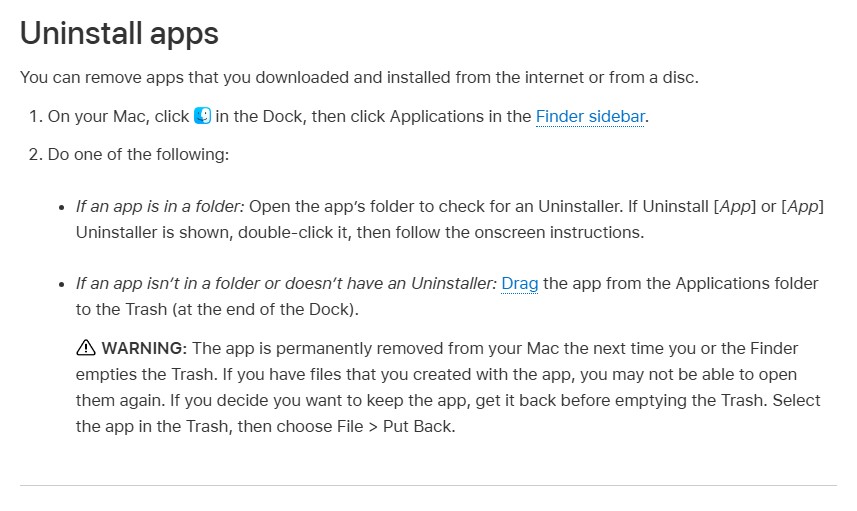
On a Mac, force quit the app first, then delete it from Applications and remove its login item.
- Open Activity Monitor, type Wave in the search field, select each Wave process, click the stop button and choose Quit (or Force Quit if it will not close).
- Click Finder in the Dock, then click Applications in the sidebar.
- If Wave Browser sits in a folder with an Uninstaller, double-click it and follow the onscreen instructions.
- Otherwise, drag Wave Browser from Applications to the Trash.
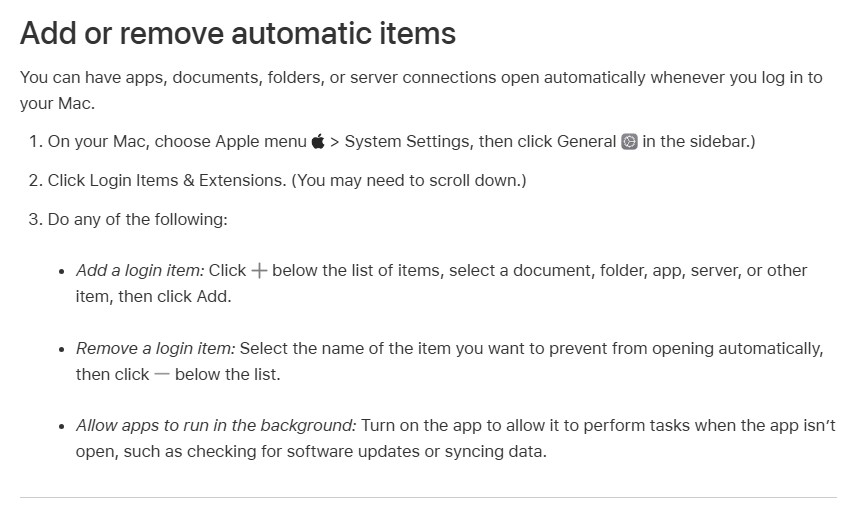
- Choose Apple menu > System Settings > General > Login Items & Extensions.
- Select any Wave item in the list and click the minus button below it.
- Empty the Trash and restart the Mac.
Final tips to remove the Wave Browser
Uninstalling the app does not undo changes it made to your other browsers. Clean those up next, then set the browser you actually use as your default web browser.
| Leftover | Where to fix it | What happens |
|---|---|---|
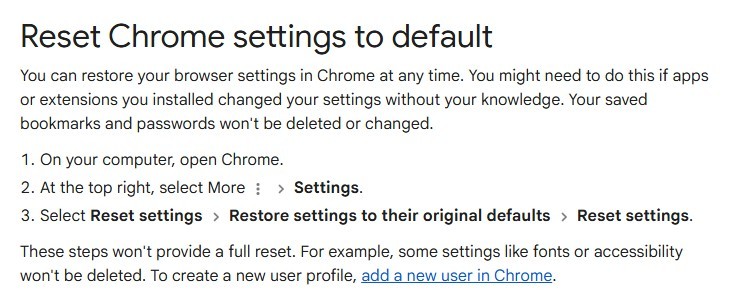
| Chrome homepage, search engine or startup tabs still changed | Chrome: More > Settings > Reset settings > Restore settings to their original defaults > Reset settings | Search engine, homepage, pinned tabs, site permissions and cookies return to defaults; bookmarks and passwords stay |
| Extensions you do not recognise in Chrome | Chrome: More > Extensions > Manage extensions | Turn on only extensions you trust after a reset |
| Wave still set as default browser on Windows | Settings > Apps > Default apps, pick your browser, then Set default | Links open in your chosen browser again |
| Wave still set as default browser on Mac | System Settings > Desktop & Dock > Default web browser menu | Links open in Safari or your preferred browser |
| Edge still behaves oddly | Settings > Apps > Installed apps > Microsoft Edge > Modify to repair it | Repair keeps your browser data and settings |
If Chrome keeps getting taken over even after this, the steps to remove a browser hijacker go deeper into extensions and policies.
How to keep my PC safe from the Wave Browser in the future
Windows has two switches that block apps like this before they install. Turn both on.
- Open the Windows Security app.
- Select App & browser control, then Reputation-based protection settings.
- Turn on Potentially unwanted app blocking and tick both Block apps and Block downloads.
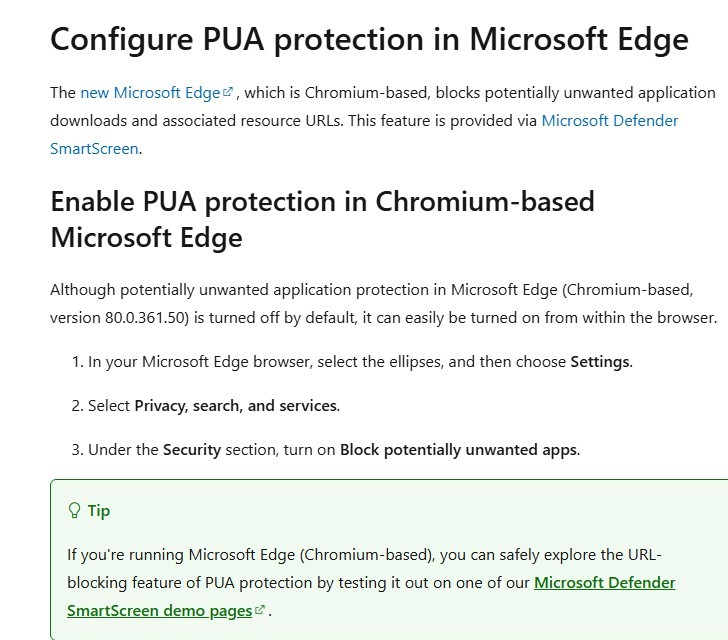
- Open Microsoft Edge, select the three dots and choose Settings.
- Select Privacy, search, and services and, under Security, turn on Block potentially unwanted apps.
- When installing free software, choose the custom install option and untick any extra browser or toolbar offers.
Microsoft Defender quarantines blocked PUA files and shows a notification starting with PUA:, so you will know when something was stopped.
Which is the safest browser in 2026
The safest choice is a mainstream browser kept up to date by its vendor, with its built-in protection switched on.
| Browser | Built-in protection | Setting to turn on |
|---|---|---|
| Microsoft Edge | Microsoft Defender SmartScreen blocks PUA downloads and the URLs linked to them, alongside Edge's other privacy and security settings | Block potentially unwanted apps under Privacy, search, and services |
| Google Chrome | Safe Browsing warnings, intrusive-ads blocking and an automatic check for settings changed by unwanted programs | Settings > Privacy and security > Site settings > Additional content settings > Intrusive ads |
| Safari (Mac) | Ships with macOS and updates through Software Update | Keep macOS updated |
| Wave Browser | No equivalent official documentation found | Remove it if you did not choose it |
Check Wave Browser is fully removed
- Search Wave in Settings > Apps > Installed apps and confirm nothing is listed.
- Open Task Manager > Startup apps and confirm no Wave entry remains.
- Restart the PC and confirm no Wave window or tab opens on sign-in.
- Click a link in an email or document and confirm it opens in your chosen browser.
- Open your main browser and confirm the homepage and search engine are the ones you set.
- On a Mac, check Applications and Login Items & Extensions for any Wave entry.
Wave Browser removal problems and fixes
Wave Browser keeps coming back after uninstalling
A background process or startup entry relaunches or reinstalls it.
- Open Task Manager and end every Wave task on the Processes tab.
- On the Startup apps tab, select any Wave entry and click Disable.
- Uninstall again from Control Panel > Programs and Features.
- Open Windows Security and run a scan, then check Protection history for PUA detections.
Uninstall fails because the app is in use
A Wave process is still running in the background.
- End the Wave tasks in Task Manager (Windows) or quit them in Activity Monitor (Mac).
- Restart the computer and try the uninstall before opening anything else.
- On a Mac, start up in safe mode and drag the app to the Trash if it is still locked.
Wave Browser is not in the Installed apps list
Some apps only show in Control Panel, or were installed for a different user.
- Open Control Panel > Programs > Programs and Features and look there.
- Open Start > All apps, right-click Wave Browser and choose Uninstall.
- Sign in to the other Windows account that installed it and uninstall from there.
Chrome search engine is still changed after removal
The uninstaller removes the app but not the settings it changed in other browsers.
- In Chrome, open More > Settings > Reset settings.
- Select Restore settings to their original defaults > Reset settings.
- Open Extensions > Manage extensions and remove anything you do not recognise.
Wave Browser FAQ
Is Wave Browser a virus?
No, Wave Browser is not classed as a virus. It belongs to the wider group of potentially unwanted apps: software that can slow a PC, show unexpected ads or bring other software with it. If it arrived without your choice, remove it.
Is Wave Browser safe to use?
Wave Browser is not a recognised mainstream browser, and it often arrives bundled with other downloads. If you did not install it on purpose, uninstall it and use Edge, Chrome, Firefox or Safari with their built-in protection turned on.
How did Wave Browser get on my computer?
Apps like Wave Browser usually arrive through bundled installers or download prompts on ad-heavy sites. Choosing the custom install option and unticking extra offers prevents most of these installs.
Why can't I uninstall Wave Browser?
The uninstall usually fails because a Wave process is still running. End every Wave task in Task Manager, restart Windows, and then uninstall from Control Panel > Programs and Features.
Does uninstalling Wave Browser delete my Chrome bookmarks?
No. Uninstalling Wave Browser does not touch Chrome. Resetting Chrome settings afterwards also keeps your saved bookmarks and passwords, while restoring the search engine, homepage and startup tabs.
How do I stop Wave Browser opening at startup?
Open Task Manager, select the Startup apps tab, select the Wave entry and click Disable. You can also turn it off in Settings > Apps > Startup. Then uninstall the app so it cannot add itself back.
Will Windows Security remove Wave Browser automatically?
Windows Security can block and quarantine potentially unwanted apps when Potentially unwanted app blocking is turned on under App & browser control. Turn on both Block apps and Block downloads for full coverage.
How do I remove Wave Browser from a Mac?
Quit Wave in Activity Monitor, drag Wave Browser from the Applications folder to the Trash, and remove its entry in System Settings > General > Login Items & Extensions. Empty the Trash and restart.