To stop the menu bar from disappearing on a Mac, open System Settings, find Automatically hide and show the menu bar and set it to Never.
This guide shows where that setting lives in each macOS version, how to keep the menu bar in full screen apps, and the matching fixes for the Word ribbon and the Windows 11 taskbar.
How to stop the menu bar from hiding on Mac
These steps match macOS Tahoe 26 and later, where the setting has its own Menu Bar pane. Older versions keep the same option in a different pane, listed in the next section.
- Click the Apple menu in the top-left corner of the screen. If the menu bar is hidden, move the pointer to the top edge first.
- Choose System Settings.
- Click Menu Bar in the sidebar. Scroll down the sidebar if you do not see it.
- Open the Automatically hide and show the menu bar menu.
- Choose Never.
- Close System Settings. The menu bar now stays at the top of the screen on the desktop and in full screen apps.
Where the menu bar auto-hide setting is in each macOS version
Apple has moved this option four times. Find your version in Apple menu > About This Mac, then use the matching row.
| macOS version | Where to go | What to choose |
|---|---|---|
| macOS 27 and macOS Tahoe 26 | System Settings > Menu Bar | Automatically hide and show the menu bar > Never |
| macOS Sequoia 15 and macOS Sonoma 14 | System Settings > Control Center, scroll to the bottom | Automatically hide and show the menu bar > Never |
| macOS Ventura 13 | System Settings > Desktop & Dock | Automatically hide and show the menu bar > Never |
| macOS Monterey 12 | System Preferences > Dock & Menu Bar | Clear both Automatically hide and show the menu bar on desktop and Automatically hide and show the menu bar in full screen |
| macOS Catalina 10.15 | System Preferences > General | Clear Automatically hide and show the menu bar |
On Monterey and Catalina the option is a checkbox, so clearing it is the same as choosing Never on newer versions.
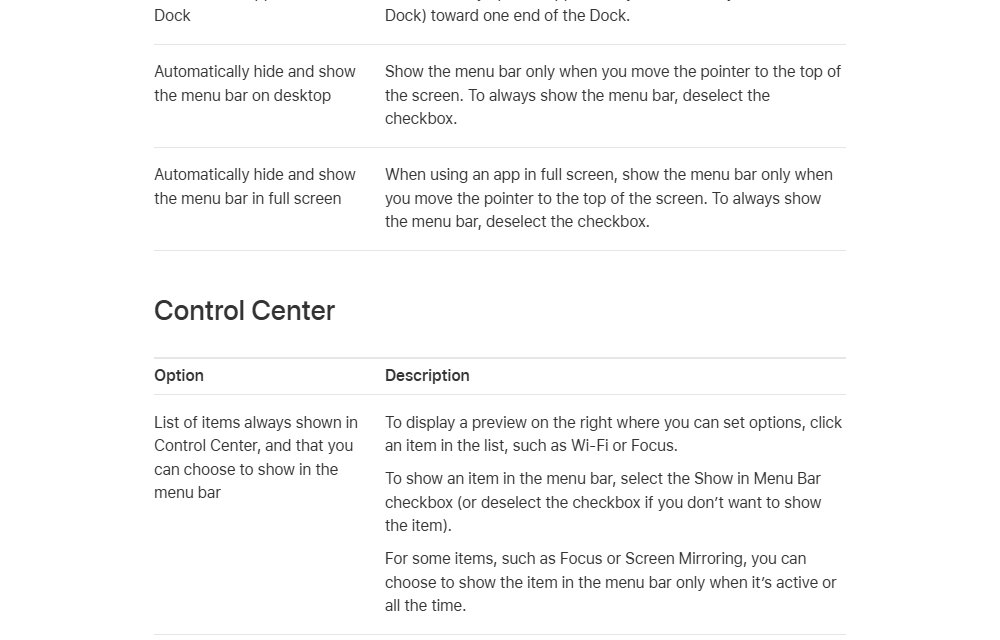
Automatically hide and show the menu bar options explained
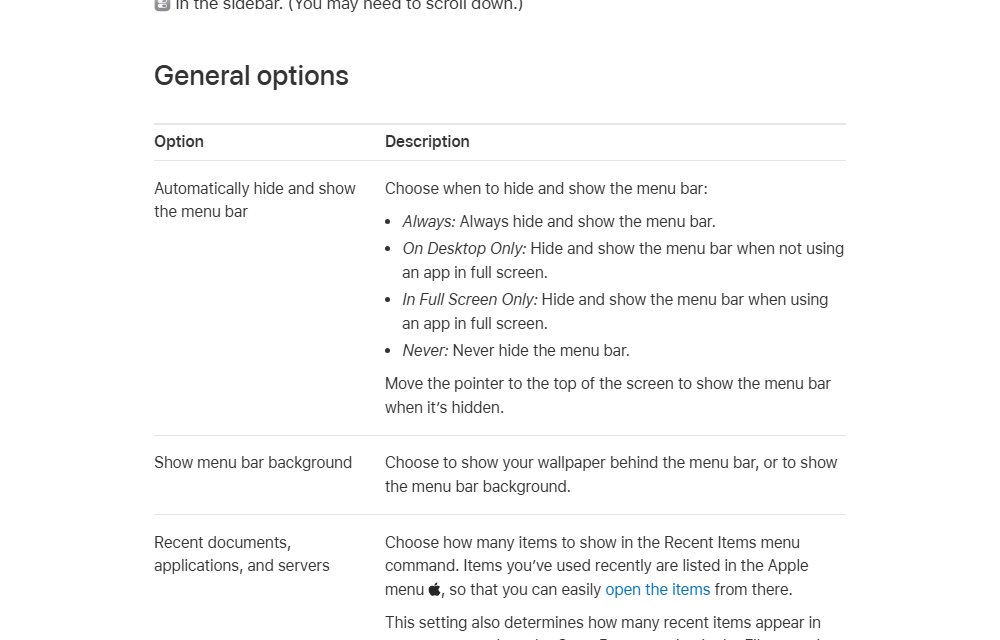
Since macOS Ventura the setting is a menu with four choices. Pick the row that matches where you want the menu bar to stay visible.
| You want the menu bar to | Choose | What macOS does |
|---|---|---|
| Stay visible everywhere | Never | Never hides the menu bar |
| Stay visible in full screen apps but hide on the desktop | On Desktop Only | Hides and shows the menu bar only when no app is in full screen |
| Stay visible on the desktop but hide in full screen apps | In Full Screen Only | Hides and shows the menu bar only when an app is in full screen |
| Hide everywhere until you point at it | Always | Always hides the menu bar and shows it when the pointer reaches the top of the screen |
Keep the menu bar visible in full screen on Mac
Full screen apps hide the menu bar unless the auto-hide setting says otherwise. Apple's fix for an always-visible menu bar in full screen is the Never option.
- Move the pointer to the top of the screen so the menu bar slides down.
- Choose Apple menu > System Settings.
- Click Menu Bar in the sidebar (on Sequoia or Sonoma, click Control Center).
- Set Automatically hide and show the menu bar to Never or On Desktop Only.
- Switch back to the full screen app and confirm the menu bar stays at the top.
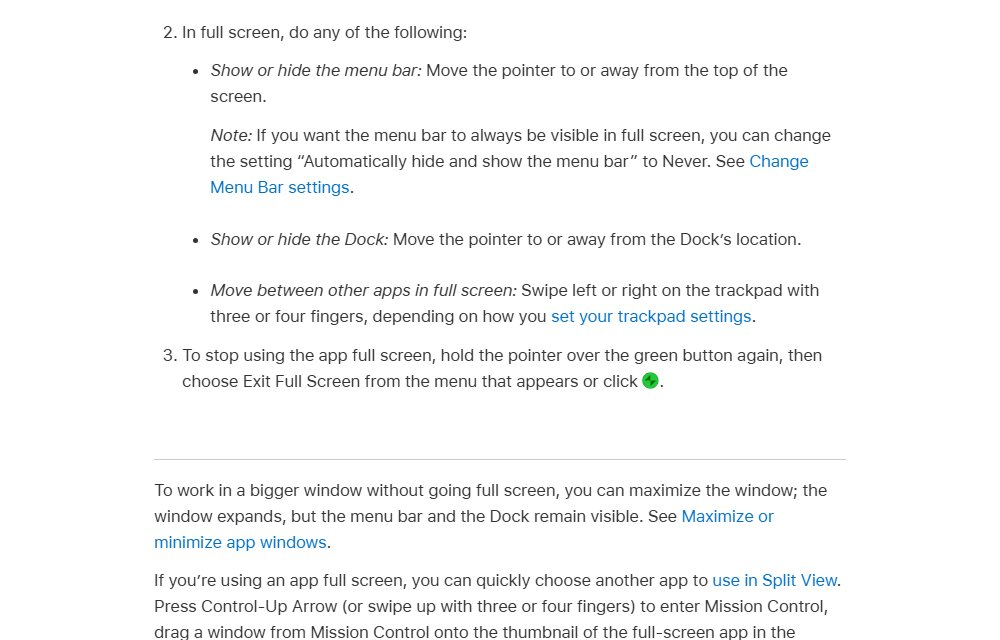
How to exit full screen on Mac to get the menu bar back
If you only need the menu bar for a moment, leaving full screen on a Mac is quicker than changing the setting.
- Press Control-Command-F to stop using the app in full screen, if the app supports it.
- If the shortcut does nothing, move the pointer to the top-left corner of the window.
- Hold the pointer over the green button.
- Choose Exit Full Screen from the menu that appears.
- Check that the window is back on the desktop with the menu bar above it.
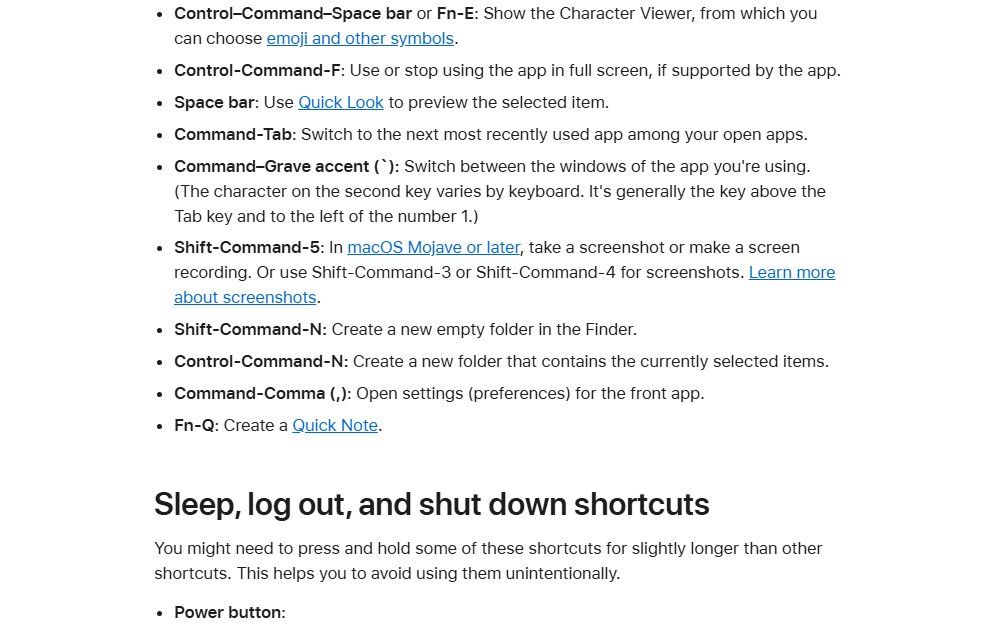
How to open the menu bar on Mac when it is hidden
A hidden menu bar is still there. It appears as soon as the pointer touches the top edge of the screen.
- Move the pointer to the very top of the screen and wait for the menu bar to slide down.
- Keep the pointer on the menu bar while you choose a menu item.
- To reach the menus from the keyboard, press Control-F2 (or Fn-Control-F2 on a laptop keyboard) to move focus to the menu bar.
- Use the arrow keys to move between menus and press Return to open the selected item.
- Press Control-F8 (or Fn-Control-F8) instead to jump to the status menus on the right side of the menu bar.
The right side of the menu bar also carries status items, such as the button to stop a screen recording on a Mac.
How to stop the ribbon from disappearing in Word
In Word and the other Microsoft 365 apps, the Word ribbon plays the menu bar's role. When it vanishes, the ribbon is usually set to Full-screen mode or collapsed.
- If no tabs are showing at all, select the ellipsis (…) at the top right of the window, or press Alt, to bring the ribbon back for now.
- Click the Ribbon Display Options icon in the lower-right corner of the ribbon.
- Choose Always show Ribbon to keep every tab and command visible.
- If only the tab names show, right-click any ribbon tab.
- Clear the check mark next to Collapse the ribbon.
Show tabs only keeps the tab names visible and hides the commands until you click a tab. Full-screen mode hides the ribbon completely until you select the ellipsis or press Alt.
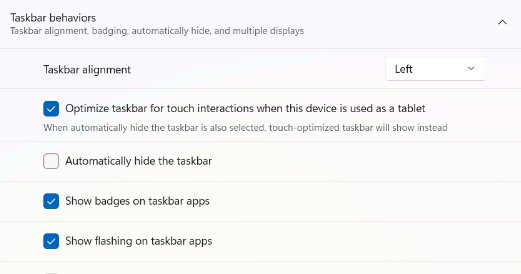
How to stop the taskbar from hiding in Windows 11
On Windows, the bar that keeps disappearing is usually the taskbar, and the cause is the auto-hide option. If you hid it on purpose with a taskbar hiding shortcut, the same setting brings it back for good.
- Hover the pointer over, or touch, the bottom edge of the screen to show the hidden taskbar.
- Right-click an empty space on the taskbar and select Taskbar settings.
- Expand Taskbar behaviors.
- Clear the Automatically hide the taskbar checkbox.
- Close Settings. The taskbar now stays at the bottom of the screen.
How to hide the menu bar on Mac again
Hiding the menu bar gives a little more screen space, and you can switch back at any time.
- Choose Apple menu > System Settings.
- Click Menu Bar in the sidebar (Control Center on Sequoia and Sonoma, Desktop & Dock on Ventura).
- Set Automatically hide and show the menu bar to Always to hide it everywhere.
- Choose In Full Screen Only instead if you want it hidden only in full screen apps.
- Move the pointer to the top of the screen whenever you need the menu bar.
On macOS 27 the same pane also has Show menu bar background, which chooses between showing your wallpaper behind the menu bar or a solid menu bar background.
Check the Mac menu bar stays on screen
- Move the pointer to the middle of the screen and leave it there for a few seconds.
- Confirm the Apple menu, the app menus and the clock remain at the top of the screen.
- Open an app in full screen with Control-Command-F.
- Confirm the menu bar is still visible above the app.
- Press Control-Command-F again to leave full screen.
Why is my menu bar not showing? Fixes by symptom
The menu bar still disappears in full screen apps
The auto-hide setting is set to Always or In Full Screen Only.
- Open System Settings > Menu Bar (or Control Center on Sequoia and Sonoma).
- Set Automatically hide and show the menu bar to Never or On Desktop Only.
- On Monterey, clear Automatically hide and show the menu bar in full screen in Dock & Menu Bar.
The menu bar hides on the desktop even with no app in full screen
The setting is Always or On Desktop Only, or the old checkbox is selected.
- Move the pointer to the top of the screen to reveal the menu bar.
- Open the auto-hide setting for your macOS version from the table above.
- Choose Never, or clear the checkbox on Monterey and Catalina.
The Dock disappears instead of the menu bar
The Dock has its own auto-hide option, separate from the menu bar.
- Press Option-Command-D to show or hide the Dock.
- To make it permanent, open System Settings > Desktop & Dock.
- Turn off Automatically hide and show the Dock.
The menu bar disappears in Word
The ribbon is set to Full-screen mode or Show tabs only.
- Select the ellipsis (…) at the top right or press Alt to show the ribbon.
- Click Ribbon Display Options in the lower-right corner of the ribbon.
- Choose Always show Ribbon.
The Windows menu bar or taskbar is not showing
Automatically hide the taskbar is turned on.
- Point at the bottom edge of the screen to show the taskbar.
- Right-click the taskbar and select Taskbar settings.
- Expand Taskbar behaviors and clear Automatically hide the taskbar.
Mac menu bar disappearing FAQ
How do I stop the menu bar from hiding on a Mac?
Open System Settings > Menu Bar on macOS Tahoe 26 or later, then set Automatically hide and show the menu bar to Never. On Sequoia and Sonoma the same option is at the bottom of Control Center, and on Ventura it is in Desktop & Dock.
How do I keep the menu bar from disappearing in full screen?
Set Automatically hide and show the menu bar to Never or On Desktop Only. Both choices keep the menu bar visible while an app is in full screen. On macOS Monterey, clear the in full screen checkbox in Dock & Menu Bar instead.
Why is my menu bar not showing?
The menu bar is usually hidden by the auto-hide setting or because an app is in full screen. Move the pointer to the top edge of the screen to reveal it, then change the setting to Never or press Control-Command-F to leave full screen.
How do I open the menu bar when it is hidden?
Move the pointer to the top of the screen and the menu bar slides down. From the keyboard, press Control-F2 (or Fn-Control-F2) to move focus to the menu bar, then use the arrow keys to choose a menu.
How do I stop the menu bar from disappearing in Word?
Click Ribbon Display Options in the lower-right corner of the ribbon and choose Always show Ribbon. If no tabs are visible, select the ellipsis (…) at the top right or press Alt first so the ribbon appears.
How do I stop auto hide of the ribbon in Word?
The auto-hide behaviour is Full-screen mode. Change it to Always show Ribbon in Ribbon Display Options. If only tab names show, right-click a tab and clear Collapse the ribbon.
How do I hide the menu bar on a Mac?
Set Automatically hide and show the menu bar to Always in System Settings > Menu Bar, or in Control Center on Sequoia and Sonoma. The menu bar then appears only when you move the pointer to the top of the screen.
How do I remove or minimize the menu bar?
macOS does not let you remove the menu bar completely. The closest option is Always in the auto-hide setting, which keeps it out of sight until the pointer reaches the top edge of the screen.
How do I stop the bar at the bottom from disappearing?
On a Mac, that bar is the Dock: turn off Automatically hide and show the Dock in System Settings > Desktop & Dock. On Windows 11, it is the taskbar: clear Automatically hide the taskbar under Taskbar settings > Taskbar behaviors.