You cannot set up an AirTag from a Mac: Apple's AirTag setup runs on an iPhone or iPad, and the AirTag then appears in Find My on any Mac signed in to the same Apple Account.
This guide covers pairing the AirTag on an iPhone or iPad, getting Find My ready on macOS, what the Mac app can do with an AirTag, and fixes when setup fails.
Can you set up an AirTag on a Mac?
Find My on Mac has no option to add an AirTag. Its item pages all point back to Apple's iPhone and iPad setup article, so pair the AirTag there first.
- Remove the wrapping and the battery tab from the AirTag.
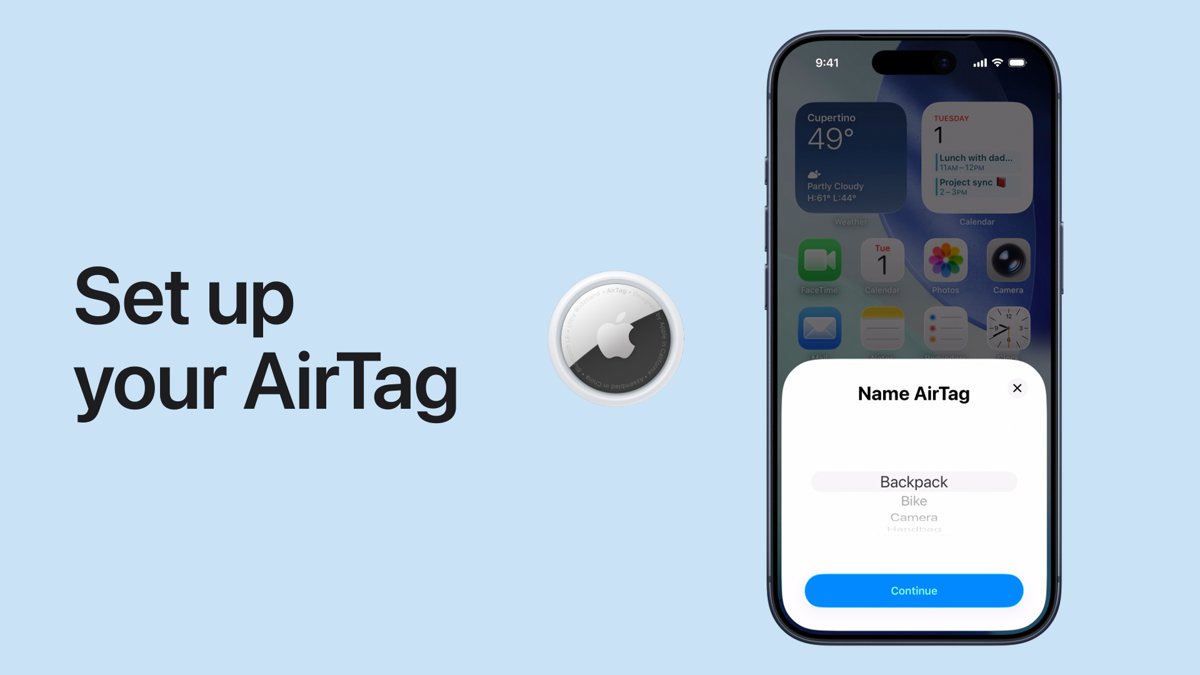
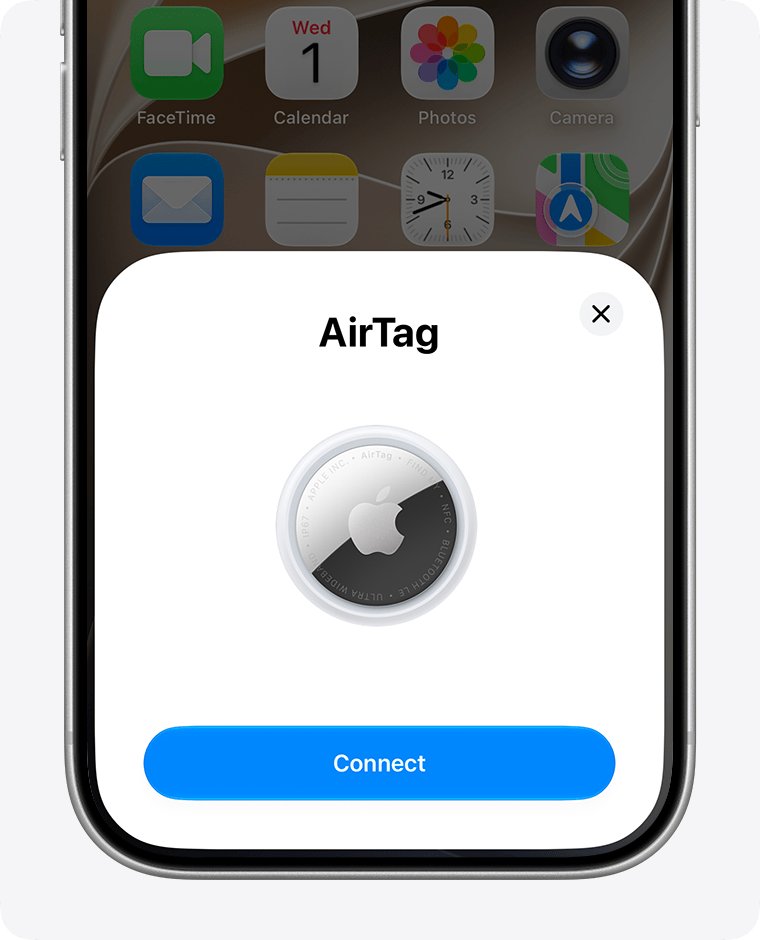
- Unlock your iPhone or iPad and hold the AirTag near it.
- Tap Connect when the setup card appears.
- Pick a name from the list, or choose Custom Name and select an emoji, then tap Continue.
- Tap Continue to register the AirTag to your Apple Account, then tap Finish (or Done).
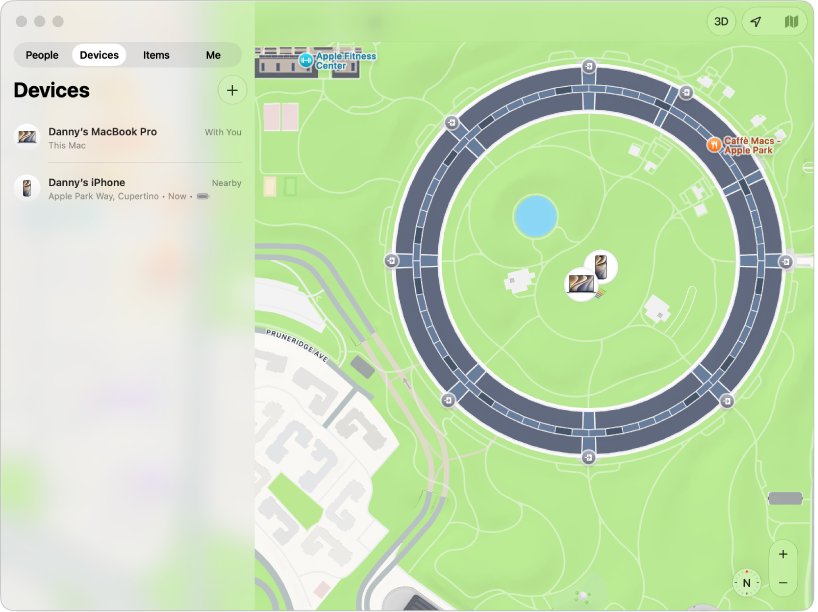
- On your Mac, open the Find My app and click Items. The new AirTag is listed there.
The Mac must be signed in with the same Apple Account that registered the AirTag. If the Mac keeps asking for that account's password, change your Apple Account password and sign in again.
AirTag setup requirements for iPhone, iPad and Mac
| Requirement | Detail |
|---|---|
| Device for setup | iPhone or iPad. The Mac cannot pair an AirTag. |
| AirTag (1st generation) | iOS or iPadOS 14.5 or later |
| AirTag (2nd generation) | iOS or iPadOS 26.2.1 or later |
| Bluetooth | On, in Settings > Bluetooth |
| Location Services | On, with Find My given access; Precise Location gives the most accurate result |
| Apple Account | Setup finished, with no Update Apple Account Settings alert pending |
| iCloud Keychain and Find My network | Both turned on for the iPhone or iPad |
| Item limit | Up to 32 items per account, including shared items and accessories |
| Mac | Signed in to the same Apple Account, with Location Services and Find My turned on |
How to set up an AirTag with an iPhone or iPad
AirTag setup is the pop-up card that appears when a new AirTag comes near an unlocked iPhone or iPad. It is the quickest way to register one.
- Pull the battery tab out of the AirTag. It plays a sound when the battery connects.
- Go to the Home Screen on your iPhone or iPad and hold the AirTag close to it.
- Tap Connect. If you see More than one AirTag detected, move the others away and keep only one near the device.
- Select a category to name the AirTag, or choose Custom Name and pick an emoji.
- Tap Agree or Continue to link the AirTag with your Apple Account.
- Tap Done.
If the card does not appear, turn the screen off and back on to retry pairing.
Add an AirTag in the Find My app on iPhone
Use this route when the setup card never shows up, or for a third-party item that works with Find My.
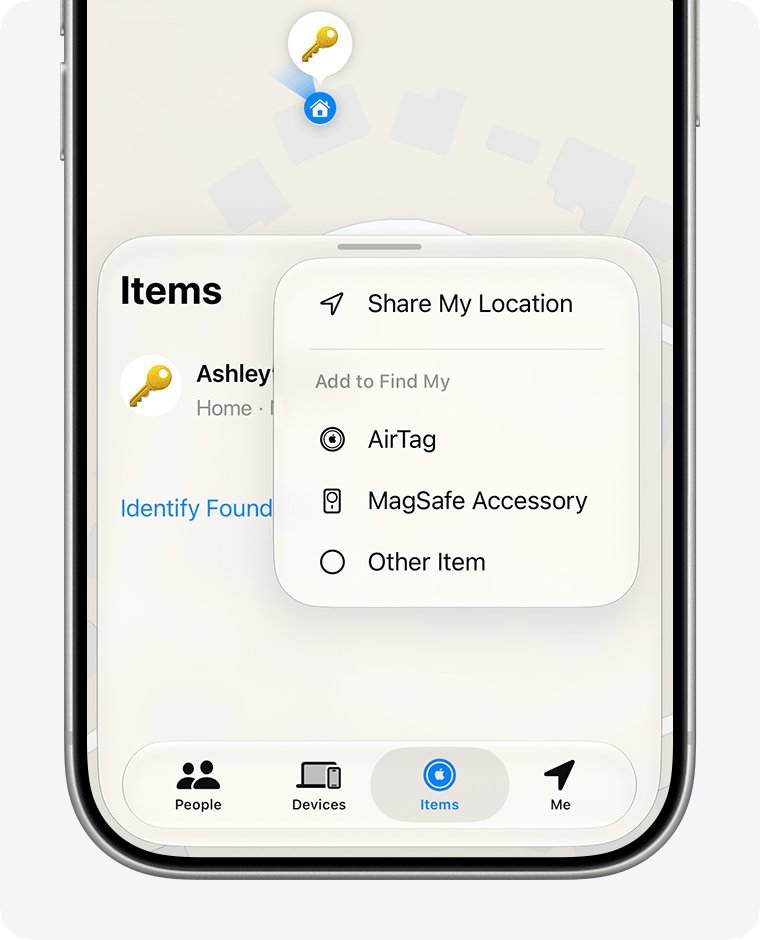
- Open the Find My app on your iPhone or iPad.
- Tap Items, then tap the Add button.
- Tap AirTag (or Other Item for a third-party accessory).
- Hold the AirTag near the device and follow the onscreen steps.
- Name the AirTag and confirm it is registered to your Apple Account.
Turn on Find My on Mac to see your AirTag
These settings let the Mac show your location next to the AirTag and use the Find My network.
- Open System Settings on your Mac and click Privacy & Security in the sidebar.
- Click Location Services, turn it on, then turn on Find My in the list of apps.
- Back in System Settings, click your name at the top of the sidebar. If you see Sign in instead, sign in with the Apple Account that registered the AirTag.
- Click iCloud, click See All, then click Find My Mac.
- Click Turn On, then click Allow when asked to let Find My Mac use the Mac's location.
- Click Done, then open the Find My app and click Items.
If Find My is missing from the Location Services list, open System Services, click Details and turn on Find My Mac.
What Find My on Mac can do with an AirTag
| Task | On Mac | Where to do it |
|---|---|---|
| Set up (register) a new AirTag | No | iPhone or iPad |
| See location and timestamp | Yes | Items > select the AirTag |
| Play a sound | Yes, when the AirTag is nearby | Select the AirTag > Play |
| Get directions | Yes, opens Maps | Select the AirTag > Directions |
| Notify when found | Yes | Info button > Notifications > When Found |
| Precise Location (arrow and distance) | No | Supported iPhone |
| Share with up to five people | Yes | Info button > Share AirTag > Add Person |
| Separation alerts | Manage only; alerts arrive on the device sharing your location | Info button > When Left Behind |
| Show contact info when lost | Yes | Info button > Lost AirTag > Show Contact Info |
| View serial number and model | Yes | Info button, scroll to the bottom |
| Remove from your Apple Account | Not in the Mac guide | iPhone: Items > AirTag > Remove |
| Check battery | Low battery icon in the Items list | Find My on any device |
Locate an AirTag in Find My on Mac
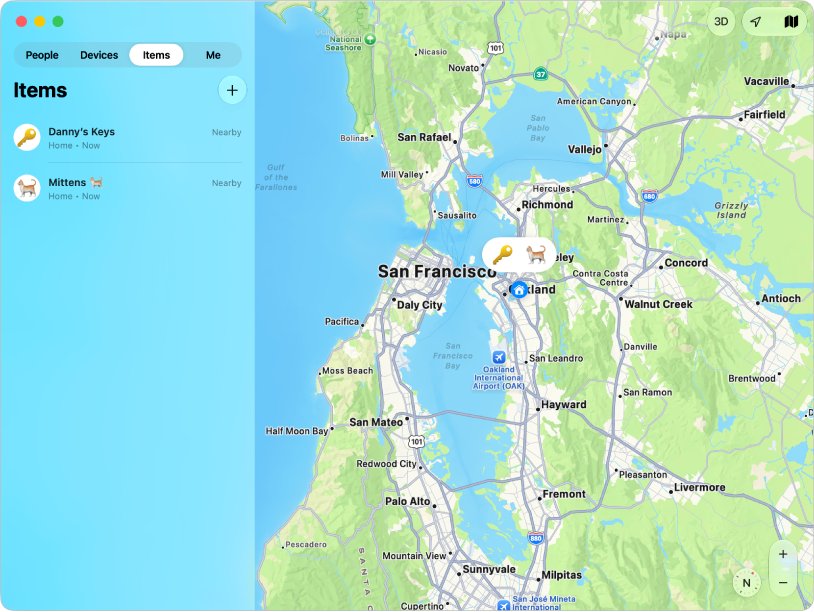
- Open the Find My app on your Mac.
- Click Items, then select the AirTag. Its location and timestamp appear below its name.
- Click Play to make a nearby AirTag ring. Click Stop to end the sound early.
- Click Directions to open Maps with a route to the AirTag.
- If No location found appears, click the info button and turn on When Found under Notify Me.
Allow notifications for Find My on the Mac, or the When Found alert never shows.
Share an AirTag from Find My on Mac
An AirTag can be shared with up to five people besides the owner. The owner and borrowers need iOS 17, iPadOS 17, macOS 14 or later, two-factor authentication for the owner and iCloud Keychain turned on. Child accounts cannot borrow an AirTag.
- Open Find My on your Mac and click Items.
- Select the AirTag, then click the info button.
- In the Share AirTag section, click Add Person, then click Continue.
- Type a name, email address or phone number, then click the contact.
- Click the send button in the top-right corner. The invitation status appears below Share This AirTag.
To stop sharing, open the same section, click the person's name and click Stop Sharing twice.
Mark an AirTag as lost on a Mac
Show Contact Info lets anyone with an NFC-capable phone tap the found AirTag and see your message and phone number.
- Open Find My on your Mac and click Items.
- Select the lost AirTag, then click the info button.
- In the Lost AirTag section, click Show Contact Info.
- Follow the onscreen instructions to enter a phone number.
- Click Show Information.
When the AirTag turns up, go back to Show Contact Info on iPhone and tap Stop Showing Information.
Remove an AirTag from your Apple Account
An AirTag belongs to one Apple Account at a time. Remove it before you give it away, or the next owner cannot register it.
- Open the Find My app on your iPhone.
- Tap Items, tap the AirTag, then tap the info button.
- Bring the AirTag near the iPhone.
- Tap Remove, then follow the onscreen instructions.
If the AirTag was out of range when you removed it, the new owner must reset it before it will pair.
AirTag not connecting during setup
The setup card does not appear or disappears
The iPhone or iPad missed the pairing broadcast, or a setting is off.
- Press the side button or Sleep/Wake button to put the device to sleep.
- Wake and unlock it, then wait 15 seconds for the animation to reappear.
- Confirm Bluetooth and Location Services are on and the device runs the required iOS or iPadOS version.
- Restart the iPhone or iPad and try again.
"More than one AirTag detected"
Several new AirTags are within range at once.
- Move every other AirTag away from the device.
- Hold only one AirTag near the iPhone or iPad and tap Connect.
- Repeat for each remaining AirTag.
The AirTag is registered to someone else
An AirTag can belong to only one Apple Account.
- Ask the previous owner to remove it in Find My > Items > Remove.
- If they removed it while out of range, reset the AirTag.
- For a first-generation AirTag, remove the battery cover and battery, reinsert the battery and press until it plays a sound.
- Repeat the remove-and-press cycle until you hear five sounds; the fifth sound is different.
- Refit the cover and set the AirTag up again.
"New items cannot be added"
The account has reached the 32-item limit.
- Open Find My and count the Items tab plus AirPods in Devices.
- Note that AirPods Pro 2 and later count as three items, and AirPods and AirPods Pro 1 count as two.
- Remove an item you no longer use, then add the AirTag.
AirTag still will not connect
A flat battery or stale account state.
- Replace the battery with a new CR2032 lithium 3V coin cell, positive side up.
- Open Settings, tap your name and clear any Update Apple Account Settings alert.
- Turn on iCloud Keychain and the Find My network.
- Use a strong Wi-Fi or cellular connection and try setup again.
AirTag shows "No location found" on Mac
The AirTag has not reached the Find My network recently.
- Select the AirTag in Items and click the info button.
- Turn on When Found under Notify Me.
- Check for a low battery icon next to the AirTag's name and replace the battery if it shows.
AirTag setup with Mac FAQ
How do I set up an AirTag?
Pull the battery tab, hold the AirTag near an unlocked iPhone or iPad and tap Connect. Choose a name, tap Continue to register it to your Apple Account, then tap Done. The AirTag then shows in Find My on all your devices.
Can I set up an AirTag without an iPhone?
Yes, with an iPad running iPadOS 14.5 or later, or iPadOS 26.2.1 or later for the second-generation AirTag. A Mac cannot register a new AirTag, but it can track one after setup.
How do I set up a new AirTag that someone else used?
Ask the previous owner to remove it from their Apple Account in Find My. If they did that while away from the AirTag, reset it by removing and reinserting the battery until it plays a fifth, different sound.
How do I get my AirTag to work if it will not connect?
Update iOS or iPadOS, turn on Bluetooth and Location Services, finish any Apple Account alerts, turn on iCloud Keychain and restart the device. If it still fails, replace the CR2032 battery or reset the AirTag.
How do I use an AirTag on my Mac?
Open Find My on the Mac and click Items, then select the AirTag. You can see its location, play a sound, get directions, share it, set notifications and show contact info when it is lost.
Why does my AirTag not show on my Mac?
The Mac must be signed in to the same Apple Account that registered the AirTag, with Location Services and Find My turned on. Open System Settings, click your name, then check iCloud and Find My Mac.
How many AirTags can one Apple Account have?
Find My holds up to 32 items, including AirTags, shared items, third-party accessories and AirPods. Some AirPods count as two or three items, so the AirTag total can be lower.
What battery does an AirTag use?
An AirTag uses a CR2032 lithium 3V coin battery, inserted positive side up. Some bitter-coated CR2032 batteries do not work, so look for packaging marked compatible with Apple AirTag.