An iOS 26 update stuck on "Update Requested" means your iPhone cannot reach Apple's update server or start the download, so change networks, turn off any VPN, free up storage and request the update again.
This guide covers the quick fix, deleting and re-downloading the update, updating with a Mac or Windows PC, and what to do when the update stalls at a later stage.
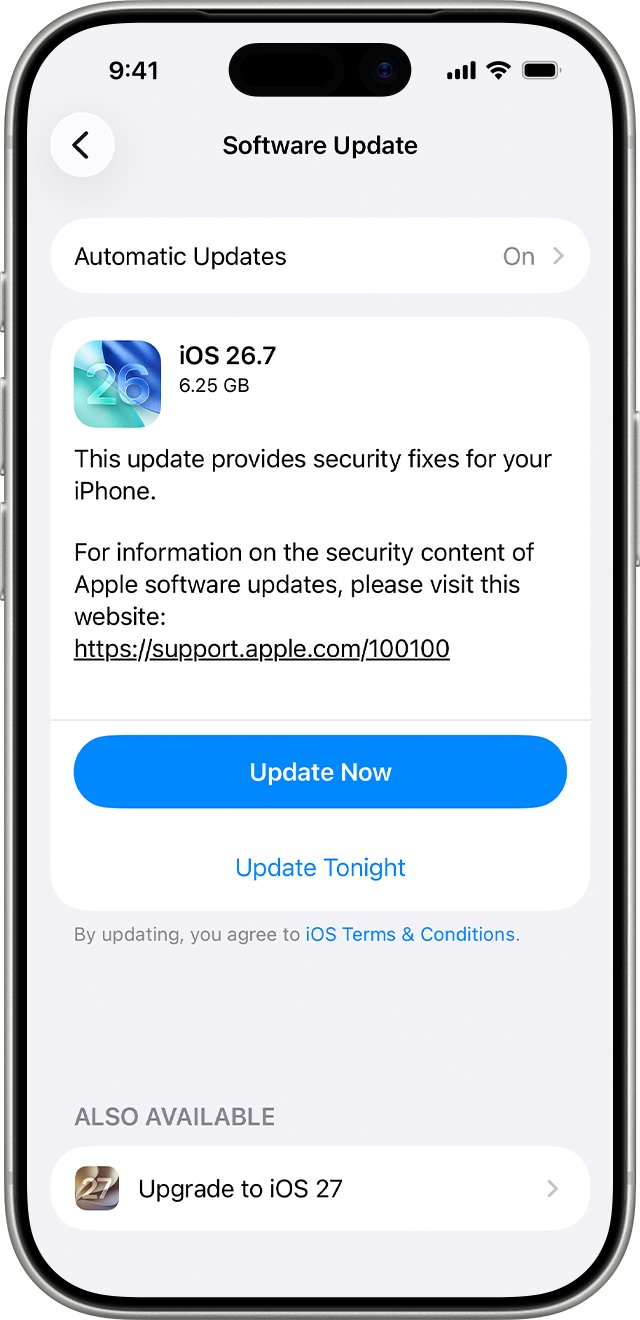
Fix iOS 26 stuck on Update Requested
Work through these in order and check Software Update after each one. Most stalls clear at the network or storage step.
- Plug the iPhone into power.
- Connect to a different Wi-Fi network, or restart your router and reconnect.
- Turn off any VPN or proxy; Apple says these can stop the iPhone contacting the update servers.
- Open Settings > General > [Device] Storage and free space if storage is nearly full.
- Restart the iPhone.
- Open Settings > General > Software Update and tap Download and Install again.
Why the iOS 26 update says Update Requested
| Cause | What you notice | Fix |
|---|---|---|
| The iPhone cannot reach the update server | Update Requested never changes, or an "Unable to Check for Update" alert | Same network again, then another network, then a computer |
| VPN or proxy in the way | Update stalls only when the VPN app is connected | Disconnect the VPN or remove the proxy |
| Not enough storage | A message about needing more space | Offload unused apps or delete content |
| Slow connection or other downloads | Progress moves very slowly once it starts | Use Wi-Fi and pause other downloads |
| A damaged partial download | The same update fails repeatedly | Delete the update and download it again |
| An earlier update must go first | iOS 26 is not offered at all | Install the update that is offered, then check again |
iOS 26 compatible iPhone models and update requirements
| Requirement | Detail |
|---|---|
| iPhone 17 family | iPhone 17, iPhone 17 Pro, iPhone 17 Pro Max, iPhone 17e, iPhone Air |
| iPhone 16 family | iPhone 16e, iPhone 16, iPhone 16 Plus, iPhone 16 Pro, iPhone 16 Pro Max |
| iPhone 15 and 14 families | All iPhone 15 and iPhone 14 models, including Plus and Pro |
| iPhone 13, 12 and 11 families | All iPhone 13, iPhone 12 and iPhone 11 models, including mini and Pro |
| iPhone SE | iPhone SE (2nd generation and later) |
| Connection and power | An internet connection, preferably Wi-Fi, with the iPhone on a charger |
| Storage | Enough free space for the download; the iPhone can temporarily remove apps to make room |
You only see updates compatible with your iPhone. Back up to iCloud or a computer before you install.
Delete the iOS 26 update and download it again
If the update keeps failing, Apple's fix is to remove the downloaded file and request a fresh copy.
- Open Settings and tap General.
- Tap [Device] Storage, for example iPhone Storage.
- Find the iOS update in the list of apps and tap it.
- Tap Delete Update and confirm.
- Go back to General and tap Software Update.
- Tap Download and Install for iOS 26.
If the update does not appear in the storage list, or the stall returns, update with a computer instead.
Free up iPhone storage for the iOS 26 update
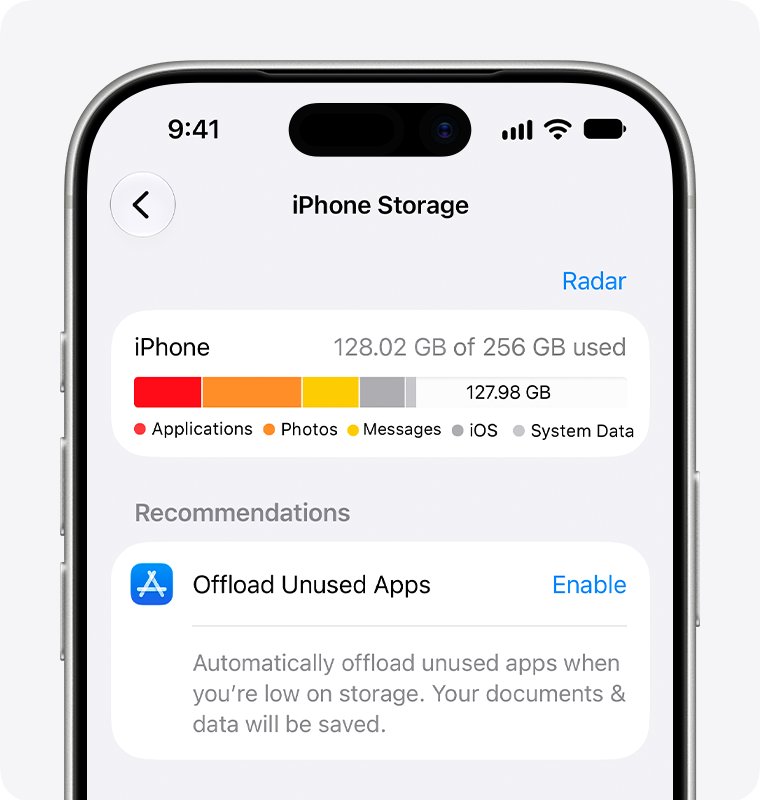
- Open Settings > General > [Device] Storage.
- Under Recommendations, tap Enable next to Offload Unused Apps.
- Scroll to the app list and tap a large app you do not need.
- Tap Offload App to keep its data, or Delete App to remove it completely.
- Return to Software Update and tap Download and Install.
If the update asks to remove apps temporarily, tap Continue; the apps reinstall automatically after the update. Large System Data needs no action.
Update to iOS 26 with a Mac or Windows PC
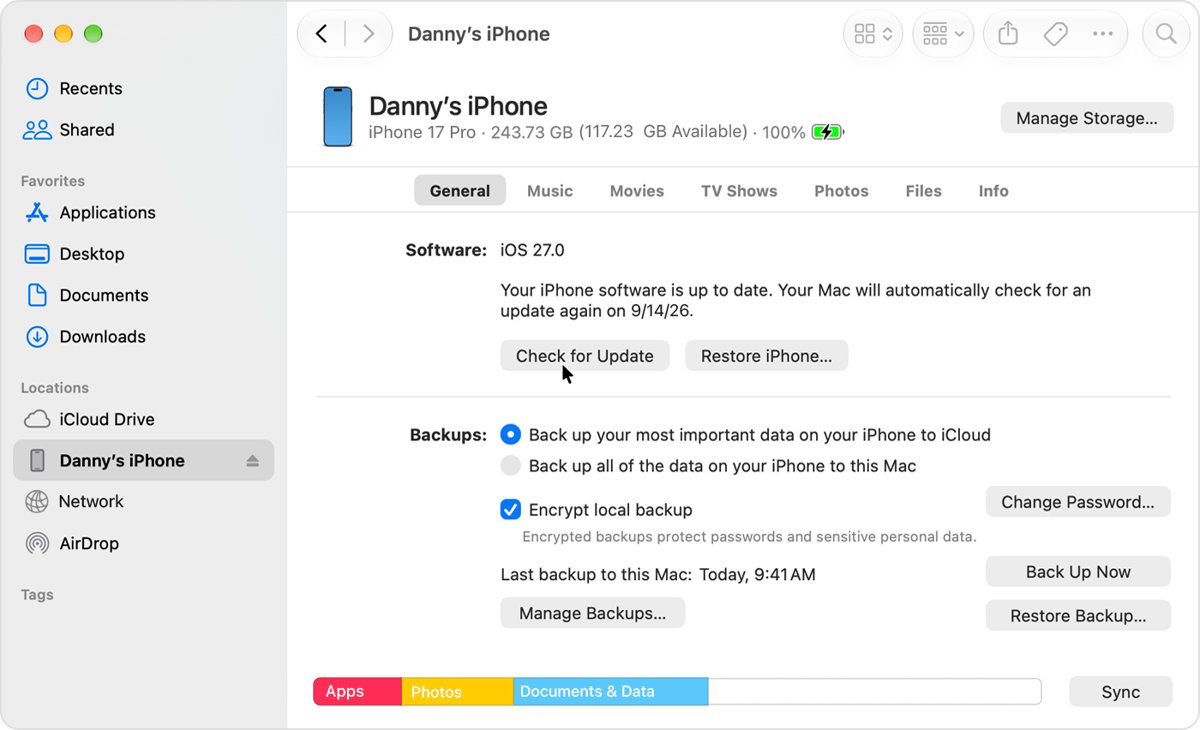
A computer download skips the iPhone's own update request, so it is the next step when Update Requested will not clear on any network.
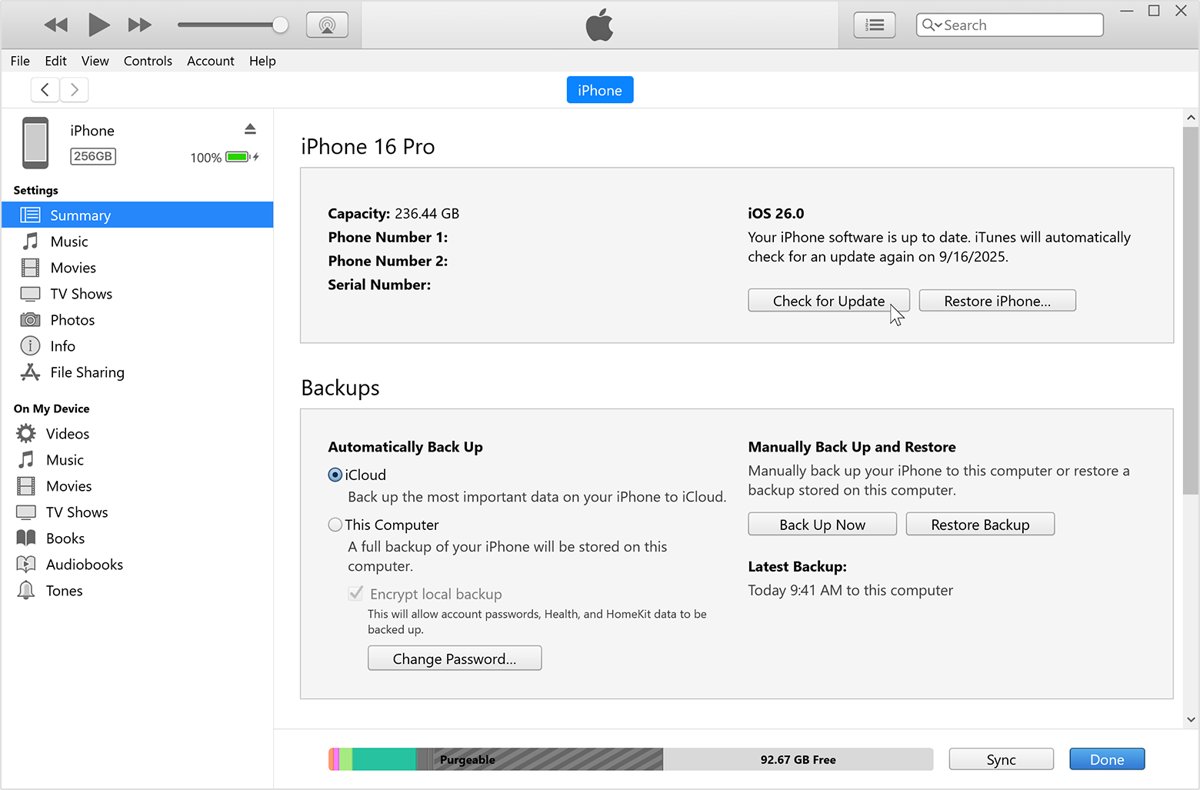
- Back up the iPhone.
- On a Mac, open Finder; on a Windows PC, open the Apple Devices app, or iTunes if Apple Devices is not installed.
- Connect the iPhone with a cable and tap Trust on the iPhone if asked.
- Select the iPhone in the Finder sidebar or the app.
- Click Check for Update.
- Click Download and Update and follow the onscreen steps.
- Enter the iPhone passcode if asked.
If the computer uses the iPhone's Personal Hotspot, connect the computer to another Wi-Fi or Ethernet network first. Macs with macOS Mojave or earlier use iTunes.
Confirm iOS 26 is installed on your iPhone
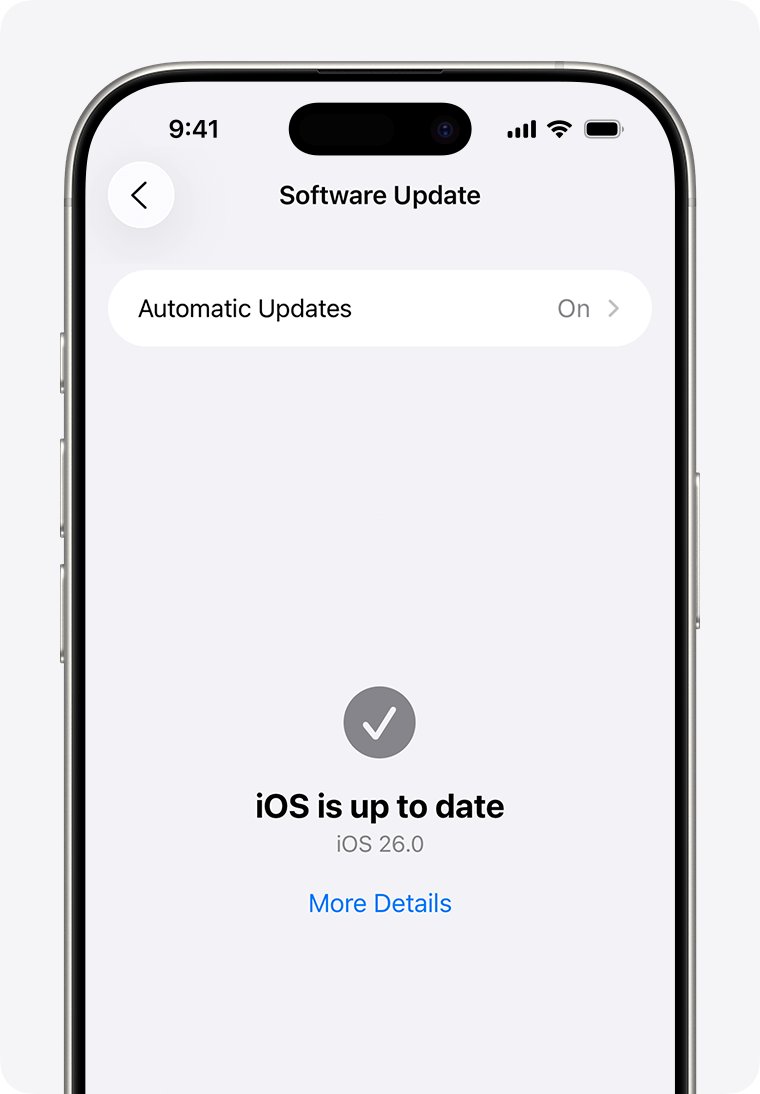
- Open Settings > General > Software Update.
- Check that the installed version reads iOS 26 and that no iOS 26 update is waiting.
- Open Settings > General > About and confirm the iOS Version line.
- Delete any leftover update file in [Device] Storage if one still appears.
How to stop the iOS 26 update or turn off automatic updates
- To cancel a downloaded update, open Settings > General > [Device] Storage, tap the update and tap Delete Update.
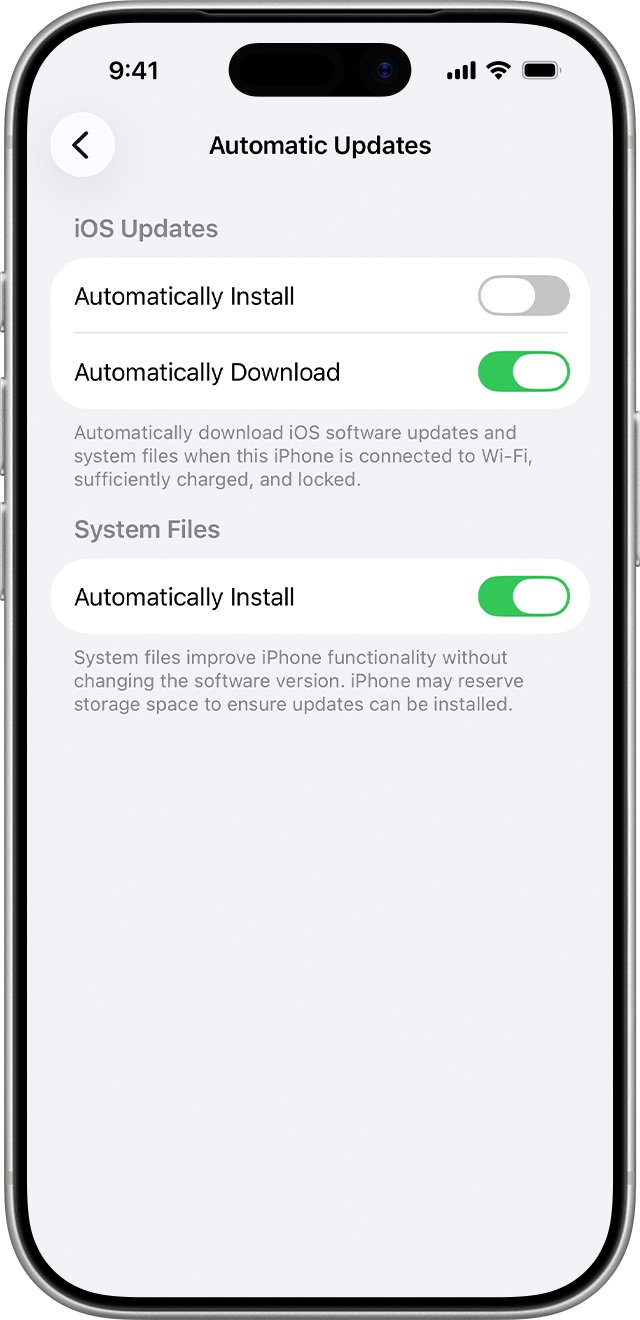
- To stop it coming back automatically, open Settings > General > Software Update.
- Tap Automatic Updates.
- Turn off Automatically Install.
- Turn off Automatically Download if you do not want the file downloaded in the background.
With Automatically Install on, the iPhone installs updates overnight while charging and on Wi-Fi, and notifies you first. Security fixes matter, so turn it back on once you have decided.
iOS 26 update issues and fixes
iOS 26 stuck on preparing update
The download finished and the iPhone is unpacking it; large updates and full storage slow this step.
- Keep the iPhone on power and Wi-Fi and leave it alone for a while.
- If nothing changes, delete the update in [Device] Storage and download it again.
- Free storage before the second attempt.
"Unable to Check for Update" or "Unable to Download" alert
No internet connection, or the update server cannot be reached from this network.
- Try the update again on the same network.
- Switch to another Wi-Fi network.
- If the alert returns on several networks, delete the update and use a Mac or PC.
iPhone won't update to iOS 26 because it is not offered
The model is not compatible, or an earlier update must install first.
- Check your model against the compatible list above.
- Install any update shown in Software Update first.
- Check Software Update again afterwards.
Update stuck on the Apple logo with no progress bar
The install was interrupted, or the iPhone ran out of power.
- Connect the iPhone to power and turn it on to let the update finish.
- Try a force restart on the iPhone if the screen stays frozen.
- If the logo still shows for several minutes without a progress bar, connect to a computer and use recovery mode.
iOS 26 Update Requested FAQ
How long does Update Requested take on iOS 26?
It normally changes to a download estimate within moments on a working connection. If it stays on Update Requested, the iPhone is not reaching the update server, so change networks, turn off any VPN and request the update again.
How do I update to iOS 26?
Back up, plug in and join Wi-Fi, then open Settings > General > Software Update and tap Download and Install. If it does not appear, update with Finder on a Mac or the Apple Devices app on a Windows PC.
How do I stop the iOS 26 update?
Delete the downloaded file in Settings > General > [Device] Storage by tapping the update and Delete Update. Then turn off Automatically Install under Software Update > Automatic Updates so it does not reinstall overnight.
How do I remove the iOS 26 update?
A downloaded update that has not installed can be removed with Delete Update in [Device] Storage. Apple's update pages give no option to roll back iOS 26 once it is installed, so back up before you update.
What is the iOS 26 update?
iOS 26 is Apple's iPhone release with the Liquid Glass design, more Apple Intelligence features such as Live Translation, Phone and Messages changes that cut out unwanted calls, and updates to Camera, Photos, Wallet and CarPlay.
Should I update to iOS 26?
If your iPhone is compatible, yes, because Apple's iOS 26 point releases carry security fixes. Back up first, and keep the iPhone on Wi-Fi and power while it installs.
Why update to iOS 26?
Updates bring new features, security updates and bug fixes. Apple calls keeping software current one of the most important things you can do for your device's security.
Can I use my iPhone while iOS 26 downloads?
Yes. Apple says you can keep using the iPhone during the download, and it notifies you when the update is ready to install. It restarts only during the install.
iOS 26 still stuck on Update Requested: use a computer
If a different network, no VPN and a deleted and re-downloaded update do not clear Update Requested, install iOS 26 through Finder or the Apple Devices app. Update Requested is a server-reach problem on the iPhone, and a computer downloads the update over its own connection instead.