When you can't sign into the Air Force portal with a CAC, the computer usually is not reading the card, is not offering its certificate to the browser, or does not trust the certificate chain.
This guide fixes each of those on a Mac first, then covers iPhone, iPad and Windows PCs, and lists what only your unit's help desk can fix.
Fix can't sign into Air Force portal with CAC on Mac
macOS 10.15 and later read PIV smart cards such as a CAC without extra software, through a USB CCID class-compliant reader. Safari on the Mac supports client certificate sign-in with those cards.
- Plug the CAC reader straight into the Mac rather than through an unpowered hub.
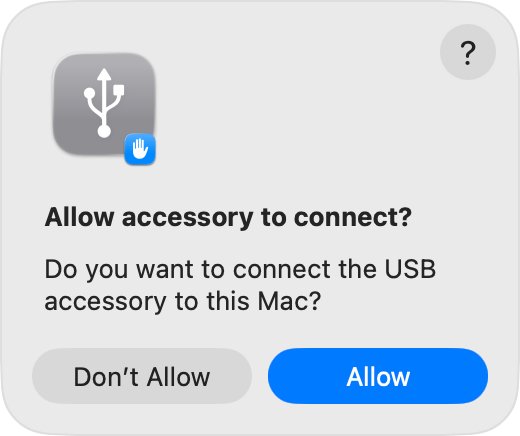
- If an alert asks to allow the accessory to connect, unlock the Mac and click Allow.
- Insert the CAC fully into the reader and wait a few seconds.
- Quit Safari completely, or force quit the Mac app if it hangs, then open it again.
- Go to the portal sign-in page and choose the CAC login option.
- When Safari asks which certificate to use, pick the authentication certificate from your card, then enter your PIN.
If no certificate prompt appears, the Mac is not reading the card yet; work through the reader checks below.
Why you can't log into the Air Force portal with a CAC
| What you see | Likely cause | Where to fix it |
|---|---|---|
| Nothing happens when the reader is plugged in | Mac laptop with Apple silicon is blocking the new accessory | Allow the CAC reader to connect on Mac |
| No certificate prompt in Safari | The card or reader is not detected | Check the Mac sees your CAC |
| Certificate is rejected or shown as not trusted | The issuing root and intermediate certificates are missing | Add your organization's root certificates in Keychain Access |
| PIN rejected or card locked | Too many wrong PIN entries | Your unit's CAC or ID card office |
| Card works, portal still refuses you | Account, access or portal-side problem | Your unit's IT help desk |
Allow the CAC reader to connect on Mac
On Mac laptops with Apple silicon, a new USB accessory must be approved before macOS talks to it. If you clicked Don't Allow once, the Mac ignores the reader until you approve it.
- Unplug the CAC reader, unlock the Mac, then plug the reader back in.
- Click Allow in the alert that asks whether to let the accessory connect.
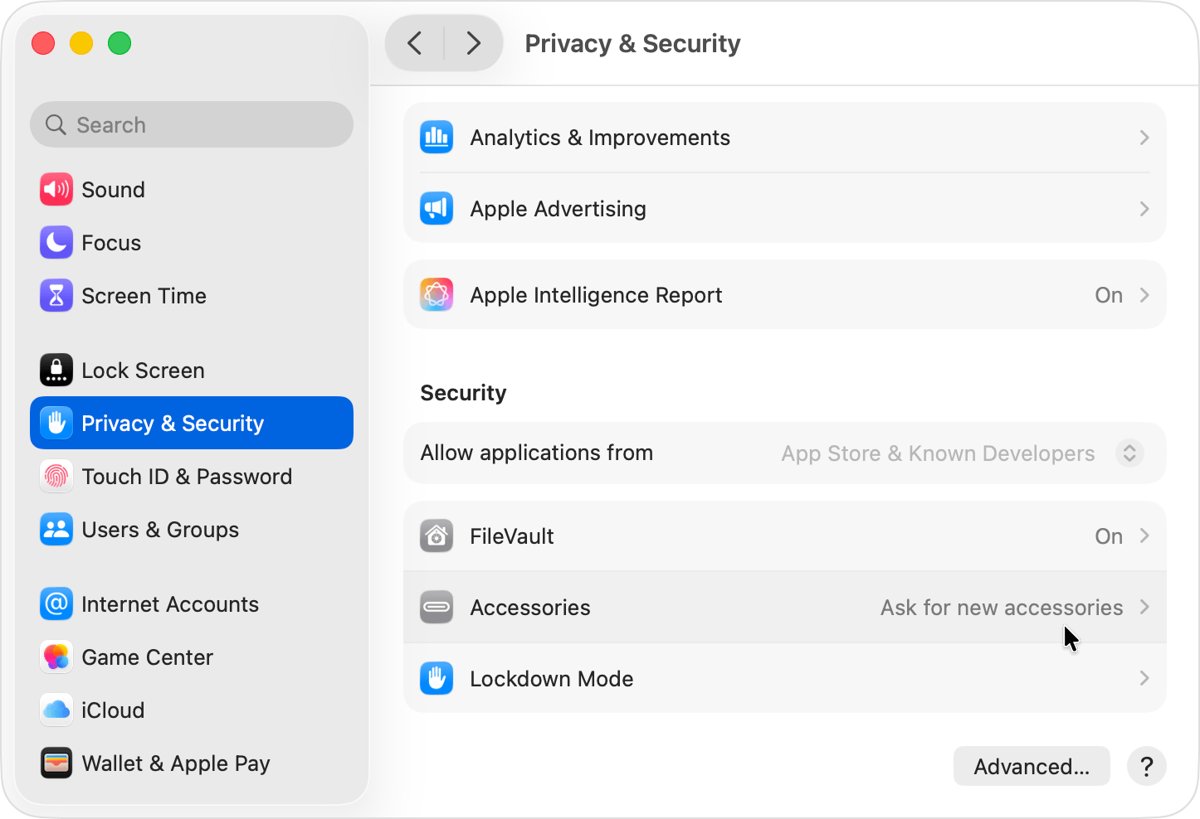
- If no alert appears, choose Apple menu > System Settings and click Privacy & Security.
- Scroll down, click Accessories, and check the Allow accessories to connect menu; the default is Ask for new accessories.
- Reconnect the reader and approve it when asked.
A Mac that has been locked for three days or more may ask again for an accessory you already allowed. On a managed Mac, your administrator may control this setting.
Check the Mac sees your CAC
Terminal shows whether macOS has found the card, which settles whether the problem is the Mac or the website. With the CAC inserted, open Terminal on your Mac by searching for it in Spotlight.
sudo security list-smartcardsLists the smart cards macOS can currently read. Enter your Mac login password when asked. To list the token drivers macOS has loaded, run pluginkit -m -p com.apple.ctk-tokens; the built-in PIV driver shows as com.apple.CryptoTokenKit.pivtoken.
You should see: An entry for your card appears in the list. An empty result means the reader or card is not being read, so reseat the card or try another reader.
Add your organization's root certificates in Keychain Access
Safari only completes CAC sign-in when it trusts the chain that issued your card's certificates. Get the root and intermediate certificate files from your unit's IT office or its official certificate page, never from a third-party site.
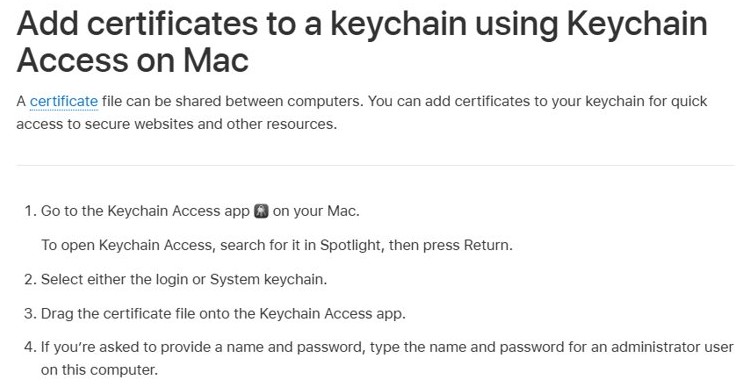
- Open Keychain Access by searching for it in Spotlight and pressing Return.
- Select the login keychain, or the System keychain to add the certificates for every user.
- Drag each certificate file onto the Keychain Access window.
- Enter an administrator name and password if asked.
- Quit and reopen Safari, then try the portal again.
Use a CAC on iPhone or iPad
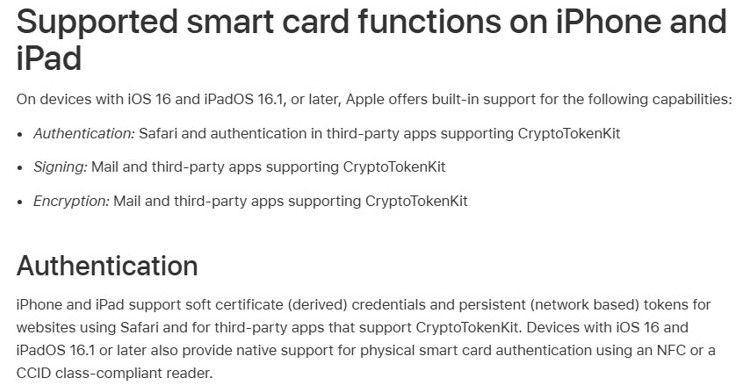
iPhone and iPad support PIV smart card sign-in in Safari from iOS 16 and iPadOS 16.1, using an NFC or CCID class-compliant reader.
| Requirement | What to check | Why it matters |
|---|---|---|
| iOS 16 or iPadOS 16.1 or later | Settings > General > About | Older versions lack native smart card support |
| CCID class-compliant or NFC reader | Reader packaging or maker's site | Other readers are not supported natively |
| Enough power for the reader | Use a powered USB hub with a desktop reader | Some desktop readers draw more power than an iPhone or iPad supplies |
| Safari | Open the portal in Safari | Safari is the built-in browser that supports smart card authentication |
Fix CAC reader not working on Windows 11
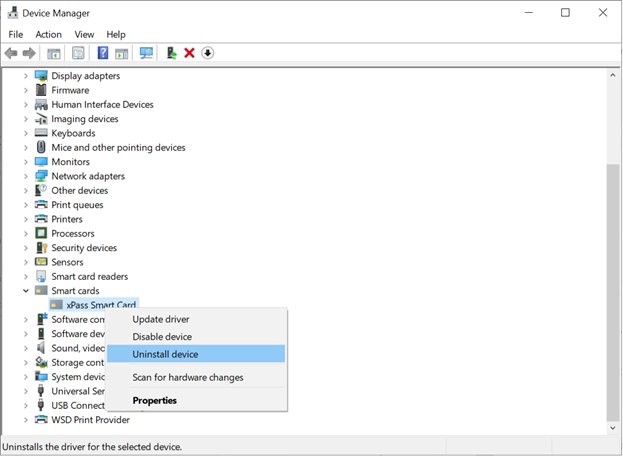
On a Windows PC, the reader must appear in Device Manager before any browser can use the card. If your PC is set up for card sign-in, smart card logon on Windows 11 uses the same reader and service.
- Press Windows + R, type
devmgmt.mscand press Enter. - Expand Smart card readers, select your reader and open Properties to check its status.
- If the reader is not listed, open the Action menu and select Scan for hardware changes.
- Open Command Prompt as administrator and run
sc queryex scardsvrto see whether the Smart Card service is running. - If it is stopped or stuck, run
net stop SCardSvrand thennet start SCardSvr. - Run
certutil -scinfowith the card inserted to list the certificates on it.
Check your CAC sign-in works from home
- Insert the CAC fully into the reader.
- On a Mac, run
sudo security list-smartcardsand confirm the card is listed. - Open the portal sign-in page and select the CAC option.
- Confirm the browser asks you to pick a certificate and then asks for your PIN.
- Confirm the portal home page loads after the PIN is accepted.
Can't access AF portal from home with CAC
Can't log into AF portal from home but it works at work
A work computer is usually pre-configured with the reader approved and the issuing certificates installed.
- Approve the reader under System Settings > Privacy & Security > Accessories on a Mac laptop with Apple silicon.
- Add the root and intermediate certificates from your unit's IT office in Keychain Access.
- Restart Safari and sign in again.
Can't access Air Force portal: no certificate prompt
The browser cannot see the card, so it has no certificate to offer.
- Run
sudo security list-smartcardson a Mac, orcertutil -scinfoon Windows. - If the card is missing, reseat it, plug the reader into another port and try again.
- If it is still missing, try a different CCID class-compliant reader.
Can't login to Air Force portal after choosing a certificate
The wrong certificate was picked, or the certificate chain is not trusted.
- Quit the browser completely and open it again.
- Sign in again and pick the authentication certificate rather than the email or signing one.
- Add any missing root certificates in Keychain Access, then retry.
Card reader works, but the portal still says access denied
The problem sits with the account or the portal, not with the computer.
- Confirm you can sign into another CAC-protected site with the same card.
- If you can, contact your unit's IT help desk with the exact error message.
Air Force portal CAC login FAQ
Why can't I log into the Air Force portal with my CAC?
The computer is usually not reading the card, not offering its certificate to the browser, or not trusting the issuing certificates. Check the reader is approved and detected, then add any missing root certificates. If another CAC site works, the problem is with the account.
How do I access the Air Force portal on a Mac?
Use a USB CCID class-compliant reader, approve it when the Mac asks, insert your CAC and open the portal in Safari. macOS 10.15 and later read PIV cards natively, so no extra driver is needed for the card itself.
Why can't I log into the AF portal from home?
A home computer lacks the setup a work computer already has: an approved card reader and the issuing root certificates. Approve the reader, add the certificates from your unit's IT office in Keychain Access, then restart the browser and sign in.
Why is the AF portal not working after I enter my PIN?
If the PIN is accepted but the page fails, the certificate you picked may be the wrong one or its chain may be untrusted. Quit the browser, sign in again and choose the authentication certificate. If it still fails, contact your help desk.
Is the Air Force portal down?
Test another CAC-protected site with the same card first. If that works and the portal still fails for you, the issue is on the portal or account side, and only your unit's IT help desk can confirm an outage.
Can I use my CAC on an iPhone?
Yes, from iOS 16 Safari supports smart card sign-in with an NFC or CCID class-compliant reader. Some desktop readers need a powered USB hub to work with an iPhone or iPad because they draw extra power.