Microsoft has added tracking prevention to the new Chromium-based Microsoft Edge. It stops known trackers from following you from site to site, and it gives you three levels to choose from. In the first preview builds the feature is an experiment, so you have to switch it on before the settings appear. Here is how to enable it and what each level does.
What tracking prevention does
Websites use trackers to collect data about how you browse. Some trackers follow you across many sites, which is why an ad can seem to chase you around the web. According to Microsoft, Edge takes two actions against known trackers:
- Restrict storage access: a tracker that tries to read or write cookies or other web storage is blocked from doing so.
- Block resource loads: for some tracker categories, Edge does not load the tracking resource at all.
Even the lightest level blocks the worst offenders, such as cryptomining and fingerprinting trackers.
How to enable tracking prevention in the Edge preview
Microsoft introduced the experiment in Edge preview builds starting with version 77.0.203.0 in the Canary channel.
- Make sure you are on Edge Canary 77.0.203.0 or newer.
- In the address bar, enter
edge://flags#edge-tracking-prevention. - Set the flag to Enabled.
- Click Relaunch Now. Edge closes all its windows and restarts.
- Go to
edge://settings/privacyand choose your tracking prevention level.
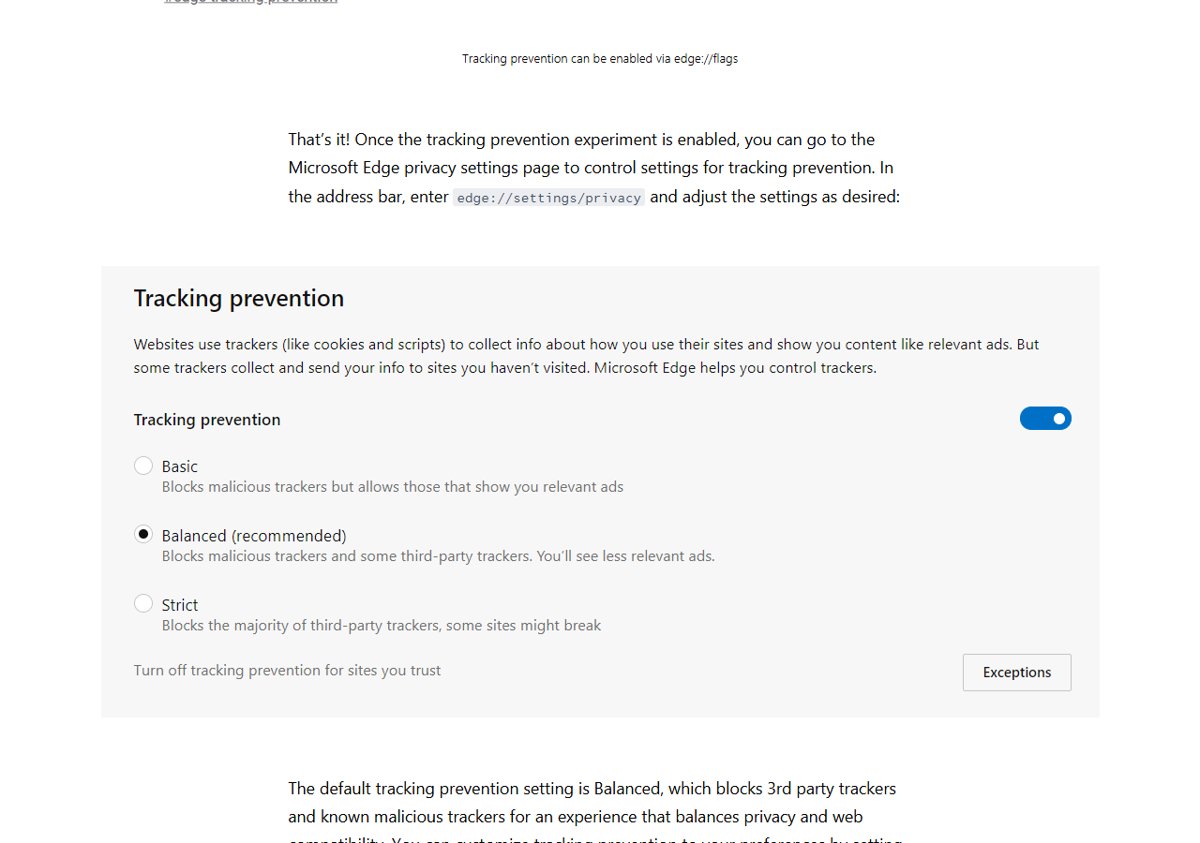
Basic, Balanced and Strict
- Basic blocks potentially harmful trackers but allows most other trackers, including those that personalize content and ads.
- Balanced (the default and Microsoft’s recommendation) blocks potentially harmful trackers and trackers from sites you haven’t visited. Content and ads will likely be less personalized.
- Strict blocks potentially harmful trackers and most trackers across sites. It blocks the most, but some sites may break: a video might not play, or a sign-in might fail.
Make an exception for a site
- Open Settings and more > Settings > Privacy, search, and services.
- Under Tracking prevention, select Exceptions.
- Select Add a site, type the full URL and select Add.
You can also do it from the site itself: select View site information on the left of the address bar and turn off Tracking prevention for this site. The same panel has a Trackers entry that shows which trackers the page uses and how many were blocked.
Today
Tracking prevention no longer needs a flag. It is on by default in every release of Microsoft Edge, set to Balanced, and you change the level under Settings > Privacy, search, and services. Pair it with Edge’s pop-up and ad blocking settings, or use InPrivate browsing when you don’t want history or cookies kept after the session.