To ping an IP address, open Command Prompt on Windows or a terminal on Linux, type ping followed by the address, such as ping 192.168.1.1, and press Enter.
This guide covers ping in CMD, PowerShell and Linux, continuous pings, testing a port, reading the results, and what to do when a ping fails.
How to ping an IP address on Windows using CMD
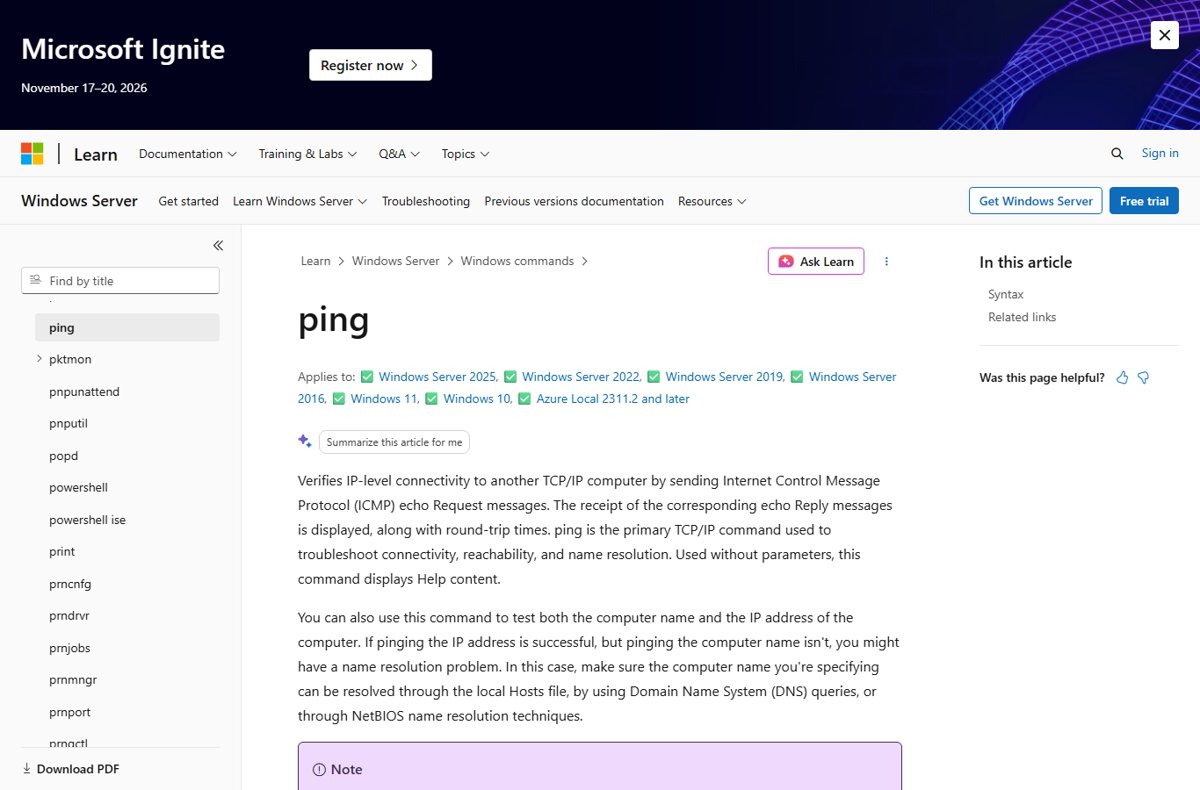
The ping command is built into Windows 11 and Windows 10 as one of the standard network troubleshooting commands. Microsoft describes it as the primary command for troubleshooting connectivity, reachability and name resolution.
- Press Windows key + R, type
cmdand press Enter to open Command Prompt. - Type
pingfollowed by a space and the IP address, for exampleping 192.168.1.1. - Press Enter.
- Read the four Reply from lines and the summary below them.
Windows sends four echo requests by default, then stops and prints the packet and round-trip statistics. You can also ping a host name, such as ping example.com, and Windows resolves it to an IP address first.
Ping command, Test-Connection or Test-NetConnection: which to use
| Your goal | Use this | Why |
|---|---|---|
| Quick reachability check on Windows | ping 192.168.1.1 in Command Prompt |
Built in, four requests and a summary |
| Same check inside PowerShell, with objects you can script | Test-Connection 192.168.1.1 |
Returns results PowerShell can filter or test |
| Check whether a specific port answers | Test-NetConnection 192.168.1.1 -Port 443 |
ping uses ICMP and has no port option |
| Watch a connection over time | ping -t on Windows, plain ping on Linux |
Keeps sending until you stop it |
| Reachability check on Linux | ping -c 4 192.168.1.1 in a terminal |
Linux pings forever unless you set a count |
How to ping an IP address on Windows using PowerShell
PowerShell runs the same ping command, and it also has the Test-Connection cmdlet. In Windows PowerShell 5.1 the target parameter is named -ComputerName; PowerShell 6 and later renamed it -TargetName, so giving the address without a parameter name works in both.
Test-Connection 192.168.1.1 -Count 4Right-click Start, select Terminal or Windows PowerShell, type the command and press Enter. -Count sets how many echo requests to send; the default is 4. Add -Quiet to get only True or False, which is handy in scripts.
You should see: PowerShell lists one result per request with the address and latency, or prints True when you use -Quiet and the host replied.
How to ping an IP address on Linux
Linux ping sends ICMP echo requests like the Windows command, but it keeps sending until you stop it. Use -c to send a fixed number.
- Open Terminal from your applications menu.
- Type
ping -c 4 192.168.1.1and press Enter. - Read the reply lines, which show bytes,
icmp_seq,ttlandtime. - Read the summary showing packets transmitted, received, packet loss and min/avg/max round-trip times.
- If you ran
pingwithout-c, press Ctrl + C to stop it and print the summary.
Ping each hop outward when you isolate a fault: the Linux manual suggests starting with the local host to prove the network interface works, then gateways and hosts further away.
How to ping an IP address continuously
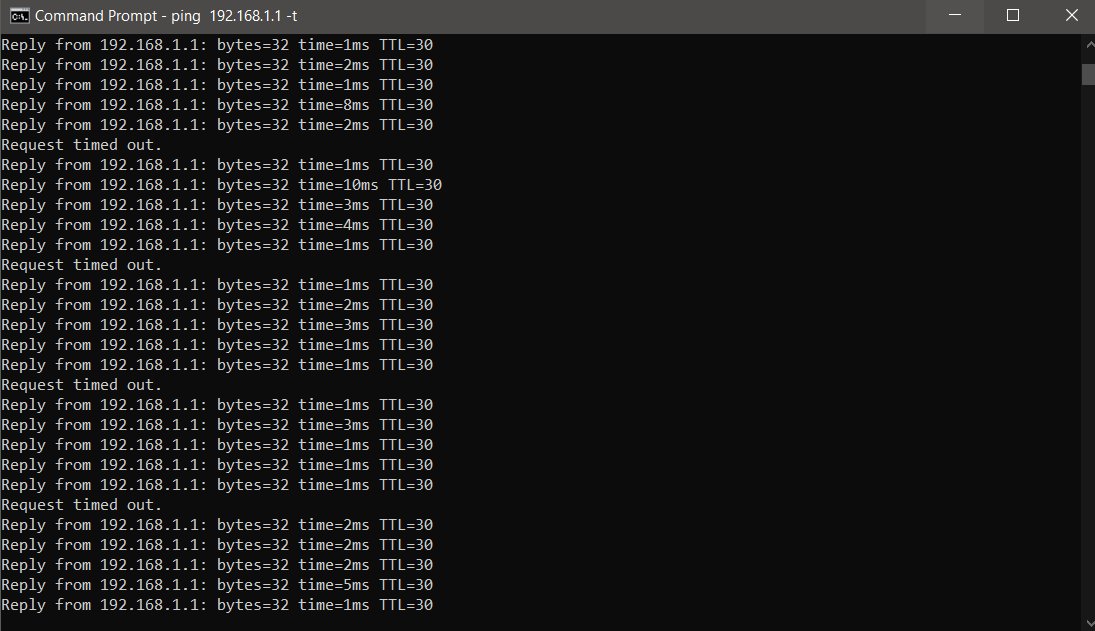
A continuous ping shows dropouts as they happen, which helps with unstable Wi-Fi or a flaky cable. To watch many devices around the clock instead, network monitoring tools record uptime, latency and dropouts over time.
- On Windows, run
ping -t 192.168.1.1in Command Prompt. - Press Ctrl + Break to show statistics without stopping.
- Press Ctrl + C to stop and see the final summary.
- In PowerShell 6 or later, run
Test-Connection 192.168.1.1 -Repeatinstead. - On Linux, run
ping 192.168.1.1; it repeats by default until you press Ctrl + C.
Windows ping accepts its switches with a slash or a hyphen, so ping /t and ping -t do the same thing.
How to ping an IP address and port in Windows
There is no port in a ping. ICMP echo has no port numbers, so the ping command cannot test one. Test-NetConnection opens a TCP connection to the port instead, which is what a port check really needs.
Test-NetConnection 192.168.1.1 -Port 443Run it in PowerShell. Replace 443 with the port you want. Popular ports to test are 80 for HTTP, 443 for HTTPS and 3389 for Remote Desktop. -CommonTCPPort accepts the names SMB, HTTP, RDP and WINRM instead of a number. In PowerShell 7, Test-Connection 192.168.1.1 -TcpPort 443 returns only True or False.
You should see: The output ends with TcpTestSucceeded : True when the port accepted the connection, and False when it did not.
Windows and Linux ping options compared
The syntax of the ping command is the same idea on both systems: options first, then the target. On Windows it is ping [/t] [/a] [/n <count>] [/l <size>] [/w <timeout>] [/4] [/6] <targetname>, and on Linux it is ping [options] destination.
The options available with ping that most people need are in the table below.
| What you want | Windows | Linux |
|---|---|---|
| Set the number of requests | -n 10 (default 4) |
-c 10 (default: unlimited) |
| Ping until stopped | -t |
Default behaviour |
| Set packet data size | -l 1000 (default 32 bytes, max 65,500) |
-s 1000 |
| Wait time for each reply | -w 2000 in milliseconds (default 4000) |
-W 2 in seconds |
| Stop after a total time | Not available | -w 10 in seconds |
| Time between requests | Not available | -i 2 in seconds (default 1) |
| Force IPv4 or IPv6 | -4 or -6 |
-4 or -6 |
| Show the host name of an IP | -a |
Shown by default when it resolves |
| Set Time To Live | -i 64 (max 255) |
-t 64 |
The same letter can mean different things: -t is continuous on Windows but sets TTL on Linux, and -w is a per-reply timeout on Windows but a total deadline on Linux.
How to read ping results and check the IP responded
Each line of ping information answers one question about the connection. Understand these fields before you start troubleshooting.
- Look for Reply from followed by the address you pinged on Windows, or bytes from on Linux; that means the host answered.
- Check that the reply comes from the target address itself; a reply from a different address saying the host is unreachable is a router reporting failure.
- Read time= for latency in milliseconds; lower is better and steady values mean a stable link.
- Check the summary: Lost = 0 (0% loss) on Windows or 0% packet loss on Linux means every request returned.
- Note TTL, which shows the remaining hop count of the reply and changes if the route changes.
- Read the round-trip statistics: Windows shows Minimum, Maximum and Average in milliseconds, and Linux shows min/avg/max/mdev, where a high mdev means the latency varies a lot and calls or downloads may suffer.
What does pinging an IP address do?
Ping sends Internet Control Message Protocol (ICMP) echo request messages to the target and waits for echo replies. It reports each reply with its round-trip time, which proves IP-level connectivity between the two devices. To inspect the packets themselves, not just the replies, network analyzer tools such as Wireshark capture and decode the traffic.
Ping an IP address when you need to know whether a device is online, whether your internet connection works past the router, or how much latency and packet loss a link has before you dig into DNS or an app.
| Result | What it tells you |
|---|---|
| Replies from the IP address | The device is on and reachable over the network |
| IP replies but the host name fails | Name resolution problem: DNS, the Hosts file or NetBIOS |
| Some replies lost | Packet loss on the path, often weak Wi-Fi or congestion |
| High or jumping times | Latency or an overloaded link |
| No replies at all | Host is off or unreachable, or a firewall drops ICMP |
To find the address to ping, look up your IP address on Windows with ipconfig, or check the router's device list.
Why can't I ping an IP address? Fixes for failed pings
Request timed out
No echo reply arrived within the wait time, 4 seconds by default on Windows.
- Check the address is typed correctly and the device is powered on.
- Ping your router's address to confirm your own connection works.
- Raise the wait time with
ping -w 8000 192.168.1.1on a slow link. - If the target is a Windows PC, its firewall may drop echo requests; test a port it serves with
Test-NetConnectioninstead.
Can't ping an IP address on my network
The device is on a different subnet or network, or its firewall blocks ICMP.
- Run
ipconfigand compare your IPv4 address and subnet with the target's. - Make sure both devices are connected to the same router or Wi-Fi network, not a guest network.
- On the target Windows PC, open Windows Defender Firewall with Advanced Security and check Inbound Rules for an enabled ICMPv4 echo request rule.
- Ping again from the first device.
Can't ping my own IP address
The network adapter is disconnected, disabled, or has no valid address.
- Run
ping 127.0.0.1to test the TCP/IP stack itself. - Run
ipconfigand check the adapter has an IPv4 address that is not 0.0.0.0 or 169.254.x.x. - Reconnect the cable or Wi-Fi, then ping your own address again.
Ping works by IP address but not by name
Microsoft attributes this to a name resolution problem.
- Run
ipconfig /flushdnsin Command Prompt. - Check the name resolves through DNS, the Hosts file or NetBIOS on your network.
- Ping the name again, or use the IP address directly.
Ping: unknown host or could not find host
The name does not exist or DNS is unreachable.
- Check the spelling of the host name.
- Ping a known IP address such as your router to confirm basic connectivity.
- Restart the router if no names resolve at all.
If ipconfig shows a 0.0.0.0 IP address, the adapter has no usable address yet.
Ping an IP address FAQ
How do I ping an IP address in Command Prompt?
Open Command Prompt, type ping followed by a space and the IP address, such as ping 192.168.1.1, and press Enter. Windows sends four echo requests and shows each reply with its time, then a summary of packets sent, received and lost.
How do I ping an IP address continuously?
On Windows, run ping -t followed by the address and press Ctrl + C to stop. In PowerShell 6 or later, Test-Connection with -Repeat does the same. On Linux, plain ping already repeats until you press Ctrl + C.
How do I ping an IP address with a port number?
You cannot ping a port, because ping uses ICMP, which has no ports. In PowerShell, run Test-NetConnection followed by the address and -Port with the number, such as -Port 443. TcpTestSucceeded : True means the port accepted a connection.
How do I ping an IP address in PowerShell?
Type ping followed by the address, which runs the same command as Command Prompt, or use Test-Connection followed by the address. Add -Count to set the number of requests, or -Quiet to return only True or False.
How do I ping an IP address in Linux?
Open a terminal and run ping -c 4 followed by the address. The -c option stops ping after four requests; without it, Linux pings until you press Ctrl + C. The summary shows packet loss and minimum, average and maximum times.
Why do we ping an IP address?
Pinging an IP address checks whether a device is reachable and how long a round trip takes. It is the first test for a network fault, because it separates connection problems from name resolution and application problems.
Why can't I ping an IP address?
A ping fails when the device is off, the address is wrong, the device is on another network, or a firewall drops ICMP echo requests. Ping your router first; if that works, the problem is with the target or the path to it.
Why can't I ping my own IP address?
If you cannot ping your own IP address, the network adapter is usually disconnected, disabled or missing a valid address. Run ping 127.0.0.1 to test TCP/IP, then check ipconfig for a real IPv4 address.
How do I ping a specific IP address on my network?
Find the device's address in its settings or the router's device list, then run ping followed by that address. To ping a printer, use the address shown on its network configuration page or panel.
How do I ping my router?
Run ipconfig in Command Prompt and note the Default Gateway address for your active adapter, which is usually the router. Then run ping followed by that address. Replies mean the link between your PC and the router works.
Does a VPN affect ping?
It can. While a VPN is connected, your traffic goes through the VPN connection to your company's network or the internet, so ping times and reachable addresses can change. Disconnect it in Settings > Network & internet > VPN and ping again to compare.
Does ping show internet speed?
No. Ping reports the round-trip time of each echo request and how many packets were lost, which measures latency and reliability. It does not measure download or upload bandwidth, so use a speed test for that.
Printers show their address in several places, and any of them will give you the printer's IP address to ping.
Bottom line: the best way to ping an IP address
Use ping with the IP address in Command Prompt or a Linux terminal for a reachability check, and switch to Test-NetConnection with -Port when you need to know whether a service answers. ping is built into both systems and proves IP connectivity in seconds, but it cannot test ports and a firewall can block it, so a TCP port test confirms what ping cannot.