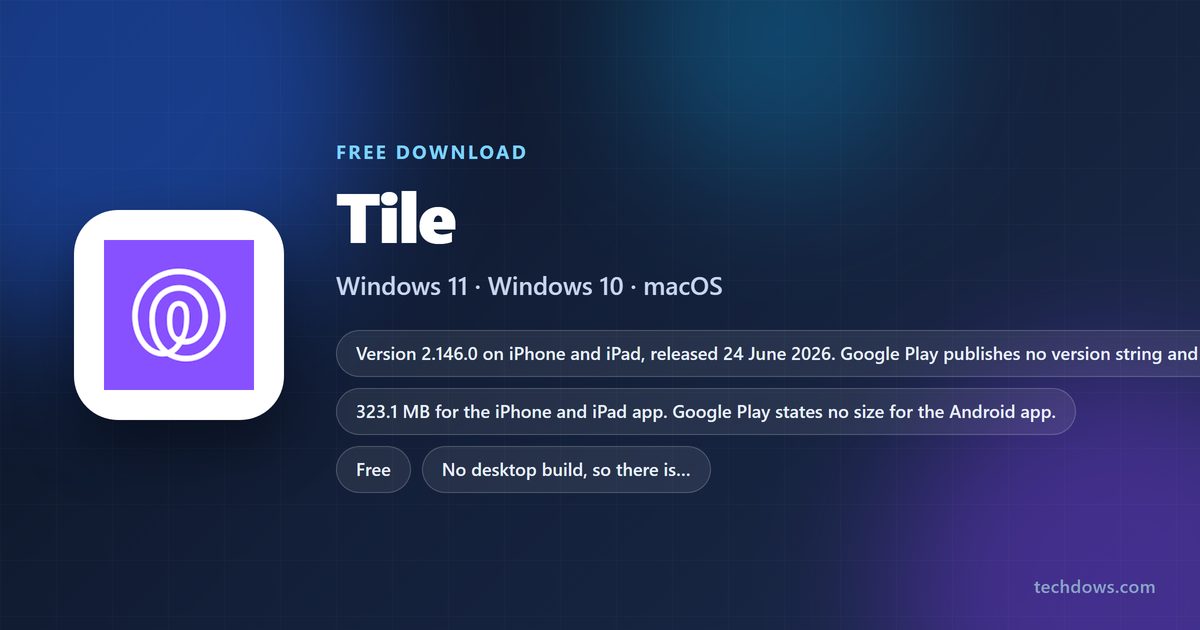
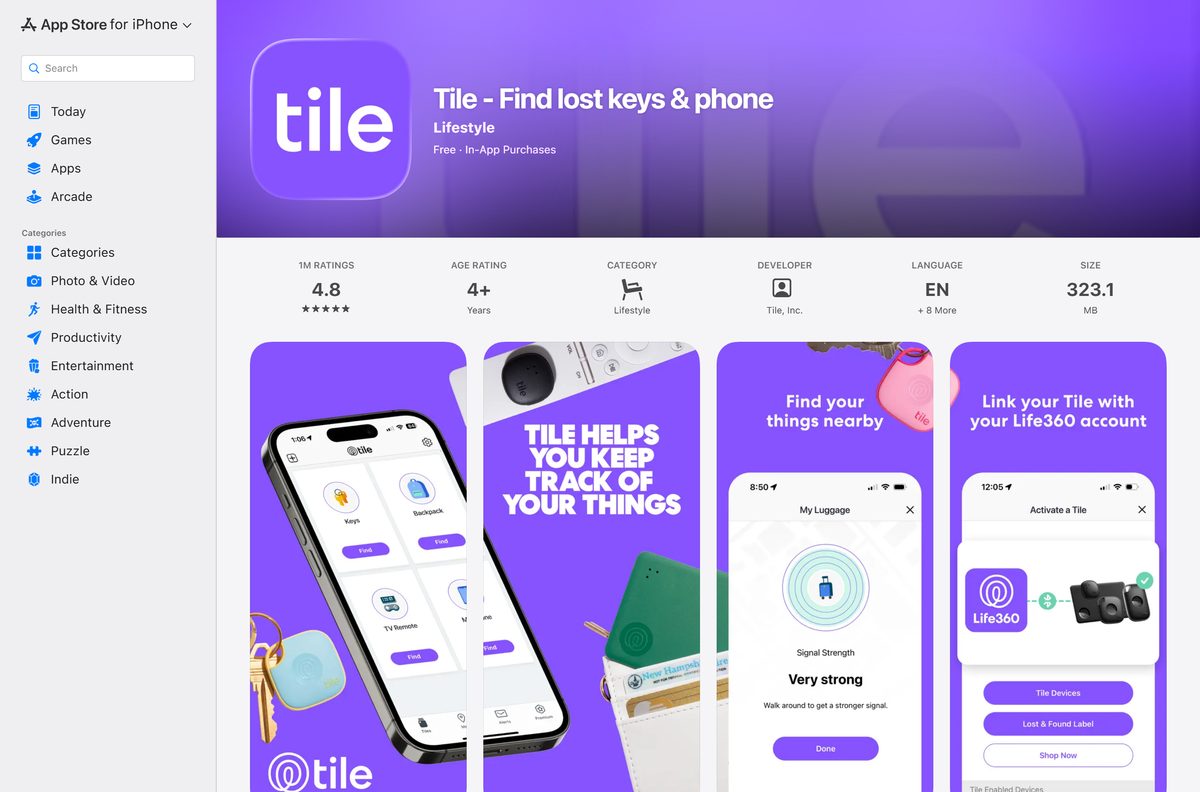
The Tile download is free on the App Store and Google Play, and it is the app you use to activate, ring and locate your Tile trackers. Install it on an iPhone, iPad or Android phone, sign in, and your Tiles show up on the map in a couple of minutes.
The iPhone and iPad build is 323.1 MB and needs iOS 16 or later. Android phones need Android 9 or later with Google Play services and Bluetooth 4.0.
This guide covers which store to use, install steps for both platforms, what Tile Premium adds, what to do on a Windows PC or Mac, and fixes for Tiles that will not activate or connect.
Which Tile download do you need?
Match your device to a row, then use the link in that row. Every supported row ends at the same Tile account and the same Tiles.
| Your device | What to install | Size |
|---|---|---|
| iPhone on iOS 16 or later | Tile on the App Store | 323.1 MB |
| iPad on iPadOS 16 or later | Tile on the App Store | 323.1 MB |
| Apple Watch on watchOS 9 or later | Install on the paired iPhone; it syncs to the watch | Included with the iPhone app |
| Android phone on Android 9 or later | Tile on Google Play | Play states no size |
| Android tablet, Chromebook or Fire tablet | Not supported; use a phone instead | Not applicable |
| Windows 11, Windows 10 or Mac | Manage your Tile account on Life360.com | Nothing to install |
Download Tile from the official app stores
Tile, a Life360 company, publishes the app only on the App Store and Google Play. Its own download article points to those two listings and nowhere else.
- Tile on the App Store — 323.1 MB · Tile, Inc., free with in-app purchases, iPhone, iPad and Apple Watch
- Tile on Google Play — Tile Inc., free with in-app purchases, 10M+ downloads
- Download the Tile App (Tile support) — Official download article from Life360 support
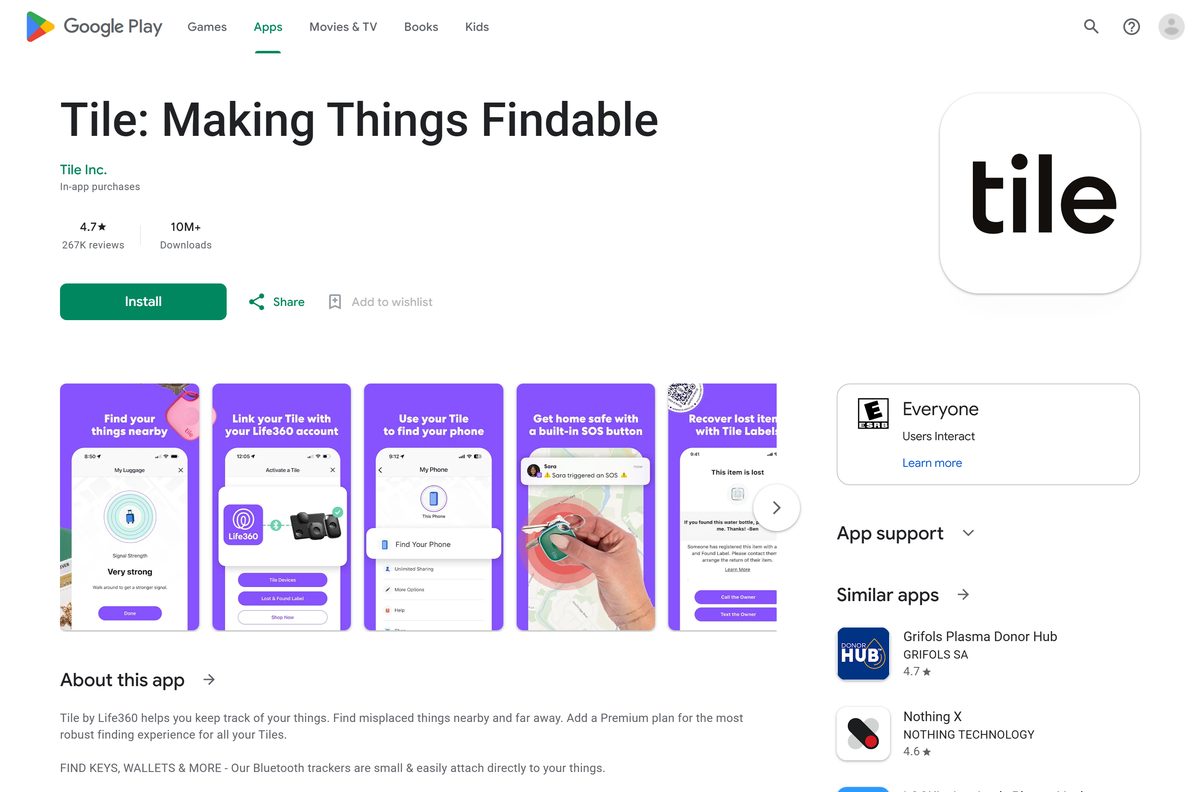
On the phone, search either store for Tile and open the listing whose developer is Tile, Inc. or Tile Inc. The App Store names the app Tile – Find lost keys & phone, and Google Play names it Tile: Making Things Findable.
How to install Tile on an Android phone
Keep your Tile tracker next to the phone before you start. Activation needs Bluetooth and a data connection.
- Open the Google Play Store on your phone.
- Search for Tile and open Tile: Making Things Findable from Tile Inc.
- Tap Install and wait for the download to finish.
- Tap Open.
- Create a Tile account, or tap Sign In if you already have one.
- Allow Location, Nearby devices, Bluetooth and Notifications when the app asks.
- Press the button on your Tile to activate it, then follow the on-screen pairing prompts.
Open Settings, Apps, Tile afterwards and set Battery to Unrestricted. Also turn off Pause app activity if unused, or Android puts the app to sleep after 90 days without use.
How to install Tile on an iPhone or iPad
The same App Store listing installs on iPhone and iPad. The Apple Watch app arrives through the paired iPhone.
- Open the App Store on your iPhone or iPad.
- Search for Tile and open Tile – Find lost keys & phone from Tile, Inc.
- Tap Get, then confirm with Face ID, Touch ID or your Apple Account password.
- Tap Open when the download finishes.
- Create a Tile account, or tap Sign In with your existing one.
- Allow Bluetooth and Notifications, and set Location to Always.
- Press the button on your Tile and follow the prompts to activate it.
Tiles belong to your account, not to one phone. Sign in on a new iPhone and every activated Tile appears there too.
What to do on a Windows PC or Mac
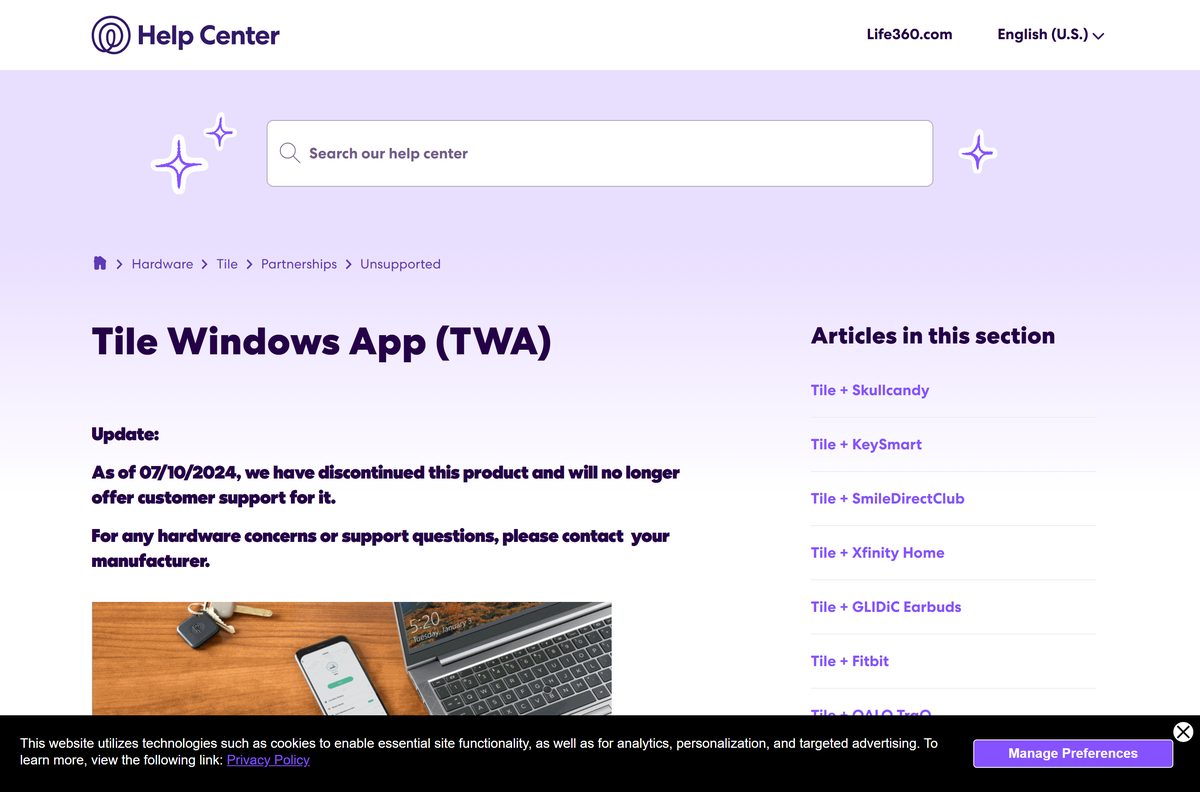
There is no Tile app for Windows 11, Windows 10 or macOS today. The App Store listing covers iPhone, iPad, Apple Watch and Apple Vision, and names no Mac.
Tile also made a Tile Windows App (TWA), which it discontinued on 07/10/2024 and no longer supports. The same notice lists ASUS, Fujitsu, MSI, Lenovo and HP devices with Tile as unsupported, so skip any site offering a Tile EXE or DMG.
| What you want on the computer | What to do |
|---|---|
| Change or cancel Tile Premium | Sign in at Life360.com and choose Tile Members can access your account here |
| Check that your phone can run the app | Read the Tile compatible devices list |
| See Tiles next to your family on one map | Link Tile to the Life360 app on your phone |
| Find out what happened to the Windows app | Tile Windows App (TWA) notice |
Ringing and locating Tiles stays on the phone, because the phone’s Bluetooth talks to the tracker. A Tile has no GPS of its own.
Is Tile free?
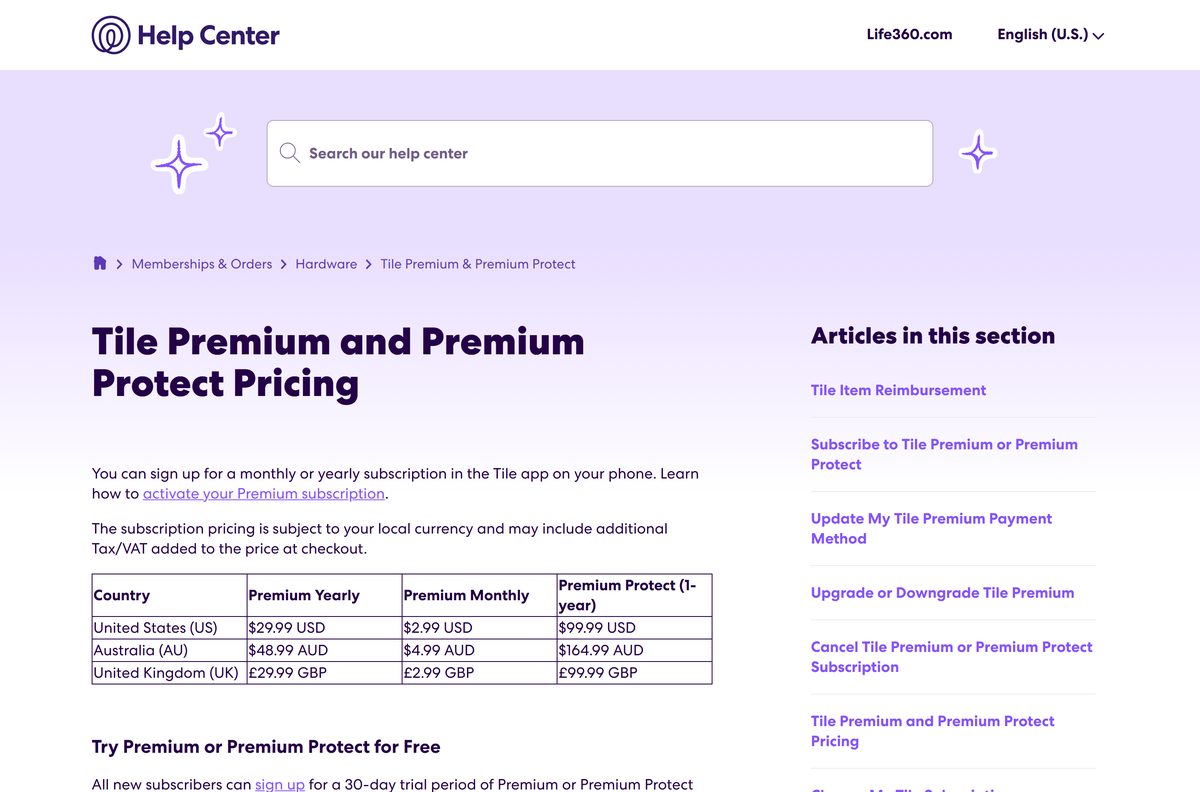
Yes. The app and the core finding features are free, and Tile Premium is optional. Without a plan you can ring a Tile in range, see its last known location, use the Tile Detector, enlist the Tile Network with Notify When Found, ring your phone from the Tile and share a Tile with 1 person. Premium adds Smart Alerts, unlimited sharing, 30-day location history and the Worry-Free Warranty.
In the US, Premium costs $2.99 a month or $29.99 a year, and Premium Protect costs $99.99 for one year. New subscribers get a 30-day free trial, and Tile gives no refunds, so cancel before the trial ends if you do not want to pay.
Item Reimbursement comes with Premium in the US. New subscribers in the UK and Australia lost it on 12/16/2024.
Tile app or Life360 app: which should you use?
Install the Tile app first, then add Life360 only if your family already shares location there. The Tile app handles activation, Premium, sharing, ringtones and Notify When Found. Life360 can show linked Tiles on its family map and ring them, but editing a Tile’s name or photo still opens the Tile app.
To link them, open Life360, tap the keys icon at the bottom of the map, tap Add an item and choose Yup, link my Tile account. Tiles can take up to 15 minutes to appear on the Life360 map.
Check the Tile app system requirements
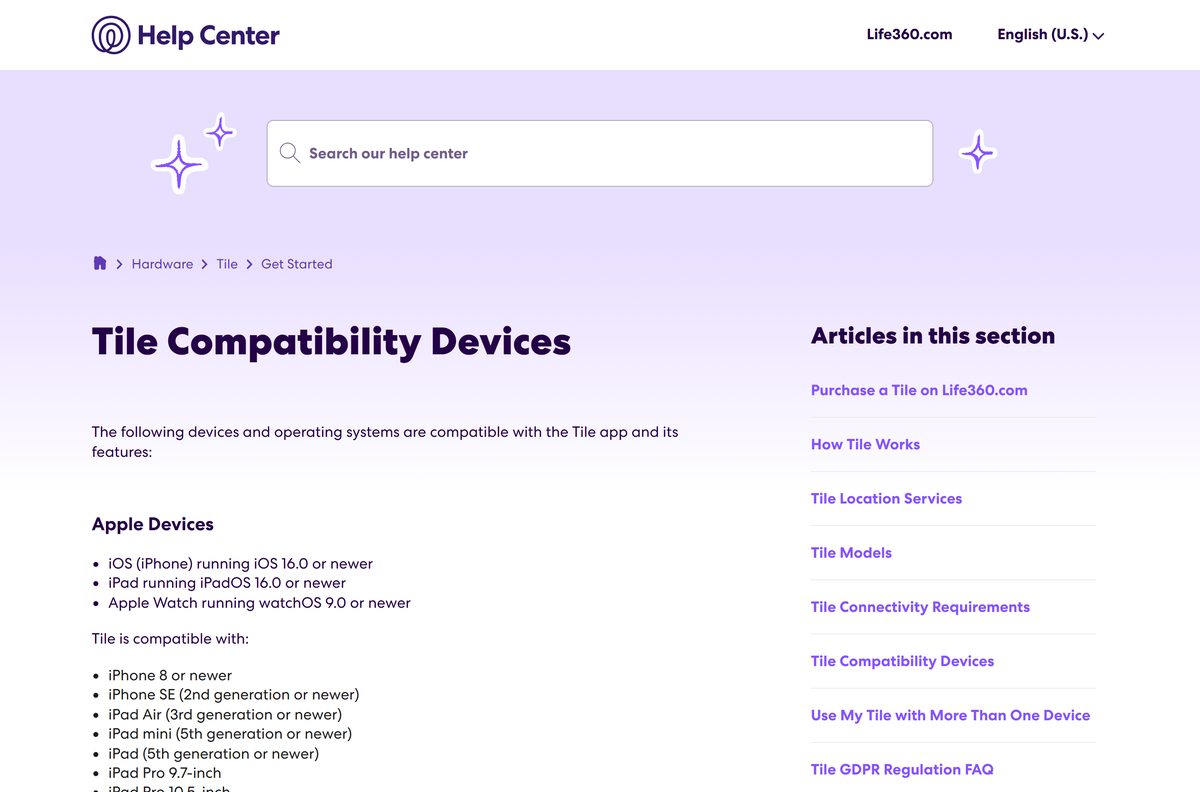
Tile lists the devices it supports officially. Other phones can work if they meet the OS version and have Bluetooth 4.0 or higher.
| Field | Value |
|---|---|
| Software | Tile – Find lost keys & phone |
| Developer | Tile, Inc. (a Life360 company) |
| Latest version | 2.146.0 on iPhone and iPad (24 June 2026); Android updated 22 June 2026 |
| Price | Free; Premium from $2.99 a month |
| iPhone | iOS 16.0 or later; iPhone 8, iPhone SE (2nd generation) or newer |
| iPad | iPadOS 16.0 or later; iPad (5th generation), iPad Air (3rd generation), iPad mini (5th generation) or newer |
| Apple Watch | watchOS 9.0 or later; Series 4 and newer |
| Android | Android 9.0 or later with Google Play services and Bluetooth 4.0 or higher |
| Not supported | Android tablets, ChromeOS, Fire OS, Huawei and Honor phones without Google services, Windows and Mac |
| Download size | 323.1 MB on the App Store; Google Play states no size |
| Offline installer | None |
| Official source | App Store and Google Play |
| Last verified | 2026-09-25 |
Beta releases of iOS and Android are not tested, so some features can misbehave on a developer or public beta.
How to verify the Tile app is genuine
Plenty of Bluetooth finder apps use the word tile in their names. Check the publisher before you tap Install or Get.
- Open the listing from the links in this guide, not from an ad.
- Check that the developer line reads Tile, Inc. on the App Store or Tile Inc. on Google Play.
- Confirm the price reads Free with In-app purchases.
- Check the rating count: over 1 million ratings on the App Store, and 10M+ downloads on Google Play.
- Skip any APK, EXE or DMG file from a download site; Tile publishes none.
How to check your Tile version and update it
Tile support asks you to run the latest app before any troubleshooting. Both stores show when an update is waiting.
- On iPhone or iPad, open the App Store and tap your profile picture at the top right.
- Scroll to the list of pending updates and tap Update next to Tile.
- On Android, open the Play Store, tap your profile icon and choose Manage apps & device.
- Tap Updates available, then Update next to Tile.
- Open the Tile app again and let it reconnect to your Tiles for 1 to 2 minutes.
Fix Tile not installing, activating or connecting
The store says Tile is not compatible with your device
The phone runs below iOS 16 or Android 9, or it is an Android tablet or a device without Google services.
- On iPhone, open Settings, General, Software Update and install any update.
- On Android, open Settings, About phone and check the Android version.
- Move to a supported phone if you tried from an Android tablet, Chromebook or Fire tablet.
The Tile will not activate
The tracker is asleep, already activated on another account, or the app needs a restart.
- Press the button on the Tile firmly for 1 second.
- If it plays a tune only on a quick double press, it was activated before and must be transferred.
- Force close all apps from the recent apps screen.
- Restart the phone, open Tile and try the activation again.
The Tile is nearby but shows as not connected
Bluetooth or Location permission is off, or another signed-in phone holds the connection.
- Update the phone and the Tile app.
- Turn on Bluetooth and Location for Tile in the phone’s settings.
- Close the Tile app on any other phone signed in to the same account, because a Tile connects to one device at a time.
- Restart the phone and wait 1 to 2 minutes, then tap Find.
- On a 2018 or older Tile, hold the button for 10 seconds to reboot it.
The Tile app icon disappeared from the phone
The Home Screen shortcut was removed, not the app.
- Swipe left on the Home Screen to open the App Library.
- Type Tile in the search bar.
- Long-press the Tile icon and drag it back to the Home Screen.
How to uninstall Tile or delete your Tile account
Removing the app keeps your account and your Tiles. Deleting the account is permanent and disables every Tile on it, so transfer any Tile you want to keep first.
- Cancel Premium or Premium Protect in the store or on Life360.com, because deleting the app does not stop billing.
- To remove only the app on iPhone, touch and hold the Tile icon, tap Remove App, then Delete App.
- On Android, open Play Store, find Tile, and tap Uninstall.
- To delete the account instead, open Tile and tap Settings at the top right.
- Under Account, tap Manage Account, then Delete Account.
- Enter your Tile password, tap Next, then I agree. Delete.
- Type the 6-digit code from the email and tap Continue.
Frequently asked questions
Is the Tile app free?
Yes. The Tile app is free on the App Store and Google Play, and the core features work without a plan: ring a Tile, see its last location and use Notify When Found. Tile Premium is optional and costs $2.99 a month or $29.99 a year in the US.
What is the official Tile download page?
Tile’s support article Download the Tile App points to two listings only: Tile – Find lost keys & phone on the App Store from Tile, Inc., and Tile: Making Things Findable on Google Play from Tile Inc. The tile.com address now redirects to Life360.
Can I download Tile on a Windows 11 PC?
No. Tile publishes no Windows app today, and the Tile Windows App for laptops with built-in Tile was discontinued on 07/10/2024. On a PC, sign in at Life360.com to manage a Tile subscription, and use your phone to ring and find Tiles.
How big is the Tile app download?
The iPhone and iPad app is 323.1 MB on the App Store. Google Play does not state a size for the Android app, because it varies by phone. Download it on Wi-Fi to save mobile data.
Is there a Tile offline installer or APK?
No. Tile ships the app only through the App Store and Google Play, and it publishes no APK, EXE or DMG. Creating an account and activating a Tile also need a data connection, so an offline install would not help.
Is there a Tile app for Mac?
No. The App Store listing supports iPhone, iPad, Apple Watch and Apple Vision, and names no Mac. Install Tile on an iPhone or iPad instead, and use Life360.com on the Mac for account and subscription changes.
Does Tile have a 64-bit or ARM64 build for PC?
The question does not apply, because Tile has no desktop build. The App Store and Google Play deliver the right build for your phone, iPad or Apple Watch automatically, so there is no architecture to pick.
Is the Tile app safe to install?
Yes, from the official stores. The App Store listing comes from Tile, Inc. with over 1 million ratings, and the Google Play listing comes from Tile Inc. with 10M+ downloads. Avoid any site offering a Tile file for PC.
What is the latest version of the Tile app?
Version 2.146.0 on iPhone and iPad, released on 24 June 2026. Google Play shows the Android app updated on 22 June 2026 and lists no version number. Update from your store to get the newest build.
Why won’t the Tile app install on my device?
The device is usually below iOS 16 or Android 9, or it is an Android tablet, Chromebook, Fire tablet or a phone without Google services. Tile does not support those devices. Update the OS or install on a supported phone.