To find the word count on a Google Doc, click Tools > Word count, or press Ctrl + Shift + C on Windows and ChromeOS (⌘ + Shift + C on a Mac).
This guide covers the live word count box, counting a selection, the Android and iPhone apps, and why the number sometimes differs from what you expect.
The fastest way to see word count in Google Docs
- Open the document in Google Docs on your computer.
- Press Ctrl + Shift + C (Windows or ChromeOS) or ⌘ + Shift + C (Mac). Or click Tools > Word count at the top of the page.
- Read the pages, words and characters in the window that opens.
- Click Done to close it.
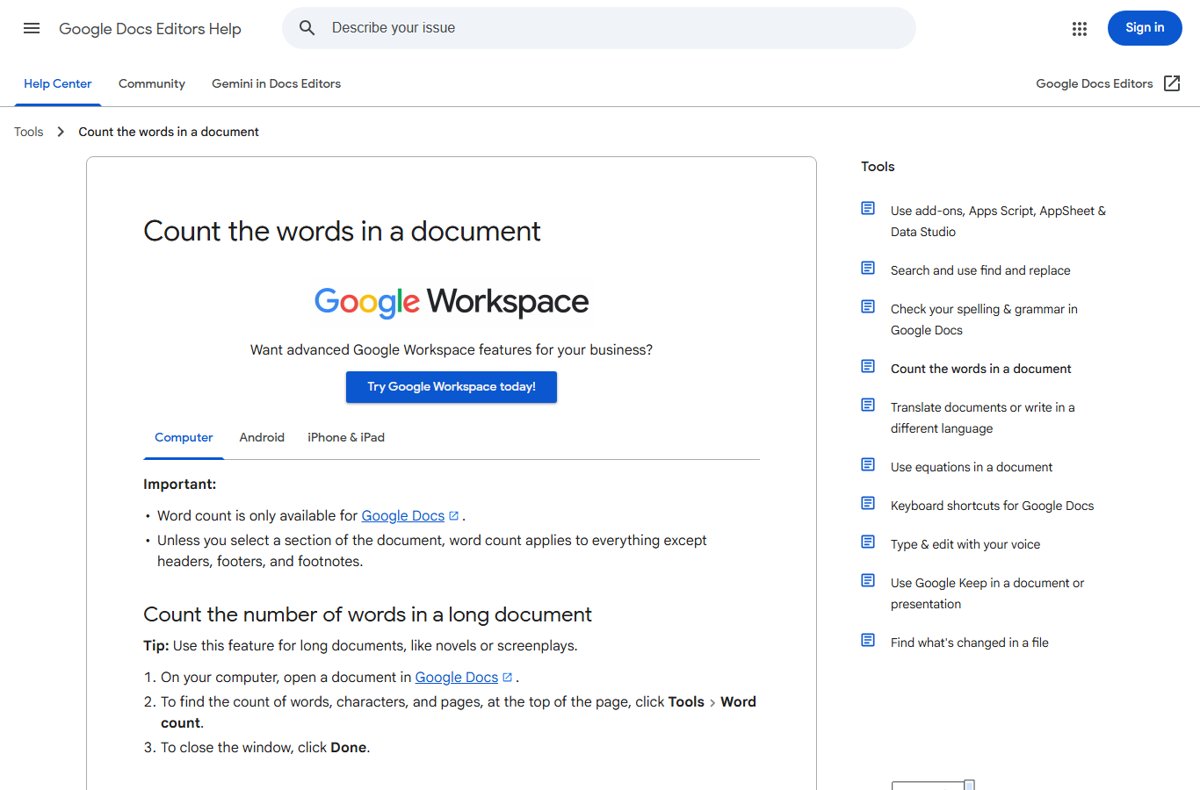
Methods for finding word count on Google Docs
| Your situation | Use this | Why |
|---|---|---|
| You need the total once | Tools > Word count or Ctrl + Shift + C | One click or one shortcut |
| You are writing to a limit | Display word count while typing | A live box in the bottom left updates as you type |
| You need one paragraph or section | Select the text, then open Word count | The count covers only the selection |
| You are on a phone or tablet | More > Word count in the Docs app | Works on Android, iPhone and iPad |
| You need counts across many files or a custom rule | An add-on or Google Apps Script | Goes beyond the built-in tool |
Show a live word count while you type
The live count suits short pieces such as essays and news articles, where you check the number constantly. Docs added it in 2019, when it began to display the word count as you type.
- Click Tools > Word count, or press Ctrl + Shift + C.
- Check Display word count while typing, then click OK.
- Click the Word count box in the bottom left to switch between Pages, Words, Characters and Characters without spaces.
- To hide it, click the Word count box and choose Hide word count.
Count the words in selected text only
- Highlight the paragraph, section or sentence you want to count.
- Press Ctrl + Shift + C, or click Tools > Word count.
- Read the count, which now applies to the selected text.
- Click Done, then click elsewhere to clear the selection before counting the whole document again.
Find word count in the Google Docs app on Android, iPhone or iPad
- Open the Google Docs app.
- Open the document.
- Tap More.
- Tap Word count to see words, characters, and characters excluding spaces.
Why is knowing the word count important?
Limits set by teachers, editors, publishers and application forms are usually stated in words or characters, so you need the exact figure before you submit.
| Figure | Shown on computer | Shown in mobile app | Typical use |
|---|---|---|---|
| Pages | Yes | No | Page limits for essays and reports |
| Words | Yes | Yes | Essay, article and grant limits |
| Characters | Yes | Yes | Form fields and short bios |
| Characters without spaces | Yes | Yes, as characters excluding spaces | Translation and some submission rules |
Practical tips for managing word count in Google Docs
- Turn on the live count before you start writing to a limit.
- Break a long document into sections and select each one to count it against its own target.
- Set a word goal for each paragraph or section, and select it to check progress.
- Use the word count while editing: cut the longest sections first when you are over.
- Keep track of changes in Version history with Ctrl + Alt + Shift + H to compare drafts.
- Move notes you do not want counted into footnotes, which the total leaves out.
Advanced techniques and best practices
Three tools extend the built-in count: version history, add-ons and Apps Script, which also connects Docs to other Google services.
| Technique | What it does | Where |
|---|---|---|
| Combine word count with version history | Open an earlier version and check its count to see how a draft grew or shrank; you need edit permission | Ctrl + Alt + Shift + H opens version history |
| Add-ons | Third-party tools for extra counting needs, such as excluding citations | The Docs add-on store in the Google Workspace Marketplace |
| Custom scripts with Google Apps Script | Read the document text with the Document service, for example DocumentApp.getActiveDocument().getBody().getText(), and apply your own counting rule |
Google Apps Script |
Some add-ons need third-party cookies allowed in your browser, and add-ons not yet moved to the Google Workspace Marketplace cannot be installed.
How to check the count is right
- Make sure nothing is selected, then open Tools > Word count for the full total.
- Compare it with the live Word count box in the bottom left; both should match.
- Remember that headers, footers and footnotes are not included unless you select them.
- If your limit counts footnotes, select them and count them separately, then add the two figures.
Common issues and troubleshooting
Word count not updating in real time
The live count is off, or it is showing pages or characters instead of words.
- Open Tools > Word count and check Display word count while typing.
- Click the Word count box in the bottom left and choose Words.
Unable to open word count with the keyboard shortcut
Google notes that some shortcuts do not work for all languages or keyboards.
- Use Tools > Word count from the menu instead.
- Press Ctrl + / to open the shortcut list and check the word count entry for your keyboard.
- Press Alt + / to open Tool finder and type word count.
Word count incorrect or missing
Headers, footers and footnotes are excluded, a selection is active, or you are not in Google Docs.
- Click in the body so no text is selected, then count again.
- Select footnotes or headers separately if they should be counted.
- Note that word count is only available in Google Docs, not Sheets or Slides.
Final tips
Learn Ctrl + Shift + C for quick checks and turn on Display word count while typing whenever you write to a fixed limit. The shortcut gives the full breakdown in one keystroke, and the live box removes the need to keep checking.
Frequently asked questions
How do I find the word count on Google Docs?
Click Tools > Word count at the top of the page, or press Ctrl + Shift + C on Windows and ChromeOS or ⌘ + Shift + C on a Mac. The window shows pages, words, characters and characters without spaces.
What is the shortcut to find word count?
In Google Docs it is Ctrl + Shift + C on Windows and ChromeOS, and ⌘ + Shift + C on a Mac. In Microsoft Word the count is always on the status bar at the bottom of the window.
How do I find word count on Docs on my phone?
Open the Google Docs app on Android, iPhone or iPad, open the document, tap More, then tap Word count. It shows words, characters and characters excluding spaces.
How do I find word count on Google Slides?
Google Slides has no word count tool. Google states that word count is only available for Google Docs. Copy the slide text into a Google Doc and use Tools > Word count there.
How do I find word count in Microsoft Word?
Check the status bar at the bottom of the Word window, which counts words as you type. Select text to see the count for that selection and the whole document. Click the count for characters, paragraphs and lines.
How do I find word count on PowerPoint?
On the File tab, click Info, then Show All Properties. The Words property counts all text on slides and notes pages. To count notes only, export handouts to Word with File > Export > Create Handouts.
How does word count work in Google Docs?
Google Docs counts the words in the document body. Headers, footers and footnotes are left out unless you select them, and if you select text, the count covers only that selection.

![Fix download speed suddenly slow [proven solutions]](https://techdows.com/wp-content/uploads/2026/10/Windows-Settings-Delivery-Optimization-page-with-background-and-foreground-bandw-600x338.jpg)