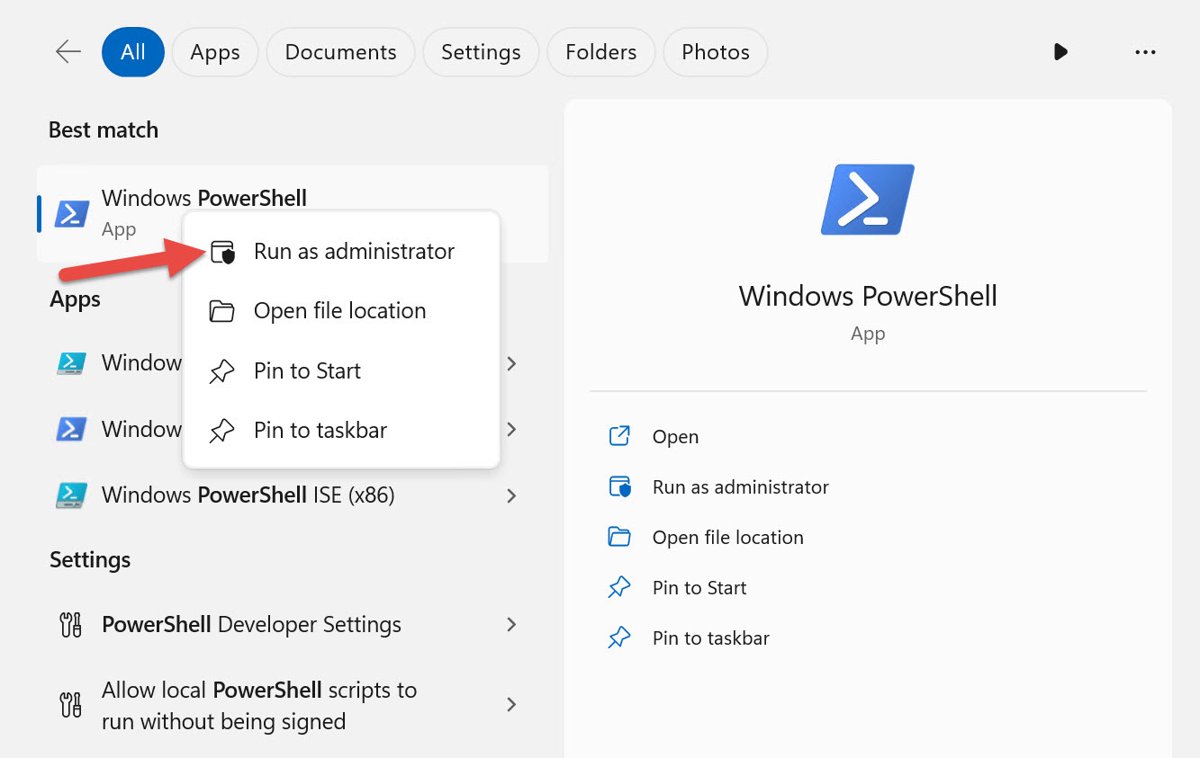
To execute a Run command as admin in Windows 11 or 10, open Command Prompt as administrator (search cmd, right-click it and select Run as administrator), then type the command there, because anything started from an elevated window runs elevated too.
This guide also covers launching elevated programs from the Run box, Task Manager and the taskbar, running .exe files from the command line, and fixes when the admin option fails.
Use Windows Search or the Start Menu to Run Commands as Admin
- Select Start and type cmd.
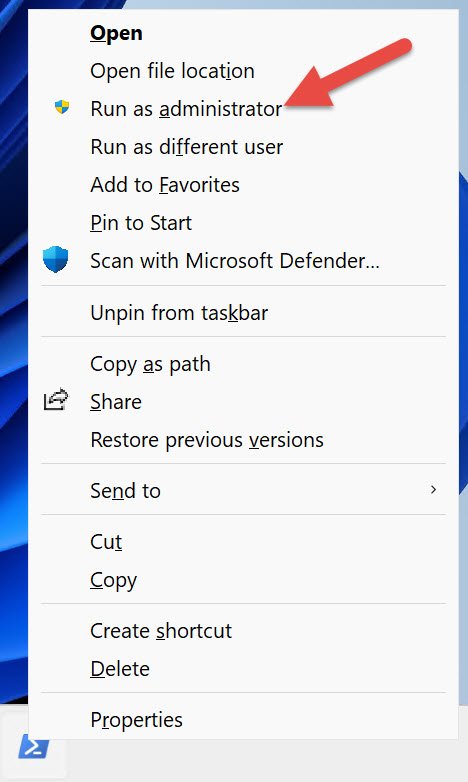
- Right-click Command Prompt in the results and select Run as administrator.
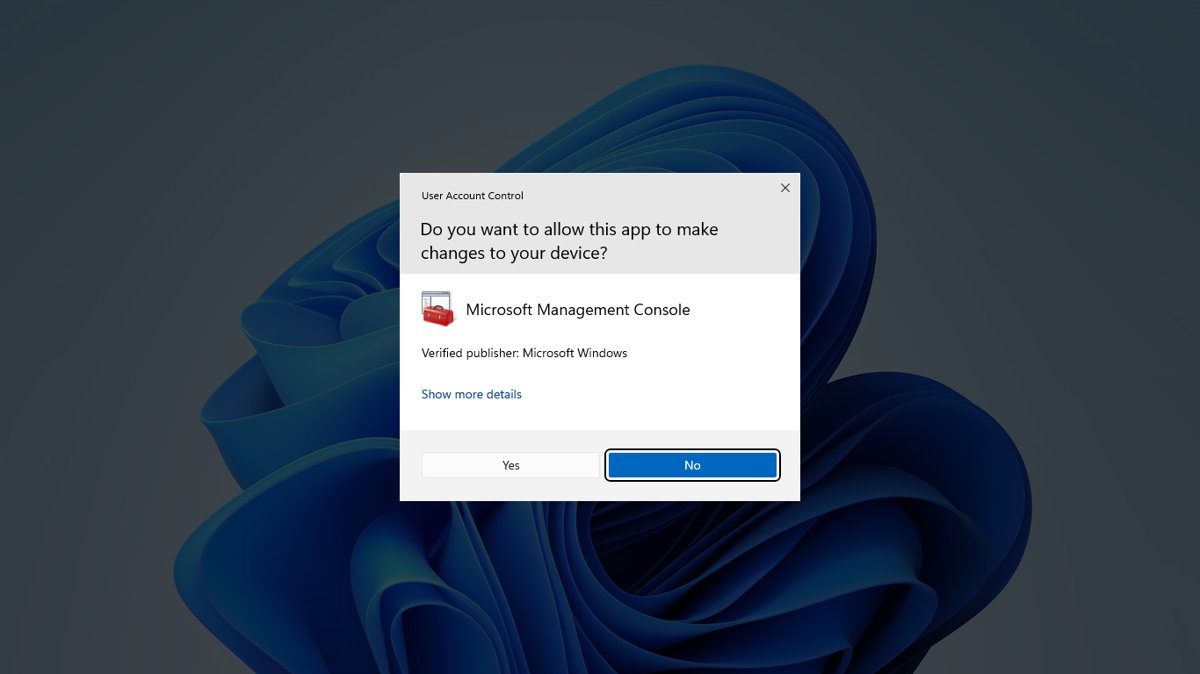
- Select Yes in the User Account Control prompt, or enter an administrator's password if asked.
- Check that the window title starts with Administrator:.
- Type the command you would normally put in the Run box, such as
services.mscorregedit, and press Enter.
Programs started from an elevated window inherit its administrator token, so they open with admin rights without another prompt. The same right-click works on any app in the Start menu results.
Which method should you use?
| Your situation | Use this | Why |
|---|---|---|
| You run several admin commands in a row | Elevated Command Prompt or PowerShell | Every command and tool launched from it is elevated |
| You are already in the Run box | powershell Start-Process cmd -Verb RunAs |
Asks for elevation straight from Run |
| Start menu or taskbar is not responding | Task Manager > File > Run new task | Works while Explorer is stuck |
| The app is pinned to the taskbar | Ctrl + Shift + click its taskbar button | One click, opens it as administrator |
| You need admin rights while signed in as a standard user | Any route above, then enter an admin's credentials | Windows shows a credential prompt instead of Yes/No |
Open the Run Dialog and Launch Apps with Admin Rights
The Run box itself starts programs with standard rights. Hand the command to PowerShell's Start-Process with the RunAs verb to request elevation.
- Press Windows logo key + R to open the Run dialog.
- Type
powershell Start-Process cmd -Verb RunAsand press Enter. - Select Yes in the User Account Control prompt.
- Run your command in the elevated Command Prompt that opens.
- To open a different program elevated, replace
cmdwith its name or path, for examplepowershell Start-Process regedit -Verb RunAs.
If you only need to find the Run box, there are several ways to open the Run dialog, and a list of Windows 11 Run commands covers what to type into it.
Run Commands as Administrator from Task Manager
- Press Ctrl + Shift + Esc to open Task Manager.
- Select File > Run new task.
- Type the command, for example
cmd.exe. - Select the option to create the task with administrative privileges.
- Select OK.
Microsoft uses this route in its own troubleshooting when Windows Explorer has been closed, so it works even without a working taskbar or Start menu.
Open a taskbar app as administrator
- Pin Command Prompt, PowerShell or Terminal to the taskbar.
- Hold Ctrl + Shift and click its taskbar button.
- Select Yes in the User Account Control prompt.
- Or press Windows logo key + Ctrl + Shift + number to open the app at that taskbar position as administrator.
Execute Run Commands Through Command Prompt or PowerShell
From a normal PowerShell window, Start-Process with -Verb RunAs opens any program elevated. From an elevated window, type the program name directly.
Start-Process -FilePath "powershell" -Verb RunAsStarts a new PowerShell window with administrator rights. Replace powershell with cmd, an .msc console, or the full path to an .exe. The RunAs verb works with .exe and .cmd files.
You should see: A User Account Control prompt appears, and after you approve it the new window's title starts with Administrator.
For the full set of PowerShell routes, see these ways to run PowerShell as administrator.
Run an .exe file from Command Prompt
- Open Command Prompt as administrator if the program needs admin rights.
- Type
cd /d "C:\Path\To\Folder"and press Enter to move to the program's folder. - Type the file name, for example
setup.exe, and press Enter. - Or skip the
cdstep and type the full path in quotes, for example"C:\Program Files\App\app.exe".
How to check a command ran as administrator
- Look at the window's title bar; an elevated console reads Administrator: Command Prompt or Administrator: Windows PowerShell.
- Run a command that needs admin rights, such as stopping a service; a standard window returns an access error, an elevated one does not.
- Remember that you saw a User Account Control prompt; no prompt usually means the program started with standard rights.
What Running a Command as Administrator Means
| Concept | What it means |
|---|---|
| Two access tokens | When an administrator signs in, Windows creates a standard user token and an administrator token |
| Standard by default | Explorer runs with the standard token, so every app you start normally runs as a standard user |
| Elevation | Running as administrator asks Windows to use the administrator token for that one program |
| Consent prompt | An administrator in Admin Approval Mode sees a Yes/No User Account Control prompt |
| Credential prompt | A standard user must type an administrator's user name and password |
| Inheritance | Child processes inherit the token of the process that started them, so tools launched from an elevated window are elevated too |
Fix Issues When Run as Administrator Is Missing or Not Working
Windows asks for a password instead of showing Yes
You are signed in as a standard user, so Windows shows the credential prompt.
- Type the user name and password of an administrator account on the PC.
- If you do not have one, ask the person who manages the PC to run the command.
The command fails with an access error even though it ran
The window was opened with standard rights.
- Close the window.
- Reopen it with Run as administrator and confirm the title starts with Administrator:.
- Run the command again.
Start menu or taskbar will not open, so Run as administrator is out of reach
Windows Explorer is not responding.
- Press Ctrl + Shift + Esc to open Task Manager.
- Select File > Run new task, type
cmd.exe, and create it with administrative privileges. - Use the elevated Command Prompt for your command.
The Run box opens the program without admin rights
The Run dialog starts programs with your standard token.
- Prefix the command with
powershell Start-Processand add-Verb RunAs, as shown above. - Approve the User Account Control prompt.
Frequently Asked Questions
Where do I find the Run command?
Press Windows logo key + R on Windows 11 or Windows 10 to open the Run dialog box. Type a program or command name and press Enter to start it with standard rights.
How do I use the Run command as administrator?
The Run box starts programs with standard rights, so type powershell Start-Process cmd -Verb RunAs to open an elevated Command Prompt, approve the prompt, and run your command there. Anything started from that window is elevated.
How do I execute a command as administrator?
Search for cmd in the Start menu, right-click Command Prompt and select Run as administrator, then type the command. The title bar reads Administrator when the window is elevated.
How do I run an .exe from Command Prompt?
Change to the program's folder with cd /d followed by the folder path, then type the file name and press Enter. You can also type the full path in quotes, such as "C:\Program Files\App\app.exe".
How do I run an executable in CMD with admin rights?
Open Command Prompt as administrator first, then run the .exe from that window, because child processes inherit the elevated token. From a normal PowerShell window, Start-Process with -Verb RunAs does the same.
Can I run a command as admin from Task Manager?
Yes. Open Task Manager with Ctrl + Shift + Esc, select File > Run new task, type the command and create it with administrative privileges. This works even when the taskbar or Start menu is not responding.
Why does Windows ask for a password when I run as administrator?
Your account is a standard user, so User Account Control shows a credential prompt. Enter an administrator's user name and password, or ask the PC's administrator to run the command.
Bottom Line
Open Command Prompt or PowerShell with Run as administrator and run your commands from there; use Task Manager's Run new task when the Start menu is unavailable. An elevated console passes its administrator token to every tool it starts, so one User Account Control approval covers a whole series of admin commands.