Open Windows Features, tick Microsoft Print to PDF and select OK to install the PDF printer on Windows 11 or Windows 10.
This guide covers five ways to add it back, how to check it is installed, how to print a PDF with it, and fixes for a missing printer, a save dialog that never appears, and files that will not save.
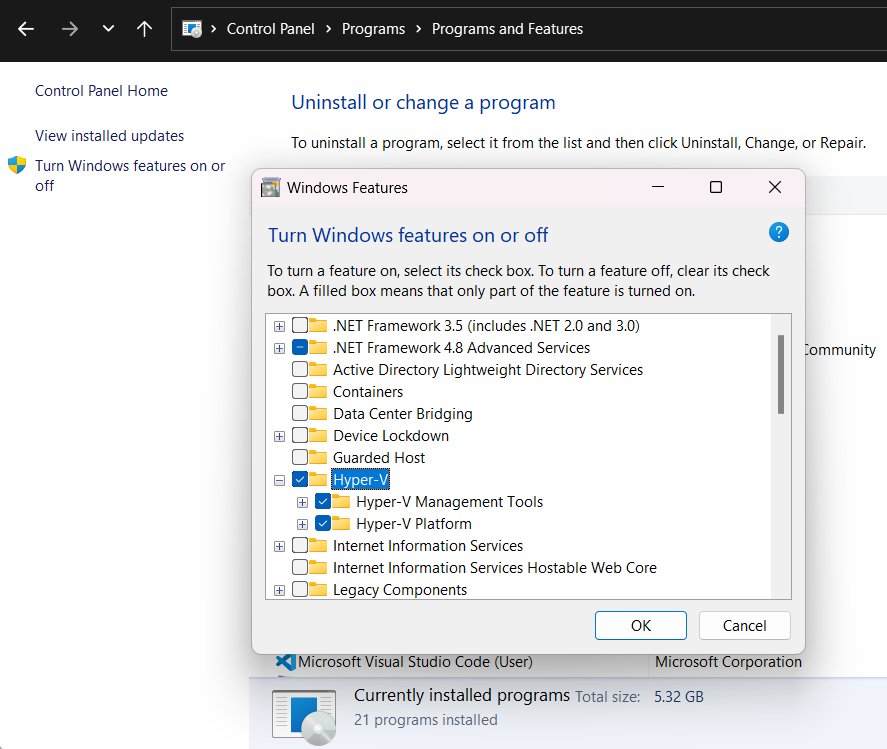
Method 1: Enable Microsoft Print to PDF from Windows Features
Microsoft Print to PDF is a built-in Windows feature, so the fastest fix is to switch that feature back on. The same dialog exists on Windows 11 and Windows 10.
- Select Start and type
Windows Features. - Select Turn Windows features on or off in the results.
- Find Microsoft Print to PDF in the list and tick its box.
- Select OK and wait while Windows applies the change.
- Restart the PC if Windows asks you to.
If the box is already checked, the feature is on but the printer queue is damaged or deleted. Clear the box, select OK, restart, then tick it again and select OK. That rebuilds the printer from scratch.
The same dialog also opens from Control Panel > Programs > Programs and Features > Turn Windows features on or off.
What Is Microsoft Print to PDF?
Microsoft Print to PDF is a virtual printer that ships with Windows 10 and Windows 11. Any app that can print can send its output to it, and the result is a PDF file instead of paper.
| Question | Answer |
|---|---|
| What it is | A software printer listed next to your real printers in every Print dialog |
| What it produces | A PDF file saved to a folder you choose |
| Where it comes from | An optional Windows feature named Microsoft Print to PDF in Windows Features |
| Cost or download | None; it is part of Windows |
| Works in | Any desktop app with a Print command: Word, Notepad, Edge, Chrome, Photos and more |
| Close relative | Microsoft XPS Document Writer, a separate feature in the same dialog that saves XPS files instead |
Check Whether Microsoft Print to PDF Is Already Installed
Check first. If the printer is already there, the problem is somewhere else, and reinstalling will not fix it.
Check from the Print dialog
This is the quickest test, and it is exactly where you will use the printer.
- Open any document or web page and press Ctrl + P.
- Open the Printer or Destination list.
- Look for Microsoft Print to PDF in the list.
Check from Windows Settings
Settings lists every installed printer, including the virtual ones.
- On Windows 11, open Start > Settings > Bluetooth & devices > Printers & scanners.
- On Windows 10, open Start > Settings > Devices > Printers & scanners.
- Scan the installed printer list for Microsoft Print to PDF.
Check from PowerShell
Useful when you manage several PCs or the Settings list is long.
- Open Windows PowerShell or Windows Terminal.
- Type
Get-Printerand press Enter. - Look for Microsoft Print to PDF in the Name column.
If it appears, skip to the usage and fix sections. If it does not, use the methods below.
Method 2: Add Microsoft Print to PDF from Settings
Settings does not list the PDF printer as a device to add. Instead, it opens the classic Add Printer wizard, which can rebuild the printer from the driver already on your PC.
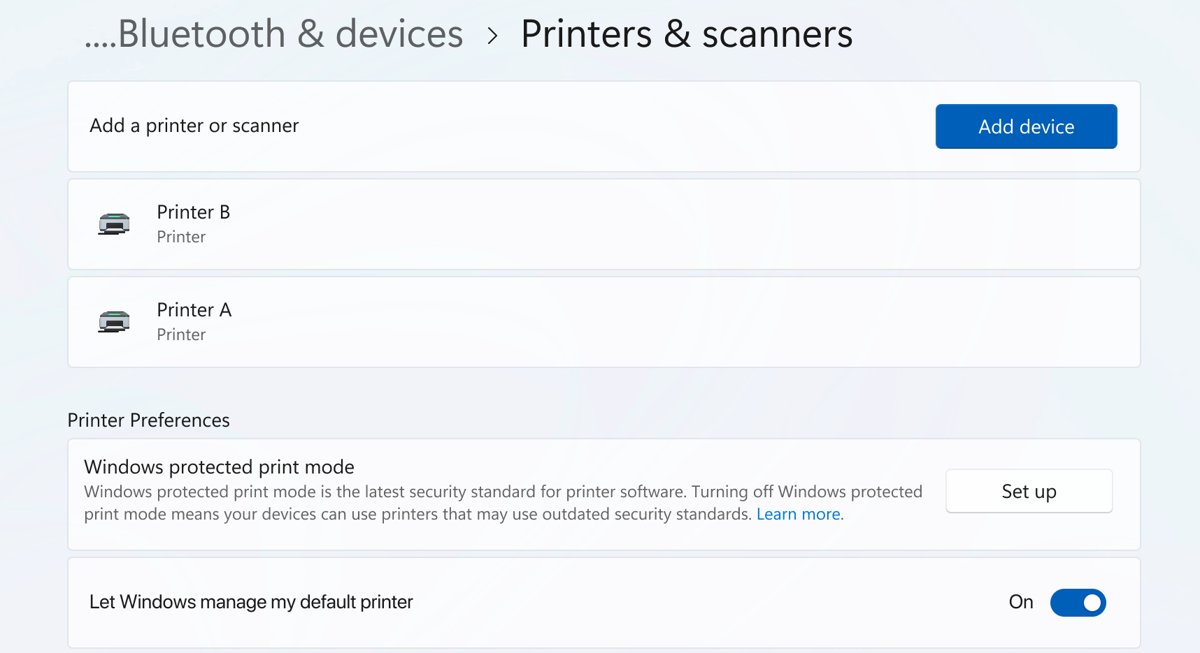
- On Windows 11, open Start > Settings > Bluetooth & devices > Printers & scanners.
- Select Add device under Add a printer or scanner and wait for the list to fill.
- Select The printer that I want isn't listed, then Add a new device manually if Windows 11 asks.
- On Windows 10, open Start > Settings > Devices > Printers & scanners, select Add a printer or scanner, then The printer that I want isn't listed.
- In the Add Printer window, follow the wizard steps in Method 3 below.
Method 3: Install Microsoft Print to PDF Manually Using the Built-In Driver
Use this when the feature is switched on in Windows Features but the printer is still gone. The driver usually survives when someone deletes only the printer, so the wizard can reuse it.
- Open the Add Printer wizard from Method 2 or Method 4.
- Select Add a local printer or network printer with manual settings, then Next.
- On the Choose a Printer Port page, pick PORTPROMPT: from the list of existing ports, then Next.
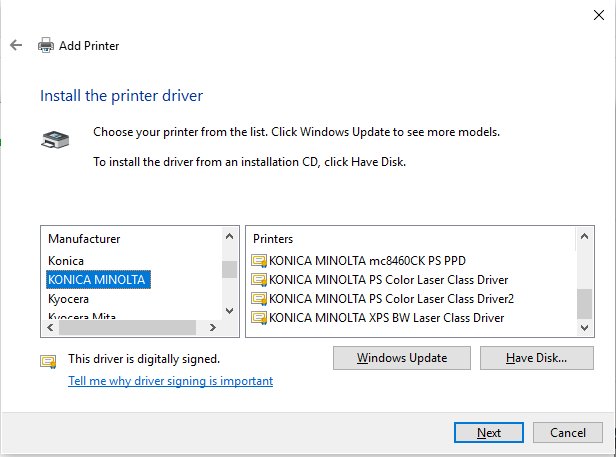
- On the Install the printer driver page, select Microsoft under Manufacturer.
- Select Microsoft Print To PDF under Printers, then Next.
- Keep the printer name Microsoft Print to PDF, select Next, then Finish.
The PORTPROMPT: port is what makes Windows ask for a file name each time you print. Microsoft's PowerShell documentation describes the same port for its XPS printer: it prompts for a file name to save the document.
If Microsoft Print To PDF is not listed under Microsoft, the driver itself is gone. Use Method 1 to switch the feature off and on, or Method 5.
Method 4: Add Microsoft Print to PDF Using Control Panel
Control Panel reaches the same wizard through Devices and Printers. Use it if Settings will not open or you prefer the classic view.
- Select Start, type
Control Paneland press Enter. - Select View devices and printers.
- Select Add Printer at the top of the window.
- Select The printer that I want isn't listed once the wizard starts.
- Continue from step 2 of Method 3 to pick the PORTPROMPT: port and the Microsoft driver.
Method 5: Enable Microsoft Print to PDF with PowerShell or Command Prompt
The Windows Features checkbox is an optional feature, so the DISM cmdlets can switch it on from a terminal. Run the terminal as administrator, or the commands fail.
- Select Start, type
PowerShell, right-click Windows PowerShell and select Run as administrator, then Yes. - Run
Get-WindowsOptionalFeature -Online -FeatureName *PDF*to find the feature and its current State. - Copy the name shown in the FeatureName line.
- Run
Enable-WindowsOptionalFeature -Online -FeatureName <FeatureName>, pasting the name you copied. - Enter Y if PowerShell asks to restart.
- To use Command Prompt instead, open it as administrator and run
DISM /Online /Enable-Feature /FeatureName:<FeatureName>with the same name.
DISM reports The operation completed successfully. when it finishes. To rebuild a damaged install, run Disable-WindowsOptionalFeature -Online -FeatureName <FeatureName> first, restart, then enable it again.
Which method should you use?
| Your situation | Use this | Why |
|---|---|---|
| The printer vanished from every Print dialog | Method 1: Windows Features | Reinstalls the feature and the printer together |
| The box in Windows Features is already ticked | Method 1 off and on, or Method 3 | The feature is fine; only the printer queue is gone |
| You deleted the printer from Settings by mistake | Method 2 or Method 3 | The driver is still on the PC, so the wizard rebuilds the printer |
| Settings is slow or will not open | Method 4: Control Panel | Same wizard, classic route |
| You manage several PCs or prefer a terminal | Method 5: PowerShell or DISM | Scriptable and gives a clear success message |
How to Use Microsoft Print to PDF
Printing to PDF works like printing to paper. The only difference is the save dialog that appears after you select Print.
Create a PDF from a document or web page
Works in any app with a Print command.
- Open the document, photo or web page and press Ctrl + P.
- Select Microsoft Print to PDF in the Printer or Destination list.
- Set the pages, orientation and paper size you want.
- Select Print.
- Choose a folder, type a file name and select Save.
Set Microsoft Print to PDF as the default printer
Only worth doing if you make PDFs more often than paper copies.
- On Windows 11, open Start > Settings > Bluetooth & devices > Printers & scanners.
- Under Printer preferences, turn Let Windows manage my default printer off.
- Select Microsoft Print to PDF, then select Set as default.
- On Windows 10, open Settings > Devices > Printers & scanners, clear Let Windows manage my default printer, select the printer, select Manage, then Set as default.
To add notes to the finished file, open it in Edge, which lets you add comments to PDF documents.
How to check the PDF printer works
- Open Notepad, type a line of text and press Ctrl + P.
- Confirm Microsoft Print to PDF appears in the printer list.
- Select it and select Print.
- Confirm a save window opens and asks for a file name.
- Save the file to Documents, then open it and check the text is there.
If all five steps pass, the printer, its port and its driver are all healthy.
Fix: Microsoft Print to PDF Is Missing
The printer is not in any Print dialog
The Windows feature is switched off or its printer queue was removed.
- Open Windows Features and check whether Microsoft Print to PDF is ticked.
- If it is not ticked, tick it and select OK.
- If it is ticked, clear it, select OK, restart, then tick it again.
Printers fail to install or the list stays empty
The Print Spooler service is stopped or stuck.
- Select Start, type
servicesand open Services. - Right-click Print Spooler and select Restart.
- If it is stopped, double-click it, set Startup type to Automatic, then select Start.
- Or open PowerShell as administrator and run
Restart-Service -Name spooler.
Duplicate or broken PDF printers appear
An old queue was left behind after a reinstall or upgrade.
- On Windows 11, open Settings > Bluetooth & devices > Printers & scanners, select the extra printer and select Remove.
- On Windows 10, open Settings > Devices > Printers & scanners, select it and select Remove device.
- Add a clean copy with Method 1 or Method 3.
The printer still will not come back
A general printing fault or damaged system files.
- Run the printer troubleshooter in the Get Help app.
- Open Command Prompt as administrator and run
sfc /scannow. - Then run
DISM /Online /Cleanup-Image /RestoreHealth. - Restart and repeat Method 1.
Fix: Microsoft Print to PDF Does Not Ask Where to Save
Nothing seems to happen after you select Print
The save window opened behind the app you printed from.
- Look for a new save window on the taskbar, or press Alt + Tab.
- Minimize the app you printed from to reveal the window.
- Type a file name and select Save.
No save window appears at all
The printer was re-added on the wrong port, so Windows never prompts for a file name.
- Remove Microsoft Print to PDF in Printers & scanners.
- Add it again with Method 3.
- Select PORTPROMPT: on the Choose a Printer Port page.
Fix: PDF File Is Blank, Cut Off, or Formatted Incorrectly
Edges, columns or pages are cut off
The page size, orientation or scaling does not match the content.
- Press Ctrl + P and check the paper size, usually Letter or A4.
- Switch between Portrait and Landscape to match the content.
- Set scaling to fit the page if the app offers it.
- Check the preview before you select Print.
The PDF is blank or the layout is wrong
The app renders its print output differently from the screen.
- Try the app's own PDF export instead, such as Export or Save As > PDF in Word.
- In Chrome, use Save as PDF as the destination instead.
- Print to PDF from a second app to see whether the problem follows the file or the app.
Fix: Access Denied or Unable to Save the PDF
Access denied when you select Save
The target folder is protected or you lack write permission there.
- Save to a simple location such as Documents or Desktop.
- Move the file to its final folder afterwards in File Explorer.
The save fails with a file name error
The name contains symbols Windows does not allow, or it is very long.
- Use a short, valid file name with letters, numbers, spaces and hyphens only.
- Select Save again.
Windows cannot replace an existing PDF
The file is already open in a PDF viewer or browser tab.
- Close the PDF everywhere it is open, including Edge tabs.
- Save again, or save under a new name.
On managed work PCs, Print to PDF can be blocked when Mandatory Labeling is enabled; contact your IT admin.
Can You Reinstall Microsoft Print to PDF by Downloading It?
No. Reinstall it from Windows itself with Windows Features, the Add Printer wizard or PowerShell, never from a download site. Microsoft Print to PDF is an optional feature built into Windows 10 and Windows 11, so Microsoft publishes no separate installer for it. A file offered as a Print to PDF download comes from a third party and is not needed. If the Windows methods fail, repair Windows with sfc /scannow and DISM /Online /Cleanup-Image /RestoreHealth instead.
Microsoft Print to PDF vs. Save as PDF in Browsers
Browsers such as Chrome have their own PDF destination in the print window. Both produce a PDF; the difference is where they work.
| Question | Microsoft Print to PDF | Browser Save as PDF |
|---|---|---|
| Where it works | Every Windows app with a Print command | Only inside that browser |
| How to pick it | Select it in the Printer list | Select Save as PDF under Destination in Chrome |
| Needs Windows feature | Yes, Microsoft Print to PDF must be on | No |
| When it helps | Desktop apps without their own PDF export | Web pages, and a fallback when the Windows printer is missing |
Best Practices When Printing to PDF
| Habit | Why it matters |
|---|---|
| Check the print preview first | Wrong orientation or paper size is the main cause of cut-off pages |
| Prefer an app's own PDF export when it has one | Word's Export or Save As writes the PDF directly, without the print step |
| Save to Documents first | Avoids access errors in protected folders |
| Close the old PDF before overwriting it | An open file cannot be replaced |
| Keep one Microsoft Print to PDF printer | Duplicates on other ports skip the save prompt |
| Leave the feature switched on | Turning it off removes the printer from every app |
Frequently Asked Questions
How do I install Microsoft Print to PDF?
Select Start, type Windows Features and open Turn Windows features on or off. Tick Microsoft Print to PDF and select OK. If the box is already ticked, clear it, restart, and tick it again to rebuild the printer.
How do I add a printer to Windows?
On Windows 11, open Settings > Bluetooth & devices > Printers & scanners and select Add device. On Windows 10, open Settings > Devices > Printers & scanners and select Add a printer or scanner. For some brands, such as KYOCERA printers, you may also need the maker's driver.
How do I install a printer in Windows when it is not found?
Select The printer that I want isn't listed in the Printers & scanners page. The Add Printer wizard opens, where Add a local printer or network printer with manual settings lets you pick the port and driver yourself.
How do I add Print to File in Windows?
Print to file is an option inside some apps' Print dialogs, not a separate printer. To get a usable document, select Microsoft Print to PDF as the printer instead. Microsoft advises leaving Print to file cleared when you want paper output.
How do I add a printer to Microsoft Word or Office?
Office apps use the printers installed in Windows. Add the printer in Settings > Printers & scanners, and it then appears in the Printer list when you select File > Print in Word, Excel or PowerPoint.
Is Microsoft Print to PDF available on Windows 11?
Yes. Microsoft Print to PDF is built into Windows 11 as an optional feature and is normally on. If it is missing, turn it on in Windows Features or rebuild it with the Add Printer wizard.
Is Microsoft Print to PDF available on Windows 10?
Yes. Windows 10 includes Microsoft Print to PDF as a Windows feature. The Windows Features, Add Printer wizard and PowerShell methods all work on Windows 10; only the Settings path differs, using Devices instead of Bluetooth & devices.
Why did Microsoft Print to PDF disappear?
The printer queue was deleted, the Windows feature was switched off, or the Print Spooler service stopped. Check Windows Features first, then restart the Print Spooler, and finally rebuild the printer with the PORTPROMPT: port in the Add Printer wizard.

![How to Download and Install Language Pack in Windows 11/10 [Guide]](https://techdows.com/wp-content/uploads/2026/09/Windows-10-Language-settings-page-with-Add-a-language-button.jpg)