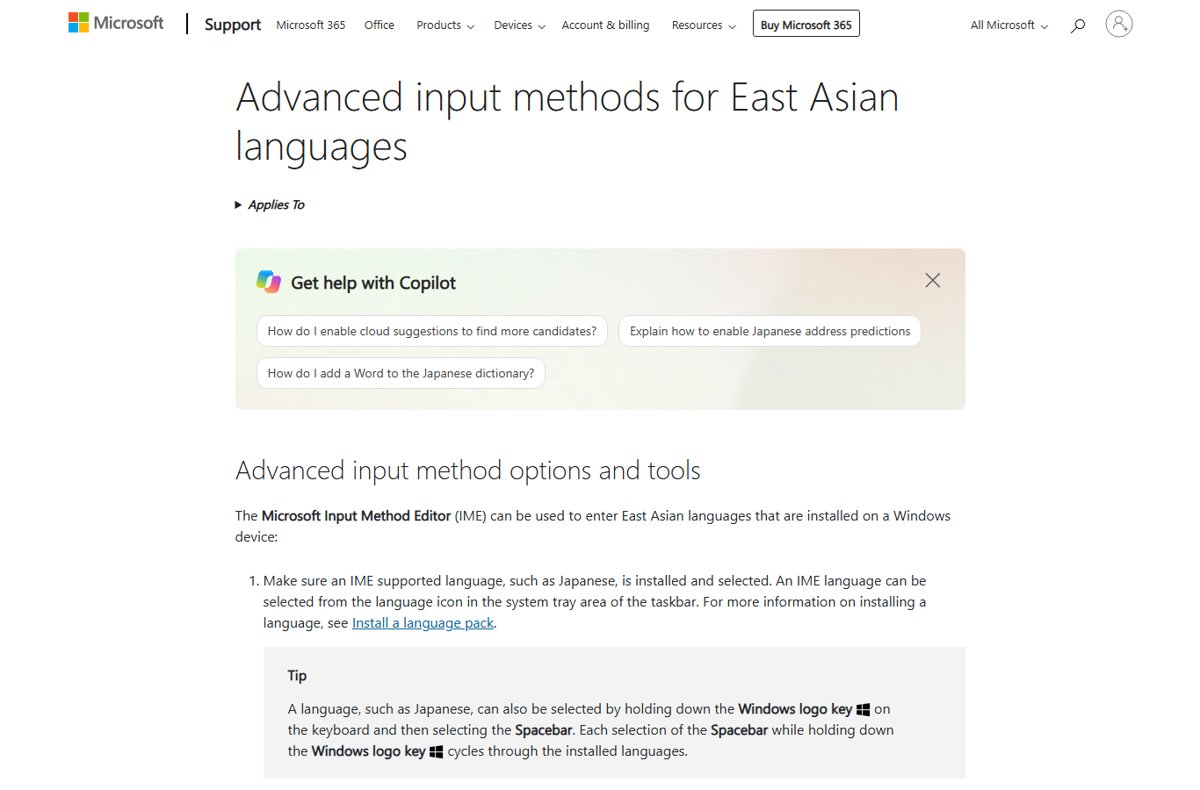
Hold the Windows logo key and tap Spacebar to switch the keyboard language on Windows 11, cycling through every layout installed on the PC.
This guide covers the switching shortcuts, adding a language and a keyboard layout, changing the hot keys, and removing a layout that was turned on by accident.
Switching Keyboard Layouts
The keyboard layout decides which character each key produces. Changing it does not change the language of the Windows interface.
- Hold down the Windows logo key.
- Tap Spacebar once for each layout you want to move forward through. A picker appears listing the installed keyboard layouts.
- Release the Windows logo key when the layout you want is highlighted.
- Check the input language icon in the system tray at the right of the taskbar. It now shows the selected layout, such as ENG or ESP.
- Type a character that differs between the two layouts to confirm the switch.
If tapping Spacebar does nothing, only one keyboard layout is installed. Add a second one first.
Which switching method should you use?
| Your situation | Use this | Why |
|---|---|---|
| Two or more layouts, hands on the keyboard | Windows logo key + Spacebar | Switches forward through input languages and keyboard layouts |
| You overshot the layout you wanted | Windows logo key + Shift + Spacebar | Switches backward through the same list |
| You only ever toggle between two layouts | Windows logo key + Ctrl + Spacebar | Changes to a previously selected input option |
| Several layouts under one language | Ctrl + Shift | Switches the keyboard layout when multiple layouts are available |
| Coming from Windows 7 or Office habits | Alt + Shift | The legacy key sequence for switching between keyboard layouts |
| Mouse only, or the shortcut is not responding | The input language icon in the system tray | Lists every installed layout and needs no key combination |
| At the Windows sign-in screen | The input language icon on the sign-in screen | Lets you fix the layout before typing the password |
Turn on the password reveal icon in the password box if the sign-in screen rejects a password you are sure of. A changed layout is the usual cause.
Understanding Language Preferences
Windows 11 keeps three separate settings that readers routinely treat as one. Knowing which one you are changing saves most of the confusion.
| Setting | What it controls | Where it lives | Changing it needs |
|---|---|---|---|
| Windows display language | The language of the Windows interface, including the Settings app and File Explorer | Settings > Time & language > Language & region > Windows display language | An installed language pack and a sign out |
| Preferred languages | The language used by Microsoft Store apps and websites, taken from the first supported entry in the list | The Preferred languages list on the same page | Dragging a language to the top of the list |
| Keyboard layout (input layout) | Which character each physical key produces | Language options > Keyboards under a preferred language | Adding a layout, then switching to it |
| Language pack | The translated interface files for a language | Chosen under Optional language features while installing a language | An internet connection and a few minutes |
Changing the keyboard layout only changes the layout. Changing the Windows display language can also change the keyboard layout to match that language.
Adding a New Language
Install a language when you need its interface, its speech features, or a layout that no installed language offers. Save open work first, because a display language change signs you out.
- Connect the PC to the internet. Language packs download over the network.
- Select Start > Settings > Time & language > Language & region.
- Select Add a language next to Preferred languages.
- Type the language name in the Type a language name box, or scroll the list, select the language and select Next.
- In the Install language features window, make sure Language pack is selected under Optional language features.
- Select Set as my Windows display language only if you want the whole Windows interface in that language. Leave it clear if you only want to type in it.
- Select Install and wait for the entry in the language list to finish downloading.
If Windows answers with Only one language pack allowed or Your Windows license supports only one display language, the PC runs a single language edition. You can still add keyboard layouts and type in other languages on that edition.
Add a keyboard layout without installing a whole language
Most layouts are available under languages that are already installed, so a full language pack is often unnecessary.
- Select Start > Settings > Time & language > Language & region.
- Select the ellipses (…) next to the current Windows display language, then select Language options.
- Under Keyboards, check the Installed keyboards list to see whether the layout is already there.
- Select Add a keyboard.
- Scroll the pop-up list and select the layout you want. Layouts from the selected language come first, then the rest alphabetically.
- Press Windows logo key + Spacebar to switch to the new layout.
If the layout is not in the list, repeat these steps under the language that matches it instead of the display language. Add that language first if it is not installed. Two common cases have their own walkthroughs: adding an Arabic keyboard in Windows 11 and adding the Dvorak keyboard in Windows 11.
Switch layouts with the mouse from the taskbar
The input language icon sits in the system tray and always shows the layout currently in use.
- Place the cursor in the document or box where you want to type.
- Select the input language icon in the system tray area of the taskbar, at the right end next to the clock.
- Select the layout you want from the pop-up menu.
- Confirm that the input language icon has changed to the abbreviation of the layout you chose.
The layout applies system-wide from the moment you select it, so switch before you start typing rather than halfway through a word.
Where keyboard layout settings live in Windows 11 and Windows 10
| Task | Windows 11 | Windows 10 |
|---|---|---|
| See installed languages | Settings > Time & language > Language & region | Settings > Time & language > Language |
| Add a language | Language & region > Add a language | Language > Add a language |
| Add a keyboard layout | Ellipses (…) next to the language > Language options > Add a keyboard | Select the language > Options > Add a keyboard |
| Switch layout by keyboard | Windows logo key + Spacebar | Windows logo key + Spacebar |
| Reach the legacy language bar settings | Settings > Time & language > Typing > Advanced keyboard settings | Control Panel > Clock, Language, and Region > Change input methods > Advanced settings |
How to check it worked
- Look at the input language icon in the system tray. It shows the abbreviation of the active layout, not the display language.
- Open Notepad and type the keys that differ between the two layouts. On a US keyboard set to a French layout, the Q key produces
a. - Press Windows logo key + Spacebar and confirm the picker lists every layout you added.
- Open Settings > Time & language > Language & region, select the ellipses (…) next to the language and select Language options to confirm the layout appears under Installed keyboards.
- Sign out and back in, then check the input language icon on the sign-in screen shows the layout you expect for typing the password.
Managing Keyboard Shortcuts
Windows exposes more than one key sequence for input switching, and the legacy sequences are configured outside the Settings app.
- Select Start > Settings > Time & language > Typing.
- Select Advanced keyboard settings.
- Read the Switching input methods section. This is where Windows keeps the input-switching options.
- Select Language bar options to open the Text Services and Input Languages dialog, which holds the legacy key-sequence settings for input languages.
- Apply the change, then test it in Notepad before relying on it.
Windows logo key + Spacebar, Windows logo key + Shift + Spacebar and Windows logo key + Ctrl + Spacebar are built into Windows and are not affected by the legacy key sequences. If a hot key still refuses to work after this, remove the layout you no longer need instead.
How to remove a language or layout you turned on by accident
Removing the second layout is the reliable way to stop accidental switching, because a hot key with nothing to switch to does nothing.
- Select Start > Settings > Time & language > Language & region.
- To remove a layout, select the ellipses (…) next to the language that contains it, then select Language options.
- Under Keyboards, select the ellipses (…) next to the layout and select Remove.
- To remove a whole language, go back to Language & region, select the ellipses (…) next to the language and select Remove.
- Select Yes in the confirmation dialog.
- Press Windows logo key + Spacebar and confirm nothing happens, which means one layout is left.
A layout can be installed under the display language rather than under its own language, so check both places if you cannot find it.
Troubleshooting Common Issues
The keyboard language will not switch
Only one keyboard layout is installed, so the hot key has nothing to cycle to.
- Select Start > Settings > Time & language > Language & region.
- Select the ellipses (…) next to each preferred language and select Language options.
- Count the entries under Installed keyboards. One entry across all languages means no switching is possible.
- Select Add a keyboard and add the second layout you need.
- Press Windows logo key + Spacebar again.
The keyboard switches language on its own while typing
A stray Ctrl + Shift or Alt + Shift press triggers the legacy layout hot key mid-sentence.
- Note which layouts the picker lists when you press Windows logo key + Spacebar.
- Remove every layout you do not actually type in, using the removal steps above.
- If you need to keep both layouts, open Settings > Time & language > Typing > Advanced keyboard settings and select Language bar options to review the legacy key sequences.
- Retype the affected text and watch the input language icon in the system tray to confirm it stays put.
The Remove button is greyed out
Windows refuses to remove the current display language, or the only layout a language has.
- For a language: open Language & region and pick a different entry under Windows display language.
- Select Sign out, sign back in, then remove the original language.
- For a layout: select Add a keyboard and add a second layout under that language first.
- Remove the unwanted layout once a second one exists.
The language pack will not install
The PC is offline, or it runs a single language edition of Windows.
- Confirm the PC is online, because language packs download over the internet.
- Close open apps and start the install again from Add a language.
- Read the message Windows returns. Only one language pack allowed or Your Windows license supports only one display language means the edition supports a single display language.
- Add the keyboard layout instead of the language pack on that edition. Typing in another language does not need the interface translated.
The input language icon has disappeared from the taskbar
The legacy desktop language bar is enabled, which hides the taskbar icon.
- Select Start > Settings > Time & language > Typing.
- Select Advanced keyboard settings.
- Under Switching input methods, clear Use the desktop language bar when it's available.
- Check the system tray for the input language icon. The floating language bar stops appearing once this is cleared.
- If a key is producing the wrong character while you sort this out, use the on-screen keyboard in Windows to see the active layout.
Frequently Asked Questions
How do you switch language on a keyboard?
Hold the Windows logo key and tap Spacebar to move forward through the installed keyboard layouts. You can also select the input language icon in the system tray and pick a layout from the list. Both need at least two layouts installed.
What is the keyboard shortcut to switch language on Windows 11?
Windows logo key + Spacebar switches forward through input languages and keyboard layouts. Windows logo key + Shift + Spacebar switches backward. Windows logo key + Ctrl + Spacebar returns to a previously selected input option.
Is there a hotkey to switch keyboard language other than Windows key + Spacebar?
Yes. Ctrl + Shift switches the keyboard layout when multiple layouts are available, and Alt + Shift is the legacy sequence for switching between keyboard layouts. Both predate the Windows key shortcuts and are configured through Language bar options.
How do you switch language on a keyboard in Windows 10?
Windows logo key + Spacebar works the same as on Windows 11. The settings sit at Settings > Time & language > Language, where you select a language, choose Options, then Add a keyboard.
Why does my keyboard switch language by itself?
A stray Ctrl + Shift or Alt + Shift press triggers the legacy layout hot key, usually while reaching for another shortcut. Removing the layouts you never type in stops it, because the hot key then has nothing to switch to.
How do I quickly switch keyboard language between just two layouts?
Keep exactly two layouts installed and press Windows logo key + Spacebar, which toggles between them in one tap. Windows logo key + Ctrl + Spacebar also returns to the previously selected input option.
How do I switch between language keyboards on an HP, Dell or Lenovo laptop?
Keyboard language is a Windows setting rather than a manufacturer setting, so the steps are identical on any brand. Press Windows logo key + Spacebar, or use the input language icon in the system tray.
How do I switch language on a keyboard on a Mac?
Press Control-Space bar to select the last input source used, or Control-Option-Space bar to select the next input source in the Input menu. You can also click the Input menu in the menu bar and choose an input source.
Does switching keyboard language change the language of Windows?
No. Changing the keyboard layout only changes which characters the keys produce. The Windows display language is a separate setting under Settings > Time & language > Language & region and requires a sign out to apply.
Do I need a language pack to type in another language?
Not usually. Keyboard layouts for many languages are available under languages already installed, so you can add the layout alone. A language pack is only needed to translate the Windows interface itself.
How do I change the keyboard language on the Windows sign-in screen?
Select the input language icon on the sign-in screen and choose the layout you want before typing the password. Use the password reveal icon in the password box to confirm the characters are what you intend.
How do I remove a keyboard language I no longer use?
Open Settings > Time & language > Language & region, select the ellipses next to the language, then Language options. Under Keyboards, select the ellipses next to the layout and choose Remove.
Bottom line
Install exactly the layouts you type in, then switch with Windows logo key + Spacebar and leave the legacy key sequences alone. The Windows key shortcuts are built in and cannot be triggered by accident the way Ctrl + Shift can, and a short layout list makes every switch a single tap.

![How to Type Does Not Equal ((≠)) Sign on Keyboard in Windows 11/10 [Step-by-step Guide]](https://techdows.com/wp-content/uploads/2026/09/Character-Map-window-open-with-the-basic-character-grid-showing-472x338.jpg)
![Delete Yahoo Mail Account Permanently [Quickest Guide]](https://techdows.com/wp-content/uploads/2026/09/Yahoo-Privacy-Dashboard-and-Controls-page-listing-six-brand-tiles-600x338.jpg)