Windows 11 and Windows 10 have no Hide button in Settings, so you hide updates by pausing them for up to 35 days, or by blocking driver updates with a Group Policy or registry setting.
This guide covers each route to hold updates back, how to show them again, and how to confirm the change took effect.
The fastest way to hold back an update on Windows 11
Pausing is the only hold-back control built into Settings on every edition, including Home. It stops Windows from downloading or installing new updates until the date you pick.
- Select Start > Settings > Windows Update.
- Find the Pause updates control on that page.
- Choose a pause length from the list, or select Pick a date and set an end date up to 35 days from today.
- Leave the page. Updates that need a restart will not download, and the device will not restart for updates, until the pause ends.
When the pause expires, updates resume automatically. After the pause limit is reached, you must install the latest updates before you can pause again.
Methods to Hide Updates on Windows 10 and 11
Each method holds back a different kind of update. Match your situation to a row, then jump to that method.
| Your situation | Use this | What it hides | Editions |
|---|---|---|---|
| A new cumulative or feature update is due and you want to wait | Method 1: Settings app (pause) | All updates, for up to 35 days | All, including Home |
| You want to hide one named update | Method 2: Show or Hide Updates tool | One update at a time (no current Microsoft documentation) | See Method 2 |
| Windows Update keeps pushing a driver you do not want | Method 3: Group Policy Editor | Every driver offered through Windows Update quality updates | Pro, Enterprise, Education |
| Same as above, without the Group Policy Editor | Method 4: Registry Editor | Every driver offered through Windows Update quality updates | Pro, Enterprise, Education |
| One specific driver broke a device | Method 5: roll back or remove the driver | That driver only, until Windows Update offers it again | All |
| The bad update is already installed | Method 6: uninstall it, then pause | That update, for the pause window | All |
Optional updates, including most optional driver updates, never install on their own. If an unwanted driver only appears under Optional updates, leaving it unselected already keeps it off the PC.
Understanding Windows Updates
Windows Update delivers several kinds of update, and each method in this guide reaches only some of them. Knowing which kind you are looking at tells you which control works.
| Type of update | How often | Installs automatically? | Ways to hold it back |
|---|---|---|---|
| Quality update (monthly cumulative and security fixes) | Monthly | Yes | Pause (Method 1); uninstall then pause (Method 6) |
| Feature update (new Windows version with new features) | Annually | Yes, when offered to your device | Pause (Method 1) |
| Recommended driver update | When a hardware partner publishes one | Yes | Group Policy or registry (Methods 3 and 4); roll back (Method 5) |
| Optional update, including optional drivers | Varies | No, you install it by choice | Leave it unselected under Optional updates |
The usual reason to hide an update is a specific failure: a driver that stops a device working, or a monthly update that breaks an app until a fix ships. Microsoft states you cannot stop updates entirely, because they keep the device secure, so every method here is a temporary hold.
Method 1: Using the Settings App
The Windows 11 steps are in the first section. On Windows 10 the pause control sits one level deeper, under Update & Security.
- Select Start > Settings > Update & Security > Windows Update.
- Select Pause updates for 7 days to pause for one week.
- For a longer pause, select Advanced options instead.
- Under the pause section of Advanced options, pick the date when updates should resume.
- Return to Windows Update and confirm the page shows that updates are paused.
To extend a pause on Windows 11, return to Settings > Windows Update and pick a new end date. The new date can be up to 35 days from today; time already paused is not added on.
Method 2: Using the Show or Hide Updates Tool
Microsoft once shipped a separate troubleshooter, Show or hide updates (file name wushowhide.diagcab), that listed pending updates and let you hide one by name. Techdows covered Microsoft republishing the Show or hide updates troubleshooter with SHA-2 signing in 2021.
Use Methods 1, 3, 4 or 5 instead of hunting for this tool. No current Microsoft Support or Microsoft Learn page documents the Show or hide updates troubleshooter, its download or its steps. The methods above are documented by Microsoft for Windows 11 and Windows 10 today, and they cover the same jobs: pausing everything, blocking drivers, or rolling back one driver.
Method 3: Using the Group Policy Editor (Windows Pro and Enterprise Editions)
The Do not include drivers with Windows Updates policy stops Windows Update from installing updates with a Driver classification. It applies to Pro, Enterprise and Education editions on Windows 10 version 1607 and later, including Windows 11. Sign in with an administrator account first.
- Press Win + R, type
gpedit.mscand press Enter. - Go to Computer Configuration > Administrative Templates > Windows Components > Windows Update > Manage updates offered from Windows Update.
- On older Windows 10 builds, look directly under Windows Update if that subfolder is missing.
- Double-click Do not include drivers with Windows Updates.
- Select Enabled, then select OK.
- Restart the PC so Windows Update picks up the new policy.
This is all-or-nothing for Windows Update drivers. You can still install a driver yourself from the device maker's site or through Device Manager.
Method 4: Using Registry Editor (Advanced Users)
The registry value below is the one the Group Policy setting writes. Microsoft warns that editing the registry incorrectly can cause serious problems, so change only this value.
Microsoft documents this policy for Pro, Enterprise and Education editions.
- Select Start, search for regedit and open Registry Editor.
- Go to
HKEY_LOCAL_MACHINE\SOFTWARE\Policies\Microsoft\Windows\WindowsUpdate. - If the WindowsUpdate key does not exist, right-click Windows, select New > Key, and name it
WindowsUpdate. - Right-click the WindowsUpdate key, select New > DWORD (32-bit) Value, and name it
ExcludeWUDriversInQualityUpdate. - Double-click the new value, set Value data to
1, and select OK. - Close Registry Editor and restart the PC.
A value of 0 is the default and allows Windows Update drivers. A value of 1 excludes them.
Method 5: Roll back or remove a single bad driver
When one driver update broke one device, roll it back. Microsoft notes this can stop the problem driver from reinstalling the next time Windows updates.
- Open Device Manager from Windows search.
- Expand the category for the device, for example Sound, video and game controllers.
- Right-click the device and select Properties.
- Select the Driver tab, then select Roll Back Driver.
- Restart the device.
- If Roll Back Driver is unavailable, no earlier driver exists; right-click the device, select Uninstall device, tick Delete the driver software for this device, and select OK.
Windows Update can reinstall a driver it decides is missing. Pair this method with Method 3 or 4 if the same driver keeps returning.
Method 6: Uninstall an update that already installed, then pause
Pausing does not remove an update that is already on the PC. Remove it first, then pause so Windows does not offer it again straight away. Not every update can be removed, and Microsoft does not recommend removing updates unless you must.
- Select Start > Settings > Windows Update > Update history.
- Under Related settings, select Uninstall updates.
- Find the update by its KB number and select Uninstall.
- Restart the PC when prompted.
- Pause updates with the steps in Method 1 before Windows checks for updates again.
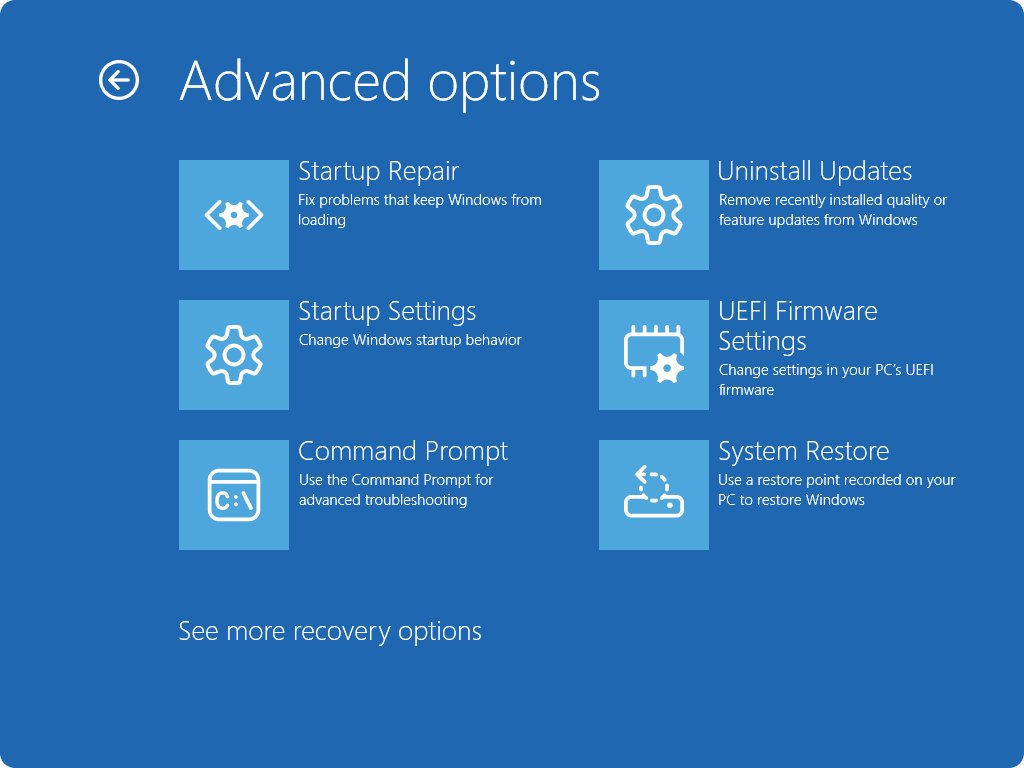
These labels are from Windows 11. If Windows will not start after an update, the recovery environment has its own Uninstall Updates option under Troubleshoot > Advanced options.
How to check the update is hidden
- Open Start > Settings > Windows Update. After Method 1 or 6, the page states that updates are paused and shows the resume date.
- After Method 3 or 4, select Advanced options > Optional updates > Driver updates and confirm the unwanted driver is no longer listed.
- After Method 5, open the device's Properties > Driver tab in Device Manager and confirm the driver version is the earlier one.
- Check again after the next monthly update, because a driver can return if the policy was not applied.
Methods to Show Hidden Updates on Windows 10 and 11
Showing updates again means reversing whichever method you used. Once reversed, select Check for updates so Windows offers the held-back updates straight away.
- Through Windows Settings (Method 1 or 6): open Settings > Windows Update (Windows 10: Update & Security > Windows Update) and resume updates from the pause control.
- Group Policy (Method 3): open the Do not include drivers with Windows Updates policy and set it to Not Configured or Disabled, then select OK.
- Registry (Method 4): delete the
ExcludeWUDriversInQualityUpdatevalue, or set it to0, then restart. - Optional drivers: open Settings > Windows Update > Advanced options > Optional updates, select the driver you now want, and select Download and install.
- Select Check for updates on the Windows Update page and install what it finds.
On Windows 10, driver updates appear under View optional updates on the Windows Update page after you select Check for updates. The Show or hide updates tool from Method 2 had its own option to show hidden updates, but no current Microsoft page documents it.
What to know before you hide an update
Hold back an update only to work around a specific problem, and set a date to undo it. Monthly quality updates carry security fixes, which is why Microsoft does not let you stop updates entirely. A pause runs out after 35 days on Windows 11, and a driver block stays in place until you reverse it, so a forgotten block keeps every future Windows Update driver off the PC. If updates are failing rather than misbehaving, run the Windows Update troubleshooter instead of hiding them.
Frequently Asked Questions
Can you hide a specific update in Windows 11 Settings?
No. Windows 11 Settings has no option to hide one named update. The built-in control is Pause updates under Settings > Windows Update, which holds back all updates for up to 35 days.
How long can you pause updates on Windows 11?
Up to 35 days from the current date. You can extend a pause by picking a new end date, but the new date is still limited to 35 days from today. After the limit, you must install the latest updates before pausing again.
How do you stop Windows Update from installing drivers?
Enable the Do not include drivers with Windows Updates Group Policy, or set the ExcludeWUDriversInQualityUpdate registry value to 1 under HKEY_LOCAL_MACHINE\SOFTWARE\Policies\Microsoft\Windows\WindowsUpdate. Microsoft documents it for Pro, Enterprise and Education editions.
Does Windows install optional updates automatically?
No. Optional updates, including optional driver updates, are not installed automatically. They wait under Settings > Windows Update > Advanced options > Optional updates until you select them and choose Download and install.
Is the Show or hide updates troubleshooter still available?
No current Microsoft Support or Learn page documents the Show or hide updates troubleshooter (wushowhide.diagcab). Use pausing, the driver exclusion policy, or a driver rollback, which Microsoft documents for Windows 11 and Windows 10 today.
Why does a driver come back after I uninstall it?
Windows Update can detect that a necessary driver is missing and reinstall it, sometimes right after the uninstall or at the next restart. Block Windows Update drivers with Group Policy or the registry if the same driver keeps returning.
Can you permanently turn off Windows updates?
No. Microsoft states updates cannot be stopped entirely because they keep the device secure. You can pause them for a limited time and exclude driver updates, but monthly quality updates resume when the pause ends.

![How to Download and Install Language Pack in Windows 11/10 [Guide]](https://techdows.com/wp-content/uploads/2026/09/Windows-10-Language-settings-page-with-Add-a-language-button.jpg)
![How to Install/Add Microsoft Print to PDF Printer on Windows 11/10 [Tutorial]](https://techdows.com/wp-content/uploads/2026/09/Turn-Windows-features-on-or-off-dialog-with-a-scrollable-checkbox-list-600x338.jpg)