Press Windows key + . (period) and pick ≠ from the Symbols tab to type the does not equal sign anywhere in Windows 11 or Windows 10.
This guide covers the Alt code, Unicode input, Character Map, Word, and the separate operators Excel, SQL and Python expect instead of the symbol.
Method 1: Using the Windows Emoji & Symbols Panel
The emoji panel is part of Windows, so this route needs no numeric keypad, no Office and no setup.
- Click in the document, cell or text box where the sign belongs.
- Press Windows key + . (period) to open the emoji panel.
- Select the Symbols tab.
- Select ≠ to insert it at the cursor.
The same panel carries Emoji, GIF, Kaomoji, Symbols and Clipboard history categories, plus a search box.
Which route should you use for ≠?
| Your situation | Use this | Why |
|---|---|---|
| Any Windows app, nothing installed | Windows key + ., then Symbols | One shortcut, works outside Office |
| Full-size keyboard with a numeric keypad | Hold Alt and type 8800 |
No dialog and no menus |
| Laptop with no numeric keypad | Type 2260, then press Alt and X |
Uses the main number row |
| Microsoft PowerPoint | Emoji panel or Insert > Symbol | PowerPoint cannot convert Unicode codes to characters |
| Inside a Word equation | Type \ne and press the spacebar |
Math AutoCorrect converts the code |
| You need the character identified | Character Map, Go to Unicode 2260 |
It reports the Unicode value before you copy |
| An Excel formula that tests inequality | Type <> |
≠ is a character, not an Excel operator |
| You use the sign every day | A custom shortcut in Word | One key combination, no lookup |
Method 2: Using Keyboard Shortcuts (Alt Code)
Alt codes from 256 to 65,535 produce the matching Unicode character in programs built on the Windows RichEdit control, such as WordPad.
- Open WordPad, Microsoft Word or another rich text editor.
- Turn Num Lock on, because the numbers along the top of the keyboard do not send Alt codes.
- Hold Alt and type
8800on the numeric keypad. - Release Alt. The ≠ sign appears at the cursor.
8800 is the decimal form of Unicode U+2260.
Programs that kept the original IBM PC behaviour read any Alt code above 255 as that number modulo 256, so they return a different character instead.
Method 3: Using Unicode Input (for Laptops Without Numeric Keypad)
Word converts a typed Unicode code point into its character, so the number row is all this route needs.
- Place the cursor in the Word document where the sign should go.
- Type
2260using the number row. - Press ALT, and then press X.
- The code turns into ≠.
If the code sits immediately after another character, select just the code before pressing ALT+X, or precede it with U+ and type U+2260.
Some Microsoft Office programs, such as PowerPoint and InfoPath, cannot convert Unicode codes to characters.
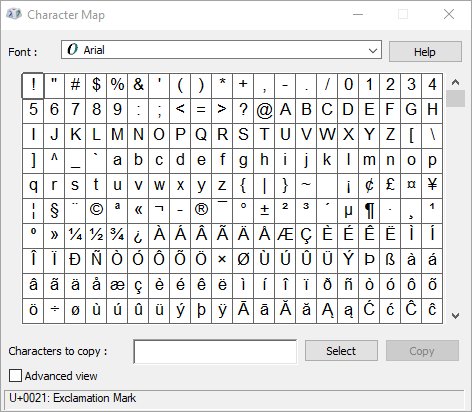
Method 4: Using the Character Map Tool
Character Map is the route that also proves which character you copied, because it reports the Unicode value of whatever is selected.
- Press the Windows logo key, type
Character Mapin Search, then press Enter. - Press Alt+V to select the Advanced view checkbox.
- Select Unicode in the Character set list.
- Type
2260in the Go to Unicode box. - Select the highlighted ≠, choose Select, then choose Copy.
- Click into the document and press Ctrl + V.
The Search for box finds characters by name or description; searching arrow shows every character with arrow in its name.
Method 5: Using Microsoft Word's Built-in Shortcut
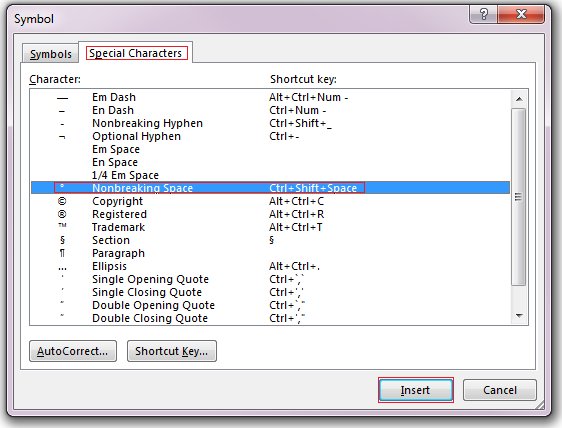
Word has two built-in routes: a Math AutoCorrect code inside an equation, and the character code box in the Symbol dialog.
- On the Insert tab, select Equation.
- Type
\neand press the spacebar to turn the code into ≠. - Click outside the equation to carry on with normal text.
- For body text instead, go to Insert > Symbol > More Symbols.
- Set the from list to Unicode (hex) and type
2260in the Character code box. - Select Insert, then Close.
Math AutoCorrect codes are case sensitive, and \neq produces the same character as \ne.
These codes work in Word, PowerPoint, Excel and OneNote for Windows and Mac, and in Outlook for Windows. Turn on Automatically convert expressions to professional format if a code refuses to convert.
Method 6: Copy and Paste from the Web
Copying is the fallback when an app blocks Alt codes, such as a text box inside a browser.
- Select this character with the mouse: ≠
- Press Ctrl + C to copy it.
- Click where the sign belongs and press Ctrl + V.
- To paste it again later, press Windows key + . and open the Clipboard history tab.
A pasted character carries the source page's font. Set the font back to the document's own font if the sign looks out of place.
Method 7: Creating Custom Keyboard Shortcuts
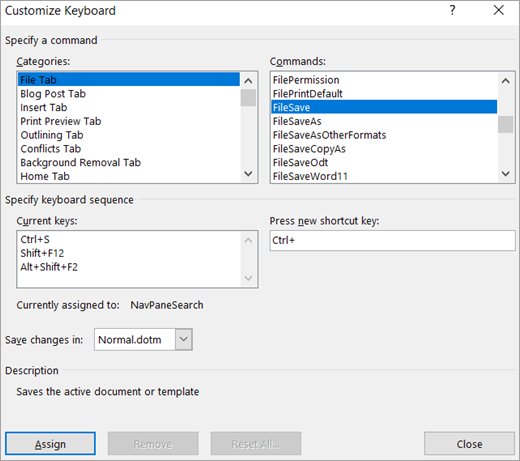
Word lets you bind a key combination to a command, macro, font, style or a symbol you use often.
- In Word, go to File > Options > Customize Ribbon.
- At the bottom of the Customize the Ribbon and keyboard shortcuts pane, select Customize.
- In the Save changes in box, select the document or template that should keep the shortcut.
- Choose the category, then select the symbol or command in the Commands box.
- Click in the Press new shortcut key box and press the combination you want.
- Read Current keys to confirm the combination is free, then select Assign.
Saving the change to the template rather than one document makes the shortcut available in every new file built on it.
How to check you typed ≠ and not a lookalike
Several characters resemble the does not equal sign, so confirm the code point rather than the shape.
- Open Character Map and select the character you pasted in the grid.
- Read the Unicode value it reports; U+2260 is the does not equal sign.
- In Excel, type
=UNICHAR(8800)in an empty cell and press Enter. - Compare that result with the character you typed. Both render as ≠ when the character is right.
- Check the shape as a last pass: ≠ slashes a full two-bar equals sign, while ≢ slashes a three-bar identity sign.
Understanding the "Does Not Equal" Sign (≠)
The slashed equals sign denotes inequation: the two sides are not equal. Programming languages and spreadsheets spell that idea with plain ASCII operators instead.
| Detail | Value |
|---|---|
| Character | ≠ |
| Unicode name | not equal to |
| Unicode code point | U+2260 |
| Decimal value | 8800 |
| HTML entities | ≠ and ≠ |
| LaTeX command | \neq |
| Word Math AutoCorrect code | \ne or \neq |
| Excel formula operator | <> , as in =A1<>B1 |
| Transact-SQL operator | <> , as in WHERE ProductCategoryID <> 3 |
| Python operator | != |
| Related characters | ≮ not less than, ≯ not greater than, ≢ not identical to |
Excel treats ≠ as an ordinary text character, so a formula that uses it returns an error rather than a comparison.
Additional Tips for Typing Symbols on Windows
| Situation | What to do |
|---|---|
| Num Lock is off | Alt codes fail, and Alt + 4 can register as Alt + Left, which sends a browser back a page. Turn Num Lock on first. |
| The keyboard has no numeric keypad | Use 2260 followed by ALT+X, or the emoji panel. The number row cannot send Alt codes. |
| You prefer hexadecimal Unicode input | Create a string (REG_SZ) value named EnableHexNumpad with data 1 under HKEY_CURRENT_USER\Control Panel\Input Method, sign out and back in, then hold Alt, press the keypad + and type 2260. |
| The symbol shows as an empty box | Switch the text to a font that includes the character. Character Map lists the characters each font carries. |
| You need a different symbol by name | Use the Search for box in Character Map's Advanced view. |
| Another key is hard to find | How to type a forward slash on a keyboard covers the same ground for the / key. |
| You are on macOS, Linux or ChromeOS | The Alt numpad method is Windows only. On Unix-like systems press Ctrl + Shift + U, type the hex number, then press the spacebar or Enter. |
Fix the does not equal sign when it will not type
Alt + 8800 types a different character or nothing at all
The program follows the original IBM PC rule and reads any Alt code above 255 as that number modulo 256.
- Type the sign in WordPad or Word, which use the RichEdit control and accept codes up to 65,535.
- Copy it from there into the program that refused it.
- Use
2260followed by ALT+X in Word if the Alt code still fails.
ALT+X does nothing in PowerPoint
Some Microsoft Office programs, such as PowerPoint and InfoPath, cannot convert Unicode codes to characters.
- Press Windows key + . and pick ≠ from the Symbols tab.
- Or go to Insert > Symbol and choose the character there.
- Or copy it from Character Map and paste it into the slide.
ALT+X returns the wrong character
The code ran together with the character in front of it, so Word converted a longer code.
- Select just the
2260before pressing ALT+X. - Or type
U+2260instead, since theU+prefix forces the correct code. - Delete the wrong character and repeat.
The Alt code does nothing on a laptop
The keyboard has no numeric keypad, and the top number row does not send Alt codes.
- Press Windows key + . and take the sign from the Symbols tab.
- In Word, type
2260and press ALT+X. - For anything else, copy the character from Character Map.
Excel accepts ≠ but the formula does not work
≠ is a text character in Excel. The comparison operator for not equal to is <>.
- Replace the character with
<>, as in=A1<>B1. - Wrap it in a test if you need a readable result, such as
=IF(A1<>B1,"different","same"). - Keep ≠ for labels and headings only, where it is displayed rather than calculated.
The sign shows as a box after pasting
The font applied to that text does not contain U+2260.
- Select the character and apply the document's body font.
- Open Character Map, choose that font and confirm the character is in it.
- Pick a different font if the box remains.
Frequently Asked Questions
How do you type the does not equal sign on a keyboard?
Press Windows key + . and choose ≠ from the Symbols tab. On a full-size keyboard, hold Alt and type 8800 on the numeric keypad with Num Lock on. In Word, type 2260 and press ALT+X.
What is the Alt code for the does not equal sign?
Alt + 8800, typed on the numeric keypad with Num Lock on. 8800 is the decimal form of Unicode U+2260. It works in programs that use the Windows RichEdit control, such as WordPad, and fails in programs that cap Alt codes at 255.
How do you type does not equal in Excel?
Use the <> operator, not the ≠ character. Excel's comparison operator for not equal to is <>, as in =A1<>B1. To display the symbol itself in a cell, use =UNICHAR(8800) or paste ≠ as text.
How do you type does not equal in an Excel formula?
Type a less-than sign followed by a greater-than sign: <>. A test such as =IF(A1<>B1,"different","same") returns different when the two cells do not match. Excel does not recognise ≠ as an operator.
How do you type does not equal in Word?
Type 2260 and press ALT+X to convert the code into ≠. Inside an equation, type \ne and press the spacebar. The Insert > Symbol > More Symbols dialog also accepts 2260 in the Character code box when from is set to Unicode (hex).
How do you type the does not equal sign in PowerPoint?
Use Insert > Symbol, or press Windows key + . and take ≠ from the Symbols tab. ALT+X does not work, because PowerPoint is one of the Office programs that cannot convert Unicode codes to characters.
How do you type does not equal in Python?
Use the != operator, as in if a != b:. Python's comparison operators are <, >, ==, >=, <= and !=, and != returns True when the two values are not equal. The ≠ character is not valid Python syntax.
How do you type does not equal in SQL?
Use <>. In Transact-SQL, expression <> expression returns TRUE when the left operand is not equal to the right, as in WHERE ProductCategoryID <> 3. The result for NULL operands depends on the SET ANSI_NULLS setting.
How do you type the not equal sign without a numeric keypad?
Press Windows key + . and pick ≠ from the Symbols tab, which needs no keypad. In Word, type 2260 on the number row and press ALT+X. Character Map also copies the character with Go to Unicode set to 2260.
What is the Unicode number for the does not equal sign?
U+2260, named not equal to, which is 8800 in decimal. Its HTML entities are ≠ and ≠, and the LaTeX command is \neq. Character Map reports U+2260 when the character is selected in its grid.
How do you type the does not equal sign in Windows 10 as well as Windows 11?
Every route here works on both. The emoji panel opens with Windows key + ., Character Map is found through Search, and Alt codes and ALT+X behave the same way on Windows 10 and Windows 11.
Is there a single keyboard key for the not equal sign?
No. Standard US and UK layouts carry no ≠ key. The nearest thing to a dedicated key is a custom shortcut assigned in Word through File > Options > Customize Ribbon > Customize.
Bottom line
Use Windows key + . and the Symbols tab for one-off use, and 2260 followed by ALT+X when working in Word. The emoji panel is built into Windows and needs no numeric keypad, while ALT+X is the fastest route inside a document already open in Word.

![Delete Yahoo Mail Account Permanently [Quickest Guide]](https://techdows.com/wp-content/uploads/2026/09/Yahoo-Privacy-Dashboard-and-Controls-page-listing-six-brand-tiles-600x338.jpg)