Your Outlook inbox view changed because one layout setting moved — usually the Reading Pane, Conversation view, Focused Inbox or message density — or because an update switched you to new Outlook.
Each of those settings has a single control, and this guide gives the exact path in classic Outlook, new Outlook, Outlook on the web, Outlook for Mac and Outlook mobile.
The fastest way to put your Outlook inbox layout back
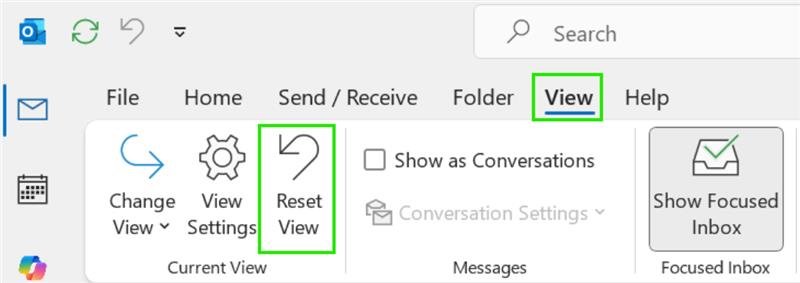
The View tab carries the layout controls in classic Outlook, new Outlook and Outlook on the web.
- Select the View tab at the top of the Outlook window.
- Select Layout, then Reading Pane.
- Choose Right or Bottom to put the message preview back where it was.
- In classic Outlook, select Show as Conversations on the same tab to turn conversation grouping off or on.
- In classic Outlook, select Show Focused Inbox to remove or restore the Focused and Other tabs.
New Outlook and the web keep conversation grouping and Focused Inbox under Settings > Mail > Layout instead.
Which setting changed your inbox view?
Match what looks wrong to the control that owns it, then jump to the section for your Outlook version.
| What looks different | The setting that owns it | Where it lives |
|---|---|---|
| The message preview is gone, or it moved under the list | Reading Pane position | View > Layout > Reading Pane |
| Replies are stacked under one subject line, or no longer are | Conversation view | View > Show as Conversations, or Settings > Mail > Layout |
| Focused and Other tabs appeared above the list | Focused Inbox | View > Show Focused Inbox, or Settings > Mail > Layout |
| Rows are taller and show sender pictures and previews | Message list density | View > Use Tighter Spacing, or Settings > Mail > Layout |
| The folder list collapsed to a narrow strip | Folder Pane state | View > Folder Pane > Normal |
| From, Subject and Received headings vanished | The current view and its columns | View > Change View, then View Settings > Columns |
| Ribbon, icons and menus all look new | You are now running new Outlook | The toggle at the top right of the window |
First, Figure Out Which Outlook You’re Using
The four Outlook apps put the same settings in different places, so identify the app before changing anything.
| Outlook version | How to recognise it | Where the view settings sit |
|---|---|---|
| Classic Outlook for Windows | A full ribbon with File, Home, Send / Receive, Folder and View tabs | View tab, Current View and Layout groups |
| New Outlook for Windows | A slim ribbon and a toggle at the top right of the window | View > View Settings > Mail > Layout |
| Outlook on the web and Outlook.com | Runs in a browser tab at outlook.com or outlook.office.com | Settings (gear icon) > Mail > Layout |
| Outlook for Mac | A macOS window with an Organize or View menu | View menu and Organize tab |
| Outlook mobile | The iOS or Android app | Profile icon, then Settings > Mail |
Classic Outlook and new Outlook can both be installed on one PC, so check the toggle before assuming an update removed features.
Why Your Outlook Inbox View Changed
Nine causes account for almost every reported change. Find yours in the first column and apply the fix in the third.
| Cause | What you see | Fix |
|---|---|---|
| You switched to the new Outlook | The whole interface is different and some ribbon commands are missing | Use the toggle at the top right to switch back to classic Outlook |
| An Outlook or Microsoft 365 update changed the interface | Rows gained padding, or a command moved to another tab | Select View > Use Tighter Spacing to restore the denser message list |
| The Reading Pane moved or turned off | Messages only open in their own window, or the preview sits at the bottom | Select View > Layout > Reading Pane > Right |
| Conversation view was turned on or off | Replies stack under one subject line with an expand triangle, or they no longer do | Select View > Show as Conversations in classic Outlook |
| Focused Inbox was enabled | Focused and Other tabs sit above the message list and mail looks missing | Select View > Show Focused Inbox, or choose Don't sort my messages |
| The message list density changed | Sender photos, attachment thumbnails and three-line rows appeared | Choose Compact or Cozy display density, or Use Tighter Spacing |
| The Folder Pane was minimised or hidden | The folder list is a narrow strip or gone entirely | Select View > Folder Pane > Normal |
| The window size changed the layout | The reading pane or folder list disappeared after resizing the browser | Maximise the window, set browser zoom to 100%, then set the layout again |
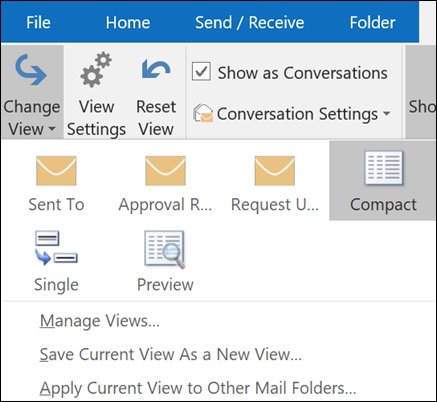
| Your view was customised or reset | Columns, grouping or sort order are not what you set | Select View > Change View and pick Compact, Single or Preview |
| Your organisation applied a policy | A layout option is missing or cannot be changed | Ask your Microsoft 365 administrator which mailbox settings are controlled centrally |
How to Change the Inbox View Back in Classic Outlook for Windows
Classic Outlook stores the view per folder, so these steps change the Inbox only until you apply them elsewhere.
- Select the View tab.
- In the Current View group, select Change View, then choose Compact, Single or Preview.
- Select Layout > Reading Pane, then choose Right, Bottom or Off.
- Select Show as Conversations, then choose All mailboxes or This folder to apply the change.
- Select Show Focused Inbox to remove or restore the Focused and Other tabs.
- Select Use Tighter Spacing if the rows are taller than before.
- Select Change View > Apply Current View to Other Mail Folders to push the same layout to your other folders.
Column headings such as From, Subject and Received only appear in the Single and Preview views, not in Compact.
How to Change the View Back in New Outlook for Windows
New Outlook keeps most layout controls in one settings pane rather than on the ribbon.
- Select View > View Settings.
- Select Mail, then Layout.
- Under Focused Inbox, choose Sort messages into Focused and Other or Don't sort my messages.
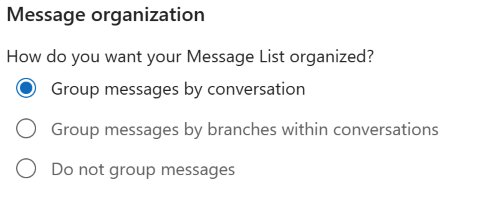
- Under Message organization, choose whether messages are grouped by conversation.
- Under Reading pane, choose Show on the right, Show on the bottom, Fill screen or Popout only.
- Under Message list format, choose Sender name first or Subject first.
- Select Save.
The Reading Pane position is also on the View tab, under Layout.
How to Change the View Back in Outlook on the Web
Outlook.com and Outlook on the web share the same settings pane, reached from the gear icon.
- Select Settings (the gear icon) at the top right of the browser window.
- Select Mail, then Layout.
- Under Focused Inbox, choose Sort messages into Focused and Other or Don't sort my messages.
- Under Message organization, choose Group messages by conversation or Do not group messages.
- Under Reading pane, choose Show on the right, Show on the bottom or Hide, then tick the option that applies the choice to all folders.
- Under Display density, choose Roomy, Cozy or Compact.
- Select Save.
Dark mode and the mailbox theme are separate, under Settings > General > Appearance.
How to Change the Inbox View Back in Outlook for Mac
Outlook for Mac splits the layout between the View menu and the Organize tab.
- Open the Organize tab, select Reading Pane, then choose the right of the window, below the item list, or hidden.
- Open the View menu and tick or clear Show as Conversations.
- In legacy Outlook for Mac, select Conversations on the Organize tab instead.
- Open the View menu and select Sidebar to hide or show the folder list.
- Open the Organize tab and set Arrange By back to the sorting you used.
- Choose Settings from the Outlook menu, select Reading under Email, and set the options under Conversations.
Text size sits under Preferences > Fonts, on the Text display size slider.
How to Fix Outlook Mobile When the Inbox Looks Different
Outlook for iOS and Android keeps its own settings, so a change made on a phone does not come from the desktop app.
- Open Outlook and tap the Home or profile icon at the top left of the message list.
- Tap Settings, then Mail.
- Turn Focused Inbox off to show one combined message list, or on to split it into Focused and Other.
- Return to Settings and open Notifications or Badge count if the unread count no longer matches what you see.
- To move a single message between the two tabs, open it, tap the More options icon in the header, then choose the Move to Focused inbox or Other command.
Reset the Current Inbox View
Classic Outlook ships a command-line switch that discards every view customisation and returns to the built-in views.
Close Outlook first, press Win + R, type the command and press Enter.
outlook.exe /cleanviewsMicrosoft documents this switch as: "Restores default views. All custom views you created are lost." Use it only after the Change View menu fails, because custom views cannot be recovered afterwards.
You should see: Outlook opens with the built-in views only, and the Inbox is back on the default Compact view.
If the folder list is the part that is wrong, outlook.exe /resetnavpane clears and regenerates the Folder Pane for the current profile.
How to check the view actually changed back
Check the result in the window, not in the settings pane, because some options apply to the current folder only.
- Select a message and confirm the preview opens in the pane position you chose.
- Look above the message list: no Focused and Other tabs means Focused Inbox is off.
- Open a thread with several replies and confirm it either stacks under one subject line or lists each reply separately, as you set it.
- Open a second folder such as Sent Items and confirm it uses the same layout.
- If it does not, go back to View > Change View > Apply Current View to Other Mail Folders, or tick the all-folders option under Reading pane on the web.
- Close Outlook, reopen it, and confirm the layout survives a restart.
Common Outlook View Problems and Quick Fixes
My Outlook inbox view suddenly changed and I changed nothing
An update to Microsoft 365 or a switch into new Outlook replaced the layout you were using.
- Look at the top right of the window for the new Outlook toggle.
- If the toggle is there, select it and choose Switch back to classic Outlook.
- If you are staying on new Outlook, set the layout under View > View Settings > Mail > Layout.
- In classic Outlook, select View > Use Tighter Spacing to undo the wider row spacing an update introduced.
My Outlook inbox view keeps changing back
The view was changed in one folder only, or a custom view is not being saved.
- Set the layout once in the Inbox.
- Select View > Change View > Apply Current View to Other Mail Folders.
- Tick every mail folder in the list and select OK.
- In Outlook on the web, tick the option under Reading pane that applies the setting to all folders, then select Save.
- If it still reverts, select View > Change View > Manage Views, select New, and save your settings as a named view.
The From, Subject and Received columns are missing
The folder is on the default Compact view, which shows rows rather than column headings.
- Select View > Change View, then choose Single or Preview.
- Select View > View Settings in the Current View group.
- Select Columns.
- Pick a heading in Available columns and select Add; if it is not listed, change the Select available columns from box.
- Select a heading in Show these columns in this order and select Remove to drop one.
- Select OK.
The folder list disappeared or shrank to a strip
The Folder Pane was minimised or turned off.
- Select View > Folder Pane, then select Normal.
- If the pane is present but narrow, select the expand control at the top of the pane.
- While it is minimised, select All Folders to open the full list in a pop-out window.
- If the pane stays broken, close Outlook and run
outlook.exe /resetnavpane.
Mail looks missing from the inbox
Focused Inbox is on and the messages are sitting on the Other tab.
- Select the Other tab above the message list and look for the mail there.
- In classic Outlook, select View > Show Focused Inbox to turn the split off.
- In new Outlook or on the web, go to Settings > Mail > Layout and select Don't sort my messages.
- Select Save.
A layout option is greyed out or missing
The option does not exist in that Outlook version, or your organisation controls it.
- Check which Outlook you are running against the version table above.
- Look for the same setting in that version's own location rather than the one you remember.
- If the option should be there and is not, ask your Microsoft 365 administrator whether a mailbox policy controls it.
When the Change Is Caused by the New Outlook
New Outlook is a separate app, not a skin on the old one, so its layout options and locations differ from classic Outlook.
- Look for the toggle at the top right of the new Outlook window.
- Select it, then choose Switch back to classic Outlook to move back permanently, or Use classic Outlook this time for one session only.
- Answer the short feedback prompt if it appears.
- If the toggle is not shown, open Registry Editor from the Start menu.
- Go to
Computer\HKEY_CURRENT_USER\Software\Microsoft\Office\16.0\Outlook\Preferences. - Double-click UseNewOutlook and set its value to 0.
- Start Outlook (classic) from the Start menu — the entry without the New tag.
Both apps can run side by side, so classic Outlook keeping its own layout does not mean new Outlook has been removed.
How to Prevent Outlook from Changing Views Again
Outlook does not lock a layout, but saving it as a named view and applying it to every folder makes a future change obvious and quick to undo.
- Set the Inbox layout exactly as you want it.
- Select View > Change View > Manage Views.
- Select New, name the view, and confirm its settings.
- Select View > Change View > Apply Current View to Other Mail Folders, tick your folders, then select OK.
- In Outlook on the web, tick the all-folders option under Reading pane in Settings > Mail > Layout, then select Save.
- Decide once whether to run classic Outlook or new Outlook, and leave the toggle alone afterwards.
Predefined views such as Compact, Single and Preview cannot be deleted, so a named custom view is always recoverable from Manage Views.
Frequently Asked Questions
Why has my Outlook inbox view changed?
One layout setting moved. The usual causes are a switch into new Outlook, a Microsoft 365 update that widened row spacing, or a change to the Reading Pane, Conversation view, Focused Inbox or display density. Each has its own control on the View tab or under Settings > Mail > Layout.
Why is my Outlook inbox view changed on one folder only?
Classic Outlook stores the view per folder. Setting the Inbox does not touch Sent Items or a subfolder. Select View > Change View > Apply Current View to Other Mail Folders, tick every folder you want to match, then select OK.
Why does my Outlook inbox view keep changing?
The layout was set in one folder rather than applied across the mailbox, or it was never saved as a named view. Save it through View > Change View > Manage Views > New, then apply it to your other mail folders.
How do I get the Outlook reading pane back on the right?
Select the View tab, then Layout > Reading Pane, then Right. The change applies to the current folder, so use View > Change View > Apply Current View to Other Mail Folders to set the rest.
How do I turn off Focused Inbox in Outlook?
In classic Outlook, select View > Show Focused Inbox to clear it. In new Outlook and on the web, open Settings > Mail > Layout, choose Don't sort my messages, then select Save. On mobile, turn Focused Inbox off under Settings > Mail.
How do I turn off conversation view in Outlook?
In classic Outlook, clear Show as Conversations on the View tab, then choose All mailboxes or This folder. On the web and in new Outlook, choose Do not group messages under Message organization. On Mac, clear Show as Conversations in the View menu.
Why did my From, Subject and Received columns disappear?
The folder is on the default Compact view, which shows stacked rows instead of column headings. Select View > Change View and choose Single or Preview, then add or remove headings under View Settings > Columns.
How do I make the Outlook message list compact again?
In classic Outlook for Microsoft 365, select View > Use Tighter Spacing. In Outlook on the web and Outlook.com, open Settings > Mail > Layout and set Display density to Compact, which drops sender pictures and previews.
Did Microsoft change the view of my inbox, or did I?
Both happen. A Microsoft 365 update can widen row spacing and move commands, and the new Outlook toggle replaces the whole app. A mis-click on the View tab changes the Reading Pane or conversation grouping just as easily.
How do I reset the Outlook inbox view completely?
Close Outlook, press Win + R, then run outlook.exe /cleanviews. Microsoft documents this as restoring default views, and every custom view you created is lost. Try View > Change View first, because that choice is reversible.
Can I go back to classic Outlook after the view changed?
Yes. Select the toggle at the top right of the new Outlook window, then choose Switch back to classic Outlook to move back permanently, or Use classic Outlook this time for a single session.
Why did my Outlook inbox view change on my phone but not my PC?
Outlook mobile keeps its own layout settings. Focused Inbox, notifications and badge count are set in the app under Settings > Mail, and changing them there does not alter the desktop or web layout.