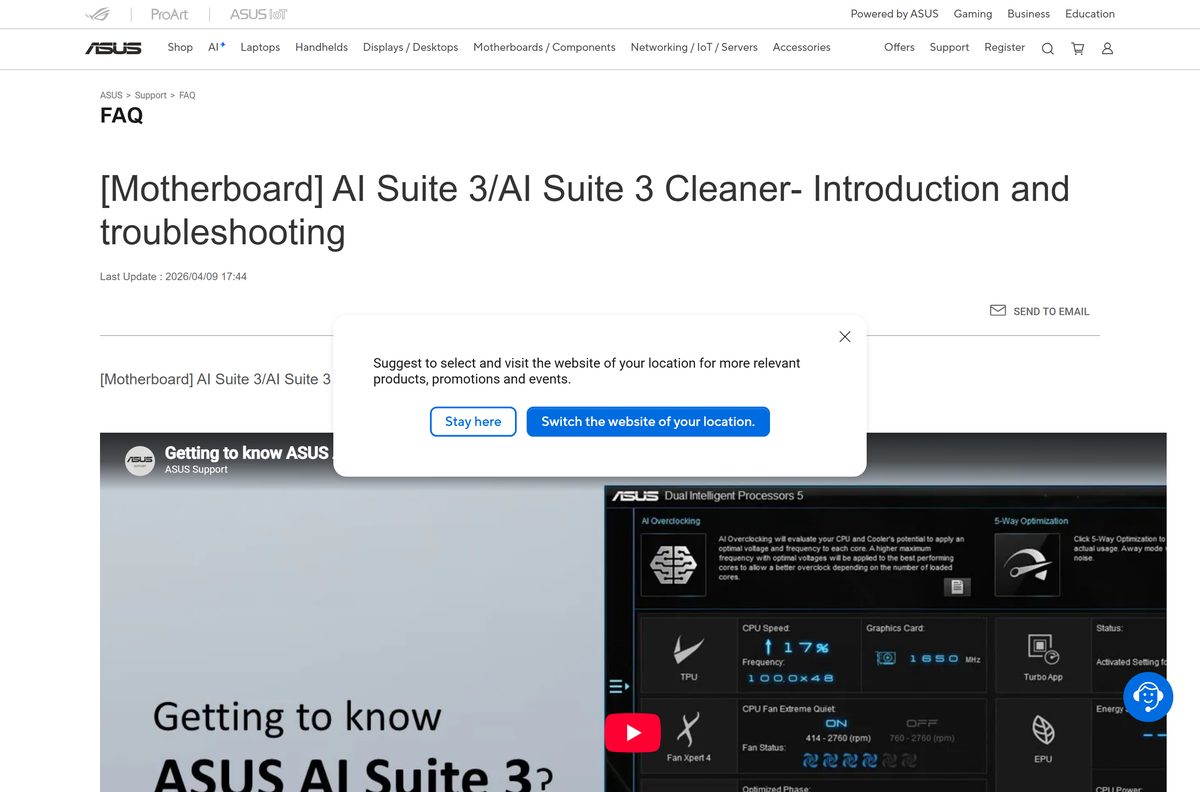
ASUS AI Suite 3 is a free utility for Windows 11 and Windows 10 PCs built on an ASUS motherboard. It shows CPU frequency, voltages, temperatures and fan speeds, and opens the board’s other ASUS tools from one list.
The newest package, version 3.03.44, is a 164.42 MB zip on ASUS’s own support site. Each motherboard page lists the build made for that board, so you download it from your model’s Driver & Utility tab.
Below you get the right build for your board, install steps, when Armoury Crate takes over, a clean uninstall with AI Suite 3 Cleaner, and fixes for common errors.
Which AI Suite 3 build does your ASUS motherboard need?
ASUS ties each AI Suite 3 build to a motherboard family. Find your board’s chipset and match it to a row.
| Your motherboard | Download | Size |
|---|---|---|
| Intel 700 series, such as PRIME Z790-P | AI Suite 3 V3.03.44 | 164.42 MB |
| Intel 600 or AMD AM5 600 series, such as PRIME Z690-P or TUF GAMING B650-PLUS | V3.03.43 from your board’s support page | 162.66 MB |
| Intel 500 or AMD B550, such as PRIME Z590-A or ROG STRIX B550-F GAMING | V3.03.36 from your board’s support page | 178.03 MB |
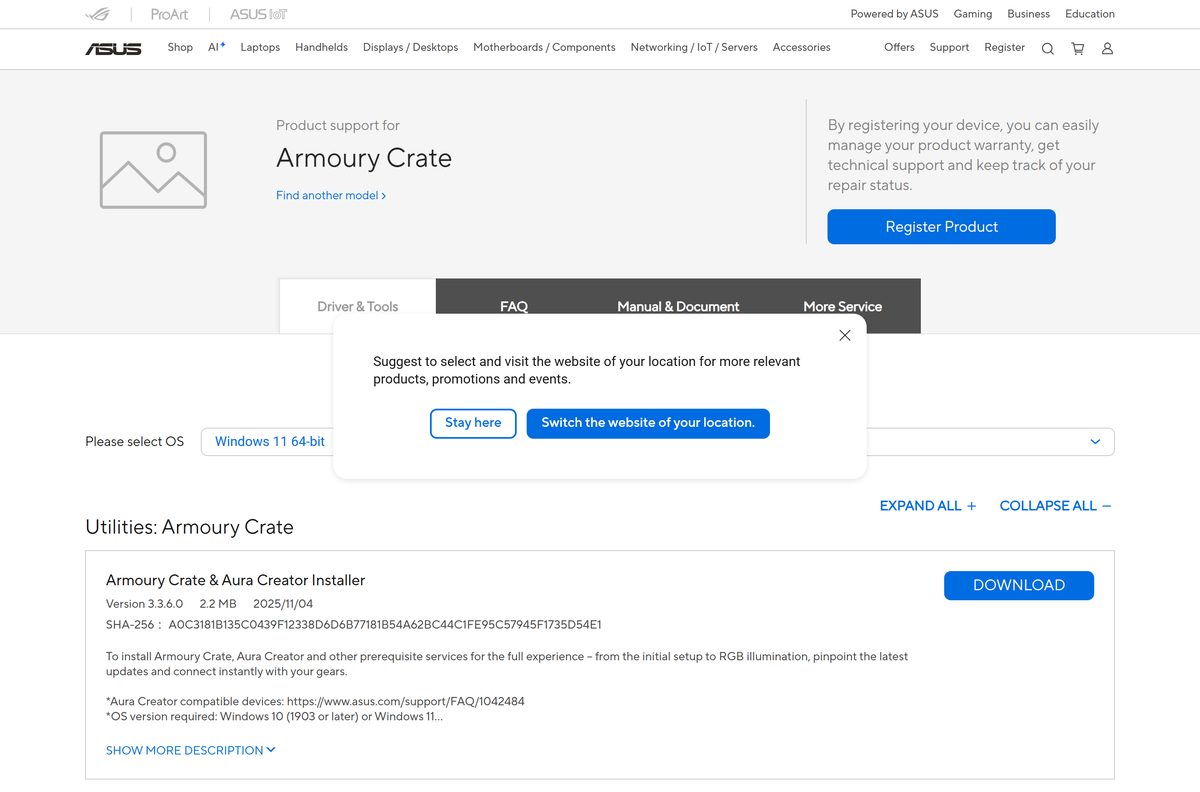
| Intel 800 or AMD 800 series, such as PRIME Z890-P or TUF GAMING B850-PLUS WIFI | Armoury Crate & Aura Creator Installer | 2.2 MB |
Package sizes differ because some boards bundle EZ Update or lighting control in the same zip. PRIME B550-PLUS, for example, lists a 180.49 MB V3.03.36 package.
Download AI Suite 3 from the official ASUS site
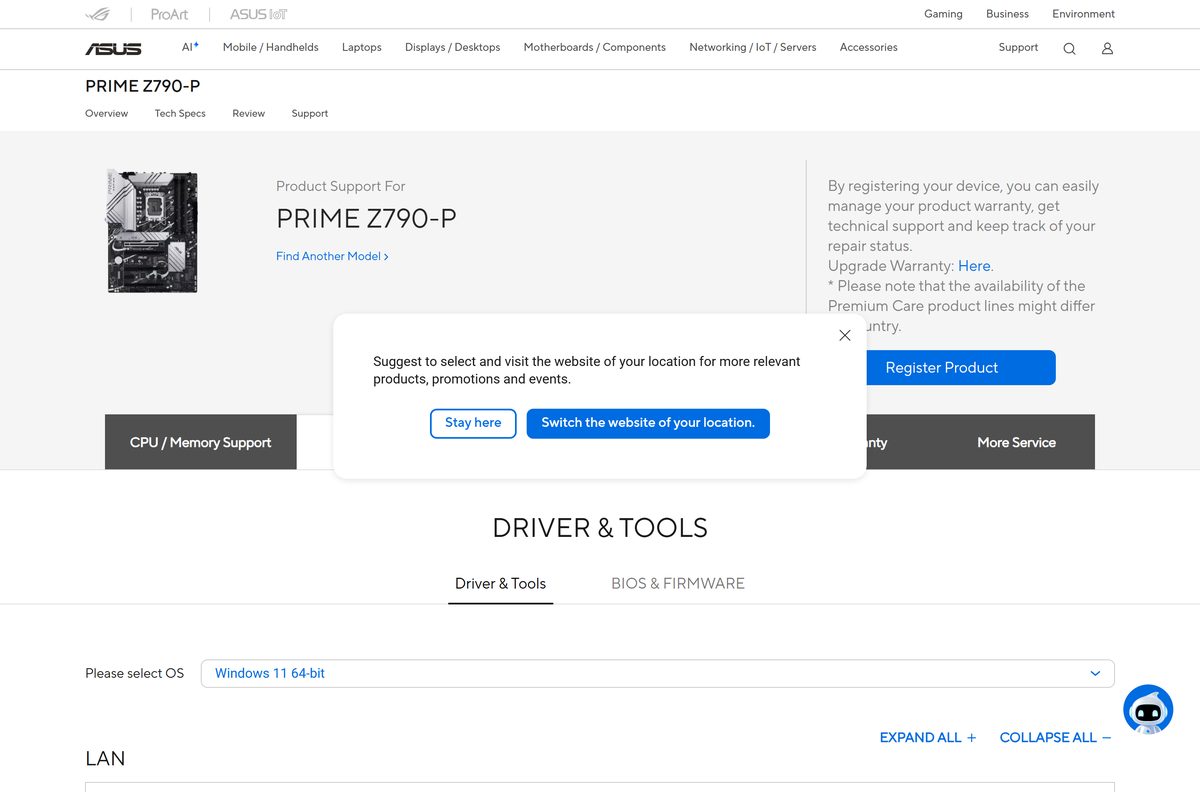
ASUS lists AI Suite 3 in the Utilities group of each supported board’s Driver & Utility tab. The files sit on ASUS’s own dlcdnets.asus.com server.
- ASUS AI Suite 3 V3.03.44 for Windows 11 and 10 64-bit — 164.42 MB · released 29 July 2026; listed for PRIME Z790-P
- PRIME Z790-P Driver & Utility page — example board page; pick Windows 11 64-bit or Windows 10 64-bit
- ASUS Download Center — enter your exact model to reach its own Driver & Utility tab
- AI Suite 3 Cleaner 1.00.04 — 135.01 KB · removal tool; unzips to RemoveAI3Files.exe
The zip also installs Performance and Power Saving Utilities 2.03.57 and System Information 2.03.21.
How to install AI Suite 3 on Windows 11 and 10
Remove any older AI Suite 3 first. ASUS advises uninstalling the old version before you install a newer one.
- Open the ASUS Download Center and enter your motherboard model name.
- Click Driver & Utility, then choose Windows 11 64-bit or Windows 10 64-bit.
- Find ASUS AI Suite 3 under Utilities and download the latest build listed.
- Right-click the zip, select Extract All, and open the extracted folder.
- Double-click AsusSetup and select Yes in User Account Control.
- Tick the programs you want, then click Install.
- Click OK when setup finishes, then restart the PC.
- Click the Windows icon and select AI Suite 3 to open it.
The program list in setup differs from board to board. ASUS recommends installing all of them for full system monitoring.
Should you install AI Suite 3 or Armoury Crate?
ASUS has been moving features into Armoury Crate. Fan Xpert moved there from Intel 600 and AM5 series boards, and Intel 800 and AMD 800 boards list Armoury Crate only.
Install AI Suite 3 only if your board’s support page lists it. Use Armoury Crate for fan control on Intel 600, AM5 and newer boards. AI Suite 3 still handles monitoring and the Performance and Power Saving tools on the boards that list it. Fan Xpert now lives in Armoury Crate on newer platforms, and boards like the PRIME Z890-P offer no AI Suite 3 at all. Both can sit on the same PC, and they share some components.
Is AI Suite 3 free?
Yes. AI Suite 3 is a free download from asus.com, with no licence key or subscription. ASUS ships it as a motherboard utility on each supported board’s support page. It only works on an ASUS motherboard, because it checks the board before it installs. A site that charges for AI Suite 3 or wraps it in a download manager is not ASUS.
Can you install AI Suite 3 on a Mac?
ASUS offers three operating system choices on its motherboard download pages: Windows 11 64-bit, Windows 10 64-bit and Others.
| Your computer | Download | Size |
|---|---|---|
| Windows 11 64-bit PC with a supported ASUS board | AI Suite 3 for Windows 11 64-bit | 164.42 MB |
| Windows 10 64-bit PC with a supported ASUS board | AI Suite 3 for Windows 10 64-bit | 164.42 MB |
| Mac, or a PC with a non-ASUS motherboard | No build; see the ASUS AI Suite 3 FAQ | None |
ASUS publishes no macOS version. The tool reads sensors on the ASUS motherboard itself, so it belongs on a Windows PC built around one.
How to verify the AI Suite 3 download
ASUS publishes a SHA-256 hash for the current package in its support listing. Compare it before you run setup.
- Open PowerShell in your Downloads folder.
- Run Get-FileHash .\AISuite3_PPSU_SystemInformation_v3.03.44.zip -Algorithm SHA256 .
- Check the result reads 2CBB48443A8C71E31C5FA85DF7F90BB15FC4B9AD7FBB329820D44B5B9E679A05.
- Delete the file and download it again from asus.com if the hash differs.
How to check your AI Suite 3 version and update it
- Open AI Suite 3, click the back icon, then click the list icon.
- Select Version to see the AI Suite 3 version and the version of each tool.
- Compare it with the newest build on your board’s Driver & Utility page.
- If ASUS lists a newer build, remove the old one with AI Suite 3 Cleaner.
- Install the new package, then restart the PC.
ASUS notes that a Windows upgrade or security patch can stop an old build working until you install the current one.
Check the AI Suite 3 system requirements
| Field | Value |
|---|---|
| Software | ASUS AI Suite 3 |
| Developer | ASUSTeK Computer Inc. |
| Latest version | 3.03.44 (29 July 2026) |
| Licence | Free download from ASUS |
| Windows | Windows 11 64-bit and Windows 10 64-bit |
| macOS | Not available |
| Architecture | 64-bit (x64) only |
| Hardware | An ASUS motherboard whose support page lists AI Suite 3 |
| Download size | 164.42 MB zip (3.03.44) |
| Offline installer | Yes, extract the zip and run AsusSetup |
| Removal tool | AI Suite 3 Cleaner 1.00.04, 135.01 KB |
| Official download source | asus.com motherboard support pages, files on dlcdnets.asus.com |
| Last verified | 19 September 2026 |
Fix AI Suite 3 not working on Windows 11 or 10
Setup fails, or AI Suite 3 shows an error when it opens
Leftover files from an earlier install block the new one.
- Download AI Suite 3 Cleaner from your board’s support page and extract it.
- Run RemoveAI3Files.exe, type Y and press Enter.
- Restart the PC.
- Install the latest AI Suite 3 build for your board again.
Fan Xpert or another tool shown on the ASUS site is missing
Some tools are limited to certain boards, and Fan Xpert moved to Armoury Crate from Intel 600 and AM5 series boards.
- Open your board’s Driver & Utility page and check which tools it lists.
- Install Armoury Crate & Aura Creator Installer from the same page for fan control.
- Open Armoury Crate and find the fan settings there.
CPU or GPU settings reset to default after a restart
Options on the CPU and GPU pages apply in real time only. ASUS calls this normal behaviour.
- Restart the PC and enter BIOS setup.
- Open DIGI+ VRM and set the values you want to keep.
- Save the changes and exit.
AI Suite 3 will not uninstall
AI Suite 3 refuses to install or uninstall when it does not detect an ASUS motherboard.
- Run AI Suite 3 Cleaner if the board is an ASUS board.
- On a non-ASUS board, back up your files and reinstall Windows, which is the removal route ASUS suggests.
How to uninstall AI Suite 3 completely
ASUS recommends AI Suite 3 Cleaner over the Windows uninstaller, which can leave residual files that break a later reinstall.
- Download AI Suite 3 Cleaner from your board’s Driver & Utility page and extract it.
- Double-click RemoveAI3Files.exe, type Y and press Enter.
- If Armoury Crate is installed, read the shared-components notice, type Y and press Enter again.
- Press any key to close the window when removal finishes, then restart the PC.
Without the Cleaner, open Settings > Apps, select AI Suite 3, click Uninstall, and choose the programs to remove.
Which ASUS tool should you use instead of AI Suite 3?
AI Suite 3 is one of several ASUS motherboard tools. These cover the jobs it does not.
| Tool | Cost | Best for |
|---|---|---|
| Armoury Crate | Free | Fan control and lighting on Intel 600, AM5 and newer ASUS boards |
| BIOS setup (DIGI+ VRM) | Built in | CPU power settings that stay after a restart |
| AI Suite 3 Cleaner | Free | A clean removal before reinstalling or switching to Armoury Crate |
| Armoury Crate Uninstall Tool | Free | Removing Armoury Crate and Aura Creator components to reinstall them |
Frequently asked questions
What is ASUS AI Suite 3?
AI Suite 3 is a free ASUS utility for PCs built on ASUS motherboards. It monitors CPU frequency, voltages, temperatures and fan speeds, and it opens the other ASUS tools installed for your board from one list.
Where is the official AI Suite 3 download?
ASUS lists it under Driver & Utility on each supported motherboard’s support page at asus.com. Enter your model in the ASUS Download Center, pick Windows 11 or Windows 10 64-bit, and open the Utilities group.
Is AI Suite 3 free?
Yes. ASUS offers AI Suite 3 as a free download for owners of supported ASUS motherboards. There is no licence key or subscription, and a site charging for it is not ASUS.
Does AI Suite 3 work on Windows 11?
Yes. ASUS lists AI Suite 3 for Windows 11 64-bit and Windows 10 64-bit on its motherboard support pages. No 32-bit build is listed for current boards.
Is there an AI Suite 3 download for Mac?
No. ASUS lists only Windows 11 64-bit, Windows 10 64-bit and Others on its motherboard download pages. AI Suite 3 also checks that the motherboard is an ASUS board, so it is a Windows PC tool only.
Has Armoury Crate replaced AI Suite 3?
Partly. ASUS moved Fan Xpert to Armoury Crate from Intel 600 and AM5 series boards, and newer boards such as the PRIME Z890-P and ROG STRIX X870E-E GAMING WIFI list Armoury Crate but no AI Suite 3.
Which AI Suite 3 version is the latest?
Version 3.03.44, released on 29 July 2026, is the newest build ASUS lists, on the PRIME Z790-P page. Older boards list older builds, such as 3.03.43 for PRIME Z690-P and 3.03.36 for PRIME B550-PLUS.
How big is the AI Suite 3 download?
The newest package is a 164.42 MB zip. It also contains Performance and Power Saving Utilities 2.03.57 and System Information 2.03.21, and installs without further downloads.
How do I completely uninstall AI Suite 3?
Download AI Suite 3 Cleaner from your board’s support page, extract it and run RemoveAI3Files.exe. Type Y and press Enter to confirm. ASUS recommends it over the Windows uninstaller, which can leave residual files behind.
Why can’t I uninstall AI Suite 3?
AI Suite 3 checks for an ASUS motherboard before it installs or uninstalls. On a non-ASUS board the command is ignored, and ASUS suggests reinstalling Windows to remove it in that case.