Open Settings > System > Activation: if you see a Switch to Windows 11 Pro section with a Go to the Store link, your PC is running Windows 11 in S mode.
This guide covers the other signs of S mode, what it blocks, how to switch out of it for free, and what changes after the switch.
The fastest way to check for S mode
The Activation page is the one place Windows offers the S mode switch, so it doubles as the quickest check.
- Select Start, then open Settings.
- Select System in the left pane.
- Select Activation.
- Look for a Switch to Windows 11 Pro section with a Go to the Store link. If it is there, the PC is in S mode.
- Ignore the Upgrade your edition of Windows link. Microsoft notes it is a different process that keeps you in S mode.
Close Settings when you are done. Looking at the page changes nothing on the PC.
Understanding Windows 11 S Mode
Windows 11 in S mode is a locked-down configuration of Windows 11 Home. Microsoft describes it as streamlined for security and performance.
Some PCs come with it preinstalled by the manufacturer. Here is what it changes compared with standard Windows 11.
| Area | Windows 11 in S mode | Standard Windows 11 |
|---|---|---|
| Editions | Windows 11 Home only | Home, Pro, Enterprise, Education |
| App installs | Microsoft Store apps only | Store apps plus downloaded desktop programs |
| Default browser | Microsoft Edge, always | Any browser you choose |
| Default search engine | Bing | Any search engine you choose |
| Other browsers | Store browsers can be installed, but Edge stays the default | Any browser, set as default |
| Antivirus | Built-in Windows Security only known compatible option | Third-party antivirus allowed (except on Snapdragon PCs) |
| Domain join | Not available | Available on Pro and Enterprise |
| Client Hyper-V on Snapdragon | Not supported | Supported |
| Getting out | One-way switch through Microsoft Store, free | Cannot switch back into S mode |
Windows 10 Pro, Enterprise and Education in S mode cannot move to Windows 11 while in S mode. Microsoft requires those PCs to switch out first.
How to Check if Windows 11 Is in S Mode
Several places on the PC reveal S mode. Only the Activation page gives a yes-or-no answer, so treat the others as supporting signs.
| Where you look | What S mode looks like there | How reliable |
|---|---|---|
| Settings > System > Activation | A Switch to Windows 11 Pro section with a Go to the Store link | Definitive |
| Settings > System > About, under Windows specifications | Edition reads Windows 11 Home. Pro, Enterprise and Education cannot be in S mode on Windows 11 | Rules S mode out, but cannot confirm it |
| Running a downloaded .exe installer | A reminder that the app is not an option in S mode, often with a Store suggestion | Strong sign |
| Settings > Apps > Default apps | Edge stays the default browser and cannot be replaced | Strong sign |
winver from the taskbar search box |
Shows the Windows version and build, confirming Windows 11 | Does not show S mode status |
| Microsoft Intune or another MDM (admins only) | The WindowsLicensing CSP node SMode/Status reports switch requests |
For managed fleets, not home users |
If your edition is Windows 11 Pro, you can stop there. Microsoft offers S mode on Windows 11 Home only.
Check your edition on the About page
Use this when you want to rule S mode out quickly, or you also need the version and system type.
- Right-click Start and choose Settings.
- Select System, then select About.
- Scroll to Windows specifications.
- Read the Edition line. Windows 11 Pro, Enterprise or Education means the PC is not in S mode.
- If it reads Windows 11 Home, open Activation from the same System page to confirm S mode.
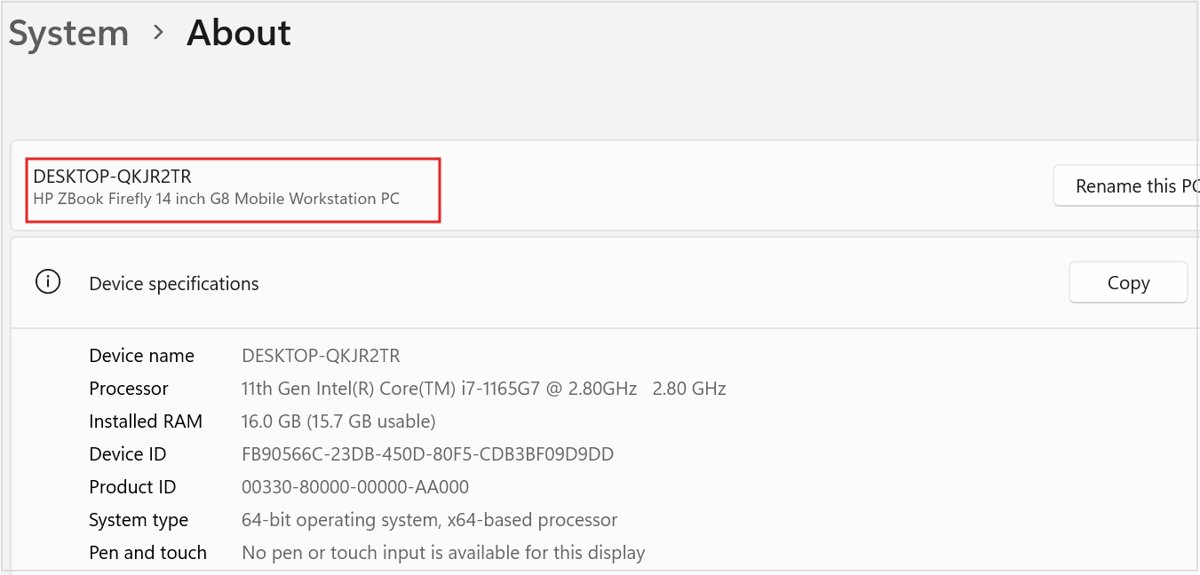
The same page shows the processor under Device specifications. That matters later, because Snapdragon PCs have extra app limits. For every other way to read your Windows edition and build, see how to check what version of Windows you have.
Why You May Want to Switch from S Mode
Switching is worth it when S mode blocks something you need. If every app you use is in the Microsoft Store, staying in S mode costs you nothing.
| You want to | In S mode | After switching out |
|---|---|---|
| Install a program that is not in the Microsoft Store | Blocked with a reminder message | Installs normally |
| Make Chrome or Firefox your default browser | Edge stays the default | Any browser can be the default |
| Use a search engine other than Bing by default | Bing stays the default | Default search engine is your choice |
| Run third-party antivirus | Only the built-in Windows Security is known compatible | Allowed, except on Snapdragon PCs |
| Use assistive technology not sold in the Store | Blocked | Allowed, though some tools may still not work on Snapdragon |
| Join a work domain | Not available in Windows 11 Home in S mode | Needs a switch plus an upgrade to Pro or Enterprise |
| Upgrade Windows 10 Pro, Enterprise or Education in S mode to Windows 11 | Not possible | Upgrade path opens |
What to know before you leave S mode
Switching out is free. It is also permanent, which is the part most people miss.
Switch out only when a specific app, browser or tool you need is blocked, because Windows cannot be put back into S mode afterwards. Microsoft states the switch is one-way. Even a reset keeps the PC out of S mode, and only a full bare-metal recovery to factory state can undo it. The switch also needs an internet connection, and Microsoft notes that Smart App Control stays off on a PC that was in S mode until you reset it after switching.
If the PC belongs to a school or employer, the switch may be blocked on purpose. Organisations can keep devices in S mode, so ask your administrator.
How to Switch Out of S Mode
You need an internet connection and a Microsoft account signed in to the Microsoft Store. There is no charge.
- Save your open work and close your apps.
- Select Start, then open Settings > System > Activation.
- Find the Switch to Windows 11 Pro section and select Go to the Store.
- Do not use the link under Upgrade your edition of Windows. That route keeps you in S mode.
- On the Microsoft Store page titled Switch out of S mode (or a similar page), select Get.
- Confirm the action when Windows asks, and save any files it prompts you about.
When the confirmation finishes, you can install apps from outside the Microsoft Store. You stay on the standard version of Windows 11. Moving from Home to Pro is a separate, paid step covered in how to upgrade Windows 11 Home to Pro.
How to confirm S mode is off
The proof is that Windows now accepts the things S mode refused.
- Open Settings > System > Activation and check that the Switch to Windows 11 Pro section with Go to the Store is gone.
- Download an installer from a vendor's official website and run it. It should install without the S mode reminder.
- Open Settings > Apps > Default apps, select a browser other than Edge, and set it as the default.
- If any of these still fails, sign in to the Microsoft Store with the same account and check that the Switch out of S mode page no longer offers Get.
Common Issues After Switching Out of S Mode
Most problems after the switch come from the processor type or from apps that now start with Windows.
App installation issues: a program or driver still will not install or run
On a Qualcomm Snapdragon PC, drivers and some apps only work if they are built for Windows 11 on Snapdragon, in or out of S mode.
- Open Settings > System > About and check the Processor line under Device specifications.
- If it names Snapdragon, check the developer's site for an Arm64 or Snapdragon build of the app or driver.
- For games, check with the publisher. Games that use OpenGL above 1.1 or anti-cheat drivers do not run on Snapdragon PCs.
- On Intel or AMD PCs, download the installer again from the vendor's official site and run it.
Performance concerns: the PC starts or runs slower than it did in S mode
Desktop programs installed after the switch can add themselves to startup, which S mode prevented.
- Select Start > Settings > Apps > Startup.
- Set the toggle to Off for any app you do not need at sign-in.
- Restart the PC and compare the startup time.
- Uninstall programs you installed only to test the switch.
Security adjustments: Smart App Control is off, or third-party antivirus will not install
Smart App Control stays off on a PC that was in S mode, and Snapdragon PCs never accept third-party antivirus.
- Open Windows Security and confirm virus and threat protection is on. It keeps protecting the PC after the switch.
- To use Smart App Control, reset the PC after switching out of S mode, as Microsoft requires.
- On a Snapdragon PC, rely on Windows Security. Third-party antivirus cannot be installed on any Windows 11 edition there.
- On Intel or AMD PCs, install your antivirus from the vendor's official site.
Frequently Asked Questions
How do I check if Windows 11 is in S mode?
Open Settings > System > Activation. A Switch to Windows 11 Pro section with a Go to the Store link means the PC is in S mode. S mode only exists on Windows 11 Home, so a Pro edition on the About page rules it out.
Can I switch back to S mode after leaving it?
No. Microsoft makes the switch one-way, and resetting the PC does not turn S mode back on. Only a bare-metal recovery that restores the device to its factory image can return it to S mode.
Does it cost money to switch out of S mode?
No. Switching out of S mode through the Microsoft Store is free. Upgrading from Windows 11 Home to Windows 11 Pro is a different process and does cost money.
How do I check if Windows 11 is activated?
Select Start > Settings > System > Activation. The page shows the activation status for your edition. If there is a problem, select Troubleshoot on the same page to run the Activation troubleshooter.
How do I check if Windows 11 is genuine or authentic?
Check the same Activation page under Settings > System. A copy activated with a valid digital license or product key is genuine. Activation errors there point to a key or edition mismatch that the troubleshooter can often fix.
How do I check if I have Windows 11 or Windows 10?
Type winver in the taskbar search box and select Winver. The window shows your Windows version and build. You can also open Settings > System > About and read the Edition line under Windows specifications.
How do I check if Windows 11 is 64-bit?
Open Settings > System > About. Under Device specifications, the About page states whether the PC runs a 32-bit or 64-bit version of Windows. The same section lists the processor and installed RAM.
How do I check if my PC is compatible with Windows 11?
Run Microsoft's PC Health Check app, which tests the PC against the Windows 11 requirements. The steps are in this PC Health Check guide.
How do I check if Windows 11 is updated?
Go to Settings > Windows Update and select Check for updates. Windows lists any pending updates and installs them, or reports that you are up to date.
Can I use Chrome in Windows 11 S mode?
Not as your default browser. In S mode Edge is always the default and Bing is the default search engine. Browsers sold in the Microsoft Store can be installed. Any browser downloaded from outside the Store needs a permanent switch out of S mode first.

![Download & Install ASUS Aura Sync on Windows 10/11 [2024]](https://techdows.com/wp-content/uploads/2026/09/Armoury-Crate-Aura-Sync-effects-tab-with-Rainbow-selected-600x338.jpg)