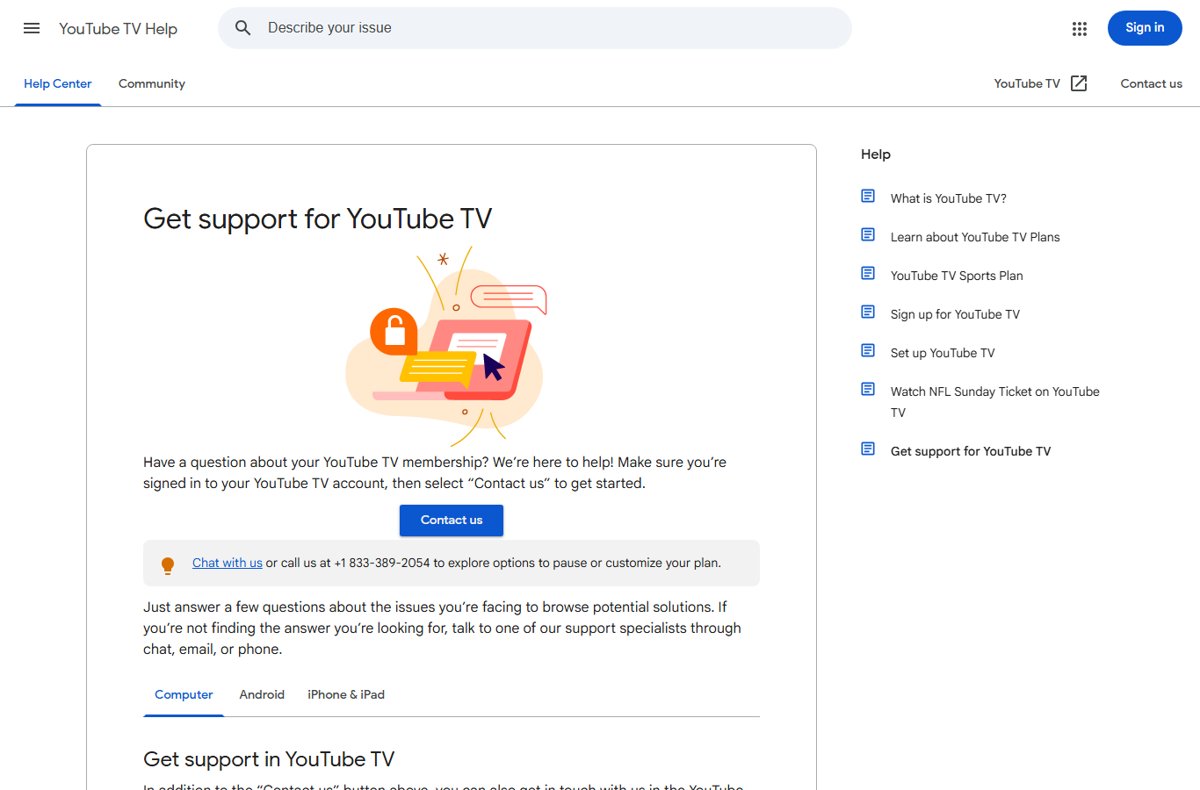
Call YouTube TV customer service at +1 833-389-2054, the number Google publishes on its official "Get support for YouTube TV" page at support.google.com/youtubetv.
This guide covers the phone route, the signed-in Contact us flow with chat, what to have ready, which problems support can fix, and how to tell the real line from a fake one.
The fastest way to call YouTube TV support
Google lists one phone number for YouTube TV members on its Help Center. The same number appears on the cancel, pause and declined-payment help pages, so it is the one to use.
- Open support.google.com/youtubetv and confirm the number on the Get support for YouTube TV page: +1 833-389-2054.
- Sign in with the Google Account that holds your YouTube TV membership, so you can check account details during the call.
- Dial +1 833-389-2054 from any phone.
- Describe the issue and give the agent the email address of your YouTube TV account.
- Stay signed in on your device while you talk, in case the agent asks you to check Settings > Membership or a billing page.
Prefer typing? The same page offers Chat, which Google describes as immediate help from its experts. It starts from the signed-in Contact us flow described below.
Understanding When You Need Help from YouTube TV Support
Many YouTube TV problems have a self-service fix, and a few can only be finished by a specialist. Google's own help pages mark which is which.
| What you want | Can you do it yourself? | When to contact support |
|---|---|---|
| Cancel your membership | Yes, from the cancel page at any time; access continues until the end of the payment period | If you want access removed right away, Google says to contact its support team |
| Pause or customize your plan | Yes, pausing is self-service | Google invites members to chat or call +1 833-389-2054 to explore pause or plan options |
| Fix a declined payment | Often: change the payment method in your Subscriptions at payments.google.com | Google's declined-payment page lists chat or the same phone number |
| Get a refund | Start from the Request a refund help page | If the refund does not arrive, or you were billed through another provider |
| Fix a sign-in error | Usually: switch from a Brand Account to your personal Google Account | If the switch does not work |
| Fix buffering or playback errors | Usually: location check, restarts, app updates | After the self-help steps fail on more than one device |
Ways to Contact YouTube TV Customer Service
The Get support page names three ways to reach a specialist: chat, email and phone. The Help Center and the Help Community cover everything else.
| Route | Best for | How to reach it |
|---|---|---|
| 1. Help Center | How-to questions, error messages, billing explanations | support.google.com/youtubetv, no sign-in needed to read articles |
| 2. Live chat support | Billing, membership and account questions you want answered in writing | Signed in: Help > Contact us > Chat |
| 3. Email support | Issues that are not urgent | Offered inside the Contact us flow for some issues; the published step list itself shows only Chat and Call us |
| 4. Phone support | Pausing or changing a plan, declined payments, urgent account issues | Call +1 833-389-2054, or pick Call us in the Contact us flow |
| 5. Social media | Not a support route | Google's Get support page lists no social media channel for account help; never share account details in public posts or direct messages |
| Help Community | Answers from other members on unusual problems | Post to the help community at the bottom of any YouTube TV help article |
Want to suggest a change rather than fix a problem? In the YouTube TV app on mobile, computer or TV, select your profile picture > Send feedback.
Step-by-Step Guide to Calling YouTube TV Support
The signed-in Contact us flow is the official route to chat or phone. Google asks you to be signed in to your YouTube TV account first, and the contact page itself opens a Google sign-in screen for visitors who are signed out.
- Sign in to your account: open tv.youtube.com or the YouTube TV app with the Google Account that pays for the membership.
- Access the Help Center: on a computer, click Help in the navigation bar. In the Android, iPhone or iPad app, tap your profile photo, then tap Help.
- Locate the contact options: under Need more help?, click or tap Contact us.
- Choose your issue: select YouTube TV or NFL Sunday Ticket, write a few words about the problem, pick the best description from the list and click Next step.
- Review the suggested articles. If none of them solve it, click Next step again.
- Select your preferred contact method: choose Chat for an immediate written conversation, or Call us to see the phone number.
- Prepare your information from the checklist below before the chat opens or the call connects.
- Contact support: dial +1 833-389-2054, or type your issue into the chat window.
The Contact us options only appear after you sign in. If you cannot sign in at all, call the published number, or fix the sign-in problem first using the troubleshooting section below.
Preparing to Call: Information You Need to Have Ready
Agents can resolve a call faster when you can confirm the account and describe the problem precisely. Never read out a full card number, a password or a verification code.
| Have ready | Why it matters |
|---|---|
| The email address of the Google Account that holds the membership | Support finds your membership by account; a Brand Account cannot hold YouTube TV |
| Whether you are the family manager or a family member | Only the family manager can switch the membership to a different plan |
| Who bills you: Google, Apple's App Store or another provider | Purchases through another provider follow that provider's refund policy |
| The date and amount of any charge you are asking about | Lets the agent match the charge to your subscription |
| The device, app and exact error message | Streaming fixes differ between smart TVs, mobile devices and computers |
| Your home ZIP code and current location | What you can watch depends on your home area |
Alternative Support Options: Live Chat, Email, and Help Center
Live chat support uses the same signed-in flow as the phone route and gives you a written record of the conversation. Email support appears in that flow for some issues only.
Help Center resources work without an agent: articles cover billing, refunds, sign-in, streaming and location problems, and each article ends with links to the Help Community and Contact us.
- Sign in to YouTube TV on a computer or in the mobile app.
- Open Help, then under Need more help? select Contact us.
- Select YouTube TV, describe the issue and click Next step twice if the suggested articles do not help.
- Choose Chat to connect to a support specialist in a chat window, or choose email if the flow offers it for your issue.
- Keep the chat window open until the agent confirms the fix, and save a copy of the conversation if your browser allows it.
- For self-help instead, search support.google.com/youtubetv with the exact error text or topic, such as "declined payment" or "streaming issues".
How to check you reached the real YouTube TV support
Fake support lines exist for most big streaming services, and they often look official in ads and search results. Genuine YouTube TV help starts from Google's own pages.
- Check that the number you dialed matches the one on support.google.com/youtubetv, not one from an ad, a forum or a pop-up.
- Check that any chat opened from Help > Contact us while you were signed in to your own account.
- Hang up if the caller asks for your Google password, a verification code or remote access to your computer.
- Hang up if you are asked to pay a "support fee", buy gift cards or send money to fix the account.
- After the call, confirm any change yourself under Settings > Membership in YouTube TV or in your Subscriptions at payments.google.com.
Treat an unexpected call, text or email claiming to be YouTube TV support as suspect. Start again from the Help Center yourself.
Tips for a Successful Customer Service Call
| Tip | Why it helps |
|---|---|
| Run the self-help steps for your issue first | The agent will usually ask whether you restarted the device, updated the app or checked your location |
| Call or chat from somewhere you can open YouTube TV | You can confirm settings and test a fix while the agent is on the line |
| Describe one problem at a time, with the exact error wording | Specific wording points the agent to the right help article or account tool |
| Ask for the outcome in plain terms | For example: the date access ends, the refund amount, or the new billing date |
| Note the date and time of the contact | Useful if you need to follow up on a refund or a billing change |
| Check the change in your account afterwards | Membership and billing pages show whether a cancel, pause or refund went through |
Common Issues and How Support Can Assist You
Most calls fall into three groups. The table shows what Google's help pages say about each and where support adds something the self-service pages cannot.
| Issue group | Typical problems | What support can do |
|---|---|---|
| Account and subscription problems | Sign-in errors, unexpected charges, declined payments, refunds, cancel or pause | Remove access immediately after a cancel, explore pause or plan options, explain charges and refunds |
| Streaming and device errors | Buffering, playback errors, HDCP error on Roku players, low quality on external monitors | Walk through device-specific checks once the basic fixes fail |
| Content and service accessibility | Missing local channels, location errors, accessibility features | Check home area and location problems on the account |
If a channel you expected is missing, check what your plan and ZIP code include first; the YouTube TV channels list for every plan and add-on shows what each package carries.
Troubleshooting Before Calling: FAQs and Self-Help Resources
Try the fix for your symptom first. Each one comes from Google's YouTube TV Help Center and often saves a call.
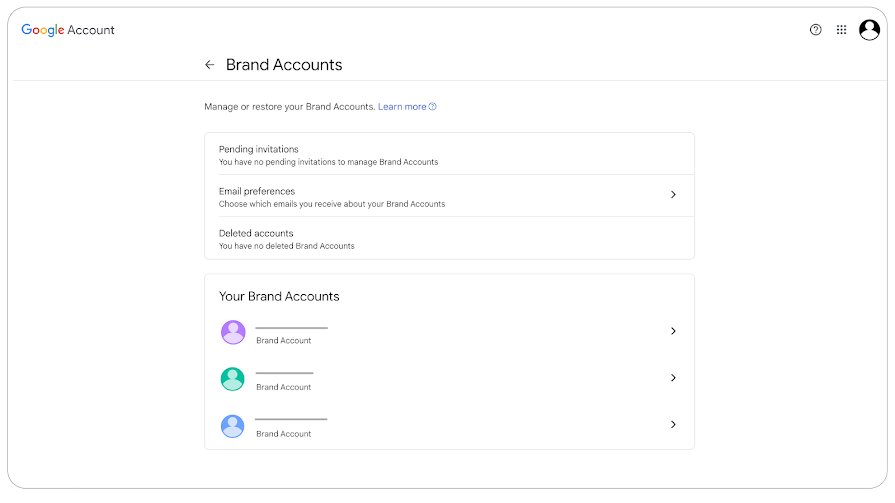
"Sorry — you can't sign in to YouTube TV with this account"
You are signed in with a Brand Account, which YouTube TV does not support.
- Select Switch Account below the error message.
- Sign in with your personal Google Account and resume signing up or signing in.
- If that fails, go to youtube.com, select your profile picture and choose your primary Google Account, not a Brand Account.
- Open YouTube TV in the same browser window and try again.
Your payment was declined
The card on file failed, which can interrupt access to the membership.
- Go to your Subscriptions section at payments.google.com.
- Find YouTube TV and click Manage.
- Under the card you currently use, click Change payment method.
- Choose a payment method and click Submit.
- If the payment still fails, chat with support or call +1 833-389-2054, as Google's declined-payment page advises.
You are waiting on a refund
Card issuers and third-party billing providers control part of the timing.
- Allow up to 10 business days; Google notes card issuers can slow processing.
- If the card is no longer active, contact the bank that issued it, because the refund goes there.
- If you pay through Apple's App Store or another provider, contact that provider, since its refund policy applies.
YouTube TV is not streaming or keeps buffering
An inaccurate location, a device or router fault, an outdated app or a slow connection.
- Check that your current location settings are accurate.
- Power cycle the device and the router.
- Check for app or device updates, then uninstall and reinstall the YouTube TV app on a smart TV.
- Test your connection: Google recommends 13 Mbps or more for reliable HD and 25 Mbps or more for 4K Plus.
- If the message about verifying your device's identity for enhanced playback appears, select Allow.
Local channels are missing or a location error appears
YouTube TV sets your channels by home area, and a VPN or proxy blocks streaming.
- Turn off any VPN or proxy on the device and network.
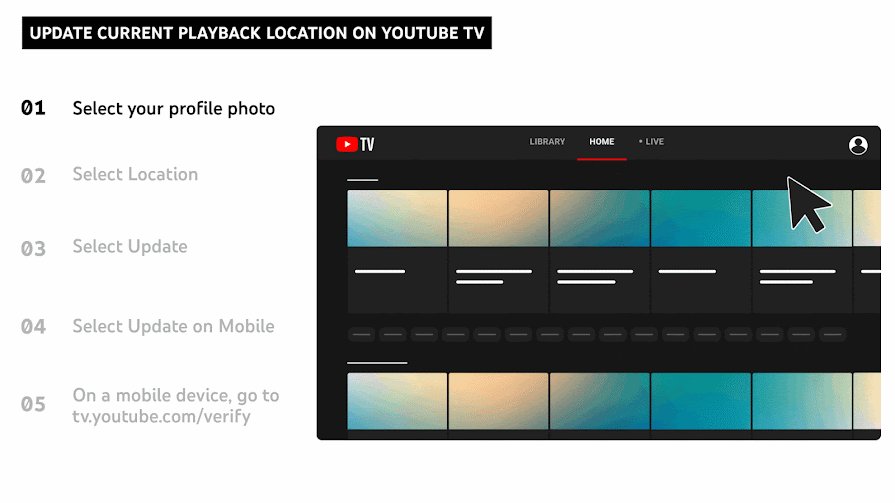
- Open tv.youtube.com/verify to confirm your current location.
- Check your home area under Location in settings and select Update if it is wrong.
- Remember that the home area can only be changed twice in 12 months, so contact support if you have reached the limit.
Frequently Asked Questions
How do I call YouTube TV customer service?
Dial +1 833-389-2054, the number Google lists on its Get support for YouTube TV page. You can also sign in, open Help > Contact us, choose YouTube TV, describe the issue and select Call us to see the same number.
Does YouTube TV have customer service?
Yes. YouTube TV members can reach support specialists by chat, phone and, for some issues, email through the Contact us flow. The YouTube TV Help Center and Help Community at support.google.com/youtubetv cover self-service questions.
Does YouTube TV have a customer service number?
Yes. Google publishes +1 833-389-2054 on its YouTube TV Help Center, including on the Get support, cancel and declined-payment pages. Treat any other number found in ads or search results as unverified.
How do I contact YouTube TV customer service?
Sign in to YouTube TV, open Help, and under Need more help? select Contact us. Choose YouTube TV, describe your issue, click Next step, then pick Chat or Call us. The contact options appear only when you are signed in.
How do I call YouTube TV support from the app?
In the YouTube TV app on Android, iPhone or iPad, tap your profile photo, then Help. Under Need more help?, tap Contact us, select YouTube TV, describe the issue and tap through Next step until Call us appears with the number.
How do I call YouTube customer service instead of YouTube TV?
The +1 833-389-2054 number is published for YouTube TV members. For regular YouTube questions, use the YouTube Help Center at support.google.com/youtube rather than the YouTube TV line.
Can I talk to YouTube TV support without signing in?
You can call the published number without signing in. The chat and Contact us options sit behind a Google sign-in, and Google asks you to be signed in to your YouTube TV account before contacting support.
Can YouTube TV support cancel my membership immediately?
Yes. Cancelling yourself keeps access until the end of the payment period, even during a free trial. Google says to get in touch with its support team if you want to cancel and remove access right away.