Press Win + R, type mdsched, select OK, then choose Restart now and check for problems (recommended) to run memory diagnostics on Windows 10 or Windows 11.
This guide covers every way to open Windows Memory Diagnostic, how to switch to the Extended test, where the results appear, and what to do when the test finds errors.
How to Run Memory Diagnostics in Windows 10 & 11
Windows Memory Diagnostic is built into both Windows 10 and Windows 11, so there is nothing to install. The steps below are identical on both versions.
Save your open files first, because the tool restarts the PC straight away.
- Press Win + R, or right-click Start and select Run.
- Type
mdschedand select OK. - Select Yes if User Account Control asks for permission, or enter an administrator password.
- In the Windows Memory Diagnostic window, select Restart now and check for problems (recommended).
- Let the PC restart into the blue test screen and leave it alone until the test finishes.
- Wait for Windows to restart on its own and sign in. A notification with the result appears after a few minutes.
The default run is the Standard test. To run the longer Extended test, see the F1 section below before the test gets far.
Which way to open Windows Memory Diagnostic
All routes open the same tool and the same restart prompt. Pick the one that suits how you work.
| Your situation | Use this | Why |
|---|---|---|
| Keyboard works normally | Win + R > mdsched > OK |
Fastest, no menus |
| You prefer searching | Search the taskbar for memory > Windows Memory Diagnostic | No command to remember |
| You are already in Control Panel | Search Control Panel for Memory > Diagnose your computer's memory problems | The link Microsoft's stop-code docs point to |
| You are on a Surface | Taskbar search for memory > Windows Memory Diagnostic | The route Surface support documents |
| Windows will not boot far enough to sign in | A bootable tester from the section on advanced tools | Windows Memory Diagnostic is launched from inside Windows |
Understanding RAM and the Need for Diagnostics
RAM holds the data Windows and your apps are working on right now. A faulty module corrupts that data, and the result looks like random crashes rather than a clear hardware error.
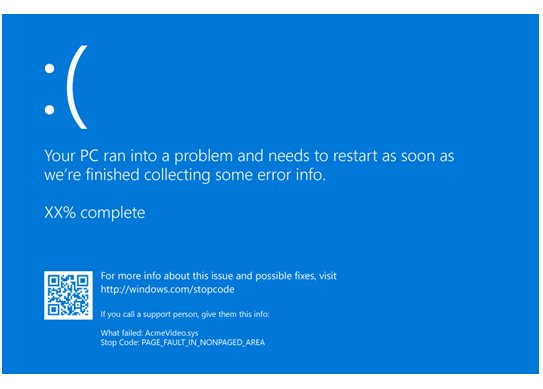
Microsoft's bug check documentation recommends a memory test for several stop codes. If you only need to see how much RAM is installed, follow how to check RAM on Windows 11 instead.
| Sign you may see | Why memory is a suspect | Run the test? |
|---|---|---|
| Stop code 0x1A MEMORY_MANAGEMENT | Microsoft suggests Windows Memory Diagnostic to check physical memory modules | Yes |
| Stop code 0x12B FAULTY_HARDWARE_CORRUPTED_PAGE | Microsoft names defective RAM as a cause to investigate | Yes |
| Stop code 0x1C7 STORE_DATA_STRUCTURE_CORRUPTION | Same memory test recommendation in the bug check page | Yes |
| Stop code 0xA IRQL_NOT_LESS_OR_EQUAL | Microsoft's fix page lists checking memory after updating drivers | Yes, after driver updates |
| Crashes started right after adding or swapping RAM | New or reseated modules are the most recent hardware change | Yes |
| Blue screens with no clear pattern | Microsoft's stop code checklist lists memory errors as one cause | Yes, alongside driver and disk checks |
Preparing for Memory Diagnostics
| Before you start | Why it matters |
|---|---|
| Save and close your work | Selecting Restart now and check for problems (recommended) restarts the PC immediately |
| An administrator account or password | User Account Control may ask for administrator credentials when mdsched opens |
| Time without the PC | The test takes some time, and the Extended test takes longer than Standard |
| Mains power on a laptop | A battery that runs flat mid-test ends the run with no result |
| A note of recent hardware changes | Microsoft's stop code guidance asks you to remove or replace recently added hardware if errors continue |
Method 2: Open the Tool From Control Panel
This is the route Microsoft's stop code documentation gives, and it works the same on Windows 10 and Windows 11.
- Open Control Panel from the Start menu search.
- Type Memory in the Control Panel search box at the top right.
- Select Diagnose your computer's memory problems.
- Approve the User Account Control prompt.
- Select Restart now and check for problems (recommended).
Method 3: Search for Windows Memory Diagnostic
- Select the search box on the taskbar, or press Start.
- Type memory.
- Select Windows Memory Diagnostic in the results.
- Select Restart now and check for problems (recommended).
- Leave the PC running the test until Windows restarts on its own.
The test screen can look inactive for long stretches. Microsoft's Surface guidance notes that it is still running, so do not power off.
How to switch from the Standard to the Extended test
Standard tests run by default. The Extended test is more thorough and takes longer, so use it when Standard passes but the crashes continue.
- Start the test with any method above and wait for the Windows Memory Diagnostic screen after the restart.
- Press F1 to open the test options.
- Use the arrow keys to change the test mix from Standard to Extended.
- Press F10 to apply the settings and restart the test with them.
- Leave the PC alone until the test finishes and Windows restarts.
Interpreting the Results from Windows Memory Diagnostic
After the automatic restart, a notification shows the result. It can take a few minutes to appear after you sign in.
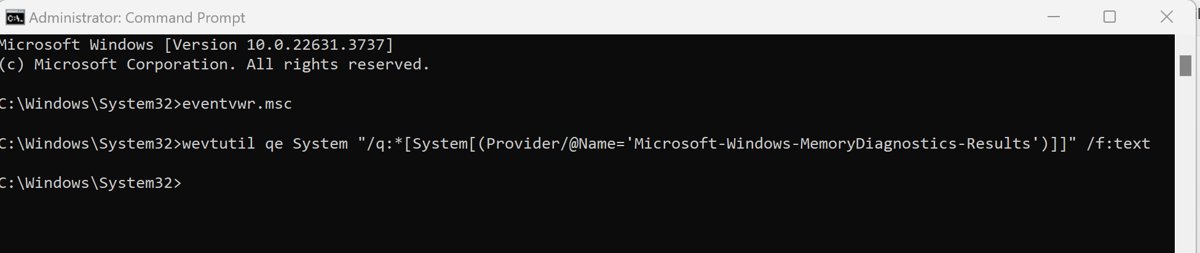
If you missed it, the result is saved in Event Viewer. New to the tool? Read what Windows Event Viewer is and how to use it.
- Right-click Start and select Event Viewer.
- Expand Windows Logs and select System.
- Look for the entry whose source is MemoryDiagnostics-Results and select it.
- Read the General tab for the result text.
- If the entry is not in the System log, open Event Viewer (Local) > Applications and Services Logs > Microsoft > Windows > MemoryDiagnostics-Results > Debug.
- Check the Event ID: 2001 means no memory errors were detected.
Any other result that reports errors means at least one test failed. Go to the troubleshooting section for next steps.

Troubleshooting and Next Steps After Testing
The test reports memory errors
A module, slot or memory setting is failing under test.
- Remove or replace any RAM you added recently, as Microsoft's stop code guidance advises for new hardware.
- Run the hardware diagnostics supplied by your PC or motherboard manufacturer to confirm the fault.
- Run Windows Memory Diagnostic again after each change to see whether the errors follow a module.
- Contact the PC or memory manufacturer about a warranty replacement for a module that keeps failing.
No errors are found but the PC still crashes
Standard tests can miss faults, or the crash comes from a driver or disk.
- Run the test again with the Extended test mix using F1 and F10.
- Open Event Viewer > Windows Logs > System and check for critical errors at the time of each crash.
- Open Device Manager and look for devices marked with an exclamation point, then update their drivers.
- Install the latest Windows updates from Settings > Windows Update.
The results from Windows Memory Diagnostic never appear
The sign-in notification was missed or took a few minutes to show.
- Wait a few minutes after signing in for the notification.
- Right-click Start > Event Viewer > Windows Logs > System.
- Look for the MemoryDiagnostics-Results source.
- Check Applications and Services Logs > Microsoft > Windows > MemoryDiagnostics-Results > Debug if the System log has nothing.
The test seems stuck on the same percentage
The display updates slowly while a long pass is running.
- Leave the PC running; Microsoft notes the test may appear inactive while it is still working.
- Expect the Extended test to take much longer than Standard.
- Restart only if nothing has changed for many hours, then run the Standard test to get a result first.
You cannot find or open Windows Memory Diagnostic
The search term or command did not match the tool name.
- Press Win + R, type
mdschedand select OK. - Or search Control Panel for Memory and select Diagnose your computer's memory problems.
- Sign in with an administrator account if User Account Control blocks the tool.
Advanced Tools for Memory Diagnostics
Windows Memory Diagnostic is enough for most checks. Use a second tool when the PC cannot start Windows, or when you want a result from a different test set.
| Tool | Where it comes from | When to use it |
|---|---|---|
| Windows Memory Diagnostic | Built into Windows 10 and 11; runs at boot as the Windows memory tester | First check on any PC that still signs in |
| Manufacturer hardware diagnostics | Your PC or motherboard maker's own tool | Microsoft recommends it for other hardware issues and to confirm a fault |
| Surface app | Microsoft, for Surface devices | Checking a Surface for hardware problems alongside the memory test |
| MemTest86 | PassMark, from memtest86.com; free edition available | Boots from a USB flash drive and needs no operating system, so it works when Windows will not start |
Download bootable testers only from the vendor's own site, and skip any "PC optimizer" that claims to repair RAM.
Additional Tips for Successful Diagnostics
| Tip | Reason |
|---|---|
| Run the Standard test first, then Extended if crashes continue | Standard gives a quick answer; Extended is more thorough |
| Note the stop code on each blue screen | Codes such as 0x1A and 0x12B point toward memory, others toward drivers or disk |
| Test again after every RAM change | It shows which module or slot the errors follow |
| Check the System log around each crash time | Microsoft's checklist uses critical System log errors to find the failing device or driver |
| Do not interrupt the test | Powering off mid-run leaves no result in Event Viewer |
Frequently Asked Questions
How do I run memory diagnostics in Windows 11?
Press Win + R, type mdsched and select OK. Choose Restart now and check for problems (recommended). The PC restarts, runs the Standard test and restarts again, then shows the result in a notification or in Event Viewer.
How do I run memory diagnostics in Windows 10?
The steps match Windows 11. Press Win + R, enter mdsched, select OK and choose Restart now and check for problems (recommended). You can also search Control Panel for Memory and select Diagnose your computer's memory problems.
What does Windows Memory Diagnostic do?
It restarts the PC and tests the installed RAM before Windows loads, then records the result. It helps confirm whether blue screens such as MEMORY_MANAGEMENT or FAULTY_HARDWARE_CORRUPTED_PAGE come from defective memory modules rather than drivers or disks.
How do I open Windows Memory Diagnostic?
Open it with Win + R and the command mdsched, by typing memory in the taskbar search and selecting Windows Memory Diagnostic, or from Control Panel by searching Memory and selecting Diagnose your computer's memory problems.
How do I use the Windows Memory Diagnostic tool's Extended test?
When the test screen appears after the restart, press F1. Use the arrow keys to change the test mix from Standard to Extended, then press F10 to apply. The Extended test is more thorough and takes longer to finish.
Where are the results from Windows Memory Diagnostic?
A notification shows them a few minutes after you sign in. If you miss it, open Event Viewer, go to Windows Logs > System and look for the MemoryDiagnostics-Results source. Event ID 2001 means no memory errors were detected.
How do I run a Windows memory diagnostic test to completion?
Start it with mdsched and leave the PC alone after the restart. The Standard test takes some time and the Extended test takes longer. The screen may look inactive while it runs, and Windows restarts on its own when it finishes.
How do I run a memory diagnostic check?
Open Windows Memory Diagnostic with mdsched and select Restart now and check for problems (recommended). You need an administrator account: User Account Control asks for approval or an administrator password when the tool opens, because the test runs at boot time before Windows loads. Ask the PC's administrator to enter their password.