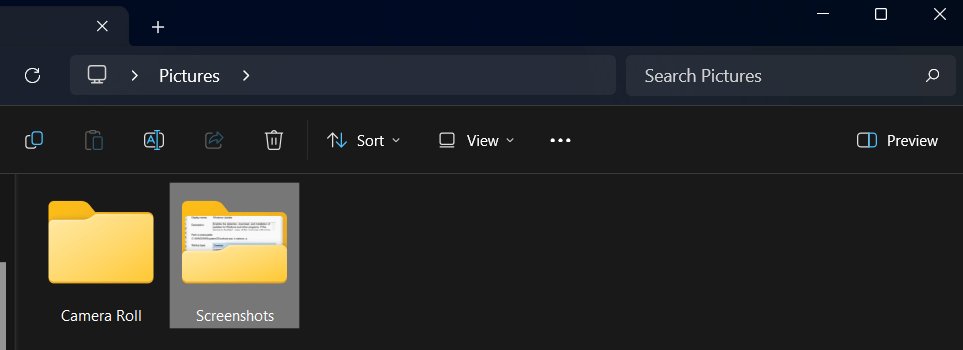
Your screenshot folder is Pictures > Screenshots, at %USERPROFILE%\Pictures\Screenshots, on both Windows 11 and Windows 10.
This guide shows where each capture method saves its image, why some shortcuts save no file at all, how OneDrive and Game Bar change the location, and how to move the folder.
The Short Answer: Common Screenshot Folder Locations
Open File Explorer, select Pictures in the navigation pane, and open Screenshots. That folder holds every capture made with Windows + PrtScn, and Snipping Tool saves there on Windows 11.
Other methods save somewhere else or save nothing. Match the way you took the screenshot to a row.
| How you took the screenshot | Where it went | Saved as a file? |
|---|---|---|
| Windows + PrtScn | Pictures > Screenshots | Yes, a PNG file |
| Fn + Windows + Space Bar (no PrtScn key) | Pictures > Screenshots | Yes |
| Snipping Tool or Windows + Shift + S on Windows 11 | Pictures > Screenshots, plus the clipboard | Yes, when automatic saving is on |
| Snipping Tool on Windows 10 | Wherever you choose with Save Snip | Only when you save it |
| PrtScn on its own | Clipboard, or the snipping overlay on Windows 11 | No, unless the snip is saved |
| Alt + PrtScn | Clipboard only | No |
| Xbox Game Bar (Windows + Alt + PrtScn) | Videos > Captures | Yes, a PNG file |
| Pictures backed up to OneDrive | OneDrive > Pictures > Screenshots | Yes, and synced to the cloud |
Where Windows + Print Screen Saves Screenshots
Windows logo key + PrtScn is the one keyboard shortcut that writes a file without opening any app. Microsoft lists it for both Windows 11 and Windows 10, and it saves the full screen to the Screenshots subfolder of Pictures.
- Press Windows logo key + PrtScn to capture the whole screen.
- On a keyboard without a PrtScn key, press Fn + Windows logo key + Space Bar instead.
- Press Windows logo key + E to open File Explorer.
- Select Pictures in the navigation pane, then open Screenshots.
- Sort by Date modified and open the newest file.
The full path is %USERPROFILE%\Pictures\Screenshots, so each Windows account has its own Screenshots folder.
Where Print Screen Saves Screenshots
PrtScn on its own does not create a file. On Windows 11 it opens the Snipping Tool overlay by default, and on Windows 10 it copies the whole screen to the clipboard.
- Press PrtScn. If the snipping overlay appears, pick a mode and drag across the area. The snip follows the Snipping Tool rules below.
- If nothing visible happens, the full screen is on your clipboard. Open Paint and press Ctrl + V to paste it.
- Select File > Save as in Paint and choose a folder to turn the clipboard image into a file.
- On Windows 11, change the key behaviour under Start > Settings > Accessibility > Keyboard > Use the Print Screen button to open screen snipping.
- On Windows 10, the same switch is under Start > Settings > Ease of Access > Keyboard > Print Screen shortcut.
Where Alt + Print Screen Saves Screenshots
Alt + PrtScn captures only the active window and copies it to the clipboard. No file is written to Pictures or anywhere else, so searching for it finds nothing.
- Click inside the window you want, then press Alt + PrtScn.
- Paste the capture with Ctrl + V into an email, chat or document right away.
- To keep it as a file, paste it into Paint and select File > Save as.
- If you copied something else afterwards, press Windows logo key + V to open clipboard history. It only holds earlier captures if you turned it on beforehand.
Where Snipping Tool Screenshots Are Saved
Snipping Tool behaves differently on the two versions of Windows. On Windows 11 a snip is saved to your Screenshots folder automatically. On Windows 10 it stays unsaved until you save it yourself.
| Your version | What happens after a snip | Where to find it |
|---|---|---|
| Windows 11 Snipping Tool | Saved automatically and copied to the clipboard | Pictures > Screenshots, or the folder set in See More > Settings |
| Windows 11, extra copy | Save as writes a second copy with a name you choose | The folder you picked in the Save As box |
| Windows 10 Snipping Tool | Opens in the app, not saved | Select Save Snip, then pick a name, location and type in Save As |
| Windows 10, Windows + Shift + S | Copied to the clipboard | Nowhere until you paste it and save it |
A Windows 10 snip that you closed without saving is gone. Paste it from the clipboard if you have not copied anything since.
Where Windows + Shift + S Screenshots Go
Windows logo key + Shift + S opens the snipping overlay and copies your selection to the clipboard. On Windows 11 the same snip is also saved to your Screenshots folder by Snipping Tool.
- Press Windows logo key + Shift + S and drag across the area you want.
- Paste the selection straight into an app with Ctrl + V if you only need it once.
- On Windows 11, open File Explorer > Pictures > Screenshots to find the saved copy.
- On Windows 10, paste the snip into Paint and select File > Save as to create a file.
For the full set of capture shortcuts and modes, see How to Screenshot on Windows 11: A Step-by-Step Guide.
Where Xbox Game Bar Screenshots Are Saved
Game Bar ignores the Screenshots folder. Its screenshots are PNG files and its clips are MP4 files, both in the Captures folder inside Videos. Each file name contains the game or app name plus the date and time.
- Press Windows logo key + Alt + PrtScn in a game or app to take a Game Bar screenshot.
- Open File Explorer and select Videos in the navigation pane.
- Open Captures and look for a file named after the game or app you captured.
- To confirm the folder Game Bar is using, select Start > Settings > Gaming > Captures and read the location shown near the top.
Where Screenshots Go If You Use OneDrive
OneDrive no longer has a separate Save screenshots option. Microsoft now protects screenshots by backing up the whole Pictures folder, which moves Pictures, and the Screenshots folder inside it, under your OneDrive folder.
When Pictures is backed up, look in %USERPROFILE%\OneDrive\Pictures\Screenshots rather than the local Pictures path.
- Select the OneDrive cloud icon in the notification area of the taskbar.
- Select the Help & Settings icon, then Settings.
- Open the Sync and backup tab and select Manage backup.
- Check whether Pictures shows as backed up or Not backed up.
- If it is backed up, open File Explorer, select OneDrive in the navigation pane, then Pictures > Screenshots.
How to Search for Missing Screenshots
Search only finds files. A capture that went to the clipboard will never show up, so check the table above first. For everything else, search from the widest folder that makes sense.
- Select Search on the taskbar and type Screenshot. Results cover your PC and OneDrive.
- For a deeper search, open File Explorer, select This PC, and type in the search box. It is slower but checks every folder.
- Search by file type with a wildcard, for example
*.png, to list every PNG image on the drive. - Search from Videos for Captures if the screenshot came from a game.
- When you find the file, right-click it and select Open file location to see which folder it is really in.
For photos saved from browsers, phones and cloud apps rather than screenshots, see Where are saved images? A Guide to Locating Your Stored Photos.
How to Find the Screenshot Folder Path Quickly
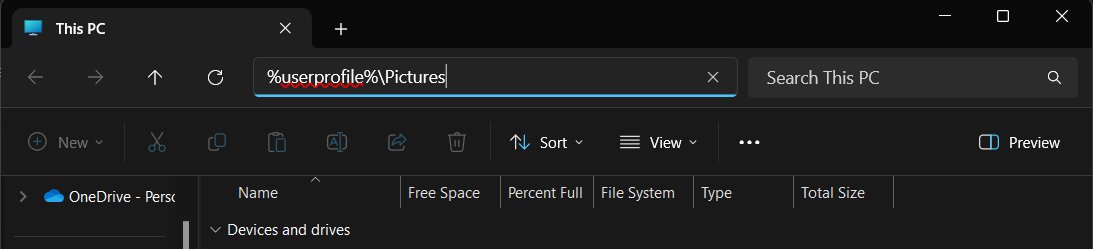
These are the default paths Microsoft registers for each folder. Paste one into the File Explorer address bar and press Enter to jump straight there. Press Alt + D to select the address bar first.
| Folder | Default path | Filled by |
|---|---|---|
| Screenshots | %USERPROFILE%\Pictures\Screenshots |
Windows + PrtScn, Windows 11 Snipping Tool |
| Screenshots with OneDrive backup | %USERPROFILE%\OneDrive\Pictures\Screenshots |
The same methods once Pictures is backed up |
| Game Bar captures | %USERPROFILE%\Videos\Captures |
Windows + Alt + PrtScn and Game Bar clips |
| Screen recordings | %USERPROFILE%\Videos\Screen Recordings |
Windows + Shift + R on Windows 11 |
| Pictures | %USERPROFILE%\Pictures |
Parent folder of Screenshots |
%USERPROFILE% expands to your own account folder, such as C:\Users\YourName.
How to Change the Screenshot Folder for Windows + Print Screen
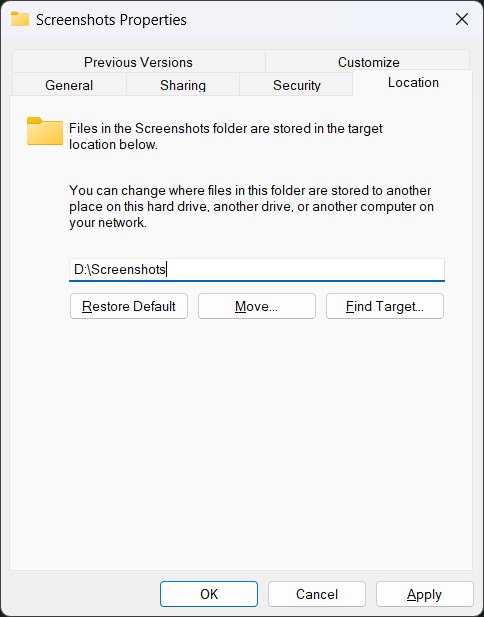
Screenshots is a registered personal folder, like Pictures and Downloads. Windows moves personal folders from the Location tab of their Properties, and Windows + PrtScn then saves to the new place.
- Create the destination folder first, for example on a second drive.
- Open File Explorer > Pictures, right-click Screenshots, and select Properties.
- Switch to the Location tab.
- Select Move…, choose the destination folder, and select OK.
- Take a test capture with Windows + PrtScn and confirm it lands in the new folder.
Never point Screenshots at another personal folder such as Pictures or Videos itself. Microsoft documents that the two folders cannot be separated again without a registry fix.
How to Change Where Snipping Tool Saves Screenshots
On Windows 11, Snipping Tool keeps its own save setting. Change it here if you want snips somewhere other than the Screenshots folder, or turn off automatic saving.
- Select Start, type Snipping Tool, and open it.
- Select See More at the top right, then select Settings.
- Change the default Screenshots folder location to the folder you want.
- Turn automatic saving on or off to match how you work.
- Take a snip with Windows + Shift + S and check the new folder.
Windows 10 Snipping Tool has no automatic save folder. Pick the folder each time in the Save As box after Save Snip.
How to Change the Xbox Game Bar Captures Folder
Game Bar reports its capture folder in Settings. Captures is a normal subfolder of Videos, so it follows Videos if you move that personal folder.
- Select Start > Settings > Gaming > Captures.
- Read the folder location shown near the top of the Captures page.
- To put captures on another drive, right-click Videos in File Explorer and select Properties.
- Open the Location tab, select Move…, choose the new folder, and select OK.
- Take a test screenshot with Windows + Alt + PrtScn and confirm the location on the Captures page.
How to Create a Screenshot Folder Manually
Use this when you want snips in a folder of your own, such as a project folder. Snipping Tool can then save to it directly.
- Open File Explorer and go to the place you want the folder, such as Pictures or Documents.
- Select New > Folder and name it, for example Work screenshots.
- Open Snipping Tool > See More > Settings and choose the new folder as the save location.
- For Windows + PrtScn, move the Screenshots folder to it with the Location tab steps above.
- Right-click the new folder and select Pin to Quick access so it is one click away.
Useful Screenshot Shortcuts in Windows 11 and Windows 10
The shortcut decides the folder. Keep this table for the save behaviour of each key combination.
| Shortcut | Windows 11 | Windows 10 |
|---|---|---|
| Windows + PrtScn | Full screen saved to Pictures > Screenshots | Full screen saved to Pictures > Screenshots |
| PrtScn | Opens the snipping overlay by default | Copies the full screen to the clipboard |
| Alt + PrtScn | Active window to the clipboard | Clipboard only, no file |
| Windows + Shift + S | Snip saved to Screenshots and copied | Snip copied to the clipboard |
| Windows + Shift + R | Screen recording saved to Videos > Screen Recordings | Not listed for Windows 10 |
| Windows + Alt + PrtScn | Game Bar screenshot to Videos > Captures | Game Bar screenshot to Videos > Captures |
| Windows + V | Clipboard history, once turned on | Clipboard history, once turned on |
How to check your screenshot saved where you expect
- Press Windows + PrtScn once.
- Open Pictures > Screenshots, or the OneDrive copy if Pictures is backed up.
- Confirm a new PNG file appears with the current date in the Date modified column.
- Right-click the file and select Properties to read its full path in Location.
- Repeat with any other shortcut you use, and check the folder its table row names.
How to move the Screenshots folder back to Pictures
Use the same Location tab to return the folder to its default path.
- Open the folder you moved Screenshots to, right-click it, and select Properties.
- Switch to the Location tab and select Move….
- Choose
%USERPROFILE%\Pictures\Screenshots, creating a Screenshots folder inside Pictures if it no longer exists. - Select OK and let Windows move the files.
- Take a test capture with Windows + PrtScn to confirm it saves to Pictures again.
Why Your Screenshots Are Not Showing Up
Most missing screenshots were never saved as files, or were saved to a folder you are not looking in. Match your situation to a heading.
You used a clipboard-only shortcut
Alt + PrtScn, and PrtScn on Windows 10, copy to the clipboard and write no file.
- Open Paint and press Ctrl + V. If an image appears, the capture worked.
- Select File > Save as to keep it.
- Use Windows + PrtScn next time when you want a file automatically.
Your Pictures folder is redirected to OneDrive
OneDrive folder backup moves Pictures, and Screenshots with it, into your OneDrive folder.
- Open File Explorer, select OneDrive, then Pictures > Screenshots.
- Check the backup state in OneDrive Settings > Sync and backup > Manage backup.
You are looking in the wrong Windows account
Each account has its own Screenshots folder under its own user profile.
- Sign in to the account that took the screenshot.
- Open
%USERPROFILE%\Pictures\Screenshotsfrom that account's File Explorer address bar.
Your keyboard requires the Fn key
Some laptop keyboards have no working PrtScn key, so Windows + PrtScn never fires.
- Press Fn + Windows logo key + Space Bar to save a full-screen capture.
- On a Surface without a keyboard, press and hold Power, then press Volume Up. This does not work on Surface Laptop.
- Use Windows + Shift + S as a shortcut that does not need PrtScn.
Snipping Tool snips are missing
Automatic saving is off, the save folder was changed, or the PC runs Windows 10, which never auto-saves.
- Open Snipping Tool > See More > Settings and check the automatic save option and folder.
- On Windows 10, save each snip with Save Snip before closing the window.
- Paste the last snip with Ctrl + V if it is still on the clipboard.
Game screenshots are not in Pictures
Game Bar saves to Videos > Captures, not to the Screenshots folder.
- Open File Explorer > Videos > Captures.
- Check the location on Settings > Gaming > Captures if the folder is empty.
Frequently Asked Questions
Where is my screenshot folder located?
Your screenshot folder is Pictures > Screenshots, at %USERPROFILE%\Pictures\Screenshots, on Windows 11 and Windows 10. Open File Explorer, select Pictures in the navigation pane and open Screenshots. If OneDrive backs up Pictures, the folder is OneDrive > Pictures > Screenshots instead.
Where is my screenshots folder on Windows?
On Windows, screenshots taken with Windows + PrtScn are saved in the Screenshots subfolder of Pictures. Windows 11 Snipping Tool saves there too. Xbox Game Bar screenshots are the exception and go to Videos > Captures.
What folder do my screenshots go to?
It depends on the method. Windows + PrtScn and Windows 11 Snipping Tool use Pictures > Screenshots. Game Bar uses Videos > Captures. Alt + PrtScn, and PrtScn on Windows 10, go to the clipboard and create no file until you paste and save them.
Where do you find the screenshots folder?
Press Windows + E to open File Explorer, then select Pictures and open Screenshots. You can also paste %USERPROFILE%\Pictures\Screenshots into the File Explorer address bar and press Enter to go straight there from any folder.
Why is there no Screenshots folder in my Pictures folder?
The Screenshots folder usually looks missing because OneDrive backup moved Pictures into your OneDrive folder, or because the folder was moved elsewhere. Check OneDrive > Pictures first, then take one capture with Windows + PrtScn and search for it.
Where is the screenshot folder located on Windows 10?
On Windows 10, Windows + PrtScn saves to Pictures > Screenshots, the same as Windows 11. Windows 10 Snipping Tool and Snip & Sketch do not save automatically, so those snips are only in the folder you choose when you save them.
Can I change where my screenshots are saved?
Yes. Right-click the Screenshots folder, select Properties, open the Location tab and select Move to change where Windows + PrtScn saves. On Windows 11, Snipping Tool has its own folder setting under See More > Settings.
Where do Xbox Game Bar screenshots go?
Game Bar screenshots are saved as PNG files in the Captures folder inside Videos, at %USERPROFILE%\Videos\Captures. The file name contains the game or app name and the date and time. Settings > Gaming > Captures shows the folder in use.