Saved images land in the Downloads folder when they come from a browser on a computer, in Pictures\Screenshots or on the Mac desktop when they are screenshots, and in the Photos app (or Google Photos) on a phone.
The table below gives the default spot for each device and source, and the sections after it cover iPhone, Android, Windows, Mac, browsers and cloud libraries, plus what to do when a picture seems to have vanished.
Where saved images go by default
Find your device and the way the image was saved, then open the place in the last column. Most readers are finished after one row.
| Device | How you saved the image | Where to look first |
|---|---|---|
| Windows 11 or 10 | Downloaded from Chrome or Edge | The Downloads folder, C:\Users\[your name]\Downloads |
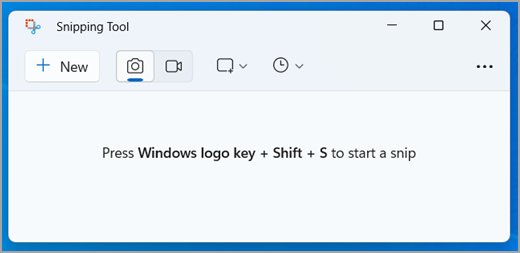
| Windows 11 or 10 | Windows + PrtScn or Snipping Tool | Pictures > Screenshots in File Explorer |
| Windows 11 or 10 | Taken with the Camera app or a webcam | Pictures > Camera Roll |
| Mac | Downloaded from Chrome | /Users/<username>/Downloads |
| Mac | Screenshot with Shift-Command-3 or Shift-Command-4 | The desktop, named "Screen Shot [date] at [time]" |
| iPhone or iPad | Screenshot | Photos > Collections > Media Types > Screenshots |
| iPhone or iPad | Downloaded as a file from Safari | Files > Browse > iCloud Drive > Downloads |
| Android | Screenshot | Photos > Collections > On this device > Screenshots |
| Android | Download image in Chrome | The Files app |
If the row points to the right place and the image still is not there, jump to the troubleshooting section further down.
How Devices Decide Where Saved Images Go
No single "saved images" folder exists on any platform. The app that saves the picture picks the folder, and the system default only applies when that app has no setting of its own.
| Who decides | Default behaviour | Where you change it |
|---|---|---|
| Your browser | Saves to the account's Downloads folder on Windows and Mac | The browser's Downloads or General settings |
| The screenshot tool | Windows uses Pictures\Screenshots; the Mac uses the desktop; phones use the Photos or Gallery app | Snipping Tool Settings; the Mac Screenshot app Options menu |
| The camera app | Windows saves to Camera Roll; phones save to the photo library | Windows Settings > System > Storage |
| A messaging or social app | Saves into its own device folder or the photo library | The app's own settings |
| A cloud backup service | Copies photos to iCloud Photos, Google Photos or OneDrive | The backup app's settings |
Common rules devices use: phones collect camera shots, screenshots and saved images into one library view, while computers keep them as plain files in named folders.
Where to Find Saved Images on iPhone and iPad
The Photos app holds camera shots, screenshots and images saved from Messages. Files downloaded from the web sit in the Files app instead.
- Open Photos and scroll the library to the date you saved the image.
- For screenshots, tap Collections, then Media Types, then Screenshots.
- For a hidden picture, tap Collections, swipe up and tap Hidden under Utilities, then tap View Album and unlock it with Face ID or Touch ID.
- If you use an iCloud Shared Photo Library, tap Collections and choose Both Libraries under the library view options so nothing is filtered out.
- For a downloaded image file, open Files, tap Browse, tap iCloud Drive and open Downloads.
- If you just downloaded it in Safari, tap the Downloads button next to the search field, then tap Downloads.
Images saved from a Messages conversation go to Photos: touch and hold the image and tap Save. In Chrome for iPhone, tap More > Downloads to list what Chrome saved.
Where to Find Saved Images on Android
Android splits saved images between the Photos app, which shows every device folder, and the Files app, which shows the raw downloads. Menu names can differ on phones that ship their own gallery app.
- Open the Photos app and tap Collections at the bottom.
- Tap On this device to see each device folder, such as Screenshots and folders created by other apps.
- For an image saved from Chrome, open the Files app and pick the category that holds it.
- To sort a long list, tap the category, then More > Sort by and choose date.
- No Photos app? Open Gallery, then tap Album view and the Screenshots folder, or tap Folders in Google's Gallery app to browse by app and SD card.
Screen recordings follow the same pattern: Photos > Collections > On this device > Movies.
Where to Find Saved Images on Windows and Mac
Computers store every image as a file, so the answer is always a folder path. Match what you did to a row.
| What you did | Windows 11 and 10 | Mac |
|---|---|---|
| Saved an image from a browser | C:\Users\[your name]\Downloads |
/Users/<username>/Downloads |
| Took a full-screen shot | Windows + PrtScn saves to Pictures\Screenshots | Shift-Command-3 saves to the desktop |
| Captured part of the screen | Snipping Tool auto-saves to the Screenshots folder; Windows + Shift + S copies to the clipboard first | Shift-Command-4 saves to the desktop |
| Pressed PrtScn alone | Copied to the clipboard, not saved as a file | Not applicable |
| Took a photo with the built-in camera | Pictures\Camera Roll | — |
Windows: common places to check are Pictures, Downloads and Desktop in File Explorer. The Photos app shows your Pictures folder by default; to add another folder, select Gallery in the folders list, then Add folder. Recent Photos app updates also open newer formats, as covered in Windows 11 Photos app WebP support.
Mac: common places to check are the desktop, Downloads and the Photos app. Hidden photos appear only after you choose View > Show Hidden Photo Album in Photos.
How to Locate Images Saved from Browsers and Apps
Every browser keeps its own download list and its own folder setting. Open the list first: it points straight at the file.
| Browser or app | Open the download list | See or change the folder |
|---|---|---|
| Chrome on a computer | More > Downloads, then point to the file and select Show in folder | More > Settings > Downloads, then Change |
| Microsoft Edge | Open the folder listed under Location in settings | Settings and more > Settings > Downloads; the path is under Location |
| Safari on Mac | The downloads button near the top-right corner | Safari > Settings > General > File download location |
| Safari on iPhone | The Downloads button next to the search field | Files > iCloud Drive > Downloads |
| Chrome on Android | Open the Files app | Managed in Files |
| Chrome on iPhone | More > Downloads | Choose Files or Google Drive in the Save in… screen |
| Messages on iPhone | Touch and hold the image, then tap Save | Saved to Photos |
Find downloads, screenshots and app-saved images faster by turning on Chrome's Ask where to save each file before downloading or the matching Edge option, so each file lands where you choose. Some browsers keep a separate folder for their own capture tool; Vivaldi's is covered in changing the Vivaldi screen captures folder.
Finding Photos Stored in Cloud Services
A photo that is backed up can live in the cloud even after it leaves the device. Sign in with the same account that did the backup, or the library will look empty.
| Service | Where the photos are | On a PC |
|---|---|---|
| Google Photos | The Photos tab in the app and photos.google.com |
Any browser at photos.google.com |
| iCloud Photos | The Photos app on every device signed in to the same Apple Account, and Photos on iCloud.com | The Windows Photos app iCloud Photos tab, after you set up iCloud for Windows |
| OneDrive | The OneDrive app, after Camera Upload is turned on | File Explorer, and the OneDrive tab in the Windows Photos app |
To confirm iCloud Photos is on for an iPhone, go to Settings, tap your name, tap iCloud, tap Photos and check Sync this device. For Google Photos, finding your photos in Google Photos walks through Archive, Trash, Locked Folder and backup status.
Tips for Searching, Organizing, and Recovering Missing Images
Use search tools before browsing manually. Each platform indexes images differently, so pick the tool that matches where the photo lives.
| Goal | Tool | How |
|---|---|---|
| Find a file by name on Windows | Taskbar search | Select Search on the taskbar and type the file name |
| Search one folder on Windows | File Explorer | Open Downloads or Pictures and type in the search box; search This PC for a slower, deeper search |
| Find a photo by date or place on Windows | Photos app | Type a name, date, type or location in the search box at the top |
| Find a photo by content on a phone | Google Photos | Tap Search and type a thing, place or name, or type Recently Added |
| Keep new images in one place | Photos app folders | Right-click a folder, select Create a folder, then drag images into it |
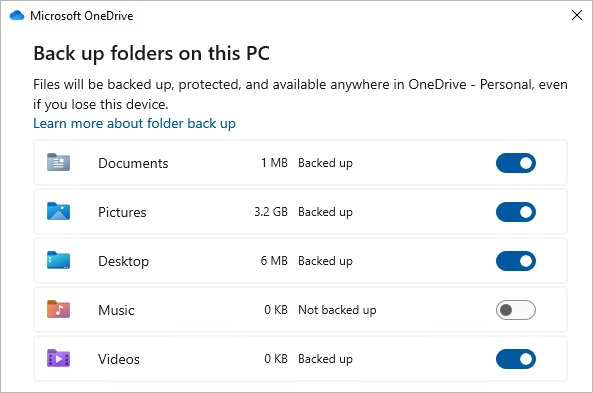
| Protect the Pictures folder | OneDrive backup | OneDrive Settings > Sync and backup > Manage backup, then turn on Pictures |
| Recover a deleted photo | Recently Deleted or Trash | iPhone Recently Deleted and Google Photos Trash each keep items for 30 days |
Google Photos search only covers backed-up items, and new photos can take a few days to become searchable.
How to check you found the right copy
A photo can exist in two places at once, such as a device folder and a cloud library. Confirm which copy you are looking at before you move or delete it.
- On Windows, open the image's folder in File Explorer and read the full path in the address bar.
- In Chrome, open More > Downloads and select Show in folder for the file; the folder that opens is the real location.
- On a Mac, open Safari's downloads list and click the button next to the file name to reveal it; this fails if the file was moved after download.
- On a phone, open the same photo at
photos.google.comor iCloud.com; if it appears there, it is backed up to the cloud.
How to change where new images are saved
Pick the destination once so future images stop scattering. Each change below affects only new files; existing images stay where they are.
- Windows camera photos: select Start > Settings > System > Storage, then Advanced storage settings > Where new content is saved (Windows 10: Change where new content is saved), and pick a drive under New photos and videos will save to.
- Snipping Tool: select See More > Settings and change the default Screenshots folder.
- Chrome: open More > Settings > Downloads, then select Change next to the location.
- Edge: open Settings and more > Settings > Downloads, then select Change in the Location area.
- Mac screenshots: press Shift-Command-5, open Options and choose a new save location.
- Safari on Mac: choose Safari > Settings > General and set File download location.
Fix a saved image that seems to be missing
The picture shows in an app but not in Photos or Gallery
The app saved it to its own device folder, which the main photo view hides.
- Open Google Photos and tap Collections > On this device.
- Open the folder named after the app.
- To show those folders in the main view, set the hide option to Show content from other apps.
- To back them up, open Photos settings > Backup > Back up device folders and turn the folder on.
A photo disappeared from the iPhone library
It was deleted, hidden, or is in the other half of a Shared Library.
- Open Photos > Collections and check Recently Deleted; items stay there for 30 days.
- Check Hidden under Utilities and tap More > Unhide on the photo.
- Switch the library view to Both Libraries.
A backed-up photo is missing in Google Photos
A different account is signed in, backup is off, or the photo is archived or in Trash.
- Tap your profile picture and confirm the account.
- Open Photos settings > Back up and check that Back up is on and the Backup account is correct.
- Check Collections > Archive, then the Trash.
- Search for Recently Added in case the photo carries an unexpected date.
Windows says the Camera Roll is missing
The save location points to a drive or folder that is no longer there.
- Open Settings > System > Storage > Advanced storage settings > Where new content is saved.
- Under New photos and videos will save to, pick another location, select Apply, switch back to This PC (C:) and select Apply again.
- If the error continues, create a folder named Camera Roll inside Pictures and take a test photo.
A screenshot never appeared as a file on Windows
PrtScn and Windows + Shift + S copy to the clipboard instead of saving.
- Use Windows + PrtScn to save straight to Pictures\Screenshots.
- Or open Snipping Tool after the capture and press Ctrl + S to save the snip.
Frequently Asked Questions
Where are my saved images?
On a computer, images you save from a browser go to the Downloads folder unless you changed it. On an iPhone or Android phone, saved images usually appear in the Photos app, and downloaded image files appear in the Files app.
Where are images saved on Windows 11?
Browser downloads go to C:\Users\[your name]\Downloads, screenshots taken with Windows + PrtScn go to Pictures\Screenshots, and Camera app photos go to Pictures\Camera Roll. The Photos app shows the Pictures folder by default.
Where do photos go when I save them from a website or message?
On a computer, a picture saved from a website goes to the browser's download folder. On an iPhone, touching and holding an image in Messages and tapping Save puts it in Photos, while files downloaded in Safari go to Files > iCloud Drive > Downloads.
Where are screenshots saved on my phone or computer?
Windows + PrtScn saves to Pictures\Screenshots, and a Mac saves screenshots to the desktop. On iPhone, open Photos > Collections > Media Types > Screenshots. On Android, open Photos > Collections > On this device > Screenshots.
How do I view saved images on Android?
Open the Photos app and tap Collections > On this device to see every folder, including Screenshots and folders created by other apps. For images downloaded in Chrome, open the Files app instead.
Why can I see a photo in an app but not in my Photos or Gallery app?
The app saved the photo to its own device folder. In Google Photos, open Collections > On this device and look for the folder named after the app. You can also choose to show content from other apps in the main Photos view.
How do I find photos that are stored in iCloud, Google Photos, or OneDrive?
Sign in with the account that did the backup. Google Photos shows backed-up items at photos.google.com, iCloud Photos appears in the Photos app and on iCloud.com, and OneDrive photos appear in File Explorer and the Windows Photos app OneDrive tab.
What should I do if a saved image seems to be missing?
Check the trash first: iPhone Recently Deleted and Google Photos Trash keep items for 30 days. Then check hidden or archived albums, confirm you are signed in to the right account, and search by date or content.
How do I change where my browser saves images?
In Chrome, open More > Settings > Downloads and select Change. In Edge, open Settings and more > Settings > Downloads and select Change under Location. In Safari on a Mac, choose Safari > Settings > General > File download location.
How are photos saved on an iPhone?
Photos from the camera and screenshots go into the Photos library. With iCloud Photos turned on, that library uploads to iCloud in original formats, and deleting a photo on one device deletes it on every device using the same Apple Account.
Bottom Line
Open the download list in your browser or the Collections tab in your phone's photo app before you search anything else. Both show the exact location of each saved image, which covers most cases in seconds; only deleted, hidden or unbacked photos need the recovery steps.