You cannot add a classic taskbar toolbar in Windows 11, because the taskbar no longer has a Toolbars menu; pin apps to the taskbar and pin folders to Quick access or Start instead.
This guide covers nine built-in replacements, which one fits your old toolbar, how to check each one works, and why the Toolbars option is missing.
Can you add a classic taskbar toolbar in Windows 11?
No. Right-click the Windows 11 taskbar and the only entry is Taskbar settings, and that page has no toolbar option.
Microsoft's taskbar documentation lists four groups of settings: Taskbar items, System tray icons, Other system tray icons and Taskbar behaviors. None of them adds a toolbar, and the Windows 11 specifications page states that apps can no longer customize areas of the taskbar.
Replace a Windows 10 toolbar with built-in pins: right-click an app and choose Pin to taskbar, and right-click a folder and choose Pin to Quick access or Pin to Start. Pins are supported by Microsoft, survive updates, and cover what most people used toolbars for: one-click access to apps and folders.
Which toolbar replacement should you use?
Match what your old toolbar held to the row below. Most people end up combining the first three rows.
| What your old toolbar did | Use this in Windows 11 | Why |
|---|---|---|
| Launched a handful of apps | Option 1: pin apps to the taskbar | One click, plus Windows key + number from the keyboard |
| Opened favourite folders | Option 2: pin folders to Quick access | Folders sit in File Explorer Home and the navigation pane |
| Held a folder you open from anywhere | Option 3: pin the folder to Start | Two clicks from any screen, grouped with apps |
| Jumped to Downloads, Documents or Pictures | Option 4: Start folders next to Power | Built-in toggles, no pinning needed |
| Showed a pile of mixed shortcuts | Option 5 or Option 8: desktop or a quick-launch folder | Holds files, folders and web links together |
| Held web links (the old Links toolbar idea) | Option 7: the Edge favorites bar | Always-visible row of sites in the browser |
| Showed background app icons | Option 9: the tray overflow area | Choose which icons stay visible |
| Needed the exact Windows 10 toolbar back | No built-in route exists | Third-party taskbar mods are not recommended here (see below) |
Option 1: Pin apps to the Windows 11 taskbar
Pinned apps are the closest thing to the old Quick Launch bar. Pin from Search, or pin an app that is already open.
- Select the Search box on the taskbar and type the app's name.
- Right-click the app in the results and select Pin to taskbar.
- For an app that is already running, right-click its taskbar icon and select Pin to taskbar.
- Drag pinned icons left or right to set their order.
- Press Windows key + 1 to open the first pinned app, Windows key + 2 for the second, and so on.
- To remove one, right-click the pinned icon and select Unpin from taskbar.
Right-click any pinned app to open its jump list of recent files and common tasks. Windows key + Alt + number opens that jump list from the keyboard.
Option 2: Pin folders to File Explorer for quick access
Quick access was renamed File Explorer Home in Windows 11 version 22H2. Pinned folders appear in Home and in the left navigation pane of every File Explorer window.
- Press Windows key + E to open File Explorer.
- Browse to the folder you used to keep on a toolbar.
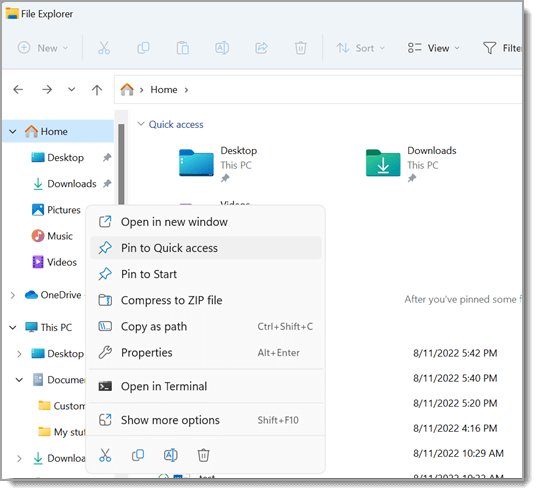
- Right-click the folder and select Pin to Quick access.
- Check that the folder now appears under Home and in the navigation pane.
- To remove it later, right-click it and select Unpin from Quick access.
Desktop, Documents, Downloads, Pictures, Music and Videos are pinned by default. If you unpinned one, select Home, select the Up arrow beside the address bar, then right-click the folder and select Pin to Quick access.
Option 3: Pin folders to the Start menu
Start pins can hold folders and websites as well as apps, and you can group them into named folders.
- Open File Explorer and find the folder.
- Right-click the folder and select Pin to Start.
- Open Start and drag the new pin to the position you want.
- Drag one pin on top of another to create a Start folder, then rename it.
- Drag more pins into that folder to build a group, like a toolbar in a single tile.
- To remove a pin, right-click it and select Unpin from Start.
A Start folder disappears on its own once only one pin is left inside it.
Option 4: Add folder shortcuts next to the power button in Start
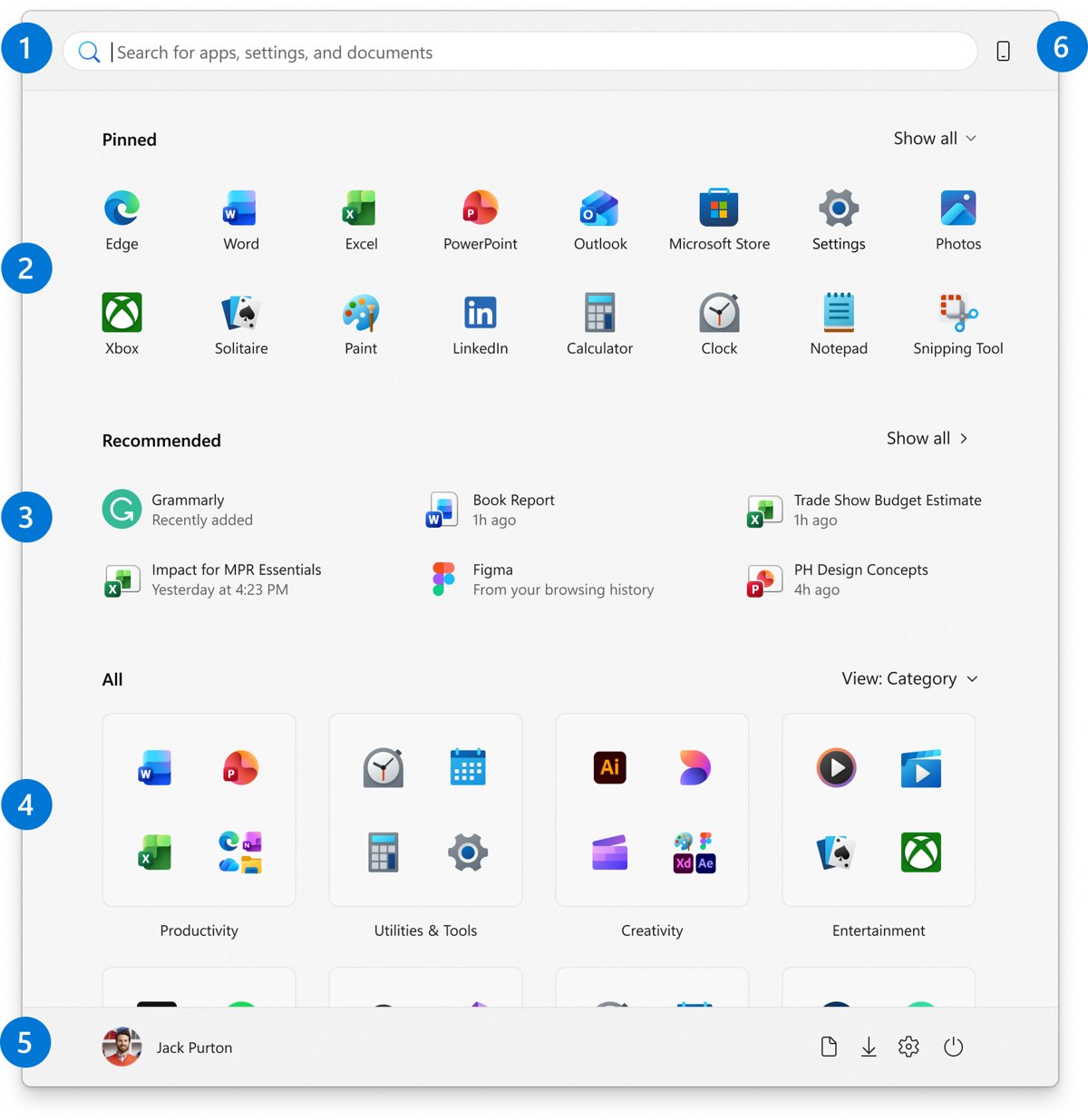
Start can show small folder icons beside the Power button. The choices are Documents, Downloads, Music, Pictures, Videos, Network and Personal folder.
- Select Start.
- Right-click the bottom of the Start menu and select Start settings.
- Select Folders.
- Turn On each folder you want next to the Power button.
- Open Start again and select a folder icon to jump straight to it.
Option 5: Use the desktop as a simple toolbar area
The Windows 10 Desktop toolbar put desktop items on the taskbar. In Windows 11, keep those shortcuts on the desktop and reach them with Windows key + D, which shows and hides the desktop.
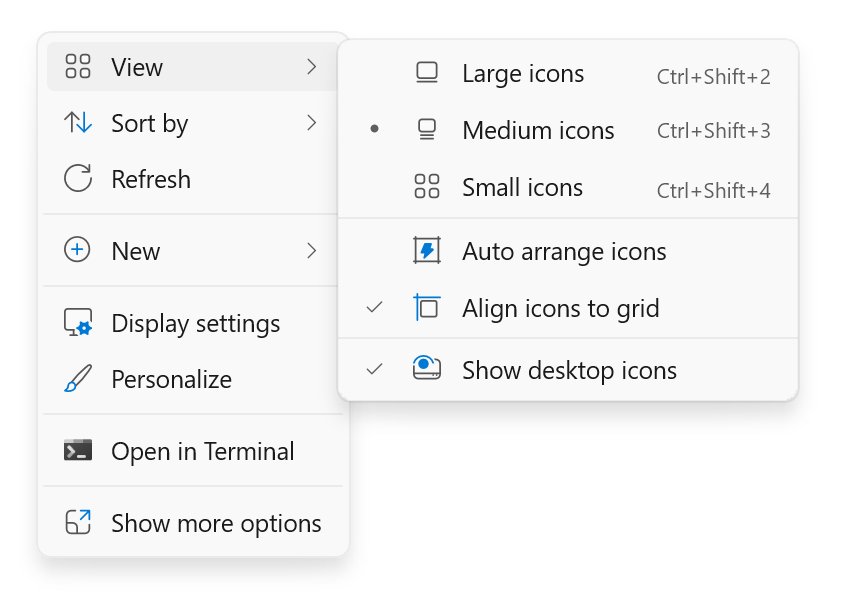
- Right-click an empty area of the desktop and select View, then make sure Show desktop icons is ticked.
- Right-click the desktop again and select New > Shortcut.
- Browse to a file, folder or web address and finish the wizard to name the shortcut.
- Drag apps from Start > All onto the desktop to add app shortcuts.
- Create a desktop folder for each group, such as Work or Tools, and move related shortcuts into it.
- Press Windows key + D from any app to reach the shortcuts, then press it again to return.
To restore missing system icons such as This PC or Recycle Bin, open Settings > Personalization > Themes > Desktop icon settings.
Option 6: Add a toolbar to File Explorer
File Explorer in Windows 11 already has its toolbar: the command bar across the top. It cannot take custom buttons, but it exposes the common commands and view switches.
- Open File Explorer with Windows key + E.
- Select View on the command bar, then Show, to turn on Navigation pane, File name extensions, Hidden items or Item check boxes.
- Select View > Compact view to fit more items on screen.
- Select See more > Options to change what File Explorer opens to.
- Right-click a file and select Show more options for commands from the Windows 10 menu.
- Use keys instead of buttons: Ctrl + T opens a tab, Ctrl + Shift + N makes a folder, Alt + P toggles the preview pane and Alt + D jumps to the address bar.
Option 7: Add a favorites toolbar in Microsoft Edge
The Edge favorites bar is a row of saved sites under the address bar. It replaces the idea behind the old Links toolbar, and Microsoft lets you show it always, never, or only on new tabs.
- Open Microsoft Edge.
- Press Ctrl + Shift + B to show the favorites bar.
- Open a site you visit often and press Ctrl + D to save it as a favorite.
- Choose the favorites bar as the folder in the dialog so the site appears on the bar.
- Press Ctrl + Shift + D to save every open tab into a new favorites folder at once.
- Press Ctrl + Shift + B again if you want to hide the bar.
On a work PC, the Enable favorites bar policy can force the bar on or off, and then the shortcut has no effect. Firefox users can do something similar with its toolbar; see how to add the Search bar to the Firefox toolbar.
Option 8: Create a quick-launch folder and reach it from the taskbar through File Explorer
Microsoft documents pinning apps to the taskbar, not folders. The workaround is one folder of shortcuts that File Explorer, already on your taskbar, opens in one click.
- Open File Explorer and go to your user folder or Documents.
- Press Ctrl + Shift + N and name the new folder, for example Quick Launch.
- Hold Alt and drag files, folders or apps into it to create shortcuts rather than moves.
- Right-click the Quick Launch folder and select Pin to Quick access.
- Right-click it again and select Pin to Start if you also want it in Start.
- Select the File Explorer icon on the taskbar, then select Quick Launch in the navigation pane to open your shortcuts.
If File Explorer is not on your taskbar, open it, right-click its taskbar icon and select Pin to taskbar.
Option 9: Use the Windows 11 taskbar overflow area
The overflow area, also called the hidden icon menu, sits beside the system tray. It holds background app icons you do not want on show all the time.
- Right-click the taskbar and select Taskbar settings.
- Expand Other system tray icons.
- Turn on the hidden icon menu, then switch each app's icon On or Off for the system tray.
- Drag an icon from the overflow area to the system tray to keep it visible.
- Drag an icon from the system tray back to the overflow area to hide it.
Should you restore classic taskbar toolbars with third-party tools?
Several third-party programs patch the Windows 11 taskbar or Start menu to bring back Windows 10 behaviour, including toolbars.
They change parts of Windows that Microsoft says apps can no longer customize, so a feature update can break them or leave the taskbar misbehaving until the tool is updated or removed.
Do not install taskbar modification tools to get toolbars back; use Options 1 to 9 instead. The built-in pins cover the same jobs, stay supported through updates, and do not require giving an extra program deep access to the shell.
How to check your toolbar replacements work
- Press Windows key + 1; the app you pinned first on the taskbar should open or come to the front.
- Press Windows key + E and look under Home; your pinned folders should be listed in Quick access and the navigation pane.
- Open Start; folder pins and Start folders should show in the pinned section.
- Look beside the Power button in Start; the folder icons you turned on should be there.
- Open Edge; the favorites bar should sit under the address bar with your saved sites.
- Restart the PC and repeat the checks; pins should still be in place.
How to make Windows 11 feel more like it has a toolbar
These settings free taskbar space for your pinned apps and put them where Windows 10 users expect them.
- Right-click the taskbar and select Taskbar settings.
- Expand Taskbar behaviors and set Taskbar alignment to Left.
- Under Taskbar items, set Search to Search icon only or Hide to make room for pins.
- Turn off Widgets or Task view under Taskbar items if you never use them.
- Tick Show my taskbar on all displays if you use more than one monitor.
- Open Settings > Personalization > Start and turn on Show recently opened items in Jump Lists on Start or the taskbar, so right-clicking a pin lists recent files.
Widgets can still give you a glanceable panel; see how to add desktop widgets and a sidebar to Windows 11. The taskbar itself stays at the bottom of the screen; Windows 11 has no setting to move it.
How to remove the shortcuts again
- Right-click a taskbar pin and select Unpin from taskbar.
- Right-click a folder in File Explorer Home and select Unpin from Quick access.
- Right-click a Start pin and select Unpin from Start.
- Open Start settings > Folders and turn Off the folders next to the Power button.
- Press Ctrl + Shift + B in Edge to hide the favorites bar.
- Delete desktop shortcuts or the Quick Launch folder; the original files stay where they were.
Troubleshooting: why you cannot find the Toolbars menu
The taskbar right-click menu only shows Taskbar settings
Windows 11 removed taskbar toolbars; this is how the product works, not a fault on your PC.
- Stop looking for a setting to turn toolbars on; none exists in Taskbar settings.
- Pin the apps you used to launch from the toolbar with Pin to taskbar.
- Pin the folders with Pin to Quick access or Pin to Start.
Your Windows 10 taskbar toolbars disappeared after the upgrade
Windows 11 does not carry taskbar toolbars over, though the folders they pointed to are still on disk.
- Open File Explorer and find the folder the old toolbar showed.
- Right-click it and select Pin to Quick access.
- Follow Option 8 if the toolbar held a mix of shortcuts you want in one place.
Taskbar pins keep resetting or will not change on a work PC
Organizations can control taskbar pins and their order, so your changes may be overwritten.
- Ask your IT department whether the taskbar layout is managed.
- Pin your extras to Start instead; a managed Start layout can still be changed by the user.
- Use Quick access pins in File Explorer for folders.
Frequently asked questions
How do I add a toolbar in Windows 11?
Windows 11 has no taskbar toolbars, so you add toolbar-style shortcuts instead. Pin apps with Pin to taskbar, pin folders with Pin to Quick access or Pin to Start, and show the Microsoft Edge favorites bar with Ctrl + Shift + B for websites.
How do I add a toolbar to the Windows 11 taskbar?
You cannot. Right-clicking the Windows 11 taskbar shows only Taskbar settings, and that page has no toolbar option. The closest built-in result is pinning apps to the taskbar and keeping a folder of shortcuts pinned to Quick access in File Explorer.
How do I add apps to the toolbar in Windows 11?
Type the app's name in the taskbar Search box, right-click it and select Pin to taskbar. If the app is already open, right-click its taskbar icon and select Pin to taskbar. Drag pinned icons to reorder them.
How do I add a new toolbar in Windows 11?
The Windows 10 New toolbar option does not exist in Windows 11. Create a folder of shortcuts instead, pin it to Quick access and Start, and open it from File Explorer on the taskbar. That gives you one place for the same items.
How do I enable toolbars in Windows 11?
There is nothing to enable. Taskbar settings in Windows 11 covers taskbar items, system tray icons, the overflow area and taskbar behaviors, but no toolbars. Microsoft also states that apps can no longer customize areas of the Windows 11 taskbar.
How do I install a toolbar in Windows 11?
Do not install a toolbar program to get one back. Third-party taskbar mods change parts of Windows that updates can break. Use the built-in pins in the taskbar, Start and File Explorer, and the Edge favorites bar for websites.
How do I add a website to the toolbar in Windows 11?
Open the site in Microsoft Edge, press Ctrl + D and save it to the favorites bar, then press Ctrl + Shift + B to show that bar. To reach the site from Start, open the Edge more options menu (…) and select More tools > Pin to Start.
How do I add Google to the toolbar in Windows 11?
Open google.com in Edge, press Ctrl + D and save it to the favorites bar, which sits under the address bar. You can also pin the page to Start from Edge with More tools > Pin to Start so it opens from the Start menu.
How do I add a quick access toolbar in Windows 11?
In Windows 11 File Explorer, Quick access is a list of pinned folders shown in Home and the navigation pane. Right-click any folder and select Pin to Quick access to add it; right-click it again and select Unpin from Quick access to remove it.