The power button in Windows 11 lives in the Start menu: select Start, then select the Power icon to see Sleep, Shut down and Restart.
This guide shows every other place the same options appear, including the sign-in screen, Ctrl + Alt + Delete, Windows key + X, Alt + F4, the shutdown command and the physical button on the PC itself.
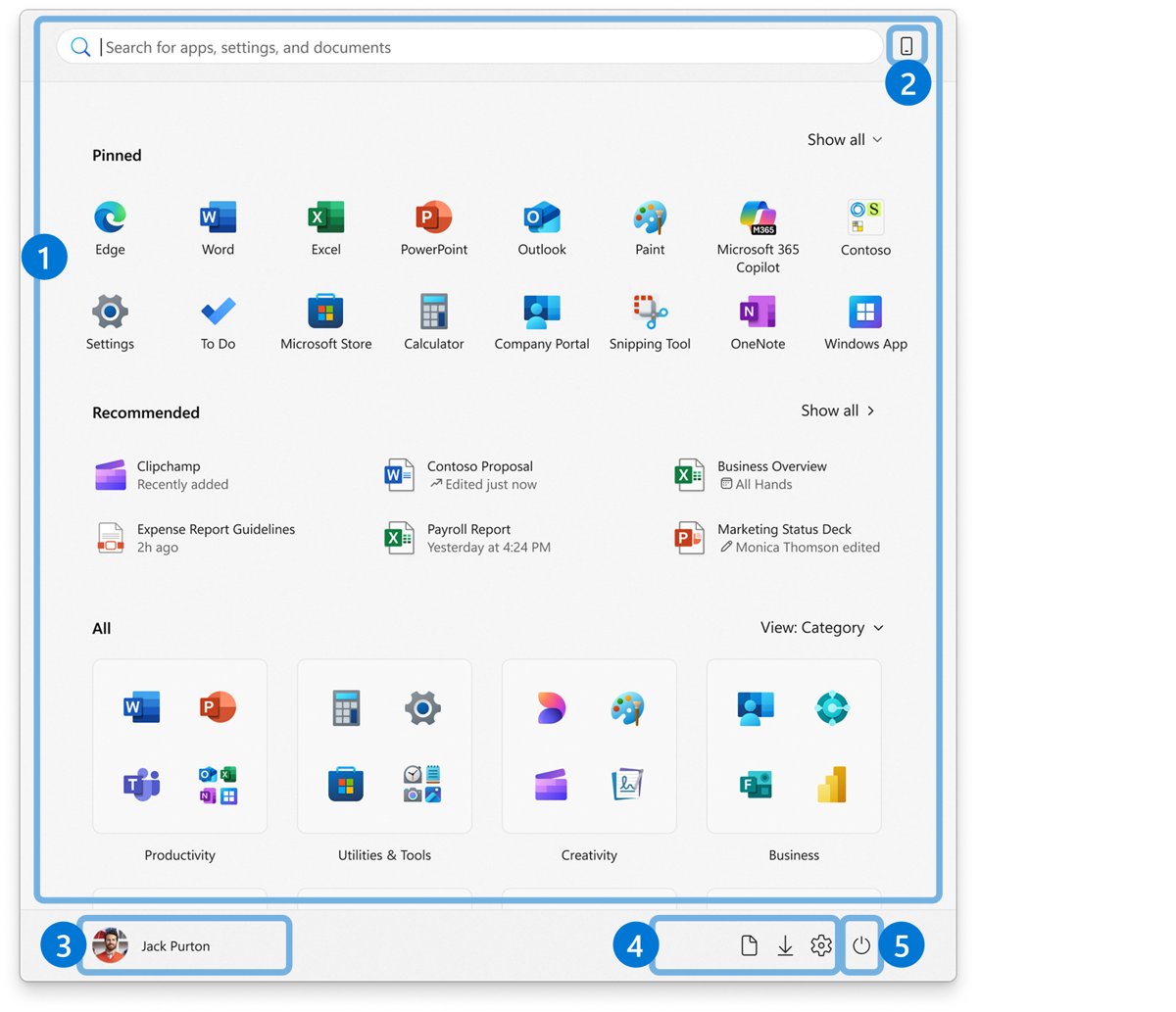
Where to find the power button in the Windows 11 Start menu
Microsoft splits the Start menu into areas, and one of them is Power, which holds shut down, restart and sleep. It sits at the bottom of the Start menu, on the same row as your account name.
- Select Start on the taskbar, or press the Windows key.
- Select the Power icon at the bottom of the Start menu.
- Choose Sleep, Shut down or Restart. Hibernate also appears here if it is turned on.
Your account name on the same row is a different button. It holds Sign out, Lock and switching users, not the power commands.
Quick reference: every place to find power options in Windows 11
All of these routes reach the same shut down and restart commands. Pick the one that matches what you can use right now.
| Your situation | Where to find power options | How |
|---|---|---|
| Normal desktop, mouse works | Start menu | Start > Power > Shut down, Restart or Sleep |
| You prefer right-click menus | Quick Link menu | Right-click Start (or press Windows key + X) > Shut down or sign out |
| Keyboard only, apps open | Windows Security screen | Press Ctrl + Alt + Delete, then select the Power button |
| Keyboard only, desktop showing | Shut down prompt | Press Windows key + D, then Alt + F4 |
| Nobody is signed in | Sign-in screen | Select the Power icon on the sign-in screen |
| You want a script or timer | Command line | Run shutdown /s /t 0 in Command Prompt or PowerShell |
| Screen is frozen or black | Physical power button | Press and hold the button on the PC until it turns off |
What the Windows 11 power button options mean
The Start menu power list changes with your hardware and pending updates. This table covers every entry it can show.
| Option | What it does | Use it when |
|---|---|---|
| Sleep | Uses very little power, starts up faster and returns you to where you left off; Windows saves your work and turns the PC off if the battery runs too low | You are stepping away for a short while |
| Hibernate | Uses less power than sleep and resumes where you left off, though more slowly than sleep; hidden until you turn it on, and missing on PCs with InstantGo | A laptop will sit unused and uncharged for a long time |
| Shut down | Turns the PC off completely | You are done for the day or moving the PC |
| Restart | Shuts down and starts Windows again | An app, driver or update asks for a restart |
| Update and shut down | Replaces Shut down when updates are waiting; installs them, then turns the PC off | You want updates installed without waiting at the screen |
| Update and restart | Replaces Restart when updates are waiting; installs them, then starts Windows again | You want updates installed now and the PC back on |
Where is the power button on the Windows 11 sign-in screen?
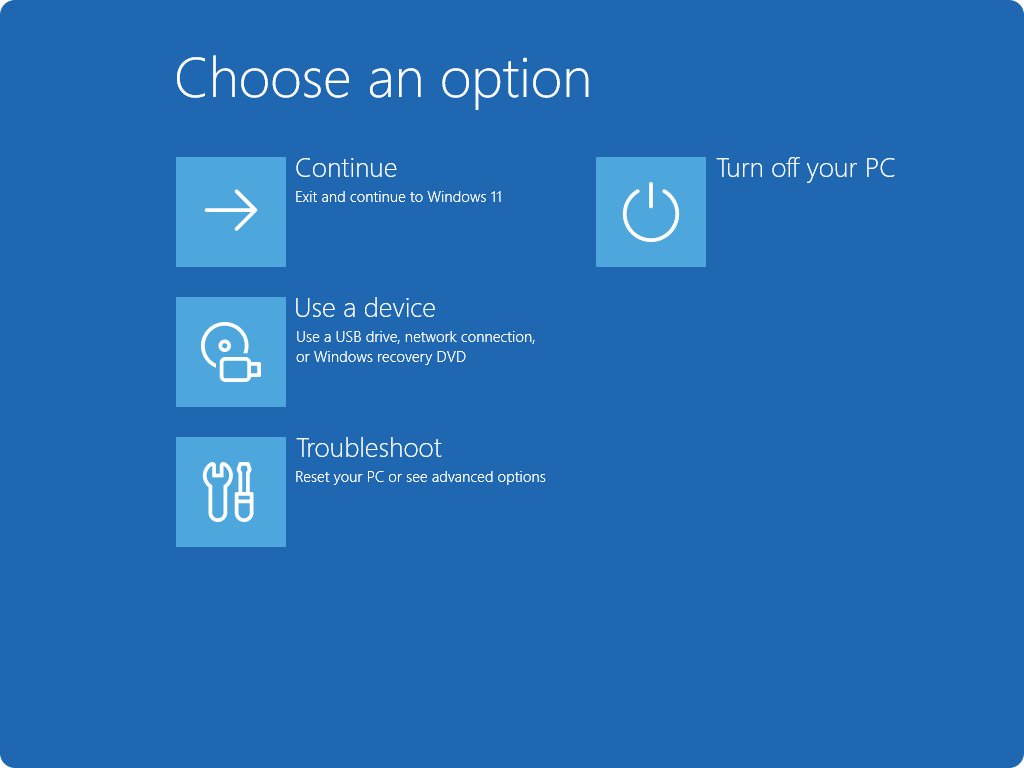
The sign-in screen has its own Power icon, so you can turn the PC off or restart it without signing in. The same icon also starts the Windows Recovery Environment.
- Press any key or click the lock screen to reach the sign-in screen. If you are signed in, press Windows key + L to lock the PC first.
- Select the Power icon on the sign-in screen.
- Choose Sleep, Shut down or Restart.
- To open recovery options instead, hold Shift while you select Restart.
How to open the power menu with the keyboard
Three shortcuts reach power options without the mouse. Each lands on a different screen, so use the one that fits what is open.
- Use Windows key + X: press Windows key + X to open the Quick Link menu, use the arrow keys or the mouse to reach Shut down or sign out, then choose Shut down, Restart, Sleep or Hibernate.
- Use Ctrl + Alt + Delete: press Ctrl + Alt + Delete to switch to the Windows Security screen, press Tab until the Power button is selected, press Enter, then choose an option.
- Use Alt + F4 from the desktop: press Windows key + D to show the desktop, then press Alt + F4. With no window active, Windows opens a prompt to shut down.
- In the prompt, pick Shut down or another option from the list and press Enter.
Alt + F4 closes whatever window is active first. Press Windows key + D before it, or you close your app instead of reaching the shut down prompt.
Shut down or restart Windows 11 from Command Prompt
The shutdown command works on Windows 11 and Windows 10 and needs no menu at all. Type it in Command Prompt, PowerShell or the Run box (Windows key + R).
shutdown /s /t 0/s shuts the computer down and /t 0 sets the countdown to zero seconds; the default is 30. Swap /s for /r to restart, /h to hibernate (only if hibernation is enabled) or /l to sign out. Run shutdown /a during a countdown to cancel it. Adding /f forces open apps to close without warning, which can lose unsaved data.
You should see: Windows closes your apps and the PC turns off. With a longer timeout such as /t 60, Windows first shows a notice that it is about to shut down.
Can you add a power button to the Windows 11 desktop?
Yes. A desktop shortcut that runs the shutdown command works as a one-click power button. The same steps make a Restart shortcut.
- Create a Shut down shortcut: right-click an empty area of the desktop and select New > Shortcut.
- In the location box, type
shutdown /s /t 0and select Next. - Name it Shut down and select Finish.
- Create a Restart shortcut: repeat the steps with
shutdown /r /t 0and name it Restart. - Change the shortcut icon: right-click the shortcut, select Properties, then Change Icon, pick an icon and select OK twice.
The shortcut acts immediately with no confirmation. Save your work before you double-click it, or use /t 30 to get a 30-second window to cancel with shutdown /a.
Where is the physical power button on a Windows 11 computer?
The hardware button's location is set by the PC maker, not by Windows. Use this table as a starting point, then check the documentation that came with the PC or the manufacturer's website.
| Device type | Where to look first | What it usually looks like |
|---|---|---|
| On laptops | Above the keyboard, as a key in the top row, or on a side edge | A key or button marked with the power symbol, a circle broken by a vertical line |
| On desktop PCs | The front or top panel of the tower case | The largest round or square button, often lit when the PC is on |
| On all-in-one PCs | The back, side or lower edge of the screen frame | A small button marked with the power symbol, out of sight from the front |
| On tablets and 2-in-1 devices | The top or side edge of the tablet | A thin button near the volume buttons |
| Any device | The printed or online manual for your exact model | The manual names the button and any recovery button combination |
What happens when you press the physical power button?
A short press and a long press do different things. A short press follows a setting you control; a long press cuts power no matter what Windows is doing.
| Action | What happens | Notes |
|---|---|---|
| Short press while the PC is off | The PC turns on | Same on every Windows PC |
| Short press while the PC is asleep | The PC wakes | Some PCs also wake from a key press, a mouse click or opening the lid |
| Short press while Windows is running | Windows runs the action set in When I press the power button | Many laptops and tablets default to Sleep; it can also be Hibernate or Shut down |
| Press and hold | The device shuts down without asking Windows | Unsaved work is lost; use it only when the PC is frozen |
To change what a short press does, follow How to Customize Windows 11 Power Button Settings. It covers the power button and lid options for both battery and plugged-in use.
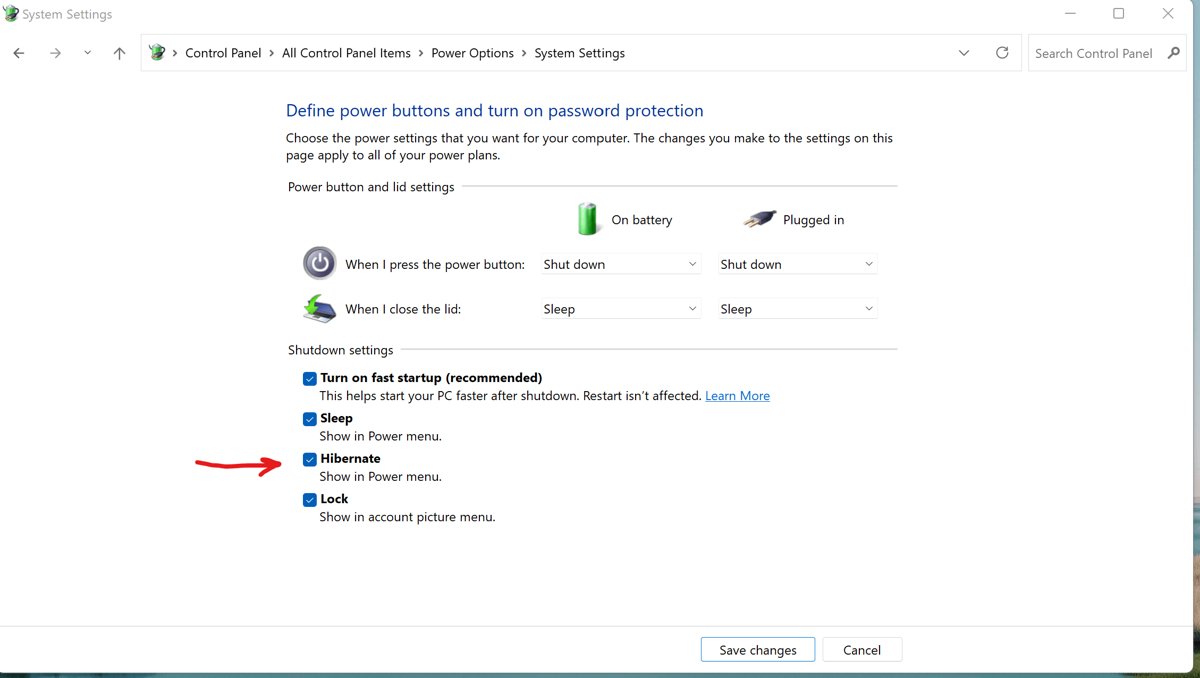
How to show Hibernate in the Windows 11 power menu
Hibernate is off by default and missing entirely on PCs with InstantGo. If your PC supports it, turn it on in Control Panel.
- Select Search on the taskbar, type control panel and select it from the results.
- Select System and Security.
- In the Power Options section, select Choose what the power buttons do.
- Select Change settings that are currently unavailable.
- In the Shutdown settings section, select Hibernate.
- Select Save changes.
If there is no Hibernate entry under Shutdown settings, your hardware does not support it. For sleep timers and battery settings, see How to Manage Power Management Settings in Windows 11/10.
How to check which power options your PC offers
- Select Start, then Power, and read the list; Hibernate should now appear under Sleep if you turned it on.
- Press Windows key + X and hover over Shut down or sign out to confirm the same options appear there.
- Open a Command Prompt and run
shutdown /honly if you want to test hibernation; the PC should go dark and resume where you left off when you press the power button.
Why the power button may look different in Windows 11
| What you see | Why | What to do |
|---|---|---|
| Update and shut down or Update and restart instead of the plain options | Windows Update has updates waiting to install | Pick it to install them, or use Windows key + X if you need to turn off without waiting |
| No Hibernate | Hibernate is off by default, and PCs with InstantGo do not have it | Turn it on in Choose what the power buttons do |
| Sleep, Shut down or Restart missing from the list | A work or school policy hides individual entries | Use another route from the quick reference table, or ask your IT admin |
| No Power icon in Start at all | A policy hides the power button | See the fixes below |
| Different layout on a Windows 10 PC | Windows 10 has a different Start menu design | Select Start, then Power; the options are the same |
What to do if the power button is missing from the Start menu
The Power icon is gone from Start
A policy hides it: the Start policy HidePowerButton, or Remove and prevent access to the Shut Down, Restart, Sleep, and Hibernate commands, which also removes the button from the Ctrl + Alt + Delete screen.
- Check for work or school restrictions: if the PC is managed by an employer or school, ask the IT admin; the policy is deliberate and they control it.
- On a personal Windows 11 Pro PC, press Windows key + R, type
gpedit.mscand press Enter. - Go to Administrative Templates > Start Menu and Taskbar under both Computer Configuration and User Configuration.
- Open Remove and prevent access to the Shut Down, Restart, Sleep, and Hibernate commands, set it to Not Configured and select OK.
- Restart the PC; changes to the Start power button policies need a reboot to take effect.
Windows key + X is not opening the power button
Windows key + X opens the Quick Link menu; the power options sit one level down, under Shut down or sign out.
- Use an alternate power menu: press Windows key + X, then hover over or arrow down to Shut down or sign out.
- Choose the option from the submenu that opens.
- If the Quick Link menu does not open at all, right-click Start instead; it opens the same menu.
Only one entry, such as Sleep, is missing
Separate Start policies hide Sleep, Hibernate, Restart or Shut down one at a time.
- Use Ctrl + Alt + Delete > Power, Alt + F4 on the desktop, or the
shutdowncommand for the missing action. - On a managed PC, ask the IT admin whether the entry was hidden on purpose.
What to do if Windows 11 will not shut down
Shut down hangs on open apps
An app with unsaved work is holding up the shutdown.
- Close apps and save your work: switch to each open app, save, and close it.
- Select Start > Power > Shut down again.
- If an app still refuses to close, open a Command Prompt and run
shutdown /s /f /t 0to force apps closed. Anything unsaved is lost.
Shut down keeps turning into Update and shut down
Updates are waiting and Windows installs them during shutdown.
- Run Windows Update: select Start > Settings > Windows Update and select Check for updates.
- Let the updates download and install, then select Restart now if prompted.
- Shut down normally once the restart finishes.
The screen is frozen and no menu responds
Windows has stopped responding, so software routes cannot run.
- Press Ctrl + Alt + Delete and try the Power button on the Windows Security screen.
- If nothing responds, press and hold the physical power button until the device shuts down.
- Press the power button again to start the PC.
Should you use the physical power button to turn off Windows 11?
A short press is fine, because Windows handles it like any other power command; press and hold only when the PC is frozen. A short press runs the action you chose in When I press the power button, so Windows closes things normally. Holding the button cuts power without asking Windows, which loses unsaved work, so reserve it for a PC that no longer responds to Start > Power or Ctrl + Alt + Delete.
Frequently asked questions
Where is the power button in Windows 11?
Select Start on the taskbar, then select the Power icon at the bottom of the Start menu. It lists Sleep, Shut down and Restart, plus Hibernate if you turned it on. The same options are under Windows key + X > Shut down or sign out.
Where is the power button on Windows 11 Pro?
In the same place as every other edition: Start > Power. Windows 11 Pro only differs because Group Policy can hide the button. If it is missing, check Administrative Templates > Start Menu and Taskbar in gpedit.msc, or ask your IT admin on a work PC.
Where is the power button in Windows 10?
Select Start, then select Power, and choose Sleep, Shut down or Restart. Windows 10 also has the Windows key + X menu, the Ctrl + Alt + Delete Power button, Alt + F4 on the desktop and the shutdown command, all working the same way as in Windows 11.
Why is Windows key + X not opening the power button?
Windows key + X opens the Quick Link menu, not the power options directly. Move to Shut down or sign out in that menu and a submenu opens with Shut down, Restart, Sleep and Hibernate. Right-clicking Start opens the same menu.
Where is the power button on a computer or PC?
On a desktop PC, the physical power button is usually on the front or top of the tower case. On an all-in-one, look at the back, side or bottom edge of the screen. Your PC maker's manual shows the exact spot for your model.
Where is the power button on a laptop?
Most laptops put the power button above the keyboard, as a key in the top row, or on a side edge. It carries the power symbol, a circle broken by a vertical line. Check the manufacturer's website for your model if you cannot see it.
What is the power button in a computer?
It is the hardware button that turns the PC on and, while Windows runs, triggers the action you choose, such as Sleep, Hibernate or Shut down. Windows also has an on-screen Power button in the Start menu that does the same jobs.
What is the keyboard shortcut to shut down Windows 11?
Press Windows key + D to show the desktop, then Alt + F4, and press Enter with Shut down selected. You can also press Windows key + X and choose Shut down or sign out > Shut down.