To set Microsoft Edge as the default browser, open Settings > Apps > Default apps > Microsoft Edge and select Set default; to remove it, select a different browser on the same page and select Set default for that browser instead.
This guide covers Windows 11 and Windows 10 first, then macOS, iPhone, iPad and Android, PDFs, links that still open in Edge, and whether Edge can be uninstalled.
Set Microsoft Edge as the default browser on Windows 11
This is the route Microsoft documents for Windows 11. Microsoft lists the same steps for Windows 10, and the Web browser route below also works there.
- Select Start > Settings > Apps > Default apps.
- Under Set defaults for applications, type
Edgein the search box. - Select Microsoft Edge in the results.
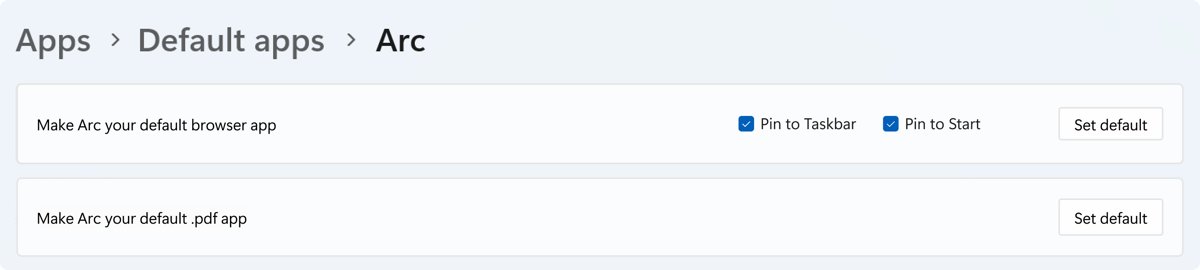
- Next to Make Microsoft Edge your default browser, select Set default.
- Close Settings and open a web link from another app to confirm it opens in Edge.
Press Win + R, type ms-settings:defaultapps and press Enter to jump straight to the Default apps page.
Which route to use for your device and goal
Removing Edge as the default never happens on its own. You always pick another browser, and that choice replaces Edge.
| Your situation | Where to change it | Result |
|---|---|---|
| Windows 11, want Edge | Settings > Apps > Default apps > Microsoft Edge > Set default | Edge opens web links and saved web pages |
| Windows 11, want another browser | Settings > Apps > Default apps > your browser > Set default | Edge stops being the default |
| Windows 10, either direction | Settings > Apps > Default apps > Web browser | The browser you pick handles web links |
| Already inside Edge | Settings and more > Settings > Default browser > Make default | Starts the switch to Edge |
| Mac, iPhone, iPad or Android | The system Settings app (table further down) | One setting for the whole device |
| Only PDFs open in Edge | Default apps search box, type .pdf |
PDFs open in the app you pick; web links unchanged |
| Only Outlook or Teams links open in Edge | The link setting inside Outlook or Teams | Those apps follow your choice |
Set Edge as default from inside Microsoft Edge
Edge has its own shortcut to the setting. Use it when Edge is already open and asks to become the default.
- Open Microsoft Edge.
- Select the three dots in the upper-right corner to open Settings and more.
- Select Settings > Default browser.
- At the top of the page, select Make default.
- If Windows opens the Default apps page, select Set default next to Make Microsoft Edge your default browser.
Remove Microsoft Edge as the default browser on Windows 11
Windows 11 has no "remove" button for Edge. Set another installed browser as the default, and Edge loses the web link and file types that browser takes over.
- Install the browser you want to use instead, then open it once.
- Select Start > Settings > Apps > Default apps.
- Under Set defaults for applications, search for the new browser by name, such as Firefox or Brave.
- Select that browser in the results.
- Next to Make [browser name] your default browser, select Set default.
- If one type still shows Microsoft Edge, type it in the Set a default for a file type or link type search box, such as
httpsor.html, select it, and choose the new browser.
Outside the European Economic Area, Set default moves http, https, .htm and .html to the new browser. The .pdf type stays with Edge until you change it separately.
Set or remove Edge as the default browser on Windows 10
Windows 10 uses a single Web browser entry. Choosing Edge there sets it as the default, and choosing any other browser removes it.
- Select Start > Settings > Apps > Default apps. On the original Windows 10 release, go to Settings > System > Default apps.
- Scroll to Web browser.
- Select the browser listed there.
- In the Choose an app window, select Microsoft Edge to set it, or another browser to remove Edge.
- Close Settings and open a web link from another app to confirm the change.
Set or remove Edge as default on macOS, iPhone, iPad and Android
Each platform has one device-wide browser setting. The same screen sets Edge or replaces it, so find your device and pick Microsoft Edge or a different browser.
| Device | Steps | To remove Edge |
|---|---|---|
| Mac | Apple menu > System Settings > Desktop & Dock, then choose Microsoft Edge from the Default web browser list | Choose Safari or another browser from the same list |
| iPhone or iPad | Update iOS or iPadOS, open Settings > Apps > Default Apps > Browser App, and tap Microsoft Edge | Tap Safari or another browser under Browser App |
| Android | Open Settings > Apps, under General tap Default apps or Choose default apps, tap Browser app, and select Edge | Select Chrome or another browser under Browser app |
Edge must be installed from the App Store or Google Play before it appears in these lists. Some browsers show extra onscreen steps after you choose them on iPhone.
Stop PDFs from opening in Microsoft Edge
PDF files have their own default, separate from web links. Changing the default browser leaves .pdf with Edge, so set it on its own.
- Install the PDF reader you want, if it is not already on the PC.
- Open Settings > Apps > Default apps.
- In the Set a default for a file type or link type search box, type
.pdf. - Select the result showing Microsoft Edge.
- Choose the PDF reader or browser you want and confirm with Set default.
- Double-click a PDF in File Explorer to confirm it opens in the new app.
Unpin or hide Edge after removing it as default
Edge stays installed after you switch, so its icons remain. Unpinning removes them from view without affecting Windows features that rely on Edge.
- Right-click the Microsoft Edge icon on the taskbar.
- Select Unpin from taskbar.
- Open Start and right-click Microsoft Edge in the pinned apps.
- Select Unpin from Start.
In the European Economic Area, Set default pins the new browser to the taskbar automatically unless you clear its checkboxes on the Default apps page.
How to confirm which browser is currently default
- In Windows 11, open Settings > Apps > Default apps and select your browser under Set defaults for applications.
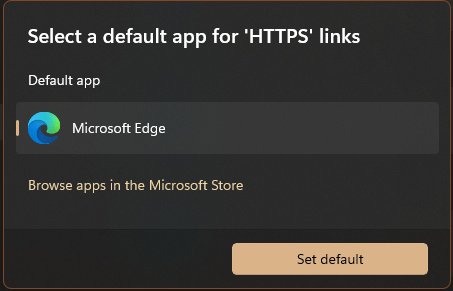
- Check that HTTP, HTTPS, .htm and .html each list that browser's name; any entry still showing Microsoft Edge has not moved.
- In Windows 10, read the name shown under Web browser on the same page.
- Double-click a saved .html file in File Explorer and note which browser opens it.
- Select a link inside a PDF or text document, because those apps follow the Windows default.
What "default browser" means in Windows
The default browser is the app Windows hands a web link or saved web page to. It is a set of link and file type assignments, not a single switch, which is why Edge can keep some of them.
| What gets assigned | Outside the EEA | Inside the EEA |
|---|---|---|
| Link types moved by Set default | http, https | ftp, http, https, read |
| File types moved by Set default | .htm, .html | .htm, .html, .mht, .mhtml, .shtml, .svg, .xht, .xhtml, .xml, if the browser registers them |
| .pdf files | Changed separately in Default apps | Separate one-click option for browsers that register .pdf |
| Taskbar pin | No automatic pin described | New default pinned unless you clear the checkboxes |
| Windows Search web results and Widgets stories | Can open in Edge | Open in your default browser |
Make Edge open your preferred search engine and home page
If you keep Edge as the default but dislike Bing or the new tab page, change both inside Edge. A search engine only appears in the list after you run one search with it in the address bar.
- Visit your preferred search engine, such as google.com, and run one search from Edge's address bar.
- Select Settings and more > Settings.
- Select Privacy, search, and services, then Search and connected services, then Address bar and search.
- Choose your engine from the Search engine used in the address bar menu.
- Return to Settings and select Start, home, and new tab page.
- Turn on Show home button on the toolbar.
- Select New tab page, or select Enter URL and type the page you want as your home page.
Why Edge still opens after you changed the default browser
Most leftovers come from apps that choose Edge themselves, or from one file type that never moved. Match what you see to a symptom below.
Outlook or Microsoft Teams opens links in Edge
Outlook and Teams have their own link setting that sends links to Edge regardless of the Windows default.
- In new Outlook for Windows, select Settings > General > Files and links.
- Set Open hyperlinks from Outlook in to your default browser.
- In classic Outlook, select File > Options > Advanced > File and browser preferences and change the same dropdown.
- In Teams, open Settings > Files and links > Link open preferences and pick your browser.
Windows Search or Widgets opens Edge
Some Microsoft apps open web content in Edge by design; only in the European Economic Area do Windows Search and Widgets follow your default browser.
- Confirm your default browser is set, using the verification steps above.
- Outside the EEA, open search results from your own browser's address bar instead; Windows Settings has no switch for this.
- Inside the EEA, set the default again with Set default if Search or Widgets still open Edge.
Saved .html or .htm files open in Edge
The file types were not reassigned, or Edge claimed them again.
- Open Settings > Apps > Default apps.
- Type
.htmlin the Set a default for a file type or link type search box and select the result. - Choose your browser and select Set default.
- Repeat for
.htm,httpandhttps.
The default browser changes back to Edge or cannot be changed
A work or school PC can apply a default associations file at every sign-in, or Edge was accepted as the default from its own prompt.
- Decline Edge's prompt to make it the default when it appears.
- Set your browser again under Set defaults for applications and check all four web types.
- Sign out, sign back in, and recheck the Default apps page.
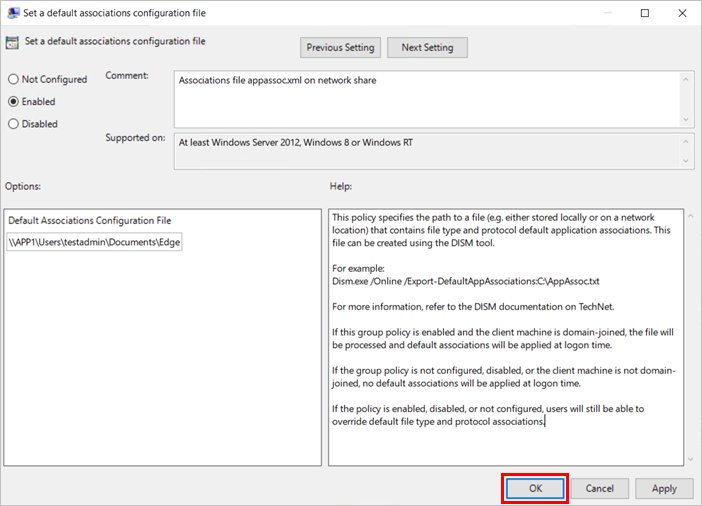
- If it reverts at every sign-in on a managed PC, ask IT; the Set a default associations configuration file policy controls it and only an administrator can change it.
Can you uninstall Microsoft Edge, and best practices when switching
Microsoft states that Edge is an essential Windows component and cannot be uninstalled. The one exception is the European Economic Area, where Edge can be removed from Settings > Apps > Installed apps on Windows 11 23H2 and Windows 10 22H2 or later.
| Practice | Why it matters |
|---|---|
| Switch the default instead of trying to delete Edge | Windows relies on the web platform Edge provides, and Edge keeps updating through Windows Update |
| Avoid unofficial removal scripts | Outside the EEA there is no supported way to remove Edge |
| Install and open the new browser before switching | A browser that has not registered with Windows may be missing from Default apps |
| Set .pdf separately | Changing the default browser does not move PDF files away from Edge |
| Change Outlook and Teams link settings too | Both apps can keep sending links to Edge |
| Decline default prompts from browsers you do not want | Accepting one moves the web link types again |
Frequently asked questions
How do I remove Microsoft Edge from default settings?
Open Settings > Apps > Default apps, select the browser you want instead, and select Set default. Windows has no button that only removes Edge; choosing another browser replaces it. Then change .pdf and the Outlook link setting if those still open Edge.
Can I uninstall Microsoft Edge?
Not in most regions. Microsoft calls Edge an essential Windows component that cannot be uninstalled. In the European Economic Area, Edge can be removed from Settings > Apps > Installed apps on Windows 11 23H2 and Windows 10 22H2 or later.
How do I stop using Microsoft Edge without uninstalling it?
Set another browser as the default in Settings > Apps > Default apps, move .pdf to a different app, and unpin Edge from the taskbar and Start. Edge stays installed and updated, but you no longer see it or land in it from links.
How do I make Microsoft Edge my default browser again?
Open Settings > Apps > Default apps > Microsoft Edge and select Set default next to Make Microsoft Edge your default browser. Inside Edge, you can also go to Settings and more > Settings > Default browser and select Make default.
Why do links still open in Edge after I changed my default browser?
Outlook and Teams send links to Edge until you change their own link setting, and outside the EEA Windows Search and Widgets can open Edge by design. A leftover .html or https assignment in Default apps also sends links to Edge.
How do I stop PDFs from opening in Microsoft Edge?
Open Settings > Apps > Default apps, type .pdf in the file type search box, select the Microsoft Edge result, and choose another PDF reader. Changing the default browser alone does not move PDF files away from Edge.
How do I check which browser is my default?
In Windows 11, open Settings > Apps > Default apps, select a browser, and check the apps listed for HTTP and HTTPS. In Windows 10, read the name under Web browser on the Default apps page.
How do I set Edge as the default browser on iPhone?
Install Edge from the App Store and update iOS. Open Settings, tap Apps, tap Default Apps, tap Browser App, and choose Edge. To remove it, return to Browser App and choose Safari or another browser.
How do I set Edge as the default browser on Android?
Install Edge from Google Play, open Settings, tap Apps, and under General tap Default apps or Choose default apps. Tap Browser app and select Edge. Select a different browser on the same screen to remove it.