Select Start > Settings > System > About to see your Windows edition, version and OS build on Windows 11 or Windows 10.
This guide also covers winver, System Information, Command Prompt and PowerShell, what each number means, how to tell Windows 11 from Windows 10, and what to do when your version no longer gets updates.
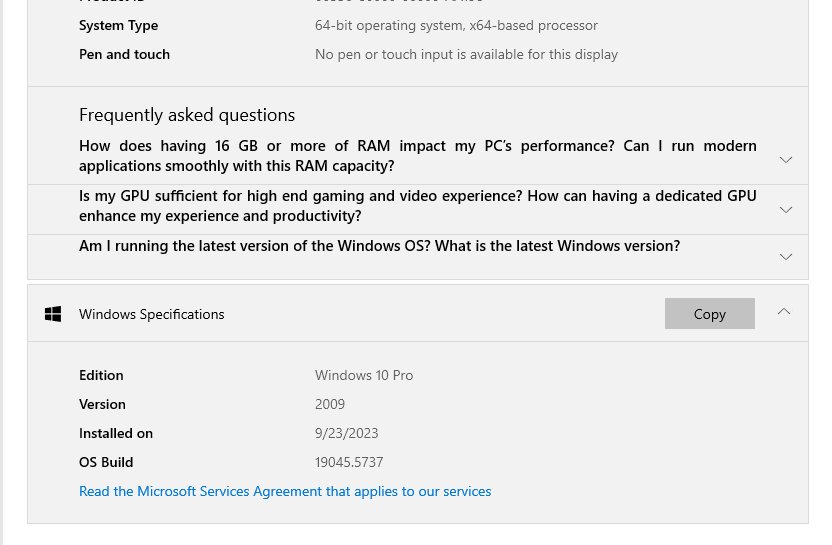
The fastest way to check your Windows version in Settings
Microsoft documents the same About page for Windows 11 and Windows 10. It shows every detail most readers need on one screen.
- Right-click Start and select Settings. You can also press Win + R, type
ms-settings:aboutand press Enter to jump straight to the page. - Select System, then select About.
- Under Windows specifications, read Edition (for example, Windows 11 Home or Windows 10 Pro), Version and OS build.
- Under Device specifications, read System type to see whether Windows is 32-bit or 64-bit.
The Edition line already tells you whether the PC runs Windows 11 or Windows 10. If you only needed that, you are done.
Which detail do you need, and which method shows it?
Knowing your Windows version matters because installers, support agents and update notices each ask for a different detail. Match your reason to a row, then use the method in the last column.
| Why you need to know | Detail that matters | Quickest method |
|---|---|---|
| An app or game lists Windows 11 or Windows 10 as a requirement | Edition (the Windows 11 or 10 name) | Settings > System > About |
| A download offers separate 32-bit and 64-bit installers | System type | Settings > System > About, or System Information |
| A business feature or work app says it needs a Pro or higher edition | Edition (Home, Pro, Enterprise, Education) | Settings > System > About |
| You want to know whether your PC still receives security updates | Version (for example 24H2 or 22H2) | winver, then compare against the support table below |
| A known issue or update note names a specific build | OS build, including the number after the dot | winver or Settings > System > About |
| You are writing a help ticket or checking a remote or scripted PC | OS name, version and system type together | systeminfo in Command Prompt or Get-ComputerInfo in PowerShell |
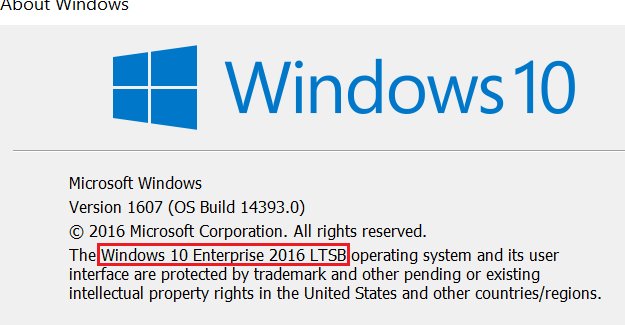
Run the winver command for a quick version check
The winver command opens the small About Windows window. It is the quickest way to read the version and build without opening Settings.
- Select Search on the taskbar, or press Win + R to open Run.
- Type
winver. - Press Enter.
- Read the version and OS build in the About Windows window.
- Select OK to close it.
Microsoft notes that winver also works when typed at a Command Prompt.
Check System Information (msinfo32) for full Windows details
System Information gathers hardware, system component and software details into one view. Use it when you need the Windows details next to the processor, BIOS or memory, or want to save a report for a support ticket.
- Type
msinfo32in the search box on the taskbar. - Select System Information in the results. For accurate driver details, right-click it and select Run as administrator instead.
- Keep System Summary selected in the left pane.
- Read the operating system name, version and system type in the right pane.
- To save everything as a text file, run
msinfo32 /report C:\folder\filename.txtfrom Command Prompt, replacing the folder and file name with your own.

Use Command Prompt to check your Windows version (systeminfo)
The systeminfo command prints detailed operating system, security and hardware information. Microsoft's own version check filters that output down to two lines, and the same command runs in PowerShell.
systeminfo | findstr /B /C:"OS Name" /B /C:"OS Version"Select Search on the taskbar, type command prompt and open Command Prompt. Type the command and press Enter. systeminfo collects the full configuration, and findstr /B /C: keeps only lines that begin with OS Name or OS Version. Run systeminfo on its own to see everything, including System Type. Add /fo list to force list format, or /s followed by a computer name to query another PC on your network.
You should see: an OS Name line with the Windows name and edition, and an OS Version line with a 10.0 number followed by the build. The build, not the 10.0 prefix, tells you which release you run.
Use PowerShell to check your Windows version (Get-ComputerInfo)
Get-ComputerInfo returns system and operating system properties as one object, which suits scripts. It was introduced in Windows PowerShell 5.1 and works only on Windows.
Get-ComputerInfo -Property "*version"Select Search on the taskbar, type powershell and open Windows PowerShell. Run the command. The -Property parameter accepts wildcards, so "*version" returns every property whose name ends in version, including Windows and BIOS versions. Run Get-ComputerInfo with no parameter to list all properties, including the Windows product name and OS architecture. The short alias gin runs the same cmdlet.
You should see: an OsVersion line such as 10.0.19043, where the last number is the OS build. Microsoft's own example output shows WindowsVersion as 2009 beside that build, so read the build from OsVersion instead of relying on WindowsVersion.
Understand Windows edition, version, OS build and system type
Four different values describe one installation, and support pages mix them up constantly. Each row below says what the value means and why it matters.
| Value | Example | What it tells you | When it matters |
|---|---|---|---|
| Edition | Windows 11 Home, Windows 11 Pro, Windows 10 Pro | The product generation (11 or 10) and the feature tier you are licensed for | App requirements, business features, upgrade pricing |
| Version | 25H2, 24H2, 22H2 | The feature update installed; Microsoft typically releases one a year | Whether Microsoft still ships security updates for your PC |
| OS build | 26100.9457 | The exact release. The part before the dot identifies the version; the part after the dot rises with each monthly update | Matching a known issue, confirming a specific update installed |
| System type | 64-bit operating system, x64-based processor | Whether Windows is 32-bit or 64-bit, and the processor architecture | Choosing the right installer or driver |
Windows 11 is 64-bit only, so a 32-bit system type always means Windows 10 or older. Moving from 32-bit to 64-bit Windows requires a clean installation, not an upgrade.
How to tell whether you have Windows 11 or Windows 10
The Edition line in About names the product outright. When you only have a build number from a log or command, use the build column below.
| Check | Windows 11 | Windows 10 |
|---|---|---|
| About page | Settings > System > About | Settings > System > About |
| Edition line reads | Windows 11 Home, Pro, Enterprise or Education | Windows 10 Home, Pro, Enterprise or Education |
| OS build | 22000 or higher (26100 for 24H2, 26200 for 25H2) | Below 22000 (19045 for the final version, 22H2) |
| 32-bit available | No, 64-bit only | Yes |
| Windows Update location | Settings > Windows Update | Settings > Update & Security > Windows Update |
Check whether your Windows version is still supported
A version that has reached end of updates keeps working, but it no longer receives security fixes. The dates below come from Microsoft's release information pages as of September 2026; confirm against the live pages linked in the next section, because Microsoft updates them monthly.
| Your version | OS build | End of updates for Home and Pro | What it means |
|---|---|---|---|
| Windows 11, version 25H2 | 26200 | October 12, 2027 | Supported. The newest feature update Microsoft offers to existing PCs |
| Windows 11, version 24H2 | 26100 | October 13, 2026 | Supported for now. Plan to install 25H2 before the date |
| Windows 11, version 26H1 | 28000 | March 14, 2028 | Supported. Ships only on new devices released in 2026; not offered as an update to existing PCs |
| Windows 11, version 23H2 or older | 22631 or lower | Already ended | No security updates on Home or Pro. Update to a current version |
| Windows 10, version 22H2 | 19045 | Ended October 14, 2025 | Security updates only through the Extended Security Updates (ESU) program, until October 12, 2027 |
| Any Windows 10 version older than 22H2 | Below 19045 | Already ended | Not eligible for ESU. Update to 22H2 or move to Windows 11 |
Enterprise and Education editions get an extra year on most Windows 11 versions. Check the second end-of-updates column on Microsoft's release page if your Edition line shows one of them.
What to do if your Windows version is out of date
Windows Update starts a feature update automatically as a version approaches end of servicing, but you can install it yourself sooner. Free up space first: Microsoft asks for at least 20 GB free for a 64-bit upgrade and 16 GB for 32-bit.
| Your situation | What to do | Where |
|---|---|---|
| Windows 11 on an ended or ending version | Select Check for updates, then Download & install for the feature update, and restart when prompted | Start > Settings > Windows Update |
| Windows 10 on a PC that meets Windows 11 requirements | Upgrade to Windows 11 for free; use Microsoft's PC Health Check app to confirm eligibility | Start > Settings > Update & Security > Windows Update |
| Windows 10 on a PC that can't run Windows 11 | Install every pending update, confirm you run version 22H2, then select Enroll now for Extended Security Updates | Settings > Update & Security > Windows Update |
| Windows 10 older than 22H2 | Install updates until About shows 22H2, then choose between upgrading and ESU | Settings > Update & Security > Windows Update |
| 32-bit Windows 10 and you want Windows 11 | Back up your files, then do a clean 64-bit installation; an in-place upgrade from 32-bit is not supported | Microsoft's Windows 11 download page |
Consumer ESU enrollment requires Windows 10 version 22H2 in the Home, Pro, Pro Education or Workstations edition, the latest updates, and an administrator Microsoft account.
How to check the update to a newer version worked
An update is only proven once the version and build numbers change. Compare them with the values you noted before updating.
- Restart the PC after the update finishes, even if Windows did not ask.
- Press Win + R, type
winverand press Enter. - Confirm the version now shows the release you installed, such as 25H2.
- Confirm the OS build's first part matches that version in the support table above, such as 26200 for 25H2.
- Open Settings > Windows Update and select Check for updates again. No pending feature update means the install completed.
Fix Windows version updates that fail to install
The feature update fails to install on Windows 11
Low disk space, a pending restart, or a stuck Windows Update component usually blocks the install.
- Check free space in Settings > System > Storage. You need at least 20 GB free on 64-bit Windows.
- Select Start > Power > Update and restart to clear any pending update.
- Select Start > Settings > System > Troubleshoot > Other troubleshooters.
- Next to Windows Update, select Run and follow the on-screen instructions.
- Return to Settings > Windows Update and select Check for updates.
Updates fail to install on Windows 10
The same causes apply, but the troubleshooter sits in a different place on Windows 10.
- Free at least 20 GB of disk space on 64-bit Windows, or 16 GB on 32-bit.
- Select Start > Power > Update and restart.
- Select Start > Settings > Update & Security > Troubleshoot > Additional troubleshooters.
- Under Get up and running, select Windows Update > Run the troubleshooter.
- Return to Windows Update and check for updates again.
Your Windows version still shows as out of date after updating
Monthly updates raise the number after the dot in the build, but only a feature update changes the version itself.
- Run
winverand note the version, not just the build. - Open Windows Update and look for a separate feature update entry, then select Download & install.
- On Windows 10, confirm the PC meets Windows 11 requirements with PC Health Check; if it doesn't, enroll in ESU instead.
Official Microsoft pages to confirm your version's support status
Bottom line: check About once, note the edition, version and build, and compare the version with Microsoft's live release information. These pages change monthly, so bookmark them rather than relying on a copied date.
| Page | Use it to | Address |
|---|---|---|
| Windows 11 release information | Find end-of-updates dates and the latest build for each Windows 11 version | https://learn.microsoft.com/windows/release-health/windows11-release-information |
| Windows 10 release information | Confirm the final Windows 10 build and end-of-support status | https://learn.microsoft.com/windows/release-health/release-information |
| Windows 10 end of support | Read what end of support means and your upgrade options | https://support.microsoft.com/windows/windows-10-support-has-ended-on-october-14-2025-2ca8b313-1946-43d3-b55c-2b95b107f281 |
| Windows 10 Extended Security Updates | Check ESU eligibility and enrollment | https://www.microsoft.com/windows/extended-security-updates |
Frequently asked questions
What is the fastest way to check what version of Windows you have?
Press Win + R, type winver and press Enter. The About Windows window shows the version and OS build. For the edition and 32-bit or 64-bit status as well, open Settings > System > About.
How do I find out if I have Windows 10 or Windows 11?
Open Settings > System > About and read the Edition line, which names Windows 11 or Windows 10. From a build number alone, 22000 or higher is Windows 11, and anything below 22000 is Windows 10.
What is the difference between Windows edition, version and build number?
The edition is the product and tier, such as Windows 11 Pro. The version is the yearly feature update, such as 24H2. The OS build is the exact release, such as 26100.9457, where the number after the dot rises with each monthly update.
How can I tell if my PC is 32-bit or 64-bit?
Open Settings > System > About and read System type under Device specifications. It states a 32-bit or 64-bit operating system. Windows 11 has no 32-bit version, so every Windows 11 PC is 64-bit.
How do I check what version of Windows I'm on from Command Prompt?
Open Command Prompt and run systeminfo | findstr /B /C:"OS Name" /B /C:"OS Version". The OS Name line shows the Windows name and edition, and the OS Version line shows the build after the 10.0 prefix. The same command works in PowerShell.
What should I do if my Windows version is out of date?
On Windows 11, open Settings > Windows Update, select Check for updates and install the feature update. On Windows 10, upgrade to Windows 11 if the PC qualifies, or enroll in Extended Security Updates, which run until October 12, 2027.
Is Windows 10 still supported?
No. Windows 10 support ended on October 14, 2025. PCs keep working, but they get no security updates unless enrolled in the consumer Extended Security Updates program, which covers Windows 10 version 22H2 until October 12, 2027.
How do I check what version of Office I have?
Open any Office app, such as Word or Excel, and select File > Account (or Help). Product Information shows the product name and, in some cases, the version number. Select About in that app for the full version and whether it is 32-bit or 64-bit.
How do I check what version of .NET is installed?
The .NET Framework version is not shown on the Windows About page. It is stored separately from the Windows version, so check it with the dedicated steps in how to check the .NET Framework version in Windows.

![How to Schedule an Email in Outlook [All Versions]](https://techdows.com/wp-content/uploads/2026/09/Outlook-Send-button-dropdown-menu-with-Schedule-send-option-560x338.jpg)