Open Command Prompt as administrator, type ipconfig /flushdns, and press Enter to clear the Windows DNS client resolver cache.
This guide covers when a flush actually helps, the related ipconfig switches, the PowerShell equivalent, how to confirm the cache is empty, and fixes for the common error messages.
How to run ipconfig /flushdns in Command Prompt
These are the same steps Microsoft uses in its own Windows network troubleshooting instructions. They work on Windows 11 and Windows 10.
- Select Search on the taskbar and type
command prompt. - To the right of the Command Prompt result, select Run as administrator.
- Select Yes at the User Account Control prompt.
- Type
ipconfig /flushdns, with a space before the slash, and press Enter. - Read the output. Windows prints a Windows IP Configuration header and a line confirming the DNS Resolver Cache was flushed.
Nothing else is needed. The next time any app looks up a site name, Windows asks your configured DNS servers again instead of reusing a stored answer.
When flushing the DNS cache fixes your problem, and when it will not
A flush only discards answers Windows has already stored. Match your symptom to a row before you run anything, because several connection problems have nothing to do with the cache.
| Your symptom | Will a flush help? | What to run |
|---|---|---|
| A site moved to a new server and your PC still reaches the old one | Often, if the stale answer is cached on your PC | ipconfig /flushdns, then nslookup the name to see what the DNS server now returns |
| A DNS record you just changed is not taking effect | Only for your PC's cached copy; it cannot speed up the DNS server itself | ipconfig /flushdns, then compare nslookup name with nslookup name 1.1.1.1 |
| A name that failed earlier still fails after the site came back | Yes. Microsoft uses the flush to discard cached negative answers | ipconfig /displaydns to find the name, then ipconfig /flushdns |
| Work names do not resolve after connecting or disconnecting a VPN | Sometimes; it clears answers cached before the connection changed | ipconfig /flushdns, then ipconfig /all to check which DNS servers each adapter uses |
| No site loads at all, including by IP address | No. That is a connectivity problem, not name resolution | ipconfig /all to check the IP address and gateway, then ping your DNS server's IP address |
| Your PC has no valid IP address from the router | No | ipconfig /release, then ipconfig /renew |
How to open Command Prompt or PowerShell as administrator
Microsoft's Windows troubleshooting steps run ipconfig /flushdns from an administrator Command Prompt. Using an elevated window from the start avoids the elevation error covered further down.
- Select Search on the taskbar.
- Type
command promptfor Command Prompt, orpowershellfor Windows PowerShell. - Select Run as administrator next to the matching result.
- Select Yes at the User Account Control prompt, or type an administrator password if you use a standard account.
- Check the window title starts with Administrator: before you type any command.
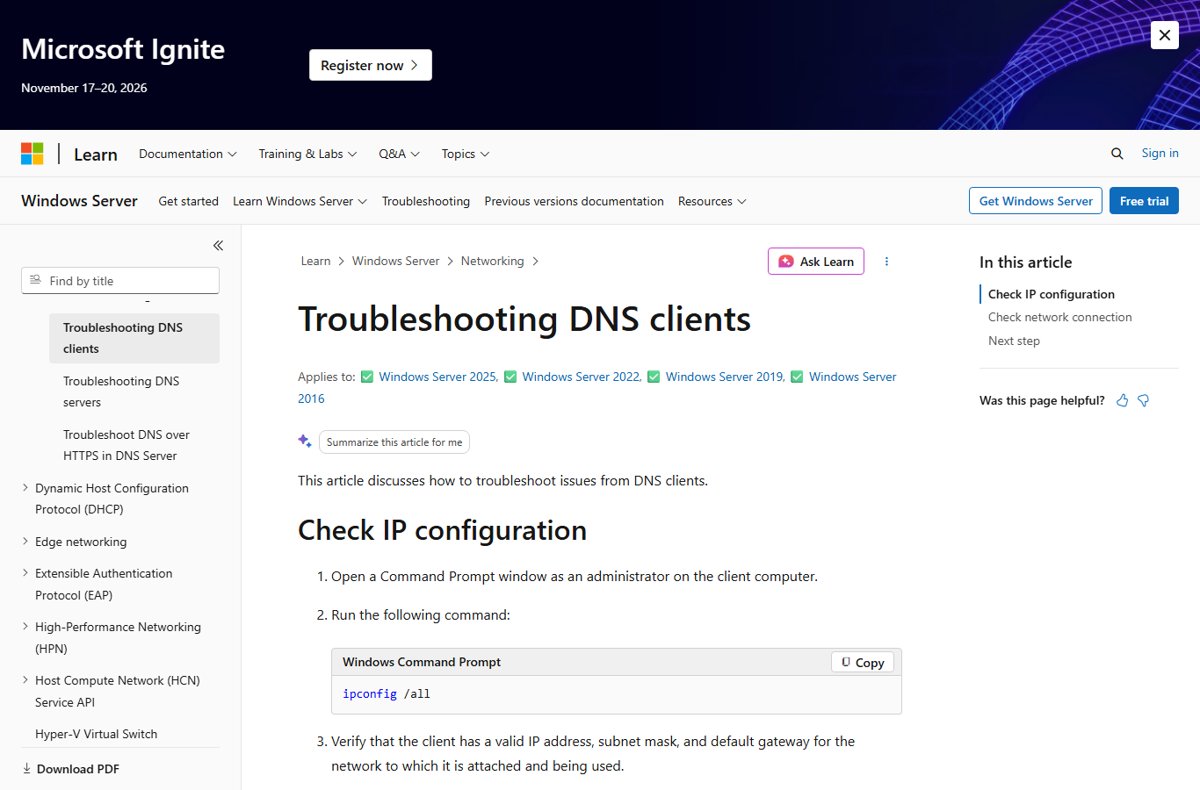
ipconfig /flushdns syntax and what Windows prints
Microsoft's ipconfig reference describes /flushdns as the switch that flushes and resets the contents of the DNS client resolver cache. It takes no adapter name or other arguments.
ipconfig /flushdnsipconfig is the Windows TCP/IP configuration tool, and /flushdns tells it to empty the resolver cache that the DNS Client service keeps. Microsoft's reference lists it as the step to discard negative cache entries, plus any other entries added dynamically, during DNS troubleshooting. Type ipconfig /? to see every switch at the prompt.
You should see: The console shows the Windows IP Configuration header followed by a single line confirming the DNS Resolver Cache was flushed, then returns to the prompt. Any line starting with Could not flush or mentioning elevation means it failed.
The flush does not touch your IP address, adapter settings or Wi-Fi connection. It finishes instantly and needs no restart.
Clear the DNS cache in PowerShell with Clear-DnsClientCache
PowerShell has its own cmdlet in the DnsClient module. Microsoft's documentation states that running it is equivalent to running ipconfig /flushdns.
Clear-DnsClientCache
Get-DnsClientCache
Clear-DnsClientCache deletes all the contents of the DNS client cache. Get-DnsClientCache lists what is cached, with the entry name, record type, status and time to live, so you can run it before and after the clear. Add -WhatIf to Clear-DnsClientCache to preview the action without running it.
You should see: Clear-DnsClientCache prints nothing when it succeeds and returns to the prompt. A following Get-DnsClientCache returns few or no entries until apps start looking up names again.
ipconfig /flushdns also works inside PowerShell and Windows Terminal, so use whichever window is already open.
How to confirm the DNS cache was cleared
The success line only tells you the command ran. These checks show the cache is empty and that the name now resolves to the right address.
- Run
ipconfig /displaydnsbefore the flush and note the entry for the problem site. - Run
ipconfig /flushdns. - Run
ipconfig /displaydnsagain. The problem site's entry should be gone; entries preloaded from the local Hosts file and names apps looked up in the last few seconds can still appear. - Run
nslookup example.com, replacing the name with your site. nslookup skips the local cache and asks your configured DNS server directly. - Run
ping example.comand check the address in brackets matches the address nslookup returned. - Open the site in your browser. If it loads from the new server, the flush worked.
Which ipconfig switch to use for each DNS and IP task
/flushdns is one of several ipconfig switches, and troubleshooting steps often chain them. Microsoft's ipconfig reference defines each one below.
| Command | What it does | When you need it |
|---|---|---|
ipconfig |
Shows the IPv4 and IPv6 address, subnet mask and default gateway for every adapter | A quick check that the PC has an address at all |
ipconfig /all |
Shows the full TCP/IP configuration for all adapters, including DNS servers | Checking which DNS servers Windows uses, for example after a VPN connects |
ipconfig /displaydns |
Shows the DNS client resolver cache, including Hosts file entries and recently resolved names | Seeing what is cached before and after a flush |
ipconfig /flushdns |
Flushes and resets the DNS client resolver cache, including negative entries | A site resolves to an old address or keeps failing after it came back |
ipconfig /registerdns |
Starts manual dynamic registration of the PC's DNS names and IP addresses | A domain PC's own name is missing or wrong on the DNS server; no reboot needed |
ipconfig /release |
Releases the DHCP configuration and discards the IPv4 address; network access stops until you renew | Forcing a fresh address from the router, always followed by /renew |
ipconfig /renew |
Renews the DHCP configuration for all adapters, or the one you name | Getting a new address after /release, or when the address is invalid |
ipconfig /release6 and /renew6 |
The same release and renew actions for DHCPv6 and IPv6 addresses | Only when the IPv6 address is the problem |
Adapter names with spaces go in quotation marks, for example ipconfig /renew "Local Area Connection".
Is ipconfig /flushdns safe to run?
Yes. It removes only stored name lookups, which Windows rebuilds on the next request, so the only cost is a fresh DNS query on the first visit to each site.
| Cleared by the flush | Not touched by the flush |
|---|---|
| Recently resolved site names and their addresses | Your IP address, gateway and Wi-Fi or Ethernet connection |
Cached failures, shown as Name does not exist in /displaydns |
The Hosts file on disk |
| Other entries added to the cache dynamically | The records held by your DNS server or domain registrar |
| Nothing you need to back up | Saved passwords, cookies and browser history |
Bottom line: run it whenever a single site behaves as though its address changed. Do not expect it to fix a dead connection, and use /release and /renew only when the IP address itself is the problem.
Common ipconfig /flushdns errors and how to fix them
Match the message or symptom you see, then follow only the fix under it.
"The requested operation requires elevation"
The command ran in a normal Command Prompt window without administrator rights.
- Close the current Command Prompt window.
- Select Search, type
command prompt, and select Run as administrator. - Select Yes at the User Account Control prompt.
- Confirm the title bar starts with Administrator:, then run
ipconfig /flushdnsagain. - On a work PC without an administrator account, ask your IT team to run it.
"Could not flush the DNS Resolver Cache: Function failed during execution"
The request did not complete in the DNS Client service, the Windows component Microsoft identifies as the user of the resolver cache.
- Restart the PC, open an administrator Command Prompt, and run
ipconfig /flushdnsagain. - If it still fails, press Win + R, type
services.msc, and press Enter. - Find DNS Client in the list and check the Status column reads Running.
- Open an administrator PowerShell window and run
Clear-DnsClientCacheas a second route to the same cache. - On a managed work or school PC, report the error to your IT team, because the DNS Client service is controlled by the system.
The site still loads the old address after flushing
The stale answer is coming from the DNS server or the Hosts file, not from the cache you cleared.
- Run
nslookup example.comwith your site name. It queries your DNS server directly and ignores the local cache. - If nslookup returns the old address, the DNS server still holds the old record. Run
nslookup example.com 1.1.1.1to compare with another public server. - If other servers return the new address, wait for your DNS server's copy to expire, or change the DNS servers listed in
ipconfig /all. - If nslookup returns the new address but
pingshows the old one, check the Hosts file for a line with that site name./displaydnslists Hosts file entries alongside cached names. - Run
ipconfig /flushdnsonce more after fixing the server or Hosts entry.
Flushing DNS did not fix the site at all
The problem is connectivity or the site itself, not name resolution.
- Run
pingwith the site's IP address. If the IP answers but the name does not, it is still a name resolution problem. - Run
ipconfig /alland check the adapter has a valid IP address, subnet mask, default gateway and DNS servers. - Run
pingwith your DNS server's IP address. No reply points to a network problem between your PC and that server. - If the address is invalid, run
ipconfig /releaseand thenipconfig /renew. - Try the site on another device on the same network to rule out an outage on the site's side.
Frequently asked questions
How do I use ipconfig flushdns?
Open Command Prompt as administrator, type ipconfig /flushdns with a space before the slash, and press Enter. Windows prints a line confirming the DNS Resolver Cache was flushed. The command works the same way on Windows 11 and Windows 10.
What does ipconfig /flushdns do in cmd?
It flushes and resets the DNS client resolver cache, the list of site names and addresses Windows has recently looked up. Cached failures are removed too, so Windows asks your DNS servers for fresh answers on the next request. That makes a flush a quick fix for the SSH Could not resolve hostname error when a server name that worked before stops resolving.
What happens if I do ipconfig /flushdns?
Windows discards every cached name lookup, and the next visit to each site triggers a new DNS query. Your internet connection, IP address, saved passwords and browser history stay exactly as they were, and no restart is needed.
Is ipconfig flushdns safe?
Yes. The command removes only temporary lookup results that Windows rebuilds automatically. It does not change network settings, delete files or edit the Hosts file. The only side effect is a slightly slower first load for each site afterwards.
Does ipconfig /flushdns disconnect me from the internet?
No. The flush leaves your IP address and adapter untouched, so downloads and calls keep running. The switch that does interrupt your connection is ipconfig /release, which discards the IP address until you run ipconfig /renew.
Do I need to run Command Prompt as administrator to use ipconfig /flushdns?
Microsoft's own Windows troubleshooting steps run it from an administrator Command Prompt, so use one. If you see "The requested operation requires elevation", close the window, reopen Command Prompt with Run as administrator, and run the command again.
How can I tell if the DNS cache was actually cleared?
Run ipconfig /displaydns before and after the flush. The site you were troubleshooting should disappear from the list. In PowerShell, Get-DnsClientCache shows the same cache. Hosts file entries and names looked up seconds later can still appear.
What is the PowerShell command to flush DNS?
Run Clear-DnsClientCache in PowerShell. Microsoft documents it as equivalent to ipconfig /flushdns. It prints nothing on success, so follow it with Get-DnsClientCache if you want to see the emptied cache.
Should I run ipconfig /flushdns, /release and /renew together?
Only when the IP address is also a problem. Microsoft's Wi-Fi troubleshooting sequence runs ipconfig /release, then ipconfig /renew, then ipconfig /flushdns in an administrator Command Prompt. For a single site with a stale address, the flush alone is enough.
What commands should I try if flushing DNS does not fix the problem?
Run nslookup with the site name to see what your DNS server returns, ipconfig /all to check your DNS servers and IP address, and ping against the site's IP address. Those three show whether the fault is DNS, your network or the site.






ipconfig/release and renew: How to? All You Need to Know - Techdows
[…] For the DNS cache case, the full walkthrough is in How to Use ipconfig flushdns at the Command Prompt. […]
How to open or launch Command Prompt in Windows 11 - Techdows
[…] Shows your IP address, gateway and adapters; ipconfig /flushdns clears the DNS cache (full guide) […]