To change a default program in Windows 11 or Windows 10, right-click a file, select Open with > Choose another app, pick the app, and select Always (Windows 11) or tick Always use this app to open (Windows 10).
This guide covers Settings > Apps > Default apps in both versions, link types such as mailto, the common changes for PDF, photo, music, video and Office files, work PCs that reapply defaults at sign-in, and fixes when the wrong app still opens.
Set a default app from File Explorer with Open with
A default program is the app Windows launches when you double-click a file of a given type or select a link such as mailto. Each file type and link type has its own default, and the choice applies to your Windows account only.
The Open with route works in both versions and starts from the file you already have in front of you.
- Open File Explorer and find a file of the type you want to change, such as a .pdf or .jpg file.
- Right-click the file and select Open with > Choose another app.
- Select the app you want from the list. In Windows 10, select More apps if the app is not shown.
- In Windows 11, select Always so every file of this type opens in that app. Just once opens only this file.
- In Windows 10, tick Always use this app to open followed by the file type, then select OK.
- Double-click another file of the same type to confirm it opens in the new app.
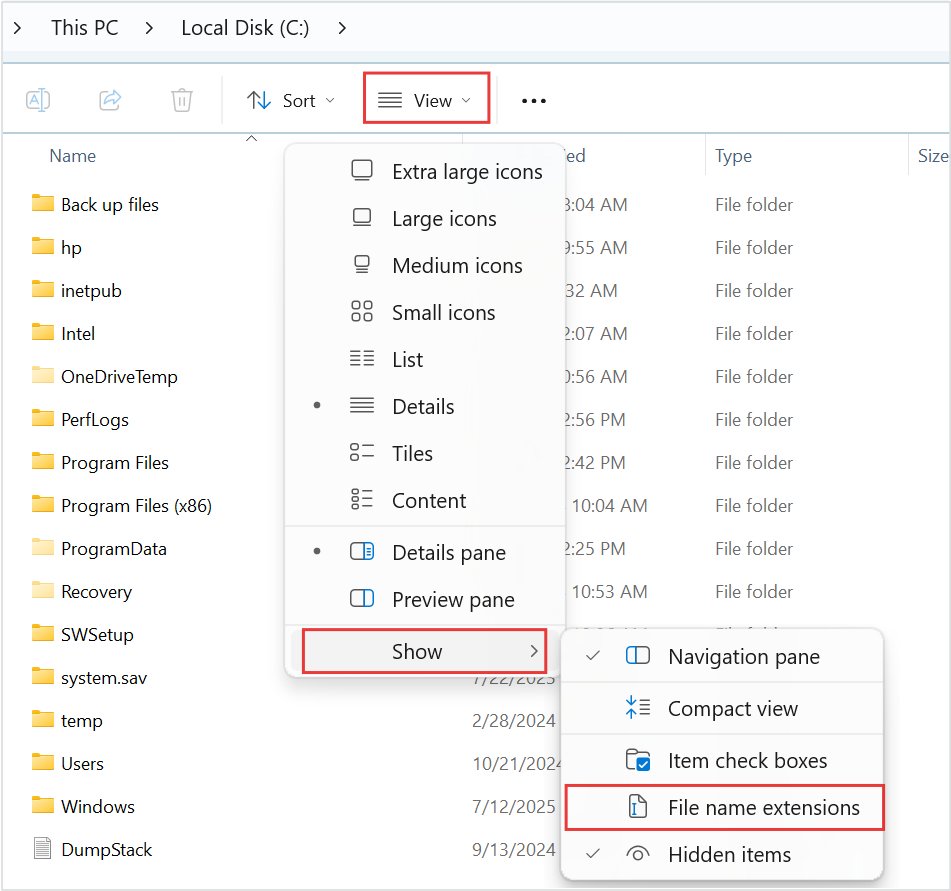
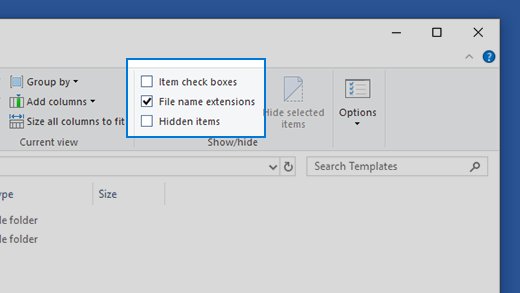
If the extension is hidden, show it first: in Windows 11 select View > Show > File name extensions in File Explorer; in Windows 10 tick File name extensions in the Show/hide group on the View tab.
Which route to use for the default you want to change
Windows 11 and Windows 10 share the Settings page Apps > Default apps, but the page is laid out differently. Match what you want to change to a row.
| What you want to change | Quickest route | Windows 11 path | Windows 10 path |
|---|---|---|---|
| One file type, such as .pdf, .jpg, .mp4 or .docx | Open with on a file of that type | Right-click the file > Open with > Choose another app > app > Always | Right-click the file > Open with > Choose another app > tick Always use this app to open > OK |
| A file type you have no file for | Search the type in Settings | Settings > Apps > Default apps > type the extension in Set a default for a file type or link type | Settings > Apps > Default apps > Set defaults by app > the app > Manage |
| A link type, such as mailto | Search the link type in Settings | Settings > Apps > Default apps > type mailto in Set a default for a file type or link type |
For email links, Settings > Apps > Default apps > Email |
| Everything one app can open | Open the app's entry in Default apps | Default apps > Set defaults for applications > the app > each file or link type | Default apps > Set defaults by app > the app > Manage |
| The web browser | Use the browser's Set default button | Covered in the techdows guide How to Change Default Web Browser in Windows 11/10 | Covered in the same guide, under Web browser |
| Defaults on many PCs | Export an associations file and deploy it | DISM export plus the Set a default associations configuration file policy | Same, on Windows 10 version 1703 and later |
Install and open the app you want before you change defaults
Windows lists an app as a possible default only after the app is installed and has registered the file types and link types it can open. An app that never registered a type does not appear for that type.
Since Windows 10, apps cannot pop up a prompt to change your defaults; only Windows can. The change is always finished in Windows itself.
- Install the app from the Microsoft Store or its vendor's own site.
- Select Start > Settings > Apps > Installed apps and confirm the app is listed.
- Open the app once, so it finishes any first-run setup.
- Return to Settings > Apps > Default apps and look for the app.
How to set default programs in Windows 11
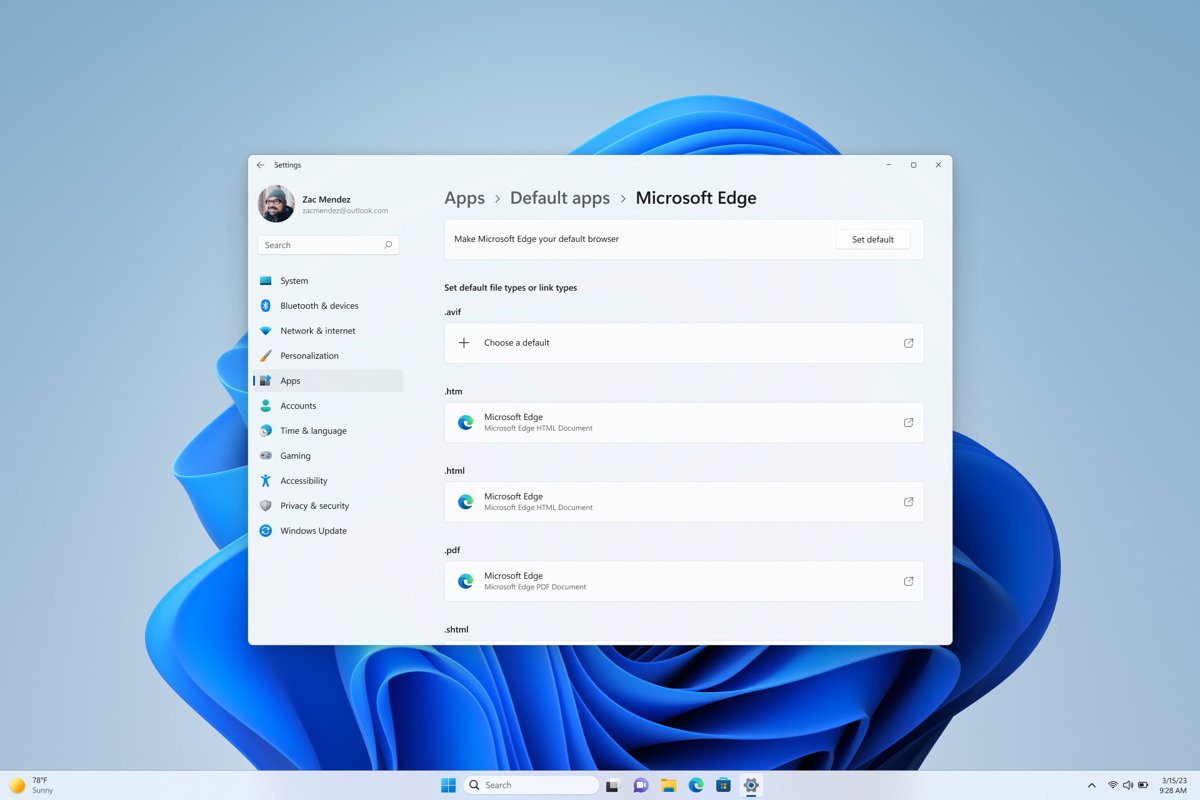
Windows 11 offers two routes on one page: search a single file type or link type, or open an app and set each type it supports. Press Win + R, type ms-settings:defaultapps and press Enter to jump straight to the page.
- Select Start > Settings > Apps > Default apps.
- To change one type, type the extension or link type, such as
.pdformailto, in the Set a default for a file type or link type search box. - Select the matching result, choose the app you want, and select Set default.
- To change by app instead, search or scroll under Set defaults for applications and select the app.
- On the app's page, select each file type or link type you want it to handle.
- Choose the app for that type and select Set default, then repeat for the remaining types.
How to set default programs in Windows 10
Windows 10 puts common categories, such as Email and Web browser, at the top of Default apps. Other types are set per app through Set defaults by app, or per file through Open with.
- Select Start > Settings > Apps > Default apps.
- To change a common category, select the app currently shown under it, such as the app under Email.
- In Choose an app, select the app you want.
- To change several types for one app, select Set defaults by app.
- Select the app in the list, then select Manage.
- Next to each file type that is not assigned to the app, select the current app and choose the one you want.
- Close Settings when every type you need shows the right app.
Set default programs from inside an app
Many apps show a make-default button in their own settings. On Windows 10 and 11 that button cannot change the default by itself; Microsoft's rule is that apps send you to Windows Settings to make the change.
- Open the app and go to its settings or options page.
- Select its option to make it the default app.
- When Windows opens Default apps, find the app on the page that appears.
- In Windows 11, select Set default or set each file and link type; in Windows 10, choose the app under its category or use Set defaults by app > Manage.
- Double-click a file the app handles to confirm Windows now opens it there.
Common default-program changes and what to select
Each row names the extensions or link type to set. In Windows 11 type each value into the file type or link type search box; in Windows 10 use Open with on a sample file or Set defaults by app > Manage.
| Default you want | Types to set | Notes |
|---|---|---|
| PDF reader | .pdf |
Select your installed PDF reader; Microsoft Edge also registers .pdf |
| Photo viewer | .jpg, .jpeg, .png, .gif, plus any camera formats you use |
Each extension is separate, so a .png can still open in the old app after .jpg is changed |
| Music player | .mp3, .m4a, .wav, .flac |
Set every audio format you play, not just .mp3 |
| Video player | .mp4, .mov, .avi, .mkv |
The player must support the format to be listed for it |
| Email app | mailto link type |
Windows 10 has an Email entry for this; mail file types such as .eml are set separately |
| Word documents | .docx, .doc |
Repeat with .xlsx and .pptx for Excel and PowerPoint files |
| Text editor | .txt |
Useful for code or notes editors; other code extensions need their own setting |
| Web browser | http, https, .htm, .html |
Use the browser's Set default button; see How to Change Default Web Browser in Windows 11/10 |
How to check the new default worked
- Double-click a file of the type you changed in File Explorer; it should open in the new app without asking.
- In Windows 11, open Settings > Apps > Default apps, search the extension, and confirm the result shows the new app.
- In Windows 10, open Set defaults by app, select the app, select Manage, and confirm the type lists that app.
- For a link type, select a
mailtolink on a web page or in a document; the chosen email app should open a new message. - Sign out and back in, then repeat the test; a default that changes back points to the troubleshooting section below.
How to reset default apps to Microsoft recommended defaults
Microsoft's Change Default Apps support article documents no single reset control for these settings. The reliable way back to Microsoft's recommended defaults is to reassign each changed type to the Microsoft app that handled it before.
- List the file types and link types you changed, using the common changes table above as a checklist.
- Open Settings > Apps > Default apps.
- In Windows 11, search each type, select it, choose the Microsoft app, and select Set default.
- In Windows 10, select Set defaults by app, select the Microsoft app, select Manage, and set each type back to it.
- Alternatively, right-click a file, select Open with > Choose another app, choose the Microsoft app, and select Always or tick Always use this app to open.
- On a work or school PC, sign out and back in; a policy-managed PC reapplies the organization's defaults at sign-in.
Resetting every Windows setting is a different job; Microsoft covers it in its Reset your PC article, and it removes far more than app defaults.
Advanced option: default app associations for multiple PCs
Administrators set defaults across many PCs with an XML associations file. The file is exported from a reference PC with DISM, then deployed with the Set a default associations configuration file policy, found under Computer Configuration in Windows Components > File Explorer.
The policy works on Windows 10 version 1703 and later in Pro, Enterprise and Education editions, and Windows applies the associations when a user signs in. From Windows 11 version 22H2, an association marked Suggested="true" is applied once per file version instead of at every sign-in.
Dism /Online /Export-DefaultAppAssociations:"F:\AppAssociations.xml"Run it from Command Prompt as administrator on a PC where you have already set the defaults you want. It writes every explicit file type and link type association to the XML file at that path. Run Dism /Online /Get-DefaultAppAssociations the same way to list the associations currently configured.
You should see: An AppAssociations.xml file containing Association entries, each with an Identifier such as .pdf or https, a ProgId and an ApplicationName.
Refresh the file with each major Windows version, and never trim entries by hand. Microsoft notes that missing or outdated entries trigger the An app default was reset notification.
Troubleshooting default-program problems
Windows sometimes changes your default apps for a reason you can trace: an organization policy, an outdated associations file, or a Windows upgrade that reassigns built-in handlers. Match your symptom below.
Defaults revert after a Windows update or at every sign-in
On a managed PC, the default associations configuration file is reapplied at sign-in; on upgrade, Windows can also reassign some types to its built-in apps.
- Set the default again with Open with or Settings > Apps > Default apps.
- Sign out and back in, then test the file type again.
- If it reverts at every sign-in on a work or school PC, the Set a default associations configuration file policy is in use; ask your IT administrator to change the file.
- On a personal PC, recheck the types you care about after each feature update and set any that changed.
Windows shows "An app default was reset"
Windows reset a file type to a built-in app, commonly because an associations file is out of date for the current Windows version or has entries missing.
- Note the file types named in the notification.
- Set each one back to your preferred app in Settings > Apps > Default apps.
- On a managed PC, tell your IT administrator which types were reset, so they can refresh the associations XML exported for the current Windows version.
- If you deploy the file yourself, export a fresh file with
Dism /Online /Export-DefaultAppAssociationsinstead of editing entries out of an old one.
The app you want is not listed in Open with or Default apps
The app is not installed for your account, has not finished setup, or does not register that file type.
- Confirm the app appears in Settings > Apps > Installed apps.
- Open the app once, then close it and try again.
- In Windows 10, select More apps in the Open with dialog to show the full list.
- Update the app from the Microsoft Store or its vendor's site, or reinstall it.
- Check the vendor's documentation to confirm the app supports that file format; an app that does not register a type is not offered for it.
The wrong app still opens after changing the default
A related extension was left on the old app, such as .jpeg after changing .jpg, or the file's real extension differs from what its icon suggests.
- Show file name extensions in File Explorer and read the file's full name.
- Set that exact extension in Settings > Apps > Default apps.
- Set the related extensions from the common changes table as well.
- In Windows 11, open the app's page under Set defaults for applications and confirm each type lists it.
"Always use this app" is missing, or the file has no visible extension
Windows 11 replaced the checkbox with an Always button, and hidden extensions make it hard to tell which type you are changing.
- In Windows 11, pick the app in the Open with list and select Always instead of looking for a checkbox.
- In Windows 11 File Explorer, select View > Show > File name extensions.
- In Windows 10 File Explorer, select the View tab and tick File name extensions in the Show/hide group.
- Use the visible extension with the Settings search box to set the default directly.
Tips for managing default apps cleanly: change defaults from Windows Settings rather than third-party tools, decline make-default prompts in apps you do not want, and recheck your key types after each feature update.
Frequently asked questions
What does "set as default" mean?
Set as default means telling Windows to use one app automatically for a file type or link type. After you set a PDF reader as the default for .pdf, double-clicking any PDF opens it in that reader without asking which app to use.
What is a default setting in Windows?
A default setting is the value Windows uses until you change it. For programs, it is the app assigned to each file type, such as .jpg, and each link type, such as mailto. You view and change these in Settings > Apps > Default apps.
How do I change my default settings for which app opens a file?
Right-click a file of that type, select Open with > Choose another app, pick the app, and select Always in Windows 11 or tick Always use this app to open in Windows 10. Every file of that type then opens in the app you chose.
How do I set defaults for a file type I cannot find?
In Windows 11, open Settings > Apps > Default apps and type the extension in the Set a default for a file type or link type search box. In Windows 10, select Set defaults by app, choose the app, select Manage, and assign the type.
How do I change the Open with default settings?
Open with changes the default only when you select Always in Windows 11 or tick Always use this app to open in Windows 10. To change it again later, repeat Open with on the same file type and pick a different app, or change it in Default apps.
How do I change Microsoft default settings for apps like Photos or Edge?
Open Settings > Apps > Default apps, select the Microsoft app under Set defaults for applications in Windows 11, and reassign each type to your preferred app. In Windows 10, use Set defaults by app > Manage. For the browser, use the browser's own Set default button.
How do I put all default apps back to default?
Reassign each changed file type and link type to the Microsoft app that opened it before, from Settings > Apps > Default apps or from Open with. On a work or school PC, signing in again reapplies the organization's defaults. Resetting all of Windows is a separate, far larger step.
Can I set default programs for every user or many PCs at once?
Yes, on Pro, Enterprise and Education editions. Export the associations with Dism /Online /Export-DefaultAppAssociations from an admin Command Prompt, then deploy the XML with the Set a default associations configuration file policy. Windows applies it when each user signs in.