Press Ctrl + Shift + Esc to open Task Manager directly on Windows 11 and Windows 10.
Below are all twelve shortcuts in one table, followed by how to run Task Manager as administrator, how to reach it when the desktop is frozen, and how to clear the "disabled by your administrator" block.
The fastest way to open Task Manager
Microsoft lists Ctrl + Shift + Esc as the Task Manager shortcut on both Windows 11 and Windows 10. It skips every menu and works from any app.
- Hold Ctrl and Shift together.
- Press Esc while both keys are still held down.
- Select More details at the bottom of the window if Task Manager opens as a short list of apps with no tabs.
Pick the shortcut that fits your situation
Each row below is a separate route to the same Task Manager window. The last column tells you when that route beats the others.
The right-click Start menu and Win + X open the same Quick Link menu, often called the power user menu. One is for the mouse, one for the keyboard.
| # | Route | Keys or steps | When it is fastest |
|---|---|---|---|
| 1 | Direct keyboard shortcut | Press Ctrl + Shift + Esc | Any time the keyboard works. One press, no menu. |
| 2 | Security screen | Press Ctrl + Alt + Delete, then select Task Manager | An app has taken over the screen and the direct shortcut does nothing. |
| 3 | Remote Desktop security screen | Press Ctrl + Alt + End inside the session, then select Task Manager | You need Task Manager on the remote PC, not your own. |
| 4 | Quick Link menu by keyboard | Press Win + X, then select Task Manager | Your hands are on the keyboard and the mouse is out of reach. |
| 5 | Quick Link menu by mouse | Right-click Start, then select Task Manager | You are using a mouse or touchpad only. |
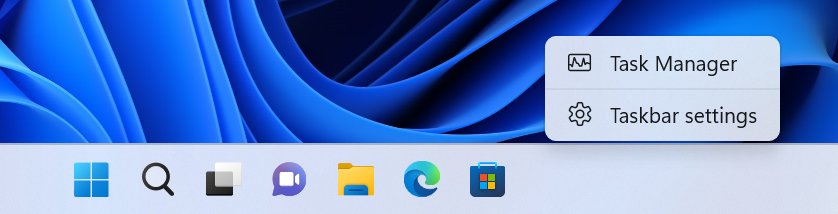
| 6 | Taskbar right-click menu | Right-click an empty part of the taskbar, then select Task Manager | Mouse only, and the pointer is already near the taskbar. Windows 11 needs version 22H2 with the October 2022 update or later. |
| 7 | Windows Search | Press Win + S, type task, then select Task Manager | You want to right-click the result and select Run as administrator. |
| 8 | Run dialog | Press Win + R, type taskmgr, press Enter |
The Start menu or search is not responding. |
| 9 | Command Prompt | Type taskmgr and press Enter |
A Command Prompt window is already open, or you are scripting. |
| 10 | PowerShell | Type taskmgr and press Enter |
You already work in PowerShell and want to stay there. |
| 11 | Pinned taskbar icon | Click the pinned icon, or press Win plus its position number | You open Task Manager many times a day. |
| 12 | Pinned Start icon | Open Start and select the pinned Task Manager icon | You keep the taskbar clean but still want one-click quick access. |
On a Windows 11 PC without the taskbar menu item, route 6 is missing and route 5 is the mouse-only alternative.
Open Task Manager as administrator
A standard Task Manager window is enough to watch CPU and memory use. Run it elevated when you need administrator rights to act on a process.
Organisations can also stop non-administrators from ending tasks with the AllowEndTask policy. That policy restricts standard accounts only, not administrators.
- Select Start or press Win + S.
- Type task.
- Right-click Task Manager in the results.
- Select Run as administrator.
- Approve the User Account Control prompt, entering an administrator password if Windows asks for one.
Open Task Manager when the desktop is frozen
When a full-screen app or a hung window stops the desktop responding, the keyboard routes are the ones to try first.
- Press Ctrl + Shift + Esc and wait a few seconds.
- If nothing appears, press Ctrl + Alt + Delete and select Task Manager on the security screen.
- In a Remote Desktop window, press Ctrl + Alt + End instead, so the remote PC receives the request.
- On the Processes tab, select the app that stopped responding.
- Select End task.
- If you need a command window, select Run new task, type
cmd.exeorpowershell.exe, and press Enter.
On Windows 11, Run new task is a button at the top of every Task Manager page. On Windows 10, look under the File menu.
Launch Task Manager from Run, Command Prompt or PowerShell
Task Manager's program file is taskmgr.exe, and Microsoft documents taskmgr as the command line that starts it from Command Prompt or PowerShell. The Run dialog accepts the same command.
taskmgrStarts Task Manager from the Run dialog (Win + R), a Command Prompt window, or a PowerShell window. Press Enter after typing it.
You should see: The Task Manager window opens on the Processes tab.
Pin Task Manager for one-click quick access
A pinned taskbar icon does the job of a desktop shortcut and also earns a keyboard shortcut: Win + 1 opens the first pinned app, Win + 2 the second, and so on.
- Type task in the Search box on the taskbar.
- Right-click Task Manager in the results.
- Select Pin to taskbar to add an icon to the taskbar.
- Repeat the search, right-click Task Manager again, and select Pin to Start if you also want a tile in the Start menu.
- If Task Manager is already open, right-click its taskbar icon and select Pin to taskbar instead.
Check that Task Manager opened correctly
- Confirm a window titled Task Manager is on screen.
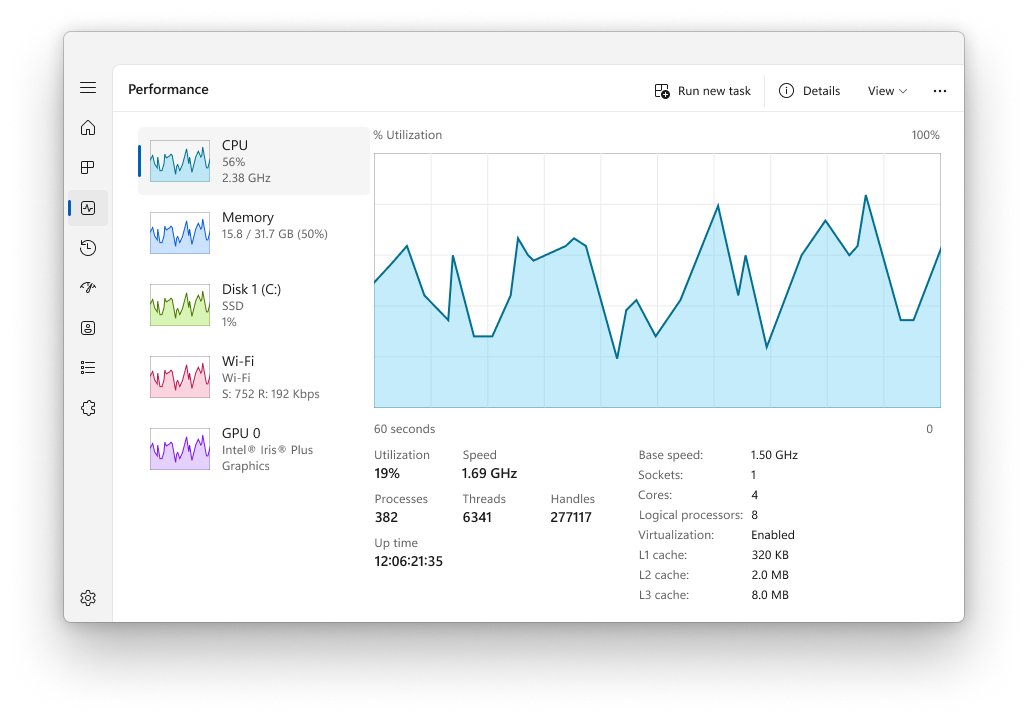
- Look for the Processes, Performance, Users, Details and Services pages.
- If you only see a short list of app names, select More details at the bottom of the window.
- Select the CPU column header on Processes and check that the list reorders by usage.
- After clearing a policy block, open Task Manager again and confirm no message about your administrator appears.
Fix Task Manager when it will not open
"Task Manager has been disabled by your administrator"
The Remove Task Manager policy is turned on for your account, through Local Group Policy, a domain policy, or the matching registry value.
- On a work or school PC, contact your IT team, because a domain Group Policy controls the setting.
- On your own PC, press Win + R, type
gpedit.mscand press Enter. - Go to User Configuration > Administrative Templates > System > Ctrl+Alt+Del Options.
- Double-click Remove Task Manager, select Not Configured or Disabled, then select OK.
- Press Win + R, type
gpupdate /forceand press Enter. - If the message persists, back up the registry, open
regedit, and set DisableTaskMgr to0underHKEY_CURRENT_USER\Software\Microsoft\Windows\CurrentVersion\Policies\System. - Check the same DisableTaskMgr value under
HKEY_LOCAL_MACHINE\SOFTWARE\Microsoft\Windows\CurrentVersion\policies\systemand underHKEY_CURRENT_USER\Software\Microsoft\Windows\CurrentVersion\Group Policy Objects\LocalUser\Software\Microsoft\Windows\CurrentVersion\Policies\System, and set any you find to0. - Restart the PC.
Ctrl + Shift + Esc does nothing
A frozen full-screen app is holding focus, or you are pressing the keys inside a Remote Desktop window.
- Press Ctrl + Alt + Delete and select Task Manager on the security screen.
- In a Remote Desktop session, press Ctrl + Alt + End and select Task Manager.
- If the keyboard is not the problem, right-click Start and select Task Manager.
- If every route shows the administrator message, follow the fix above.
Task Manager is missing when you right-click the Windows 11 taskbar
The menu item returned in the October 2022 update for Windows 11 version 22H2, so older builds lack it.
- Open Settings > Windows Update.
- Select Check for updates and install everything offered.
- Restart, then right-click an empty part of the taskbar again.
- Until then, right-click Start or press Win + X and select Task Manager.
Task Manager opens without any tabs
Task Manager is in its compact view, which shows only running apps.
- Select More details at the bottom of the window.
Frequently asked questions
How do I open Task Manager on Windows 10?
Press Ctrl + Shift + Esc on Windows 10 and Task Manager opens straight away. With a mouse, right-click the Start button or an empty part of the taskbar and select Task Manager. You can also type taskmgr in the Run dialog after pressing Win + R.
What key combo opens Task Manager in Windows 10?
Ctrl + Shift + Esc is the key combination that opens Task Manager directly in Windows 10. Ctrl + Alt + Delete also works, but it first shows the security screen, where you then select Task Manager. Win + X opens a menu that includes Task Manager too.
What is the shortcut to open Task Manager in Windows 11?
The Windows 11 shortcut is Ctrl + Shift + Esc, the same as Windows 10. Win + X followed by selecting Task Manager is the second-fastest keyboard route. Both skip the Start menu entirely, so they still work when search is slow to respond.
Why can't I open Task Manager in Windows 10?
The usual cause is the Remove Task Manager policy, which shows the message that your administrator disabled it. Set that policy to Not Configured in the Local Group Policy Editor, or set DisableTaskMgr to 0 in the registry. On a work PC, only your IT team can lift it.
What opens Task Manager?
Ctrl + Shift + Esc, Ctrl + Alt + Delete, Win + X, right-clicking Start or the taskbar, Windows Search, and the taskmgr command all open Task Manager. Pinned taskbar and Start icons open it as well. Ctrl + Alt + End opens it inside a Remote Desktop session.
How do I open Task Manager from CMD?
Type taskmgr in Command Prompt and press Enter to open Task Manager. The same command works in PowerShell and in the Run dialog, which you open with Win + R. Task Manager appears on the Processes tab once the command runs.
How do I open Task Manager without a keyboard?
Right-click the Start button and select Task Manager, which works with only a mouse, touchpad or touch screen. On Windows 10 and current Windows 11 builds, right-clicking an empty part of the taskbar offers Task Manager too. A pinned taskbar icon needs just one click.
How do I open Task Manager as administrator?
Search for Task Manager from Start, right-click the result, and select Run as administrator. Approve the User Account Control prompt to finish, entering an administrator password if Windows asks. Elevation matters when a policy stops standard accounts from ending tasks.
Can I still open Task Manager from the taskbar in Windows 11?
Yes, on Windows 11 version 22H2 with the October 2022 update or later. Right-click an empty part of the taskbar and select Task Manager. Earlier Windows 11 builds lack the option, so right-click Start instead or install the latest updates.
Why does Ctrl + Alt + Delete not open Task Manager directly?
Ctrl + Alt + Delete opens the Windows security screen, which also offers Lock, Switch user, Sign out and Change a password. Task Manager is one choice on that screen. Use Ctrl + Shift + Esc when you want Task Manager with no extra step.