Open the sent message from Sent Items and select Recall Message, but recall only works when you and every recipient have Microsoft 365 work or school accounts in the same organization.
Mail sent to Gmail, Yahoo, Outlook.com or any other outside address cannot be recalled, so this guide also covers Undo send, delayed delivery, correction emails and the recall report that tells you what happened.
The fastest way to recall an email in Outlook
These steps work in new Outlook for Windows and Outlook on the web with a work or school account. Act quickly, before the recipient opens the message.
- Select Sent Items in the left folder pane.
- Double-click the sent message to open it in a separate window.
- Select Recall Message on the ribbon.
- Select OK in the confirmation dialog box.
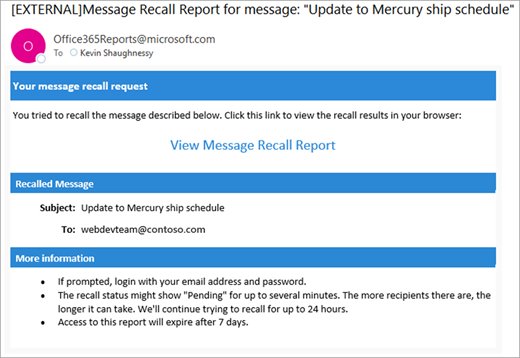
- Open the Message Recall Report that arrives in your inbox and select its link to see the result.
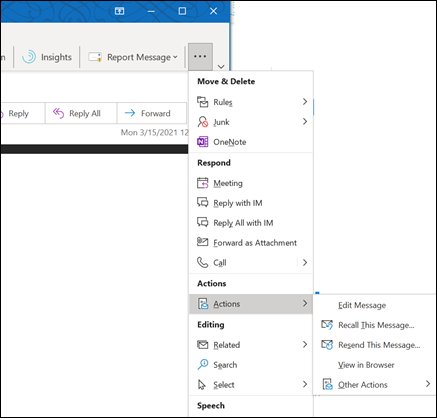
In classic Outlook the command is called Recall This Message and sits under More Move Actions. The full classic steps, including the replace option, are below.
Which recall or unsend option works for your setup
Recall and Undo send are different features. Recall deletes a message that was already delivered, inside your own organization. Undo send holds a new message for a few seconds so you can cancel it before it leaves.
| Your setup | What is possible | Section to use |
|---|---|---|
| Classic Outlook for Windows with a Microsoft 365 work or school account, recipient in your organization | Recall, or recall and replace with a new message | Recall or replace an email in classic Outlook for Windows |
| New Outlook for Windows with a work or school account, recipient in your organization | Recall (delete only; send a correction to replace) | Recall an email in new Outlook or Outlook on the web |
| Outlook on the web with a work or school account, recipient in your organization | Recall (delete only; send a correction to replace) | Recall an email in new Outlook or Outlook on the web |
| Any Outlook, recipient outside your organization | No recall. The message has already left your organization | Send a correction email |
| Any Outlook, Gmail or Yahoo recipient | No recall. Only a correction email helps now | Send a correction email |
| Personal account ending in @outlook.com, @hotmail.com, @live.com or @msn.com | No recall. Undo send can cancel future messages for up to 30 seconds | Turn on Undo send |
| Message not sent yet, or you want protection next time | Undo send, or a delivery delay rule in classic Outlook | Turn on Undo send; Delay every message in classic Outlook |
Requirements and limitations to check before you recall a message
Every requirement below must be true, or the recall fails or the command is unavailable. Check these before you spend time on the steps.
| Requirement or limitation | What Microsoft documents |
|---|---|
| Account type | You and the recipient need Microsoft 365 work or school accounts in the same organization |
| Personal Microsoft accounts | Recall is not available for addresses ending in @outlook.com, @hotmail.com, @live.com or @msn.com |
| External recipients | Recall works only inside your organization, never over the internet or across organizations |
| Hybrid Exchange | Cloud mailboxes cannot recall mail sent to mailboxes in the on-premises Exchange environment |
| Opened messages | The Outlook dialog says only unread copies are recalled, but Cloud-based Message Recall can also remove read messages unless your admin turned that off |
| Classic Outlook connection | Recall does not work in Online mode or when the profile holds more than one Exchange account |
| Forwarded copies | Copies forwarded manually, by an Inbox rule, or automatically outside the organization are not recalled |
| Protected mail | Messages protected by Azure Information Protection cannot be recalled in classic Outlook; OME or MIP-encrypted mail needs the Premium Encryption plan and new Outlook or Outlook on the web |
Recall or replace an email in classic Outlook for Windows
Classic Outlook is the only Windows version that offers to replace the message in one step. You must double-click to open the message in its own window; selecting it in the reading pane is not enough.
- Choose the Sent Items folder in the folder pane.
- Double-click the message you want to recall.
- With the Classic Ribbon, open the Message tab, select More Move Actions in the Move group, then select Recall This Message.
- With the Simplified Ribbon, open the Message tab, select More commands (…), point to Actions, then select Recall This Message.
- Select Delete unread copies of this message, or Delete unread copies and replace with a new message.
- Select OK.
- If you chose to replace, edit the copy that opens and select Send.
With a replacement, the original is deleted first and the new message then goes through normal delivery.
Recall an email in new Outlook or Outlook on the web
New Outlook for Windows and Outlook on the web share the same recall button. It deletes the message; there is no replace choice, so send a corrected email afterwards if you need one.
- Select Sent Items in the left folder pane.
- Double-click the sent message so it opens in a separate window.
- Select Recall Message on the ribbon.
- Select OK to confirm.
- Wait for the Message Recall Report in your inbox.
- Send a corrected message if the original needs replacing.
Turn on Undo send so you can cancel a message within seconds
Undo send is not recall. It holds each new message for a short time before sending, and it works for any recipient, including Gmail and Yahoo addresses. Once the timer runs out, the message is gone.
Microsoft points personal account users to Undo send in new Outlook for Windows and Outlook.com. Outlook.com allows a delay of up to 30 seconds.
- In Outlook.com, select Settings at the top of the page.
- Select Mail > Compose.
- Under Undo send, choose how long Outlook waits before sending.
- Select Save.
- After you send a message, select Undo in the prompt at the bottom of the message list before the timer ends.
In Outlook for Mac, open Outlook > Settings > Composing and set a delay of up to 120 seconds, then select Undo in the prompt at the bottom of Outlook.
Delay every message in classic Outlook with a rule
Classic Outlook has no Undo send prompt. A rule that holds outgoing mail in the Outbox gives you the same safety net, with a delay of up to 120 minutes.
- Select File > Manage Rules & Alerts > New Rule.
- Select Apply rule on messages I send.
- Pick any conditions, or pick none to delay every message.
- Check defer delivery by a number of minutes and set the number of minutes.
- Name the rule and make sure it is turned on.
- To stop a message in time, open it from the Outbox and delete or edit it.
To hold a single message instead, open Message Options, check Do not deliver before under Delivery options, and pick a date and time.
Send a correction email when the original was delivered
When recall is impossible or the report shows a failure, a short correction is the only fix that reaches every recipient.
- Open the original message from Sent Items.
- Select Reply All so every original recipient gets the correction.
- Start the subject with a clear label such as
Correction:and keep the original subject after it. - State the error in one sentence and give the correct information.
- Attach the right file if the wrong one was sent, and ask recipients to delete the earlier attachment.
- Remove any recipient who should never have received the original, and contact them separately.
How to check whether a recall worked
Outlook sends a report after every recall request, usually within 30 seconds. The report is the proof; the message vanishing from your view proves nothing.
- Open your inbox and find the message with the subject Message Recall Report for message followed by the original subject.
- Confirm the sender is [email protected].
- Select the link in the report and sign in with your work account if asked.
- Read the status shown for each recipient: succeeded, pending or failed.
- If a recipient shows pending, check again later. Outlook keeps retrying for up to 24 hours before it marks the recall as failed.
- For any failed recipient, send a correction email.
Admins can confirm a result with message trace. The Drop event detail for the recall message shows Result:Success or Result:Failed.
How Outlook email recall works
Microsoft 365 now uses Cloud-based Message Recall. The request is handled in Exchange Online, not on the recipient's computer.
| Stage | What happens |
|---|---|
| You select recall | Outlook sends a hidden request with the subject Recall: <original subject>; it never shows in Sent Items |
| Exchange Online intercepts it | The Message Recall agent hard-deletes the original from each recipient mailbox in your organization |
| Recipient's app | Recipients can use any app that syncs with Exchange Online, and it does not need to be open |
| Replace chosen in classic Outlook | The original is deleted first, then your new message is delivered normally |
| Report | A recall report arrives with a link to per-recipient status; retries continue for up to 24 hours |
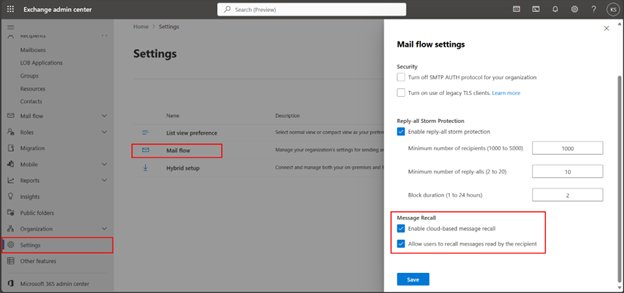
| Admin controls | Admins can turn cloud recall off, or stop recall of read messages, in the Exchange admin center |
Fix Outlook recall when it fails or is missing
Find your symptom and run the fix under it. Recall cannot be forced past the organization boundary, so some fixes end with a correction email.
You cannot recall an email in Outlook because the option is missing
The account is a personal Outlook.com, Hotmail, Live or MSN account, or the message is shown in the reading pane.
- Check the address you sent from. Personal Microsoft accounts have no recall.
- Double-click the message in Sent Items so it opens in its own window.
- In classic Outlook, look under More Move Actions or More commands (…) > Actions.
- If the account is personal, turn on Undo send for future messages and send a correction now.
Recall is greyed out or does nothing in classic Outlook
Classic Outlook is in Online mode, the profile has several Exchange accounts, or the message sits in an automapped shared mailbox.
- Try the recall from new Outlook or Outlook on the web instead.
- For a shared mailbox, open that mailbox in its own Outlook profile and recall from its Sent Items.
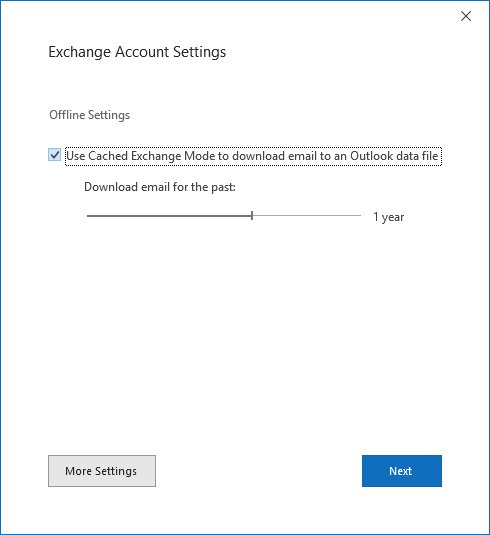
- To leave Online mode, select File > Account Settings > Account Settings, select your Exchange account, select Change, check Use Cached Exchange Mode, and restart Outlook.
- Ask your admin whether a profile with more than one Exchange account is causing the block.
The recall email failed in Outlook
The recipient is outside your organization, on on-premises Exchange in a hybrid setup, received a forwarded copy, or the request timed out after 24 hours.
- Open the Message Recall Report and note which recipients failed.
- Check whether each failed address belongs to your own organization.
- Ask your admin whether read-message recall or cloud recall is turned off in the Exchange admin center.
- Send a correction email to every failed recipient.
No recall report arrives
Mail from [email protected] is blocked or quarantined.
- Check Junk Email for the report.
- Ask your admin to run a message trace and release the report if it was quarantined.
- Ask your admin to make sure [email protected] is not blocked.
Bottom line: treat recall as a partial fix
Recall internal mistakes immediately, send a correction for everything else, and turn on Undo send or a delay rule before the next mistake. Recall only reaches mailboxes inside your Microsoft 365 organization, misses forwarded copies, and never reaches Gmail, Yahoo or other outside addresses. The recall report is the only reliable proof of what was removed. A delay of even a few seconds stops a message before it leaves, which recall can never guarantee.
Frequently asked questions
Can I recall an email in Outlook?
Yes, but only when you and the recipient have Microsoft 365 work or school accounts in the same organization. Open the message from Sent Items and select Recall Message, or Recall This Message in classic Outlook. Mail sent outside your organization cannot be recalled.
How do I recall an email in Outlook 365?
Double-click the message in Sent Items, select Recall Message on the ribbon, and select OK. Classic Outlook uses Message > More Move Actions > Recall This Message. A Message Recall Report then arrives in your inbox with a link to the result.
How do I recall an email in Outlook classic?
Open the message from Sent Items in its own window. Select Message > More Move Actions > Recall This Message, or More commands (…) > Actions on the Simplified Ribbon. Choose to delete unread copies or replace them, then select OK.
How do I recall an email in Outlook on the web?
With a work or school account, select Sent Items, double-click the message, select Recall Message, and confirm with OK. The recipient must be in your organization. Outlook on the web offers no replace option, so send a correction afterwards if needed.
Can I recall an email in Hotmail or Outlook.com?
No. Message recall is not available for addresses ending in @outlook.com, @hotmail.com, @live.com or @msn.com. Turn on Undo send under Settings > Mail > Compose to delay future messages by up to 30 seconds, then select Undo in time.
Does Outlook recall work for Gmail or Yahoo recipients?
No. Recall only works inside your own Microsoft 365 organization, so a message delivered to a Gmail, Yahoo or other outside mailbox stays there. Send a clear correction email instead, and use Undo send or a delay rule to catch future mistakes.
Can I recall email in Gmail?
Gmail has no recall, only Undo send. Select Undo in the message sent notification at the bottom left right after sending. Set the window to 5, 10, 20 or 30 seconds under Settings > See all settings > Undo Send, then select Save changes.
Can I recall an email in the Outlook mobile app?
Do not count on it. Microsoft's help page for Outlook for Android and iOS says it is not possible to undo or recall a sent email, although Exchange admin documentation lists those apps as recall clients. Use Outlook on the web in your phone's browser instead.
How do I recall an email in Yahoo Mail?
You cannot. Yahoo Help states that an email sent in Yahoo Mail cannot be recalled, and an Outlook recall cannot reach a Yahoo inbox either. Send a short correction email, and review messages in Drafts before sending in future.
Why can't I recall an email in Outlook?
The usual causes are a personal Outlook.com account, a recipient outside your organization, or a message opened in the reading pane instead of its own window. Classic Outlook also blocks recall in Online mode and in profiles with more than one Exchange account.
Why would a recall email fail?
A recall fails when the recipient is outside your organization, sits on on-premises Exchange in a hybrid setup, or got a forwarded copy. It also fails if your admin disabled read-message recall and the message was opened, or the request times out after 24 hours.
Can I recall an Outlook email after the recipient has read it?
Often yes, within your organization. Cloud-based Message Recall can remove read messages unless your admin turned that ability off, even though the Outlook dialog still says only unread copies are recalled. Check the recall report to confirm the result.