Select the column, open the Data tab, select Remove Duplicates, then select OK to delete repeated values and keep the first occurrence of each.
The other two routes are the UNIQUE formula and Advanced Filter, and both leave your original column untouched. The sections below also cover preparing your data, duplicates across two columns, and what to do when duplicates survive.
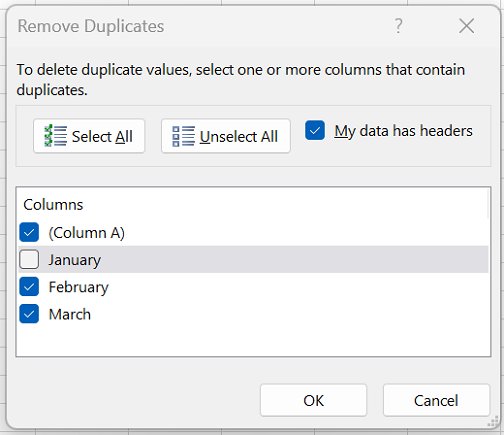
Method 1: Remove duplicates with the built-in Remove Duplicates feature
This built-in feature works in Excel for Microsoft 365, Excel 2024, 2021, 2019 and 2016, and in Excel for the web. It deletes duplicates in place, so copy the column to another sheet first if you might need the original.
- Select the cells in the column, or click any cell inside an Excel table.
- Open the Data tab and select Remove Duplicates in the Data Tools group.
- Under Columns, leave only the column you want checked. Use Unselect All first if every column is ticked.
- Select OK.
- Read the message that reports how many duplicate values were removed and how many unique values remain, then select OK.
Excel keeps the first occurrence of each value and deletes the later copies. Removing duplicates is important for accurate counts, totals and lookups, because a repeated customer or invoice ID inflates every figure built on the column. A repeated ID also means VLOOKUP in Excel stops at the first matching row and ignores the rest.
Which method should you use for your column?
The methods differ in one big way: whether the original data survives. Match your case to a row, then check the version column.
| Common scenario | Use this | Deletes data? | Scope | Formula needed? | Excel version needed |
|---|---|---|---|---|---|
| A pasted or imported list needs cleaning once, and you have a backup | Method 1: Remove Duplicates | Yes, permanently | One column or the whole table | No | Microsoft 365, 2024, 2021, 2019, 2016, and Excel for the web |
| The source list keeps changing and the clean list must update itself | Method 2: UNIQUE formula |
No | One column or a multi-column range | Yes | Microsoft 365, Excel 2024 or Excel 2021 (Windows and Mac), and Excel for the web |
| You run Excel 2019 or older and want to see duplicates before deleting them | Method 2: COUNTIF helper column with conditional formatting and filtering |
Only the rows you choose | One column, or rows matched on it | Yes | Any desktop version with Conditional Formatting |
| You want a clean copy next to the original, with no formula | Method 3: Advanced Filter with Unique records only | No | One column or the whole table | No | Desktop Excel; not available in Excel for the web |
| Reports requiring duplicate removal on every data refresh | Other route: Power Query Remove Duplicates (not one of the three methods) | Only in the query output | Selected columns | No | Windows Excel 2016 and later; on Mac, Microsoft 365 only |
Preparing your data before you remove duplicates
Excel compares what a cell displays, so two cells that look alike to you can still count as different values. Fix these first, or duplicates survive the removal. Stray spaces are a frequent cause, so remove the extra spaces with TRIM before you start.
| Check | Why it matters | What to do |
|---|---|---|
| Backup copy | Remove Duplicates deletes cells permanently | Copy the column or table to another worksheet or workbook |
| Outlines and subtotals | Excel cannot remove duplicate values from outlined data or data with subtotals | Remove the outline and the subtotals first |
| Leading or trailing spaces | Smith and Smith are different values |
Clean a helper column with =TRIM(A2), or =CLEAN(A2) for hidden characters, then paste it back with Paste Special > Values |
| Mixed formats | A date shown as 3/8/2006 and the same date shown as Mar 8, 2006 count as unique | Apply one number format to the whole column |
| Empty cells | The counts Excel reports after removal can include empty cells and spaces | Filter out or delete blanks if you want accurate counts |
| Header row | A header treated as data can be compared against your values | Keep one header row directly above the data, with no blank row between |
Method 2: Remove duplicates with formulas (UNIQUE, or COUNTIF with conditional formatting and filtering)
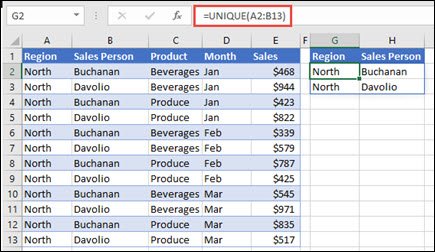
Formulas leave the source column alone. In Microsoft 365, Excel 2024 and Excel 2021, a single UNIQUE formula builds the clean list.
- Click an empty cell with blank cells below it, such as
C2. - Type
=UNIQUE(A2:A100), using your own range, and press Enter. The results spill down automatically. - To list only values that appear exactly once, use
=UNIQUE(A2:A100,,TRUE)instead. - To keep the result as fixed values, copy the spilled range and paste it with Paste Special > Values.
- In Excel 2019 or older, type
=COUNTIF($A$2:A2,A2)inB2and fill it down. The first occurrence shows 1 and each repeat shows 2 or more. - Copy column B and paste it over itself with Paste Special > Values, so the counts stop recalculating.
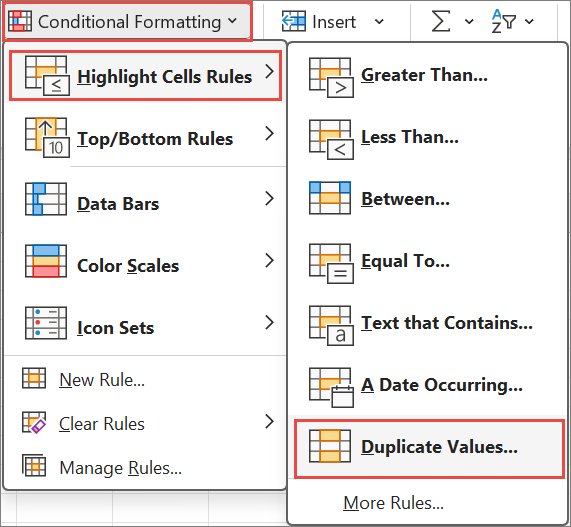
- Select column A, then open Home > Conditional Formatting > Highlight Cells Rules > Duplicate Values to colour every repeated value for review.
- Select Data > Filter, open the arrow on column B, and clear the check box for 1 so only repeats show.
- Select the visible row numbers, right-click, select Delete, then turn off Data > Filter and delete column B.
COUNTIF ignores letter case, so apple and APPLE count as the same value. It also returns wrong results for strings longer than 255 characters.
Method 3: Remove duplicates with Advanced Filter
Advanced Filter copies the unique values to a new spot and needs no formula. It is a desktop feature; Excel for the web offers only Remove Duplicates.
- Click any cell in the column, including its header.
- Open the Data tab and select Advanced in the Sort & Filter group.
- In the Advanced Filter dialog, select Copy to another location.
- Confirm the List range covers the column and its header.
- Click the Copy to box, then click an empty cell where the clean list should start.
- Check Unique records only, then select OK.
Choose Filter the list, in-place instead to hide the duplicates temporarily without copying anything. Hidden rows still exist, so clear the filter to see them again.
How to remove duplicates from two columns
Two columns can mean three different jobs. Find yours below before you touch the data.
| What you want | Do this | Result |
|---|---|---|
| Delete rows where both columns match another row | Select both columns, open Data > Remove Duplicates, and keep both boxes checked under Columns | A row is removed only when both values repeat together |
| Delete whole rows based on one column only | Select the whole table, open Remove Duplicates, and check only that one column | Data is removed from all columns of each duplicate row, not just the checked one |
| Clean each column on its own | Select only column A's cells and run Remove Duplicates, then repeat for column B | Only the selected range is affected |
| List values in column A that do not appear in column B | =FILTER(A2:A100,COUNTIF(B2:B100,A2:A100)=0,"") in Microsoft 365, 2024 or 2021 |
A spilled list of values found only in column A |
| Flag values shared between 2 columns in older Excel | =COUNTIF($B$2:$B$100,A2) in a helper column, filled down |
Any result above 0 means the value in A also appears in B |
How to check the duplicates are gone
The message Excel shows after Remove Duplicates is your first proof. Confirm it against the column itself.
- Read the result message. It states how many duplicate values were removed and how many unique values remain.
- Check that the number of remaining rows matches the unique count in that message.
- Select the column and apply Home > Conditional Formatting > Highlight Cells Rules > Duplicate Values. No cell should be coloured.
- For a formula check, type
=ROWS(A2:A100)=ROWS(UNIQUE(A2:A100))in Microsoft 365, 2024 or 2021.TRUEmeans no repeats remain. - If cells are still coloured, look for trailing spaces or mixed formats, then see the fixes below.
Fix duplicates that will not go away
Each symptom below comes from how Excel documents duplicate matching. Run only the fix under yours.
Values that look identical are not removed
Leading or trailing spaces, hidden characters, or different number formats make Excel treat the cells as unique.
- Insert a helper column next to the data.
- Type
=TRIM(CLEAN(A2))in the first cell and fill it down. - Copy the helper column and paste it over column A with Paste Special > Values.
- Apply one number format to the whole column if it holds dates or numbers.
- Run Data > Remove Duplicates again.
Excel will not remove duplicates from a report with subtotals
Excel cannot remove duplicate values from data that is outlined or has subtotals.
- Copy the sheet as a backup.
- Open Data > Subtotal and select Remove All.
- Clear any remaining grouping with Data > Ungroup > Clear Outline.
- Run Remove Duplicates on the plain data.
Too many rows disappeared
Only some boxes were checked under Columns, so rows matching on those columns were deleted even when other columns differed.
- Press Ctrl + Z immediately to restore the rows.
- Open Remove Duplicates again and check every column that must match for a row to count as a duplicate.
- Select OK and compare the reported counts with what you expect.
UNIQUE shows #SPILL!
Cells below or beside the formula are not blank, so the results have nowhere to spill.
- Select the cell showing
#SPILL!. - Select the error alert, then select Select Obstructing Cells.
- Delete or move the content in those cells, and the list spills.
UNIQUE or FILTER shows #NAME?
Your version predates dynamic array functions, which need Microsoft 365, Excel 2024 or Excel 2021.
- Use the
COUNTIFhelper column from Method 2 instead. - Or use Advanced Filter with Unique records only from Method 3.
Upper and lower case versions of a value are handled differently
COUNTIF ignores case, while Power Query is case-sensitive when it compares text.
- Decide whether
AppleandAPPLEshould count as the same value. - If yes, add a helper column with
=LOWER(A2), fill it down, and remove duplicates on that column. - In Power Query, apply a lowercase or uppercase transform to the column before Remove Duplicates.
What to know before you run Remove Duplicates
Additional tips and best practices come down to one rule. Filter or highlight first, delete second, and keep a copy.
Copy the original column or table to another worksheet before you select OK in Remove Duplicates. The feature permanently deletes the duplicate cells, and Undo (Ctrl + Z) is the only way to get them back. Once the step is no longer available to undo, only your backup copy restores the data. When you are unsure, run Advanced Filter or Duplicate Values highlighting first to preview the result, because both leave every row in place.
Frequently asked questions
How do you remove duplicates from a column in Excel?
Select the column, open the Data tab, and select Remove Duplicates. Leave only that column checked under Columns, then select OK. Excel keeps the first occurrence of each value, deletes the rest, and reports how many duplicates were removed.
How do you remove duplicate values in a column without deleting the original data?
Use =UNIQUE(A2:A100) in Microsoft 365, Excel 2024 or Excel 2021, which spills a clean list elsewhere. In older desktop versions, use Data > Advanced, select Copy to another location, and check Unique records only. Both leave the source column untouched.
How do you remove duplicates from two columns in Excel?
Select both columns, open Data > Remove Duplicates, and keep both boxes checked. Excel then removes a row only when both values repeat together. To clean each column separately, select just one column's cells and run the feature once per column.
How do you remove duplicates based on 2 columns?
Select the whole table and open Remove Duplicates. Check only the two columns that define a duplicate and clear the rest. Excel deletes entire rows whose values match in those two columns, even when the unchecked columns hold different values.
How do you remove duplicates between 2 columns?
In Microsoft 365, 2024 or 2021, use =FILTER(A2:A100,COUNTIF(B2:B100,A2:A100)=0,"") to list column A values missing from column B. In older versions, add =COUNTIF($B$2:$B$100,A2) beside column A; any result above 0 marks a value found in both.
Does Remove Duplicates keep the first or last occurrence?
Remove Duplicates keeps the first occurrence of each value and deletes the identical values below it. Sort the data first if a particular row, such as the newest entry, must be the one that survives. Power Query does not guarantee that it keeps the first instance.
Can you undo Remove Duplicates in Excel?
Yes, but only with Undo or Ctrl + Z. Remove Duplicates permanently deletes the cells, so once the step can no longer be undone, the data is gone. Copy the original range to another sheet before running it.
Which Excel versions have the UNIQUE function?
UNIQUE works in Excel for Microsoft 365 on Windows and Mac, Excel 2024, Excel 2021, Excel for the web, and the Excel mobile apps. Excel 2019 and earlier do not have it, so use a COUNTIF helper column or Advanced Filter there.






![SharePoint event list [add, create, and edit event list]](https://techdows.com/wp-content/uploads/2026/10/SharePoint-event-list-add-create-and-edit-event-list-1-600x338.jpg)
How to remove white space in Excel (6 easy ways) - Techdows
[…] the spaces are gone, you can remove duplicate values from the column and catch entries that only differed by a trailing […]