A Snipping Tool old version download does not exist officially. Microsoft publishes no archive of older builds, and the Microsoft Store hands every PC the newest package its Windows build can run.
Which package that is depends on your Windows version, not on a choice you make. Windows 11 gets the current app. Windows 10 still gets Snip & Sketch, the older code Microsoft last shipped in 2021.
This guide covers the version history in Microsoft’s own Store catalogue, how to read the version you are running, how to hold it in place, how to roll back after a bad update, and how to spot a fake archive download.
Which Snipping Tool version can you actually get?
Match your PC below. Your Windows build decides the answer.
| Your PC | The version you receive | Source |
|---|---|---|
| Windows 11, version 21H2 or later | 11.2605.38.0, the current build | Store listing 9MZ95KL8MR0L |
| Windows 10 22H2 | Snip & Sketch, package 2021.2008.3001.0 | The same Store listing |
| You removed the app and want it back | Whatever the Store offers today | snippingtool_setup_x64.exe |
| You want one named older build | Nothing. There is no archive | Microsoft lists only the current setup |
| Windows 7 or Windows 8 | The legacy tool that shipped inside the OS | Both are out of support |
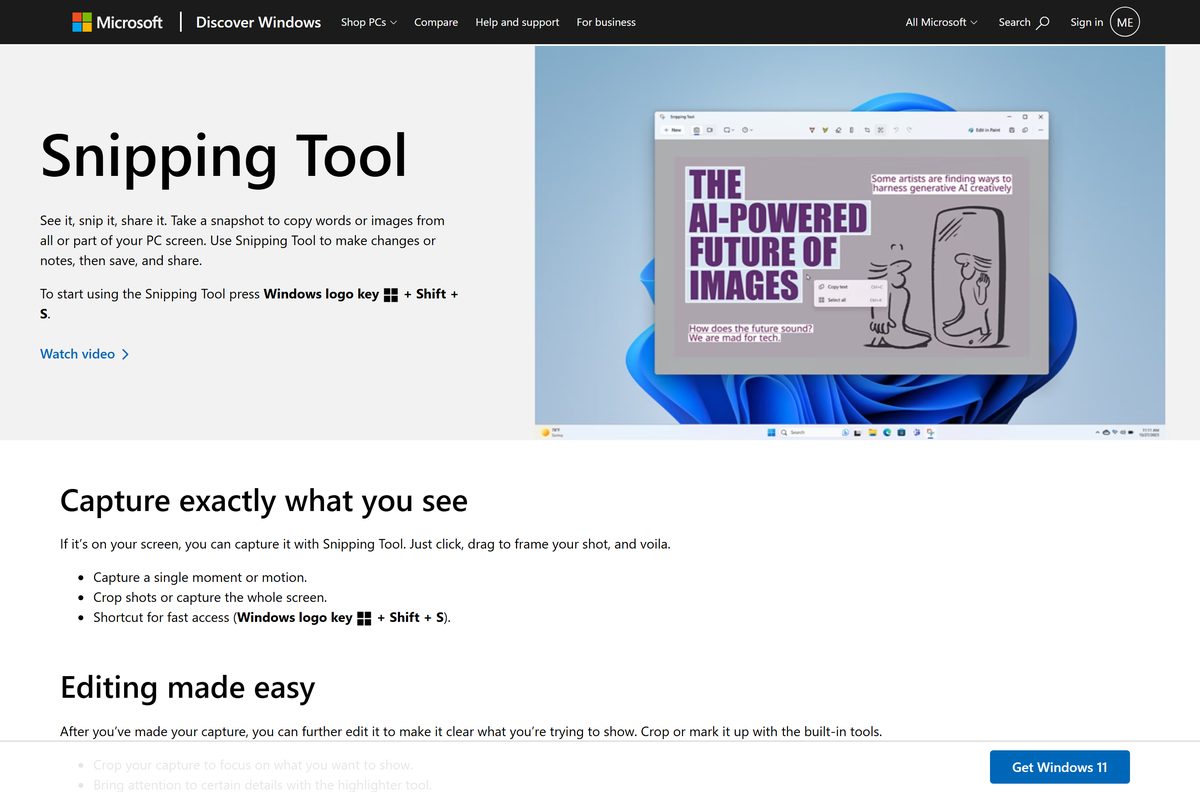
Microsoft states the split on the listing itself: the new Snipping Tool is available only on Windows 11, and a Windows 10 PC downloads Snip & Sketch instead.
No row here ends in a downgrade. Every route delivers the newest package your Windows build supports.
Download Snipping Tool from the two official Microsoft sources
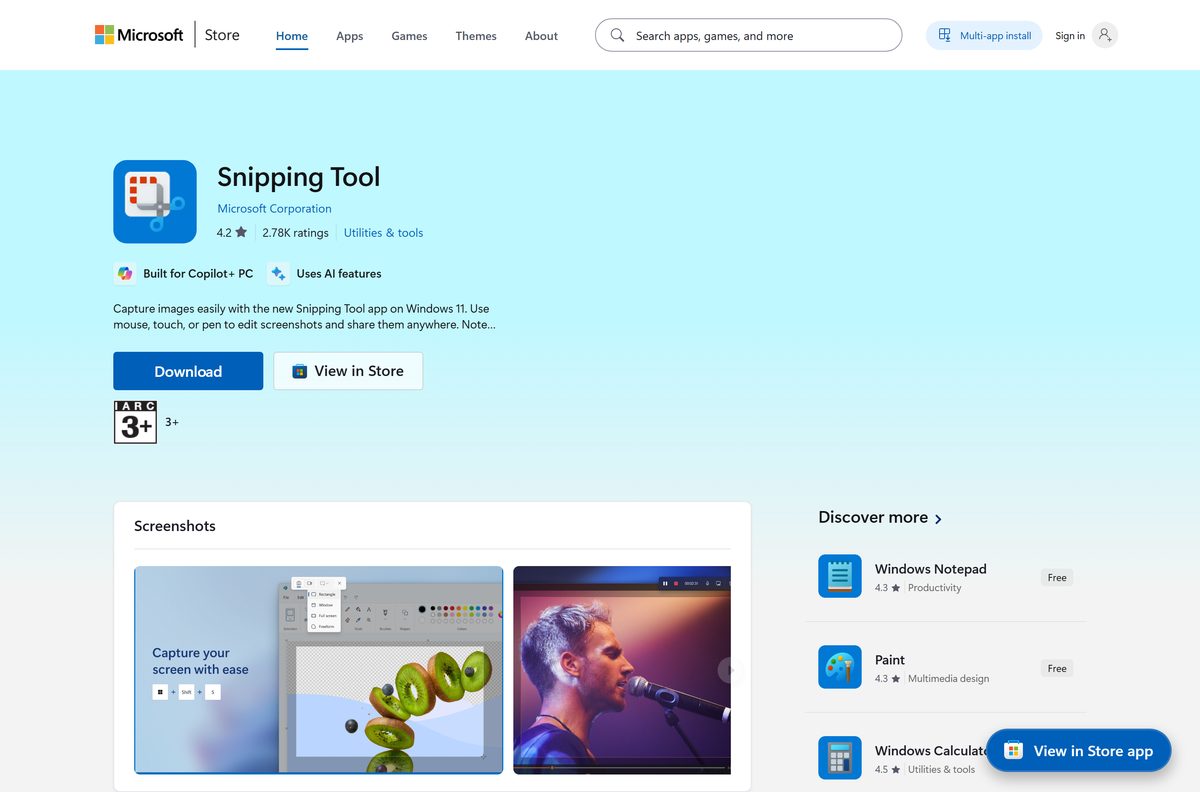
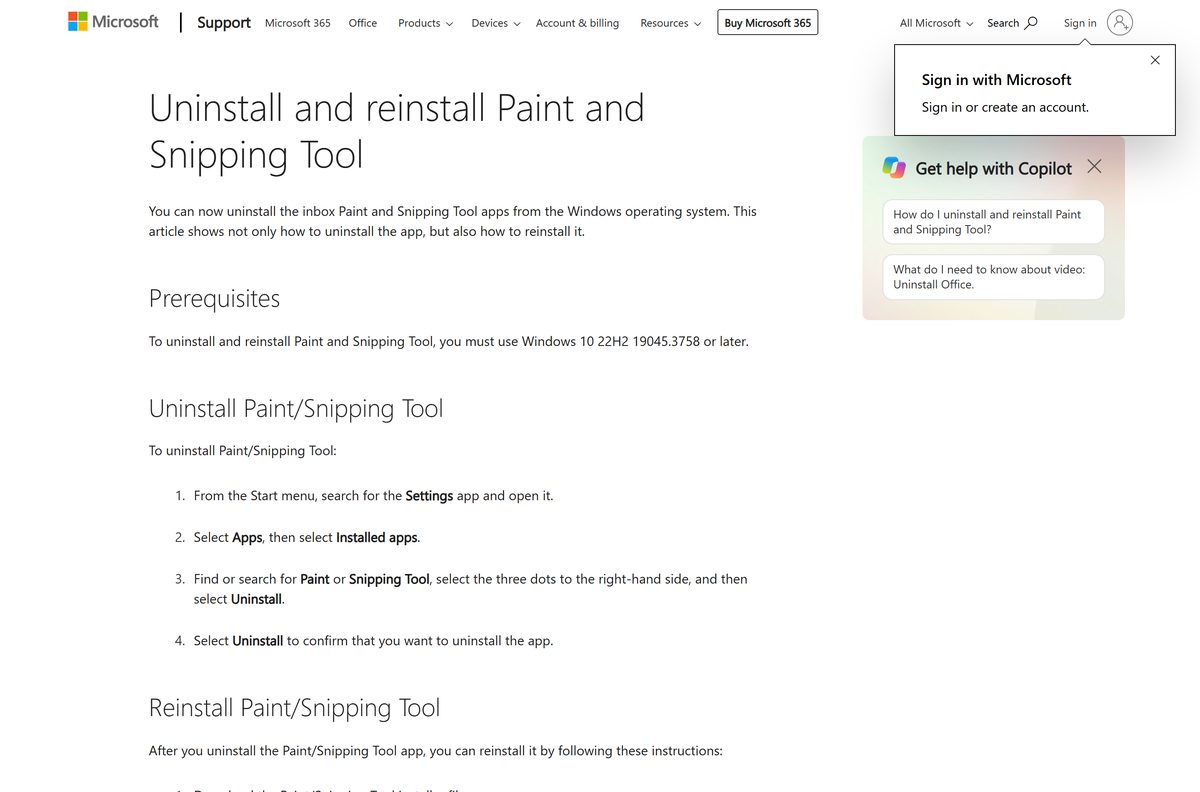
Microsoft distributes this app in exactly two places, and neither offers a version list.
- Microsoft Store listing, product 9MZ95KL8MR0L — always serves the newest package your Windows build supports
- snippingtool_setup_x64.exe — 254 KB · 64-bit PCs
- snippingtool_setup_x86.exe — 198 KB · 32-bit PCs
- snippingtool_setup_arm64.exe — 238 KB · ARM64 PCs
- Microsoft’s own Snipping Tool page — explains the app, offers no download button
Those three files are bootstrappers. Each one is under 260 KB, carries no application package, and pulls the current build down at run time. None of them takes a version argument.
Sites advertising a Snipping Tool version archive are redistributing files Microsoft did not publish for that purpose. Microsoft’s guidance is to get apps from official publisher websites or stores.
What Snipping Tool versions the Microsoft Store catalogue lists
The catalogue keeps every package Microsoft has shipped under the identity Microsoft.ScreenSketch. It records them. It does not hand them out.
| Package version | Architectures | Minimum Windows build | Bundle download |
|---|---|---|---|
| 2018.413.1605.0 | x86, x64, Arm | 10.0.17636 | 2.8 MB |
| 2018.1023.2326.0 | x86, x64, Arm | 10.0.17687 | 8.6 MB |
| 2020.814.2355.0 | x86, x64, Arm, Arm64 | 10.0.17763, Windows 10 1809 | 7.1 MB |
| 2021.2008.3001.0 | x86, x64, Arm64 | 10.0.17763, Windows 10 1809 | 5.7 MB |
| 2022.2203.3.0 | x86, x64, Arm64 | 10.0.22000, Windows 11 21H2 | 5.2 MB |
| 2022.2511.47.0 | x64, Arm64 | 10.0.22000 | 416 MB |
| 2022.2601.12.0 | x64, Arm64 | 10.0.22000 | 416 MB |
| 2022.2602.49.0 | x64, Arm64 | 10.0.22000 | 713 MB |
| 2022.2605.38.0 | x64, Arm64 | 10.0.22000 | 822 MB |
Read the minimum build column first. Every package after 2021.2008.3001.0 demands build 22000, which no Windows 10 PC reports. That one rule is why Windows 10 sees an older app.
The last package with a 32-bit build is 2022.2203.3.0. Everything since is x64 and Arm64 only, so a 32-bit PC already sits on an old release and stays there.
The download figures are whole bundles: both architectures and 61 languages in one file. Your PC installs one architecture, and the catalogue puts the maximum install at 586 MB.
Bundle numbers and installed numbers differ in the first field only. Bundle 2022.2605.38.0 registers as package 11.2605.38.0 on an x64 PC.
Check what the current Snipping Tool package needs
Snipping Tool asks nothing of the hardware beyond the Windows build under it.
| Field | Value |
|---|---|
| Developer | Microsoft Corporation |
| Latest version | 11.2605.38.0, Store bundle 2022.2605.38.0 |
| Package identity | Microsoft.ScreenSketch |
| Store product ID | 9MZ95KL8MR0L |
| First released | 27 February 2018 |
| Price | Free, included with Windows |
| Supported OS | Windows 11 21H2 or later; Windows 10 22H2 receives the 2021 package |
| Minimum build, current package | 10.0.22000 |
| Architecture | x64 and ARM64 |
| Setup file size | 254 KB x64, 198 KB x86, 238 KB ARM64 |
| Older versions published by Microsoft | None |
| Offline installer | No |
| Last verified | 2026-09-11 |
Windows 10 reached end of support on 14 October 2025. The app keeps running there, and it stopped changing at package 2021.2008.3001.0.
How to check your Snipping Tool version and hold it in place
Two readouts matter: the number the app shows, and the package version Windows records. They are the same string.
- Open Snipping Tool, select See more, then Settings.
- Scroll to About this app and read the version number.
- For the package version instead, open Windows PowerShell and run Get-AppxPackage -Name Microsoft.ScreenSketch | Select-Object Name, Version, Architecture .
- To keep that version, open Local Group Policy Editor on Windows Pro, Enterprise or Education.
- Go to Computer Configuration > Administrative Templates > Windows Components > Store.
- Open Turn off Automatic Download and Install of updates, select Enabled, then select OK.
- Reopen Microsoft Store and confirm Library no longer queues an update.
That policy holds back every Store app, not this one alone, and security fixes stop arriving with the features. Switch it off again once the reason for freezing has passed.
Windows 11 Home ships without the Local Group Policy Editor. A managed device reaches the same control through the ApplicationManagement policy AllowAppStoreAutoUpdate, set to 0.
Install Snipping Tool from the Store, and see why winget cannot pin a version
The Store route and the winget route reach the same package. Neither accepts a version number.
- Open Microsoft Store and search for Snipping Tool.
- Check the publisher line reads Microsoft Corporation.
- Select Get, or Install if you have had the app before.
- For a command line instead, run winget install 9MZ95KL8MR0L –source msstore .
- To see which versions winget can reach, run winget show 9MZ95KL8MR0L –source msstore –versions .
That last command prints a single row reading Unknown. Microsoft documents –version as the option that installs an exact version, and it works against the winget community source, not against Store packages.
How to reinstall Snipping Tool after you remove it
Microsoft requires Windows 10 22H2 build 19045.3758 or later for this route.
- Press Windows + I, open System > About and read the System type line.
- Download the setup file that matches it from the list above.
- Double-click the downloaded file.
- Select Yes at the User Account Control prompt.
- Wait while the installer resolves the package and then installs it.
- Close the installer once it reports that Snipping Tool was installed.
- Press Windows + Shift + S and confirm the capture overlay appears.
The setup fetches the current build every time. Running it will not return the version you had last week.
How to verify a Snipping Tool setup file before you run it
Any file offered as an older build earns a signature check first. The check takes ten seconds.
- Right-click the downloaded file and select Properties.
- Open the Digital Signatures tab.
- Select the signature in the list and select Details.
- Confirm the signer name reads Microsoft Corporation.
- Select View Certificate and confirm a Microsoft code signing issuer.
- Delete the file if there is no Digital Signatures tab at all.
Microsoft signs this product as CN=Microsoft Corporation, O=Microsoft Corporation, L=Redmond, S=Washington, C=US, the publisher certificate the Store catalogue records for Microsoft.ScreenSketch.
A valid signature still does not make an old build a good idea. Windows refuses to replace a package with a lower version unless a switch forces it, and code that old has stopped receiving fixes.
Should you chase an older Snipping Tool or repair the current one?
Repair the installed build. Microsoft documents exactly one downgrade mechanism, the -ForceUpdateFromAnyVersion switch on Add-AppxPackage , which forces a package to stage or register regardless of whether a higher version is already there. It needs a signed MSIX bundle to work on, and Microsoft publishes none for older Snipping Tool releases. Repair and Reset clear the faults people blame on the update, they keep your captures, and they finish in under a minute.
Fix the Snipping Tool faults that send people hunting for an older build
The app crashes, freezes or opens blank after an update
The package files are damaged. Windows rebuilds them without touching your settings.
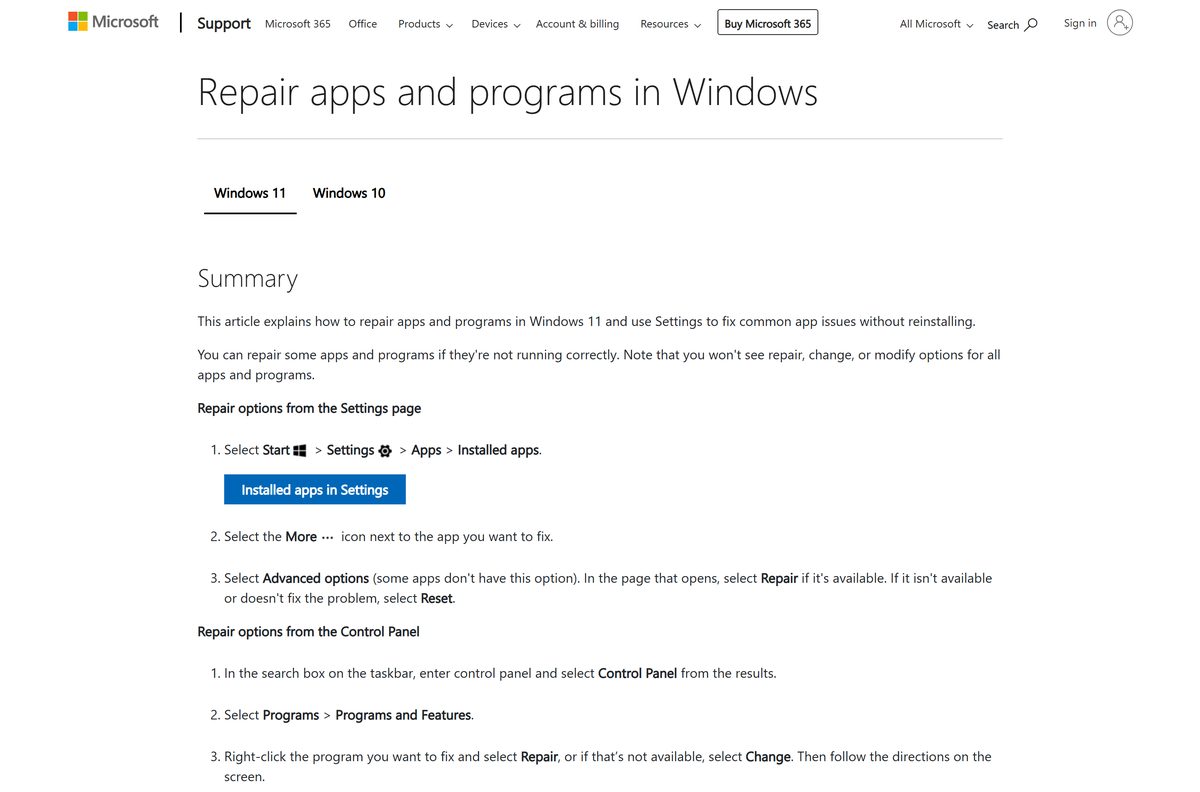
- Select Start > Settings > Apps > Installed apps.
- Select the More icon beside Snipping Tool, then Advanced options.
- Select Repair.
- Select Reset if Repair is unavailable or changes nothing.
- Reopen the app and take one capture to confirm.
A Windows upgrade changed the app and you want the old behaviour
The feature set follows the Windows build underneath the app, so the fix belongs at the Windows level.
- Open Settings > System > Recovery.
- Select Go back, which Microsoft offers for 10 days after an upgrade.
- Use System Restore once that window has closed, picking a point from before the change.
- Reopen Snipping Tool and check the toolbar.
- Expect the Store to update the app again unless you set the policy above.
Snipping Tool is missing from the Start menu
It was uninstalled, which Windows has allowed since Windows 10 22H2 build 19045.3758.
- Open Microsoft Store and select Library.
- Find Snipping Tool and select Install.
- Run the signed setup for your architecture if the listing does not appear.
- Let the installer finish before opening the app.
The Store refuses to install or update it
A stale Store cache or a pending restart is blocking the package.
- Restart the PC if Windows updates installed and you have not rebooted since.
- Select Start > Settings > Windows Update > Check for updates.
- Press Windows + R, type wsreset.exe and select OK.
- Confirm the date, time and region on the PC are correct.
- Try the install again.
A file downloaded as an old version will not run
It is not Microsoft’s package. No standalone Snipping Tool build exists outside the Store.
- Delete the file.
- Run the signature check above on anything else from the same site.
- Scan the PC with Windows Security.
- Reinstall from the Microsoft Store or from Microsoft’s own setup file.
How to uninstall Snipping Tool and start from a clean copy
A clean reinstall is the closest thing to a rollback that Windows supports here.
- Open Settings from the Start menu.
- Select Apps, then Installed apps.
- Search for Snipping Tool and select the three dots beside it.
- Select Uninstall, then Uninstall again to confirm.
- To remove it from a command line instead, run Get-AppxPackage -Name Microsoft.ScreenSketch | Remove-AppxPackage in PowerShell.
- Reinstall from the Microsoft Store, or run the signed setup for your architecture.
Captures already saved to disk survive this. App settings do not, so note your save folder and capture delay before you start.
Is any Snipping Tool version free?
Yes, every build of it. The Microsoft Store lists the app at 0.00 USD, with no in-app purchases and no trial period, and it has been part of Windows since 2018. No Snipping Tool release has ever carried a price. A page charging for an older build is selling something Microsoft gives away, or a different product wearing the name.
Frequently asked questions
Can I download an old version of Snipping Tool?
No. Microsoft publishes no archive of older Snipping Tool packages. The Store listing has no version picker, and the support page offers one setup file that always fetches the current build.
What is the official Snipping Tool download page?
The Microsoft Store listing for product 9MZ95KL8MR0L, published by Microsoft Corporation. The three signed setup files sit on Microsoft’s uninstall and reinstall support page, and nowhere else.
Why does Windows 10 show a different Snipping Tool?
Microsoft says on the Store listing that the new Snipping Tool is available only on Windows 11, and that a Windows 10 PC downloads Snip & Sketch instead. That is package 2021.2008.3001.0, shipped in 2021.
Is there a Snipping Tool offline installer?
No. Each signed setup is under 260 KB and holds no application package. It resolves the package over the internet and falls back to the Microsoft Store when it cannot.
Can winget install a specific Snipping Tool version?
No. Running winget show 9MZ95KL8MR0L –source msstore –versions returns one row reading Unknown. The –version option applies to the winget community source, not to Microsoft Store packages.
How do I check which Snipping Tool version I have?
Open the app, select See more, then Settings, then read About this app. For the package version instead, run Get-AppxPackage -Name Microsoft.ScreenSketch in Windows PowerShell.
Can I stop Snipping Tool from updating itself?
Yes, on Windows Pro, Enterprise and Education. Enable Turn off Automatic Download and Install of updates under Computer Configuration, Windows Components, Store. It freezes every Store app, security fixes included.
Is Snipping Tool free?
Yes. The Microsoft Store lists it at no cost, with no in-app purchases and no trial. No Snipping Tool build has ever carried a price, so a paid download is somebody else’s product.
How large is the Snipping Tool download?
The setup file is 254 KB on x64. The package it fetches is an 822 MB bundle covering both architectures and 61 languages, and the catalogue lists a 586 MB maximum install size.
Which Snipping Tool version is current?
Store bundle 2022.2605.38.0, which registers as package 11.2605.38.0 on an x64 PC. The last three fields of the two strings always match, and only the first differs.
Is there an older Snipping Tool for Mac?
No. Microsoft has never published Snipping Tool for macOS in any version. Use the built-in Screenshot app on a Mac, opened with Shift, Command and 5.
Why will Snipping Tool not install?
Usually a stale Store cache or a pending restart. Reboot, install outstanding Windows updates, run wsreset.exe, then try again. Check the date, time and region on the PC are correct.
Is it safe to download Snipping Tool from other sites?
Those files are not Microsoft’s distribution. Microsoft advises getting apps from official publisher websites or stores, and an unsigned copy of an app Windows already includes has nothing to add.