The fastest way to open Terminal on a Mac is to press Command + Space, type Terminal, and press Return. You can also open Terminal from Finder, the Applications folder, Launchpad, or directly from a folder when you want the command line to start in a specific location.
Terminal comes with macOS, so you do not need to download or install it separately. Apple places the app inside the Utilities folder, and the same Terminal app is available on current macOS versions, including macOS Tahoe, Sequoia, Sonoma, and earlier releases.
The methods below cover the quickest Terminal shortcut, where Terminal is located on a Mac, how to open Terminal from Finder, how to launch it in a folder, and what to do when Terminal does not appear in Spotlight.
How to Open Terminal on Mac with a Keyboard Shortcut
macOS does not include a dedicated keyboard shortcut that launches Terminal directly, but Spotlight provides the fastest built-in method.
- Press Command + Space to open Spotlight.
- Type Terminal.
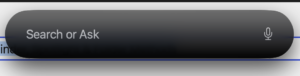
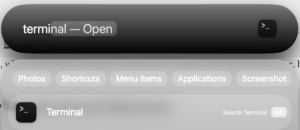
- Press Return.
Terminal opens immediately and displays a command prompt where you can enter shell commands.
Apple documents Command + Space as the standard shortcut for opening Spotlight, which can then launch any installed app by name.
Open Terminal without using the mouse
The entire process can be completed from the keyboard:
Command + Space
Type: Terminal
Press: Return
This is usually the quickest method if you open Terminal regularly but do not want to keep it permanently in the Dock.
How to Open Terminal Using Spotlight
Spotlight searches apps, files, settings, and other content on your Mac. Since Terminal is included with macOS, it normally appears as soon as you start typing its name.
- Click the Spotlight icon in the menu bar, or press Command + Space.
- Enter Terminal in the search field.
- Select the Terminal app or press Return.
If several search results appear, look for the black Terminal app icon under Applications.
How to Open Terminal from Finder
Terminal is stored in the Utilities folder inside the main Applications directory. Opening it from Finder is useful when Spotlight is disabled, Terminal does not appear in search results, or you simply want to locate the actual app.
- Click Finder in the Dock.
- Select Applications from the sidebar.
- Open the Utilities folder.
- Double-click Terminal.
The full location of the built-in app is:
/Applications/Utilities/Terminal.appYou can also press Command + Shift + U while Finder is active to open the Utilities folder directly, then double-click Terminal.
How to Open Terminal from the Applications Folder
You can reach Terminal through the Applications directory without searching for it.
- Open Finder.
- Click Applications.
- Scroll to Utilities.
- Open the folder and launch Terminal.
If you use Terminal frequently, drag its icon from the Utilities folder to the Dock. This creates a permanent shortcut without moving the application itself.
How to Open Terminal from Launchpad
Launchpad can also locate Terminal, although Apple has changed how app browsing appears across recent macOS releases.
- Open the app launcher from the Dock.
- Type Terminal in the search field.
- Click the Terminal icon.
On newer macOS versions, Apple integrates more app browsing into Spotlight, so the exact launcher interface can look different from older screenshots and tutorials.
How to Open Terminal in a Folder on Mac
If you plan to run commands on files inside a particular folder, opening Terminal directly at that location saves you from manually navigating with the cd command.
Open Terminal at a folder using Finder
- Open Finder.
- Locate the folder you want to use.
- Right-click the folder or right-click inside the open Finder window.
- Look for a service such as New Terminal at Folder.
If the option is available, macOS opens a Terminal window with that folder already set as the current working directory.
Enable New Terminal at Folder if it is missing
The Finder service can be enabled from macOS keyboard settings:
- Open System Settings.
- Select Keyboard.
- Open Keyboard Shortcuts.
- Select Services.
- Expand the Files and Folders section.
- Enable New Terminal at Folder and, if useful, New Terminal Tab at Folder.
After enabling the service, return to Finder and right-click the folder again.
How to Open a Folder in Terminal with Drag and Drop
You can also open Terminal normally and drag a folder into the window. Terminal inserts the full path automatically, which avoids typing long folder names or escaping spaces manually.
For example, type:
cd Leave a space after cd, drag the folder from Finder into Terminal, and press Return.
If you drag the Downloads folder into the window, the finished command may look similar to:
cd /Users/yourname/DownloadsThis method also works with individual files when a command requires the complete file path.
How to Open Terminal as Administrator on Mac
macOS does not have a separate “Run as administrator” option for Terminal like Windows has for Command Prompt or PowerShell. You open Terminal normally and use sudo when a command requires administrator privileges.
For example:
sudo commandTerminal then asks for the password of an administrator account.
When you type the password, no letters, dots, or asterisks appear on the screen. This is normal Terminal behaviour. Type the password and press Return.
Only use
sudowith commands you understand and trust. Administrator privileges allow commands to modify protected parts of macOS.
How to Open a New Terminal Window or Tab
Once Terminal is running, you can open additional windows or tabs without launching the app again.
| Action | Shortcut |
|---|---|
| Open a new Terminal window | Command + N |
| Open a new Terminal tab | Command + T |
| Close the current window | Command + W |
| Quit Terminal | Command + Q |
A new window or tab normally uses the Terminal profile configured in its settings.
How to Keep Terminal in the Dock
If you use Terminal frequently, keeping it in the Dock is faster than searching for it every time.
- Open Terminal.
- Right-click the Terminal icon in the Dock.
- Select Options.
- Choose Keep in Dock.
You can now open Terminal with a single click even after restarting the Mac.
Where Is Terminal on Mac?
The Terminal application is located inside:
Macintosh HD
└── Applications
    └── Utilities
        └── Terminal.app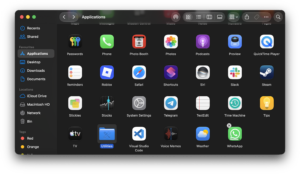
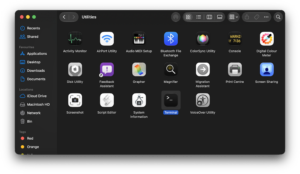
Its UNIX-style path is:
/Applications/Utilities/Terminal.appTerminal is part of macOS and normally should not be moved or deleted from this location.
Open Terminal Using a Finder Path
If you know the application path, Finder can jump directly to Terminal.
- Open Finder.
- Press Command + Shift + G.
- Enter:
/Applications/Utilities/Terminal.app- Press Return.
- Open Terminal.
You can also enter only:
/Applications/Utilities/This opens the Utilities folder containing Terminal, Activity Monitor, Disk Utility, Console, and other macOS system tools.
How to Open Terminal from Another Terminal
If you already have a shell open and want another Terminal window, you can use the macOS open command:
open -a TerminalThis asks macOS to open the Terminal application.
To open another Terminal instance while working with a particular folder, you can combine Finder services, the open command, or simply create another tab with Command + T.
How to Open Terminal with Siri
Siri can open Terminal just like other installed applications.
- Activate Siri using your configured keyboard shortcut, menu bar icon, or voice command.
- Say Open Terminal.
macOS launches the Terminal app if Siri is enabled and available on the Mac.
Terminal Won’t Open on Mac
If Terminal does not open through Spotlight, try launching the actual app from Finder > Applications > Utilities. This quickly tells you whether Spotlight is failing to find the app or Terminal itself cannot launch.
Terminal does not appear in Spotlight
Open Finder and confirm that Terminal.app still exists inside /Applications/Utilities/. If it opens from Finder, the issue is with Spotlight search rather than Terminal.
You can also type the complete app name into Spotlight and look under the Applications category.
Terminal icon is in the Dock but nothing happens
Right-click the Terminal icon and choose Quit if macOS thinks the app is already running, then open it again. If that fails, restart the Mac and try launching Terminal from the Utilities folder.
A Terminal window opens and immediately closes
A shell configuration file can cause the session to exit immediately if it contains a broken command. The files most commonly involved include:
~/.zshrc
~/.zprofile
~/.bash_profile
~/.bashrc
Which files apply depends on the shell and configuration you use. Current macOS installations use Z shell, or zsh, as the default interactive shell for newly created user accounts.
Terminal vs Command Prompt on Mac
Mac does not include Windows Command Prompt or PowerShell as its native command-line environment. Terminal is the built-in macOS application that provides access to a Unix shell.
| Windows | macOS |
|---|---|
| Command Prompt | Terminal with a shell such as zsh |
| PowerShell | Can be installed separately on macOS |
dir |
ls |
cls |
clear |
cd |
cd |
| Run as administrator | Use sudo when required |
If a tutorial tells you to “open Command Prompt” but you are following equivalent Mac instructions, Terminal is usually the application you need.
Useful Commands to Try After Opening Terminal
If you are opening Terminal for the first time, these basic commands are useful for confirming that it works:
pwd
ls
whoami
date
clear
pwd shows the current folder, ls lists files and directories, whoami displays the current username, date displays the system date and time, and clear clears the visible Terminal window.
Apple also provides Unix manual pages directly inside Terminal. Enter man followed by the name of a command to read its documentation. For example:
man lsPress Q when you want to leave the manual page.
Frequently Asked Questions
What is the shortcut to open Terminal on Mac?
The quickest built-in sequence is Command + Space, type Terminal, then press Return. macOS does not assign a dedicated global Terminal shortcut by default.
Where is Terminal located on a Mac?
Terminal is stored at /Applications/Utilities/Terminal.app. In Finder, open Applications > Utilities > Terminal.
Do I need to download Terminal for Mac?
No. Apple includes Terminal with macOS, so there is no separate Terminal download required.
How do I open Terminal on a MacBook Air?
Press Command + Space, type Terminal, and press Return. The steps are the same on MacBook Air, MacBook Pro, iMac, Mac mini, Mac Studio, and Mac Pro.
How do I open Terminal on a MacBook Pro?
Use Spotlight with Command + Space, or open Finder > Applications > Utilities > Terminal.
How do I open Terminal in the current Finder folder?
Enable New Terminal at Folder under System Settings > Keyboard > Keyboard Shortcuts > Services, then right-click a folder in Finder and choose that service.
Can I right-click and open Terminal on Mac?
Yes, once the New Terminal at Folder Finder service is enabled. It appears in the contextual menu for folders and can open Terminal directly at that directory.
How do I run Terminal as administrator?
Open Terminal normally and prefix commands that require administrator privileges with sudo. macOS then asks for an administrator password.
What is the Mac equivalent of Command Prompt?
Terminal is the standard built-in command-line application on macOS. It opens a Unix shell rather than the Windows Command Prompt environment.
What shell does Terminal use on Mac?
Current macOS user accounts use zsh as the default shell. Older accounts or manually configured Macs may still use Bash or another installed shell.
Can I open multiple Terminal windows?
Yes. Press Command + N for another window or Command + T for another tab.
Can I pin Terminal to the Dock?
Yes. Open Terminal, right-click its Dock icon, choose Options, and select Keep in Dock.
Why can’t I find Terminal on my Mac?
Open Finder and go directly to Applications > Utilities. If Terminal is there and opens normally, Spotlight simply failed to surface it in the search results.

![2 Ways to Completely Delete Bing Search History [Browser & Microsoft Account]](https://techdows.com/wp-content/uploads/2026/09/iPhone-Safari-settings-with-Clear-History-and-Website-Data-link-600x338.jpg)
How to manage file and folder permissions on Mac - Techdows
[…] Finder shows the friendly privilege names. Terminal shows the raw letters, the owner and the group, which is faster when you check several items. New to Terminal? See how to open Terminal on Mac. […]