Microsoft .NET Framework 4.8.1 is the latest Framework release available for supported Windows computers. For newer applications built with modern .NET, Microsoft currently offers .NET 10.0.10, .NET 9.0.18, .NET 8.0.29 and .NET 11 Preview 6. Use the official Microsoft download links below and install only the version requested by your application.
July 2026 update: Microsoft released .NET 11 Preview 6, .NET 10.0.10, .NET 9.0.18 and .NET 8.0.29 on July 14, 2026.
Important: .NET 5 and later are separate from .NET Framework. Installing .NET 10 does not replace .NET Framework 4.8.1 or enable an application that specifically requires .NET Framework 3.5.
| Application requirement | Recommended download |
|---|---|
| .NET Framework 1.0 through 3.5 | .NET Framework 3.5 SP1 or the Windows 3.5 feature |
| .NET Framework 4.0 through 4.8.1 | Latest compatible .NET Framework 4.x release |
| Modern Windows desktop application | .NET Desktop Runtime requested by the application |
| Command-line or service application | .NET Runtime requested by the application |
| ASP.NET Core website hosted through IIS | ASP.NET Core Hosting Bundle |
| Developing or compiling .NET applications | .NET SDK or .NET Framework Developer Pack |
What is Microsoft .NET Framework?
Microsoft .NET Framework is a Windows software platform that supplies the runtime and libraries needed by applications developed for it. When an application reports that .NET Framework is missing, Windows cannot find the required runtime version or feature.
.NET Framework remains part of Windows and supports older Windows desktop, ASP.NET, Windows Communication Foundation and related applications. Microsoft recommends modern .NET for new development, while existing .NET Framework applications can continue running on supported Windows versions.
.NET Framework and modern .NET are different
| Product | Versions | Main use |
|---|---|---|
| .NET Framework | 1.0 through 4.8.1 | Older Windows-only applications |
| Modern .NET | .NET 5 through .NET 11 | Current Windows, Linux and macOS applications |
Modern .NET was previously called .NET Core. Its major versions can exist side by side, so an application built for .NET 8 can remain installed alongside applications using .NET 9 or .NET 10.
List of All Microsoft .NET Framework Versions
| Version | Current status | Notes |
|---|---|---|
| .NET Framework 1.0 | Unsupported | Superseded by later 1.x and 3.5 releases |
| .NET Framework 1.1 | Unsupported | Official Microsoft download is no longer generally provided |
| .NET Framework 2.0 | Unsupported as a separate release | Runtime components are included in .NET Framework 3.5 SP1 |
| .NET Framework 3.0 | Unsupported as a separate release | Runtime components are included in .NET Framework 3.5 SP1 |
| .NET Framework 3.5 SP1 | Supported | Optional Windows feature on Windows 10 and Windows 11 |
| .NET Framework 4.0 to 4.6.1 | Unsupported | Superseded by later in-place 4.x updates |
| .NET Framework 4.6.2 | Supported until January 12, 2027 | Install a newer compatible release where possible |
| .NET Framework 4.7 to 4.8.1 | Supported on eligible Windows versions | Support follows the underlying Windows lifecycle |
| .NET 5, 6 and 7 | Unsupported | Modern .NET releases, not .NET Framework |
| .NET 8 | Supported until November 2026 | Latest patch is 8.0.29 |
| .NET 9 | Supported until November 2026 | Latest patch is 9.0.18 |
| .NET 10 | Supported LTS release | Latest patch is 10.0.10 |
| .NET 11 | Preview | Preview 6 is intended for testing, not normal production use |
Direct download links for .NET Framework Offline Installer
Download Microsoft .NET Framework 1.0 Offline Installer
.NET Framework 1.0 is unsupported, and Microsoft no longer provides it through the current .NET download centre. On a supported Windows computer, install .NET Framework 3.5 instead because it supports applications targeting the older 2.0 and 3.x runtime family.
Software that strictly requires .NET Framework 1.0 should be updated or run inside an isolated legacy environment designed for its original operating system. Do not download an installer from an unverified archive.
Download Microsoft .NET Framework 1.1 Offline Installer
.NET Framework 1.1 and Service Pack 1 have reached end of support. Microsoft no longer lists a general installer for this version in its current download catalogue.
Check whether the application developer provides a newer release that supports .NET Framework 3.5 or 4.x. Installing unsupported runtime files on Windows 10 or Windows 11 can introduce compatibility and security problems.
Download Microsoft .NET Framework 2.0 Offline Installer
On Windows 10 and Windows 11, do not install a separate .NET Framework 2.0 package. Enable .NET Framework 3.5 (includes .NET 2.0 and 3.0) through Windows Features.
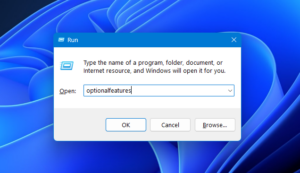
- Press Windows + R.
- Enter
optionalfeaturesand press Enter.
- Select .NET Framework 3.5 (includes .NET 2.0 and 3.0).
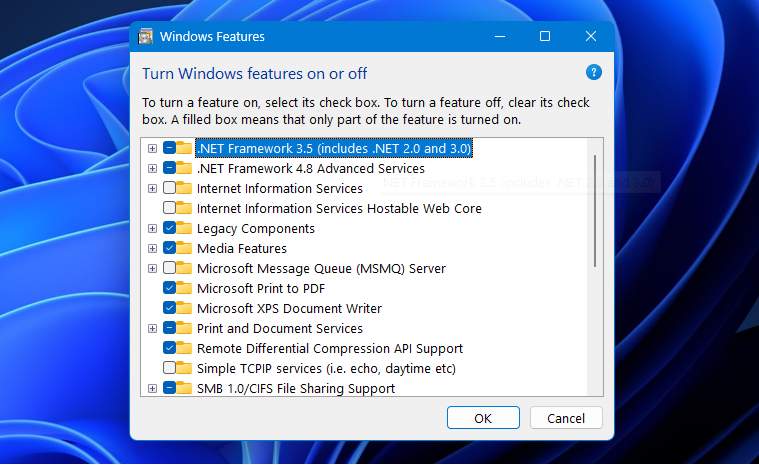
- Click OK.
- Allow Windows to download the required files and restart when requested.
Download Microsoft .NET Framework 3.0 Offline Installer
.NET Framework 3.0 is also included in the .NET Framework 3.5 Windows feature. Enable that feature rather than installing an old standalone 3.0 package.
This method supports applications compiled for the 2.0, 3.0 and 3.5 runtime family on current Windows versions.
Download Microsoft .NET Framework 3.5 Offline Installer
Microsoft provides a .NET Framework 3.5 SP1 download page for older supported installation scenarios. On Windows 10 and Windows 11, Microsoft recommends installing the built-in Windows feature.
Open the official .NET Framework 3.5 SP1 download page
Install .NET Framework 3.5 offline on Windows 11 or Windows 10
Use installation media that matches the installed Windows version, edition, language and build.
- Mount the matching Windows ISO or connect the installation USB drive.
- Note its drive letter, such as D:.
- Open Terminal or Command Prompt as administrator.
- Run the following command, replacing D: with the correct drive letter:
DISM /Online /Enable-Feature /FeatureName:NetFx3 /All /Source:D:\sources\sxs /LimitAccessThe /LimitAccess option prevents DISM from contacting Windows Update. An installation source from a different Windows build can produce source-file errors.
Download Microsoft .NET Framework 4.0 Offline Installer
.NET Framework 4.0 has reached end of support. Microsoft still maintains an official historical download page, but supported Windows computers should use the latest compatible 4.x version unless an older operating system prevents it.
Download .NET Framework 4.0 from Microsoft
The offline runtime installer supports compatible x86 and x64 systems. Applications built for .NET Framework 4.0 normally run on a later .NET Framework 4.x release.
Download Microsoft .NET Framework 4.5 Offline Installer
.NET Framework 4.5 is unsupported and has been replaced by later in-place 4.x updates.
Open the official .NET Framework 4.5 download page
Download Microsoft .NET Framework 4.5.1 Offline Installer
.NET Framework 4.5.1 is unsupported. Install a newer compatible 4.x runtime when the operating system permits it.
Open the official .NET Framework 4.5.1 download page
Download Microsoft .NET Framework 4.5.2 Offline Installer
.NET Framework 4.5.2 has reached end of support. Its official page provides the historical runtime and developer downloads.
Open the official .NET Framework 4.5.2 download page
Download Microsoft .NET Framework 4.6 Offline Installer
.NET Framework 4.6 is unsupported and has been replaced by newer 4.x releases.
Open the official .NET Framework 4.6 download page
Download Microsoft .NET Framework 4.6.1 Offline Installer
.NET Framework 4.6.1 is unsupported. Use a later compatible 4.x release when possible.
Open the official .NET Framework 4.6.1 download page
Download Microsoft .NET Framework 4.6.2 Offline Installer
.NET Framework 4.6.2 remains supported until January 12, 2027 on eligible Windows installations. Microsoft provides web, offline runtime and developer-pack downloads.
Download .NET Framework 4.6.2 from Microsoft
Download Microsoft .NET Framework 4.7 Offline Installer
.NET Framework 4.7 is available for compatible Windows versions and receives support according to the lifecycle of the underlying operating system.
Download .NET Framework 4.7 from Microsoft
Download Microsoft .NET Framework 4.7.1 Offline Installer
The official page offers the .NET Framework 4.7.1 runtime, offline installer and developer pack.
Download .NET Framework 4.7.1 from Microsoft
Download Microsoft .NET Framework 4.7.2 Offline Installer
.NET Framework 4.7.2 remains available for compatible Windows and Windows Server installations.
Download .NET Framework 4.7.2 from Microsoft
Download Microsoft .NET Framework 4.8 Offline Installer
.NET Framework 4.8 supports Windows 7 SP1 through suitable Windows 10 and Windows Server versions. It is also included with several Windows 10 releases.
Download .NET Framework 4.8 offline installer
Select Offline installer under the Runtime column. The full installer contains the files required for an English installation and does not need an internet connection after download.
Download Microsoft .NET Framework 4.8.1 Offline Installer
.NET Framework 4.8.1 is the latest Framework version. It is preinstalled on Windows 11 version 22H2 and later and can be installed on supported Windows 10 21H2 and 22H2 systems.
Download .NET Framework 4.8.1 offline installer
Select the Runtime offline installer to run applications. Developers compiling applications for 4.8.1 should download the Developer Pack instead.
Download Microsoft .NET 5.0 Offline Installer
.NET 5 reached end of support on May 10, 2022. Install it only when an application explicitly requires version 5 and cannot be updated.
Open the official .NET 5 download archive
For a normal Windows desktop application, select the .NET Desktop Runtime matching the computer architecture.
Download Microsoft .NET 6.0 Offline Installer
.NET 6 reached end of support on November 12, 2024. Its installers remain available for applications that still depend on it.
Open the official .NET 6 download archive
Download Microsoft .NET 7.0 Offline Installer
.NET 7 reached end of support on May 14, 2024. Move applications to a supported LTS version when the developer provides an update.
Open the official .NET 7 download archive
Download Microsoft .NET 8.0.29 Offline Installer
.NET 8.0.29 is the July 2026 security update for .NET 8. Microsoft released it on July 14, 2026.
Download .NET 8.0.29 from Microsoft
| Package | Install it when |
|---|---|
| .NET Desktop Runtime 8.0.29 | You need to run a Windows desktop application |
| .NET Runtime 8.0.29 | You need to run a console or non-desktop application |
| ASP.NET Core Runtime 8.0.29 | You need to run an ASP.NET Core application |
| Hosting Bundle | You host an ASP.NET Core application through IIS |
| SDK 8.0.423 | You develop or compile .NET 8 applications |
Download Microsoft .NET 9.0.18 Offline Installer
.NET 9.0.18 is a security update released on July 14, 2026. .NET 9 is an STS release and reaches end of support on November 10, 2026.
Download .NET 9.0.18 from Microsoft
Windows installers are available for x64, x86 and Arm64. The .NET Desktop Runtime includes the base .NET Runtime, so Windows desktop users do not need to install both packages.
Download Microsoft .NET 10.0.10 Offline Installer
.NET 10.0.10 is the current July 2026 patch for .NET 10. Microsoft released it on July 14, 2026. .NET 10 is an LTS release supported until November 14, 2028.
Download .NET 10.0.10 from Microsoft
The page provides .NET Runtime, .NET Desktop Runtime, ASP.NET Core Runtime, Hosting Bundle and SDK installers for supported architectures.
Download Microsoft .NET 11.0 Preview 6 Offline Installer
.NET 11 Preview 6 was released on July 14, 2026. Preview builds provide early access to unfinished platform changes and are not intended for ordinary production systems.
Download .NET 11 Preview 6 from Microsoft
Install Preview 6 for testing software against .NET 11 or developing with the preview SDK. Users who only need to run normal applications should install the stable version requested by the application.
Which .NET Installer Should You Download?
Runtime or SDK
- Runtime: Runs existing applications.
- Desktop Runtime: Runs Windows desktop applications built with Windows Forms or WPF and includes the base runtime.
- ASP.NET Core Runtime: Runs web and server applications.
- Hosting Bundle: Runs ASP.NET Core websites through IIS.
- SDK: Builds, tests and runs applications during development.
- Developer Pack: Lets developers target a specific .NET Framework version in Visual Studio.
64-bit, 32-bit or Arm64
Most current Intel and AMD computers use the x64 installer. Use x86 for 32-bit Windows or when a specific 32-bit application requires the x86 runtime. Windows computers built around Arm processors use Arm64.
- Open Settings.
- Go to System > About.
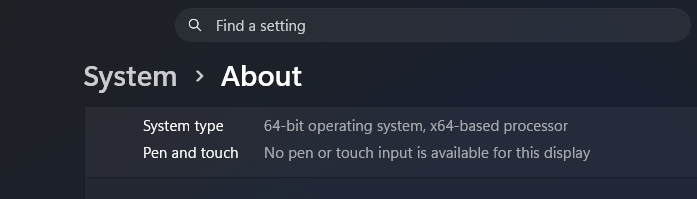
- Check System type.
A 64-bit Windows installation can run many 32-bit applications. An application can therefore require the x86 .NET runtime even when Windows itself is x64.
How to Install a .NET Offline Installer
- Download the required installer from the official Microsoft page.
- Copy the file to the computer that needs .NET.
- Right-click the installer and select Run as administrator.
- Accept the licence terms.
- Select Install.
- Restart Windows when prompted.
- Open the application that originally requested .NET.
An offline installer contains the files required for installation, but Windows can still request a restart or prerequisite operating-system update.
Important Note Regarding Different Versions of .NET Framework
.NET Framework 4.5 through 4.8.1 are in-place updates for the .NET Framework 4.x family. Windows permits only one 4.x release at a time. Installing a later supported version replaces the earlier 4.x runtime while retaining compatibility with applications built for earlier 4.x versions.
You cannot normally install .NET Framework 4.6 after 4.8.1 is already installed. The newer runtime already supplies the compatible 4.x environment.
.NET Framework 3.5 uses a separate runtime family and can exist alongside .NET Framework 4.8 or 4.8.1. A modern Windows computer commonly needs only:
- .NET Framework 3.5 for applications targeting 2.0, 3.0 or 3.5.
- .NET Framework 4.8 or 4.8.1 for applications targeting the 4.x family.
- The requested modern .NET runtime for applications targeting .NET 5 or later.
There is no reason to install .NET Framework 1.1, every 4.x release and every modern .NET release as a complete collection.
How to Check Installed .NET Versions
Check modern .NET versions
Open Command Prompt or Terminal and run:
dotnet --list-runtimesTo list installed SDKs, run:
dotnet --list-sdksIf Windows reports that dotnet is not recognised, modern .NET is either missing or its installation folder is not available through the system path.
Check whether .NET Framework 3.5 is enabled
- Press Windows + R.
- Enter
optionalfeatures. - Check the state of .NET Framework 3.5 (includes .NET 2.0 and 3.0).
Fix Common .NET Installation Errors
A newer .NET Framework version is already installed
This message appears when you try to install an earlier 4.x release over a later one. Keep the newer version because it replaces and supports applications targeting earlier .NET Framework 4.x versions.
.NET Framework 3.5 installation error 0x800F081F
Windows cannot locate the required source files. Mount installation media matching the installed Windows build and run the DISM command with its sources\sxs folder.
The installer is not supported on this operating system
The selected version does not support your Windows release, or Windows already includes a newer in-place version. Check the Microsoft system-requirements page and install the latest compatible release.
The application still requests .NET after installation
Check the complete error message. The application can require a different major version, architecture or runtime type. For example, installing .NET 10 x64 does not satisfy an application requesting .NET Desktop Runtime 8 x86.
FAQs
What is the latest version of .NET Framework?
.NET Framework 4.8.1 is the latest version. Microsoft continues to support it on eligible, supported Windows releases.
What are the latest .NET versions in July 2026?
The current releases are .NET 10.0.10, .NET 9.0.18 and .NET 8.0.29. Microsoft also offers .NET 11 Preview 6 for testing.
Does Windows 11 include .NET Framework?
Yes. Original Windows 11 releases include .NET Framework 4.8, while Windows 11 version 22H2 and later include .NET Framework 4.8.1. .NET Framework 3.5 remains an optional Windows feature.
Do I need both .NET Framework 3.5 and 4.8.1?
Install both when you use older applications targeting the 2.0 to 3.5 family and newer applications targeting the 4.x family. They use separate runtime families and can exist together.
Do I need to install every .NET Framework version?
No. Install .NET Framework 3.5 for applications targeting 2.0 through 3.5 and the latest compatible 4.x release for applications targeting Framework 4.x.
Does .NET 10 replace .NET Framework 4.8.1?
No. They are separate platforms. A program compiled for .NET Framework still requires .NET Framework even when .NET 10 is installed.
Can different modern .NET versions exist together?
Yes. .NET 8, .NET 9 and .NET 10 runtimes can be installed side by side because applications can depend on a specific major version.
Should I download the runtime or SDK?
Download the runtime to use an existing application. Download the SDK when you write, build or compile .NET applications.
Which runtime should I install for a Windows desktop program?
Install the .NET Desktop Runtime requested by the program. It includes the base .NET Runtime and supports Windows Forms and WPF applications.
Can I install an x86 .NET runtime on 64-bit Windows?
Yes. A 64-bit Windows computer can have x64 and x86 modern .NET runtimes installed together when both 64-bit and 32-bit applications require them.
Are .NET offline installers free?
Yes. Microsoft provides .NET Framework, modern .NET runtimes and SDKs without a download or licence fee.
Is .NET 11 Preview 6 safe for production use?
Microsoft identifies it as a preview release. Use the stable .NET 10 LTS release for production unless you have a specific testing requirement and accept preview limitations.
Where should I download .NET installers?
Use Microsoft’s official .NET download website. Avoid third-party download portals that repackage installers or offer unofficial “all-in-one” bundles.