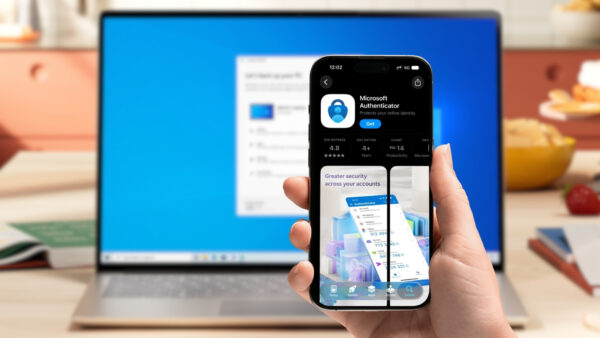
Microsoft added voice dictation to OneNote Online, the browser version of OneNote now called OneNote for the web. Instead of typing, you can speak and watch your words appear on the page. The feature is called Dictate, and it sits on the Home tab. Here is how to use it and what you need.
What you need to dictate in OneNote for the web
Microsoft lists these requirements:
- A Microsoft 365 account that you are signed in to.
- A device with a working microphone.
- A fast, reliable internet connection, because the speech is processed online.
- A note you can edit. If the Dictate button is grayed out, the note may be read-only.
- Permission for your browser to use the microphone.
How to use Dictate in OneNote Online
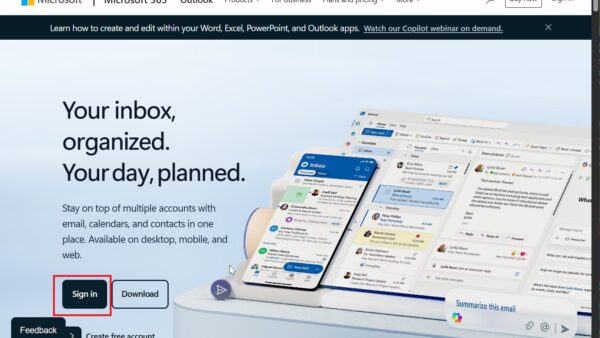
- Sign in to Microsoft 365 and open your notebook and page.
- Go to Home and select Dictate.
- If the browser asks for microphone access, allow it. If you see a microphone message, refresh the page, select Dictate again and grant the permission.
- Wait until the Dictate button turns on and starts listening.
- Start speaking. The text appears on the page as you talk.
The gear icon in the dictation toolbar lets you pick the spoken language and the microphone, and it has a profanity filter. By default, Dictation uses your document’s language.
Voice commands you can use
Dictate understands spoken commands as well as text:
- Punctuation: say “period”, “comma” or “question mark”. Say “new line” to start a new line.
- Corrections: say “delete that” to remove the last thing you said, or “undo” to reverse an action.
- Formatting (web only): after dictating “review by tomorrow at 5PM”, say “bold tomorrow” to bold that word.
- Comments: say “add comment look at this tomorrow” to insert a comment.
- Control: say “pause dictation” or “exit dictation”. Press ALT + ` to resume.
Supported dictation languages
Microsoft lists Chinese (China), English (Australia, Canada, India, United Kingdom, United States), French (Canada, France), German, Hindi, Italian, Japanese, Portuguese (Brazil) and Spanish (Spain, Mexico). More preview languages are offered too, but they can be less accurate and have limited punctuation support.
Is OneNote dictation private?
Your speech is sent to Microsoft to turn it into text. Microsoft states that the service does not store your audio data or the transcribed text, and uses your speech only to return the text results.
Tips for better results
Speak clearly at a normal pace, and say punctuation out loud as you go rather than fixing it afterwards. Once your notes are captured, a few OneNote note-taking tips help you keep them organized, and Windows keyboard shortcuts speed up any editing you still do by hand.